





How To Create Custom Maps In Age of Empires 4
How to Create Custom Maps in Age of Empires 4
Creating custom maps in Age of Empires 4 is easier than you might think. With the Essence Editor built into the game, you can design and customize your own maps with different layouts, biomes, and sizes. This guide will walk you through the entire process, from accessing the editor to saving your finished creation.
Accessing the Essence Editor
To begin creating custom maps, you’ll first need to open the Essence Editor. Start by going to your gaming platform—for most players, this will be Steam. Right-click on Age of Empires 4 in your library and select Manage, then Browse local files.
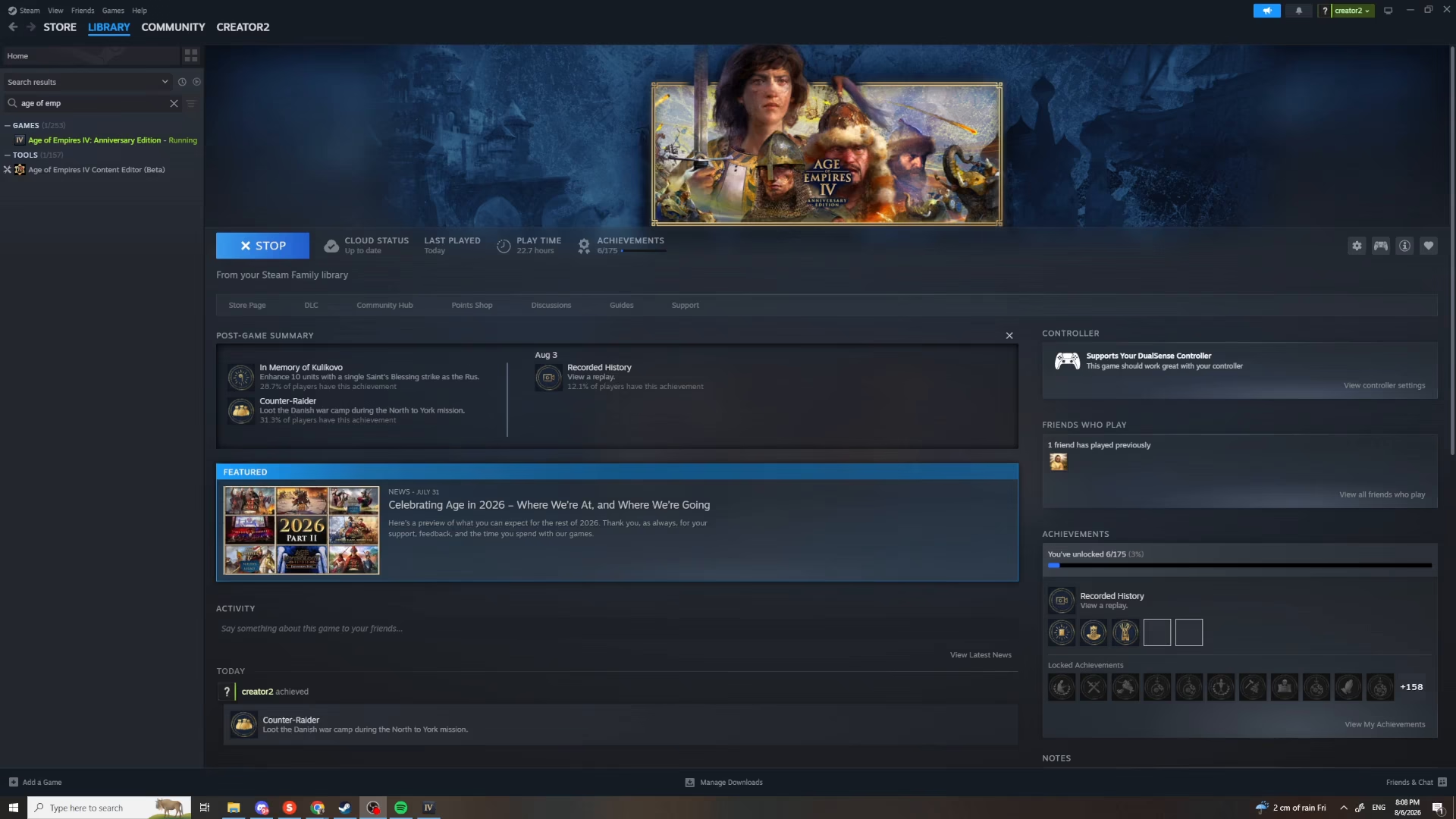
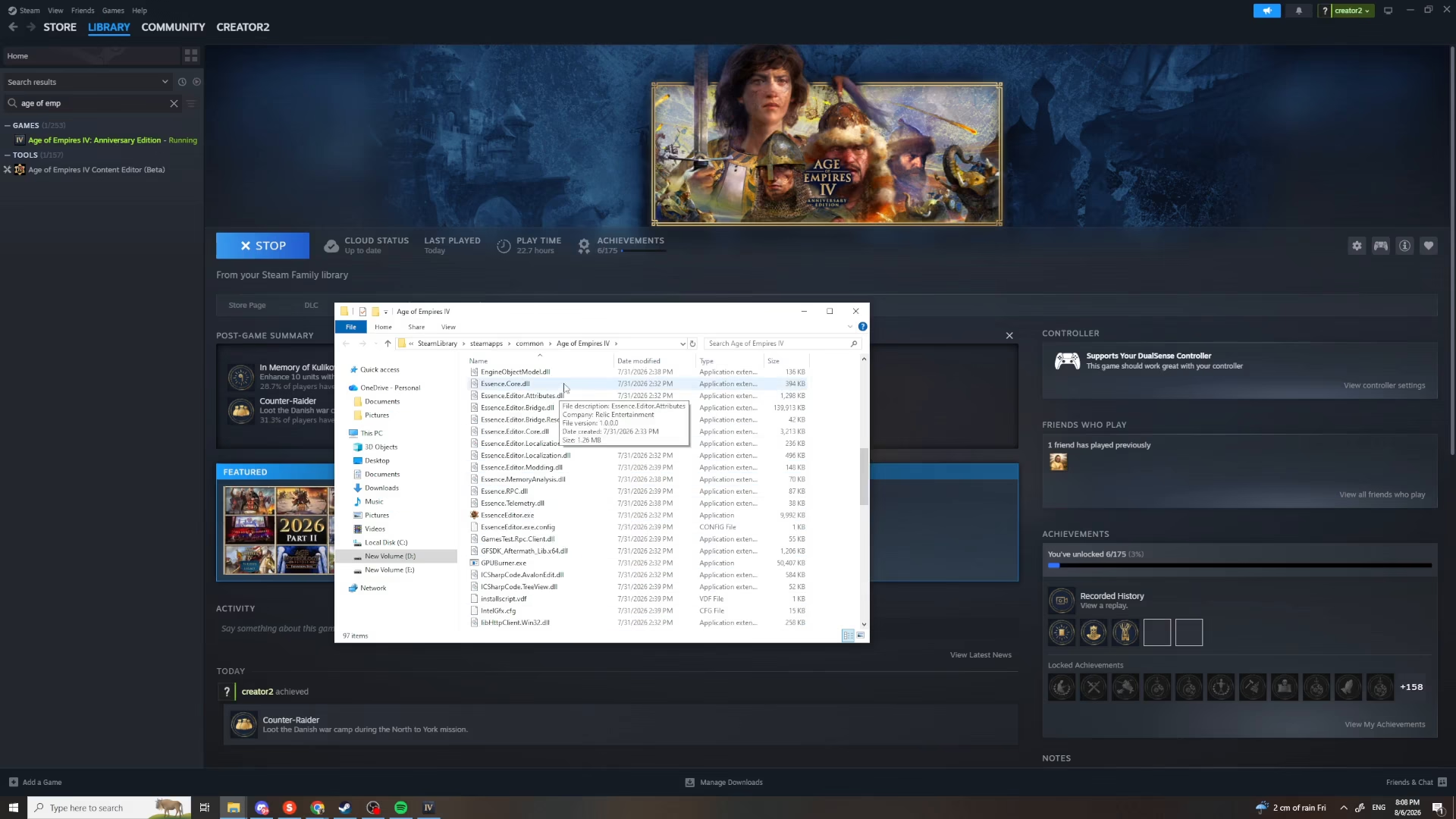
Once you’ve opened the local files folder, locate the Essence Editor application and double-click it to launch the Content Editor for Age of Empires 4.
Creating a New Custom Map
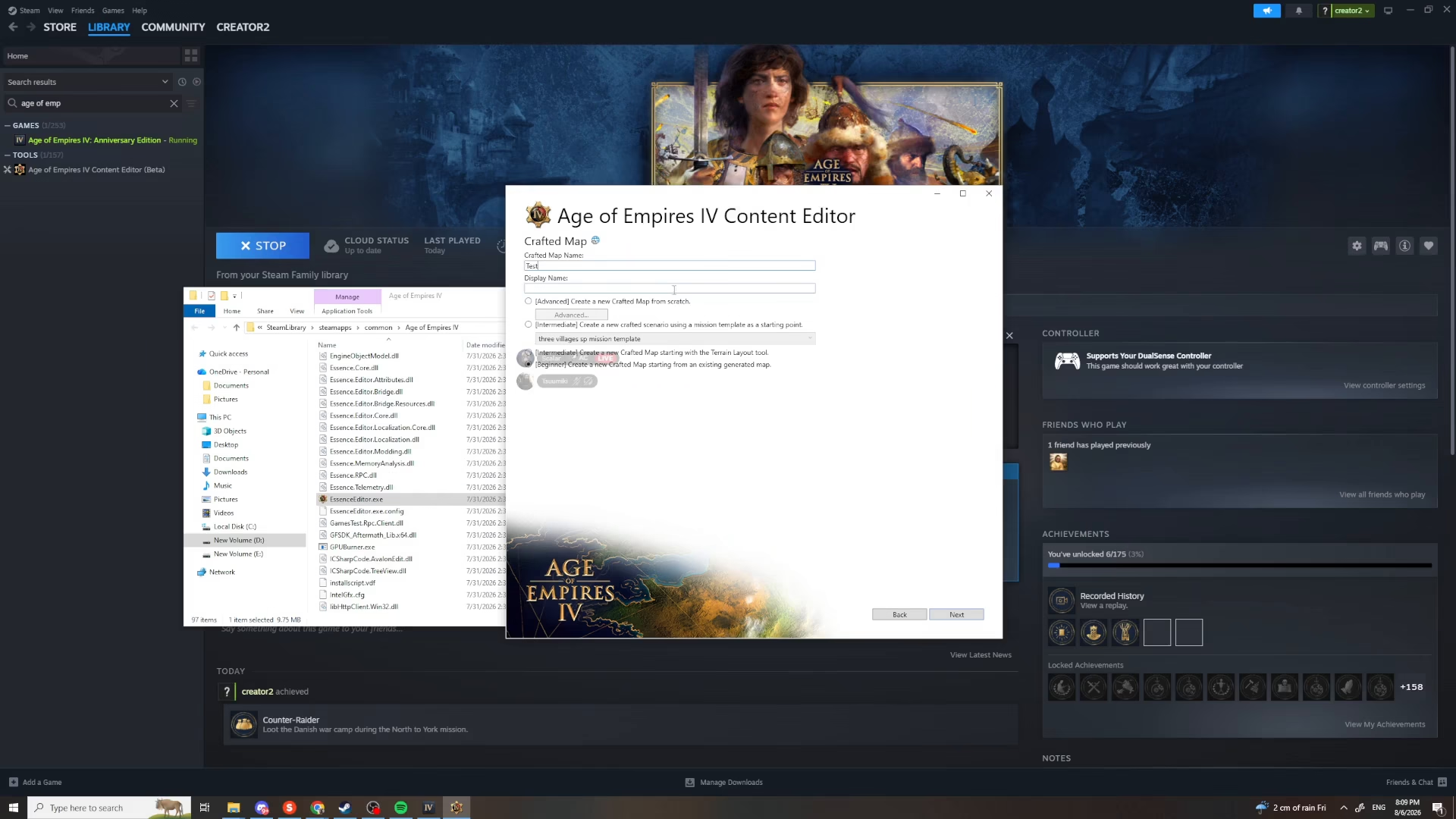
With the Essence Editor now open, you’re ready to create your custom map. Click on Create a new mod, then select Crafted map from the available options.
Naming Your Map
After selecting “Crafted map,” you’ll be prompted to name your project. Enter a name for your map—for example, “test”—as the play name. Once you’ve entered your desired name, click Next to proceed to the next step.
Configuring Map Settings
Now you’ll configure the essential settings for your custom map. You’ll need to select three key parameters:
Layout: Choose your preferred map layout
Biome: Select the visual biome/environment for your map
Size: Determine the overall size of your map
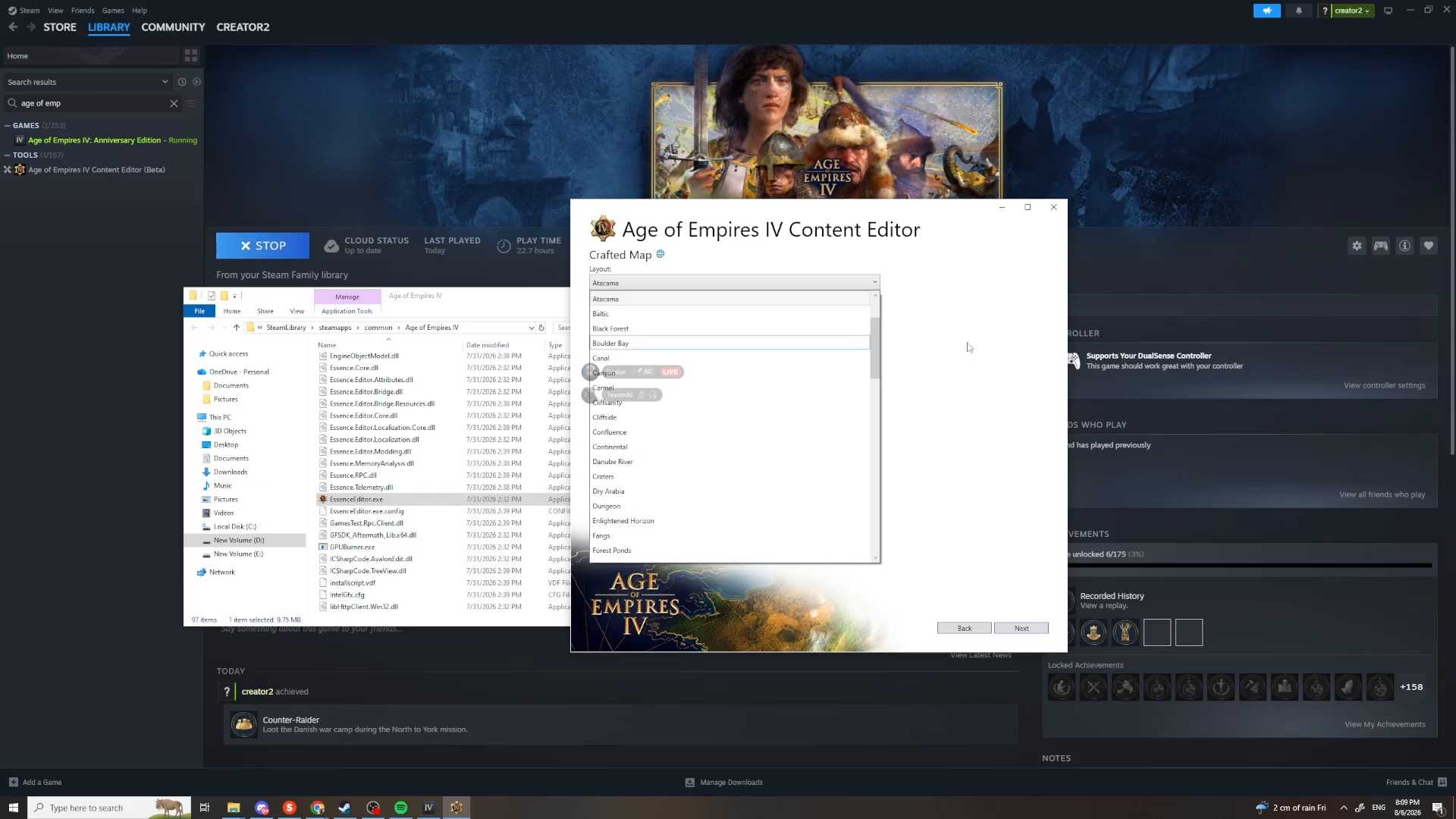
After configuring these settings, click Next to continue.
Adding a Description
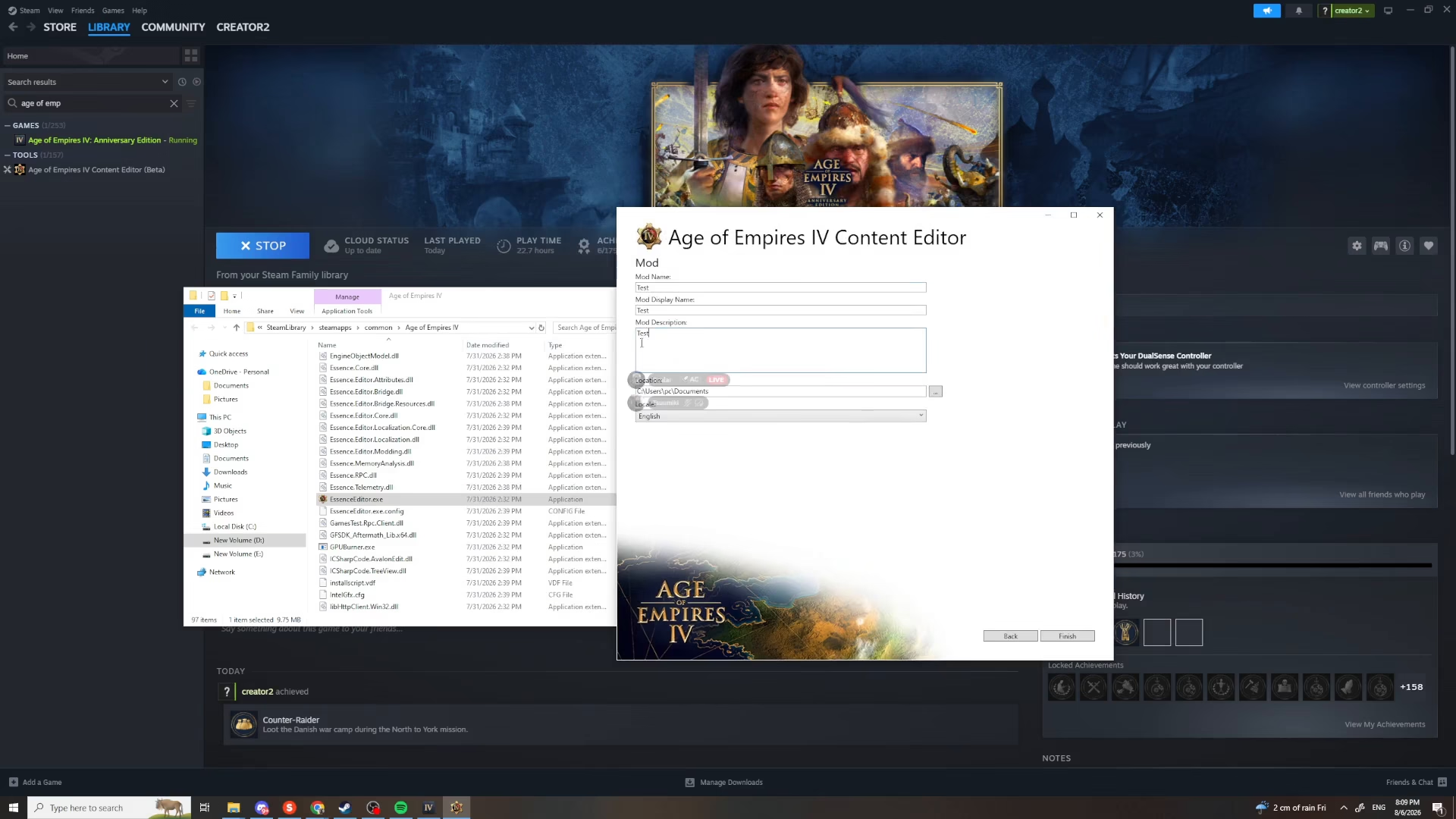
You’ll now have the option to add a description for your custom map. Enter any relevant details about your map—for instance, “test” as a placeholder. Once you’ve added your description, click Finish to create the map.
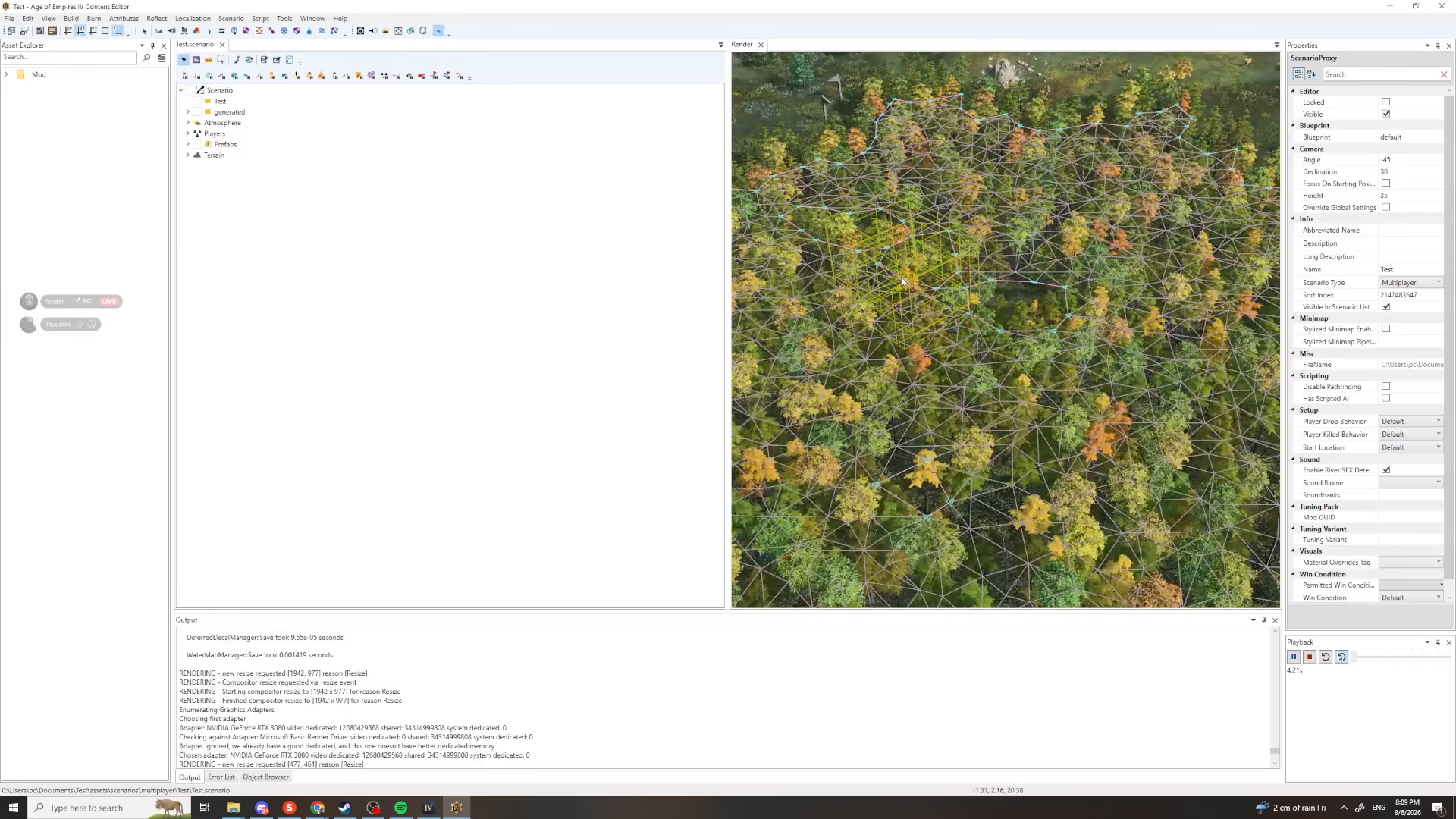
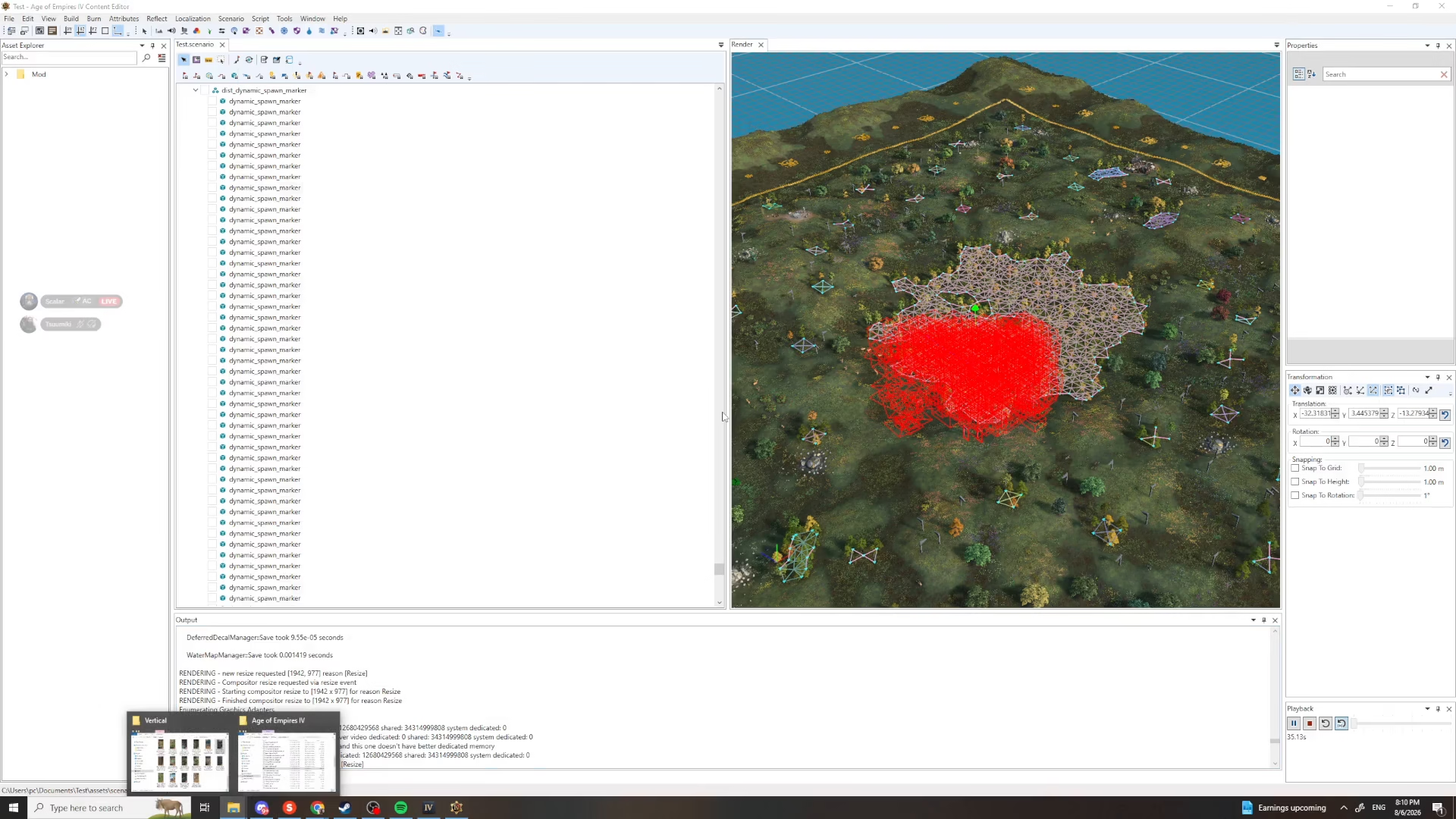
The editor will now load your custom map. Be patient as it initializes—this may take a few moments depending on your system.
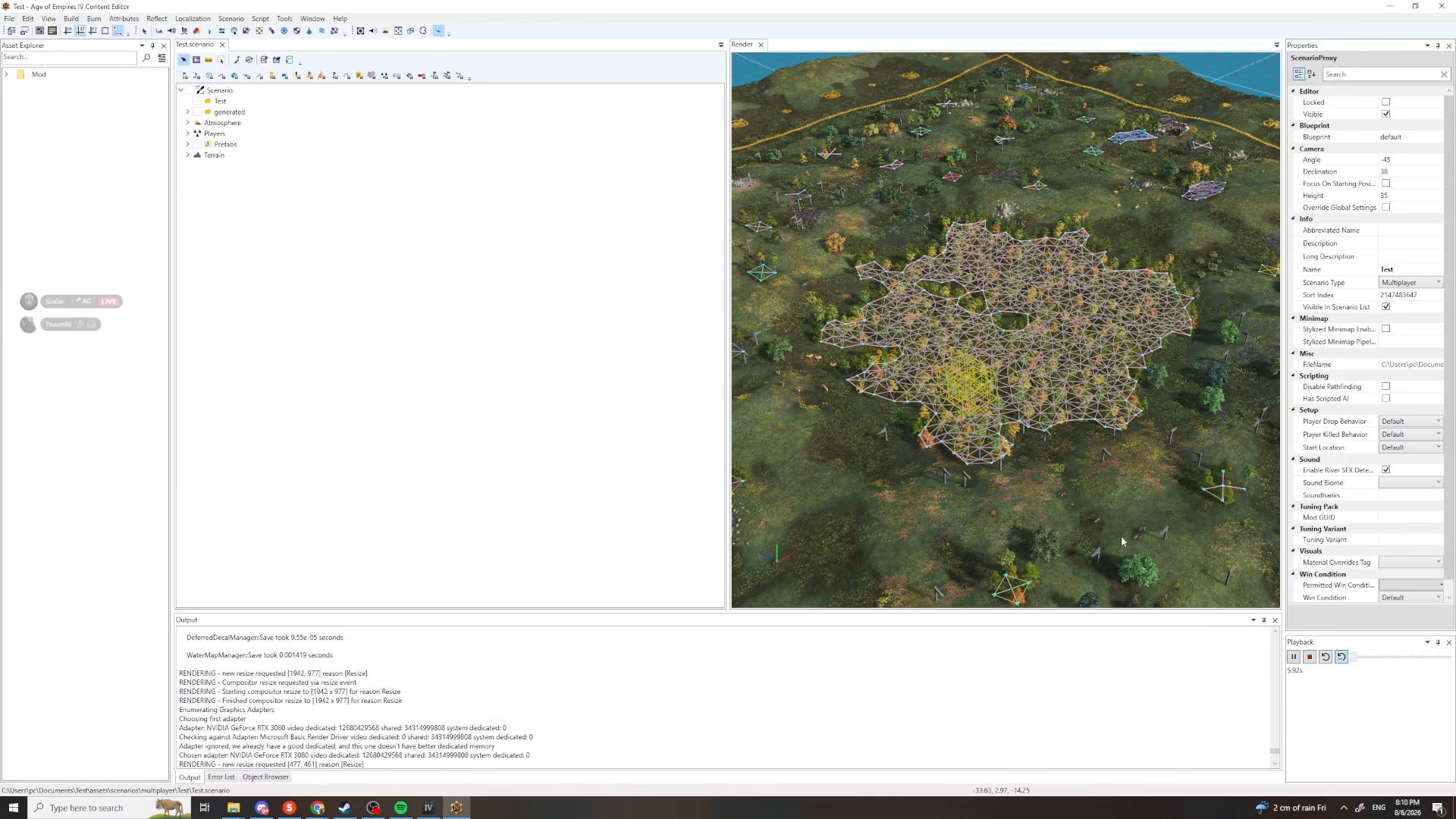
Editing Your Custom Map
Once the map has fully loaded, you can now edit it to your specifications. The Essence Editor provides all the tools you need to customize terrain, add structures, place units, and design the map layout exactly as you envision it. Take your time to craft the perfect custom map experience.
Saving Your Custom Map
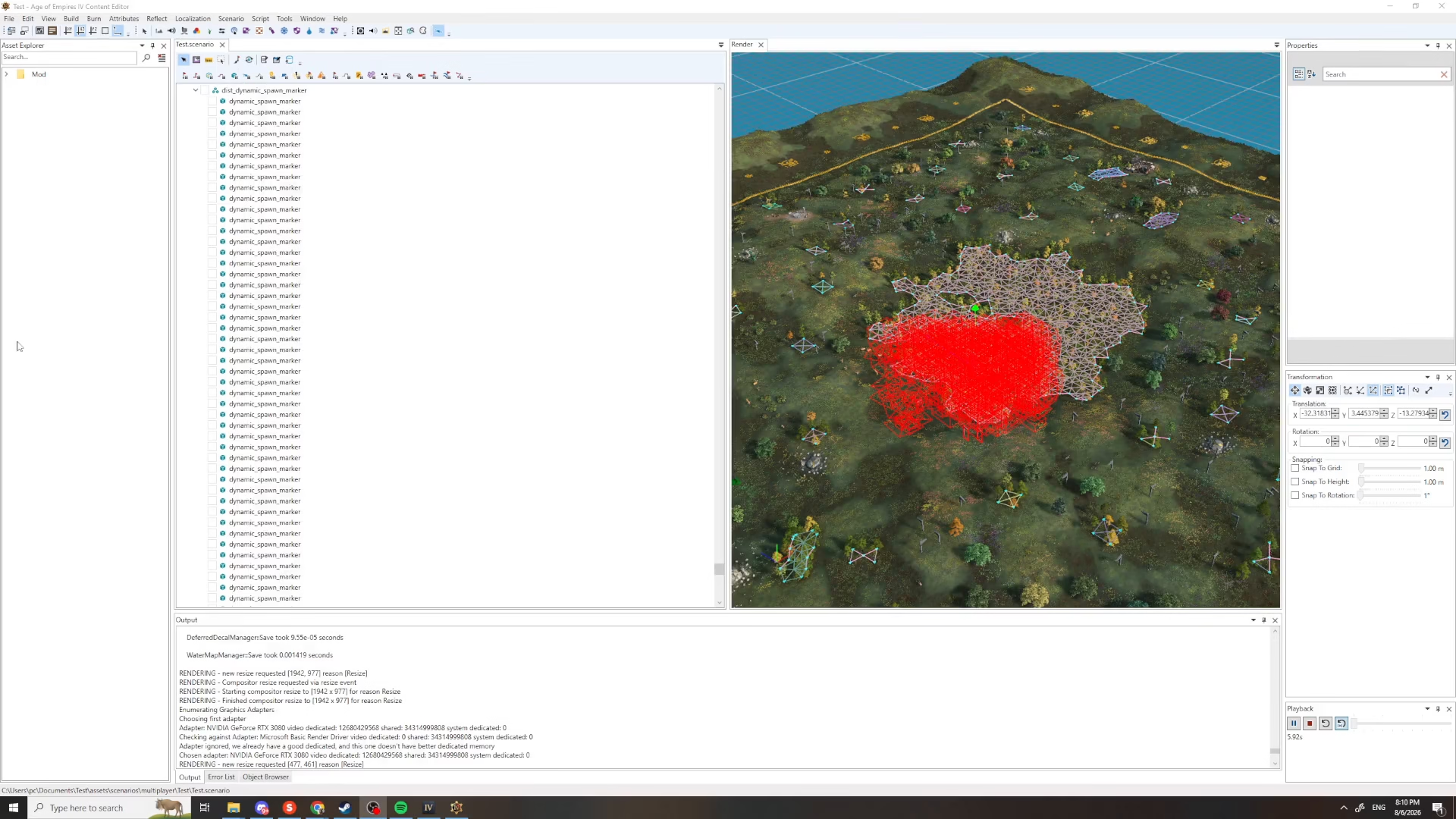
When you’re satisfied with your custom map design, it’s time to save your work. Navigate to the File menu in the top left corner of the editor.
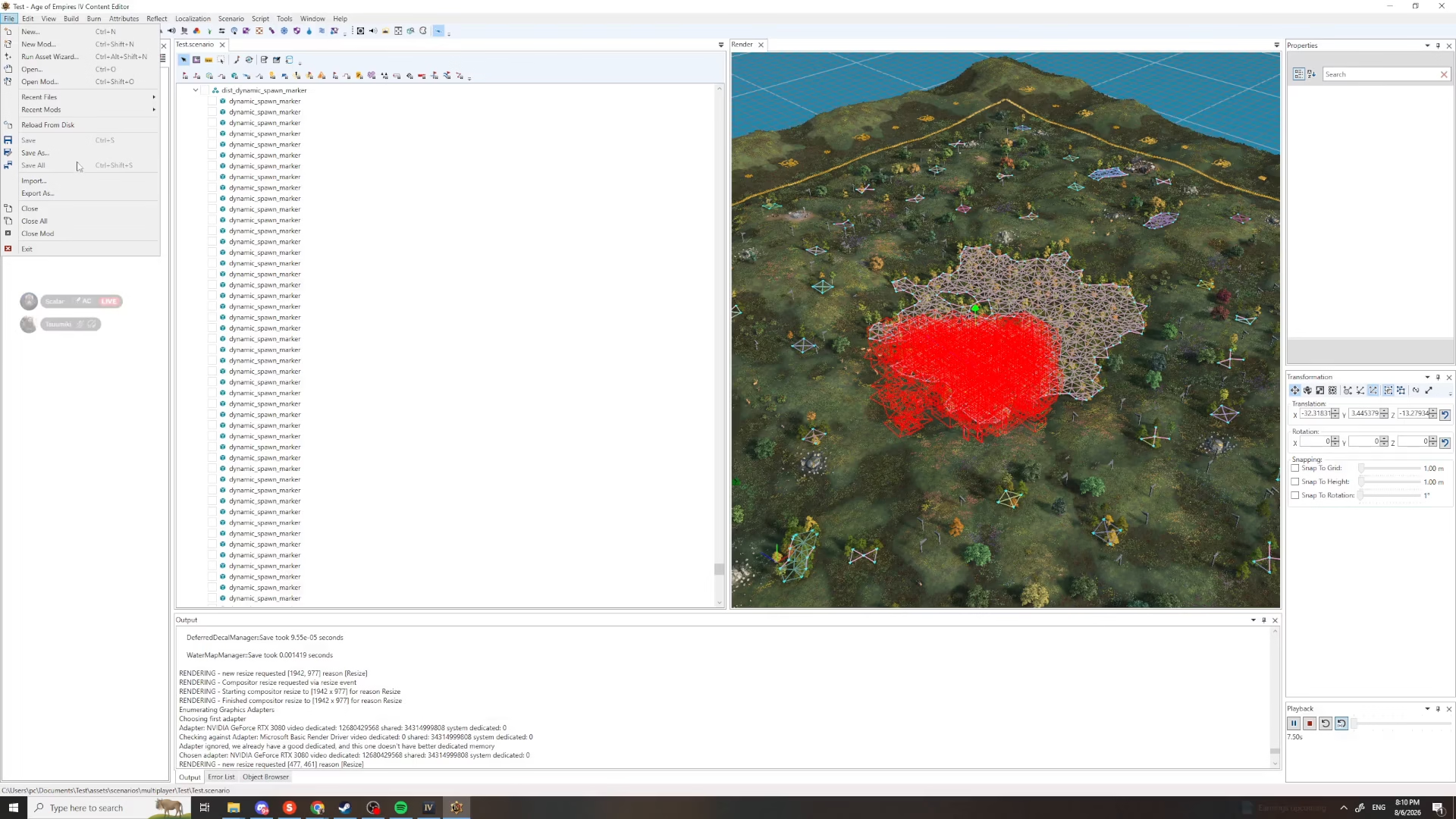
From the File menu, select Save As to save your map with a specific filename and location.
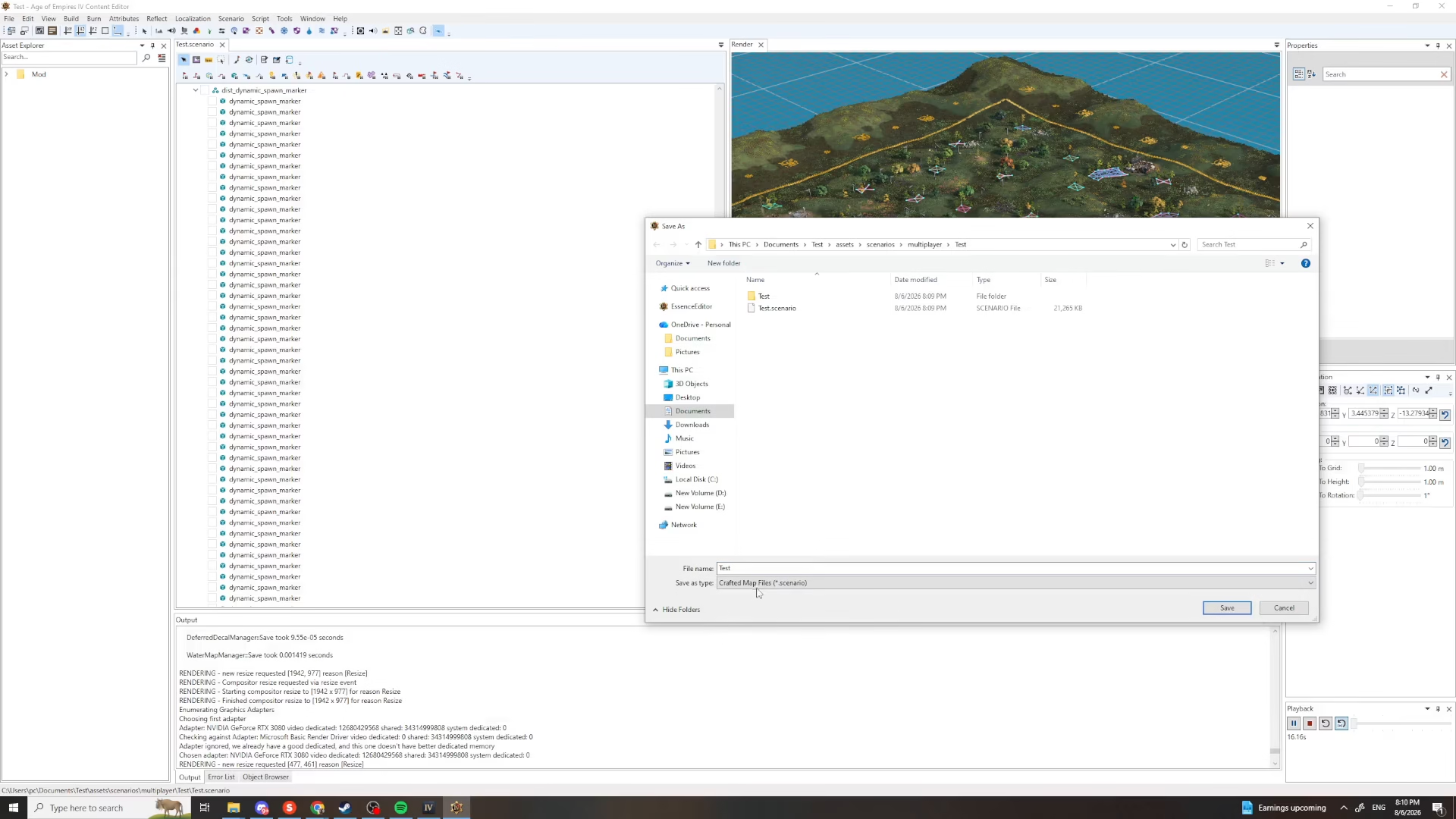
Choose the folder where you’d like to save your map, and enter your desired filename. Use the format test.crafted map files.scenario (replacing “test” with your chosen map name), then click Save to complete the process.
Using Your Custom Map
Congratulations! You’ve successfully created your custom map. Locate the folder where you saved your map file, and you’re ready to use it in your games. Your custom map is now available for play and can be shared with other Age of Empires 4 players.
Conclusion
Creating custom maps in Age of Empires 4 is a straightforward process that anyone can master. By following these simple steps—accessing the Essence Editor, configuring your map settings, designing your layout, and saving your work—you’ll be able to create unique, personalized maps that enhance your gameplay experience. Whether you’re designing maps for single-player campaigns or multiplayer matches, the creative possibilities are endless.
— Want to Support? —
If you would like to help us continue making these guides – please consider joining our patreon here – https://www.patreon.com/c/JaviHeals
Alternatively – you can join our discord here – https://discord.gg/zD7Gjt6MHF