How to Use The Printer in Pokopia
How to Use The Printer in Pokopia: Complete Item Cloning Guide
The Printer at the Poke Center in Pokopia is a powerful tool that allows you to clone items and expand your inventory. This guide will walk you through the entire process of using the printer to duplicate any item you can photograph, from storage boxes to other valuable goods.
Understanding the Printer System
The printer in Pokopia’s Poke Center works on a simple principle: photograph an item, then use Poke Metal currency to create duplicates. You can clone virtually anything that you’re able to take a picture of, making it an essential feature for resource management throughout your gameplay.
Step-by-Step Guide to Cloning Items
Step 1: Access the Camera Mode
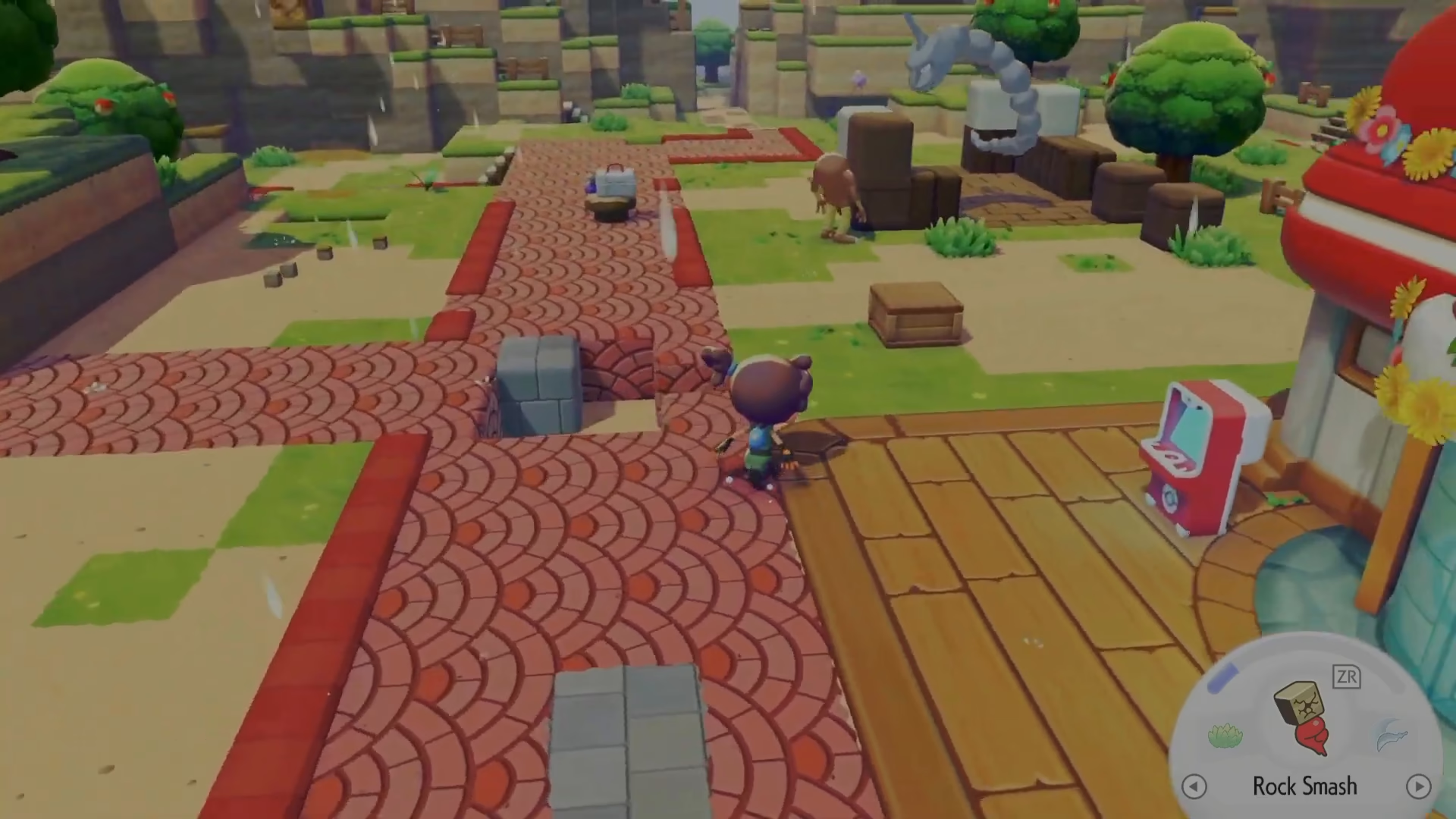
Open your menu and navigate down to the Camera option. Once you’ve opened the camera, you’ll need to access the “Take Pictures” feature to begin the cloning process.
Step 2: Switch to Item Mode
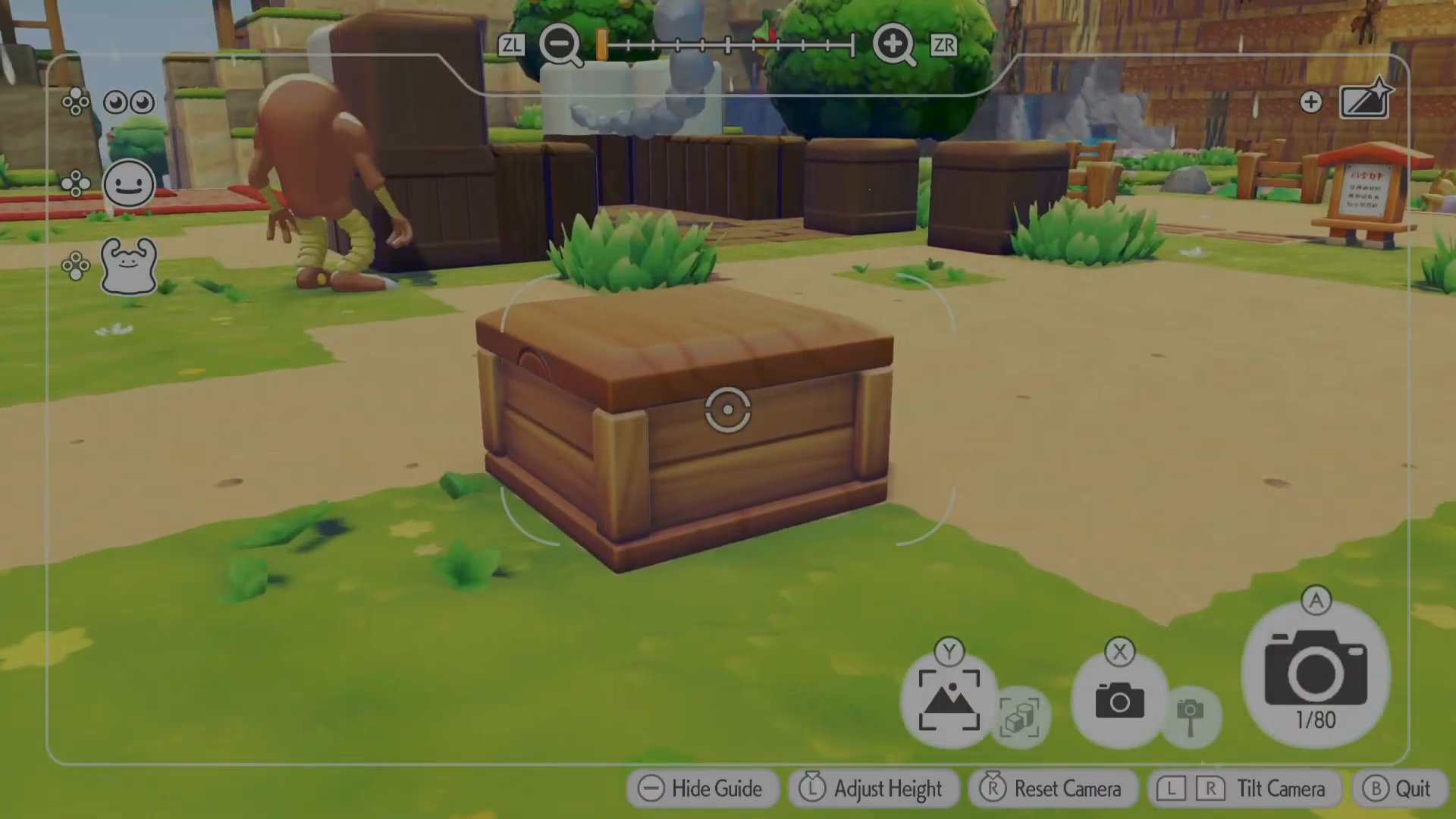
The camera has multiple modes, and you need to ensure you’re in Item mode specifically. Item mode is clearly labeled in the camera interface—look for the toggle switch that displays the item photography option. Make sure it looks correct before proceeding.
Step 3: Photograph Your Target Item
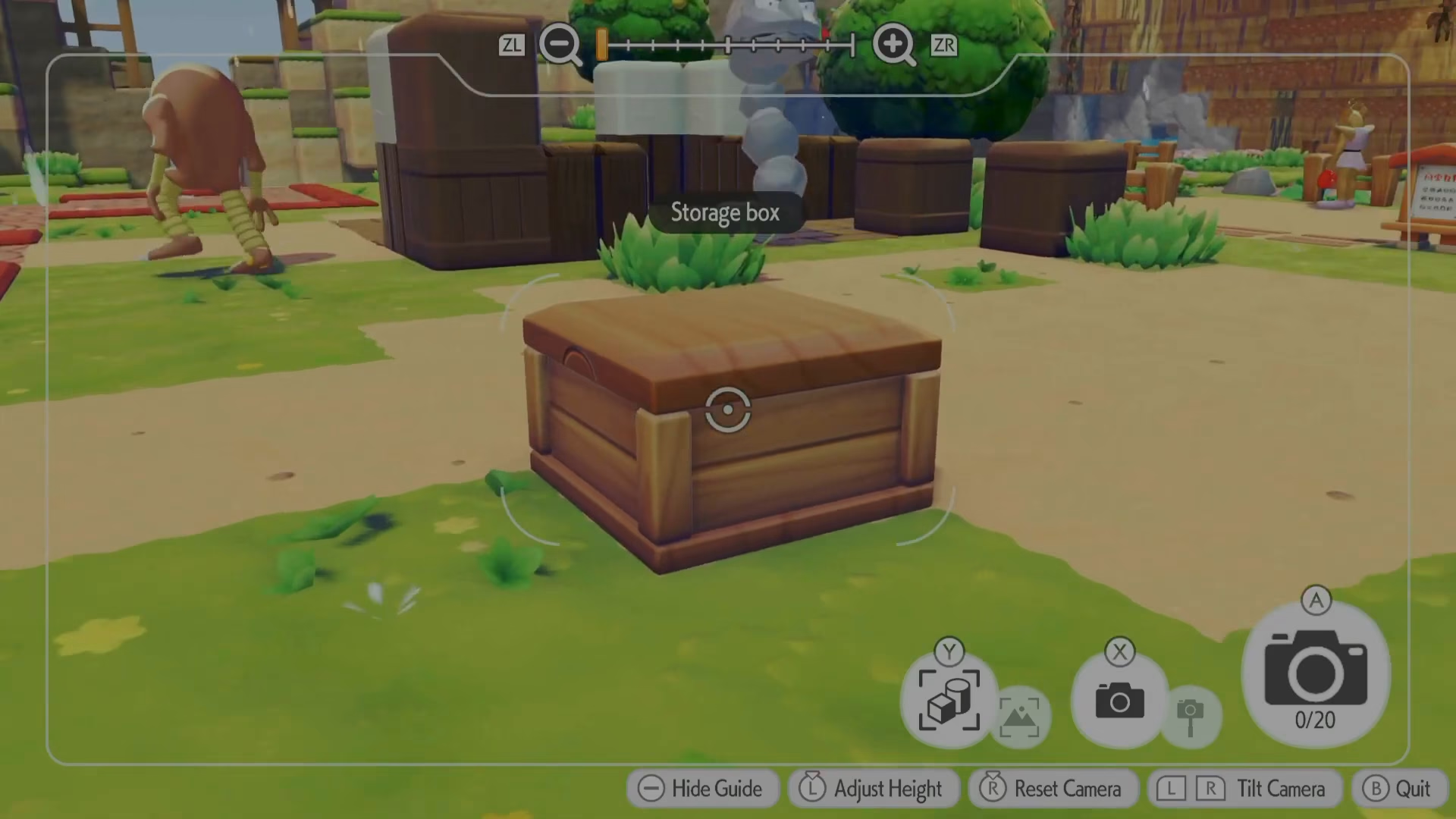
Hover over the item you want to clone—for example, a Storage Box. When you hover over it, the item name will appear on your screen (e.g., “Storage Box”). Press the A button to take a photograph of the item. Confirm that the item name displays correctly on the screen after taking the picture.
Step 4: Return to the Poke Center
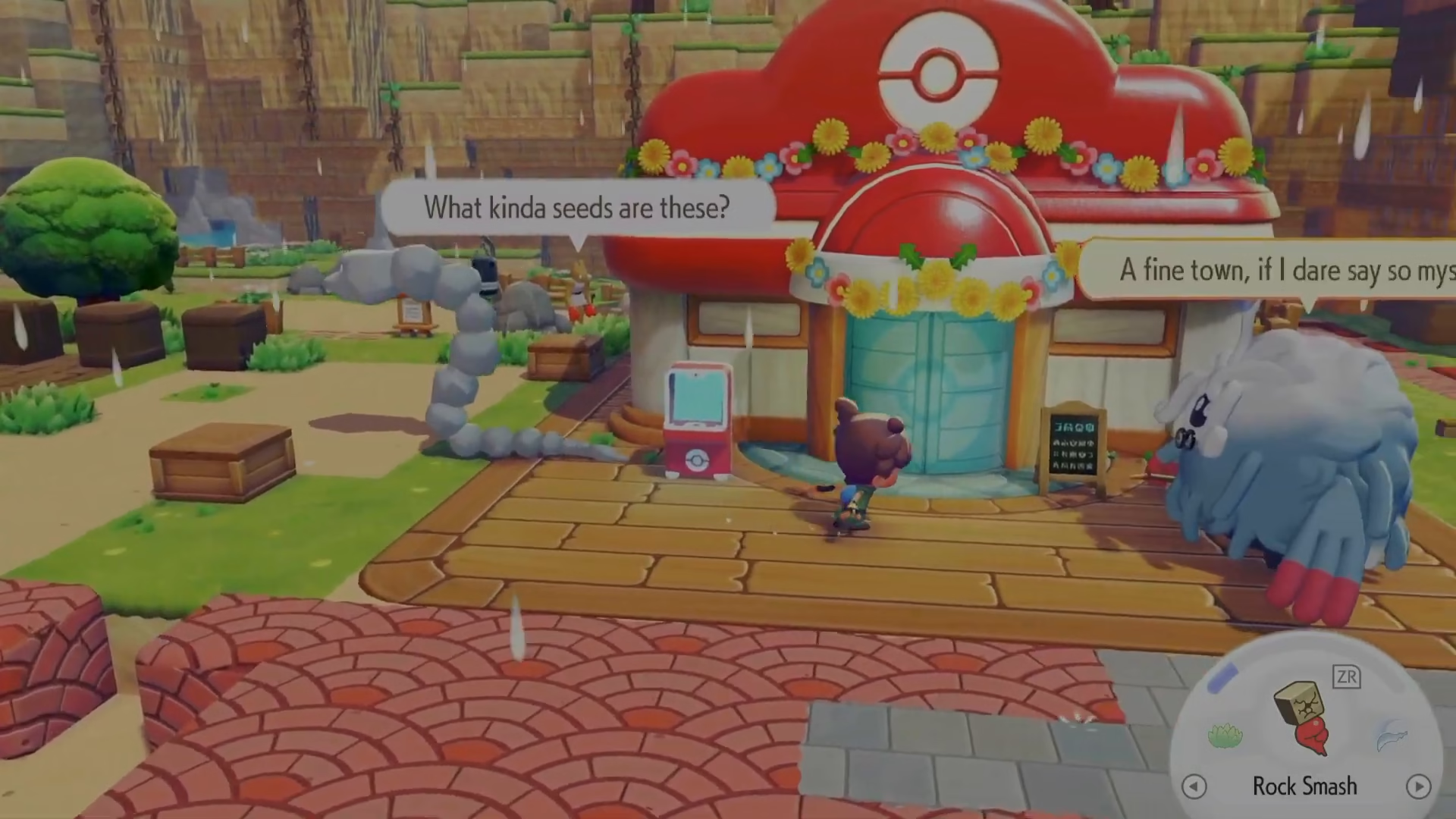
Once you’ve successfully photographed the item, head back to the Poke Center where the printer is located.
Step 5: Use the Printer to Create Duplicates
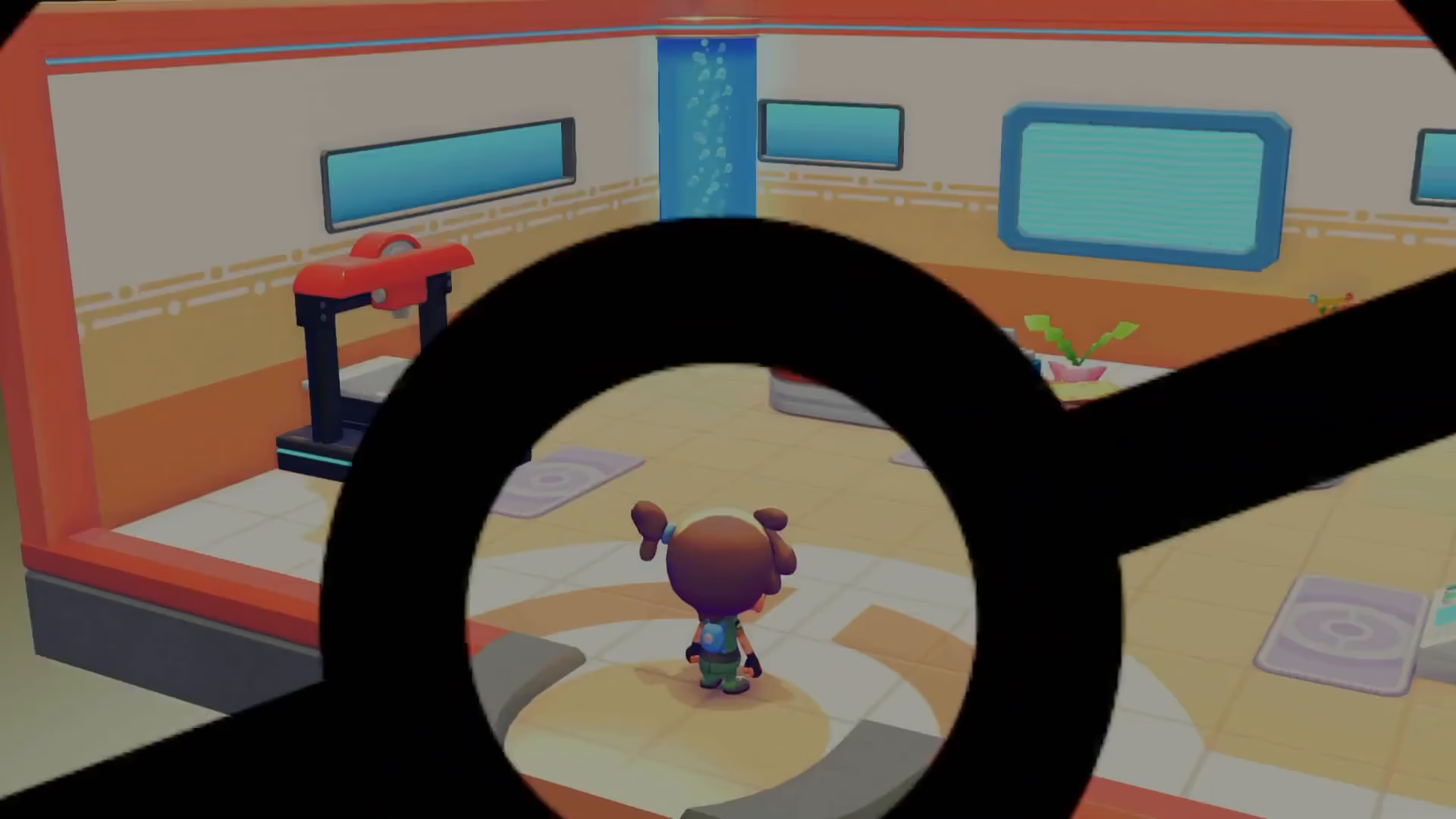
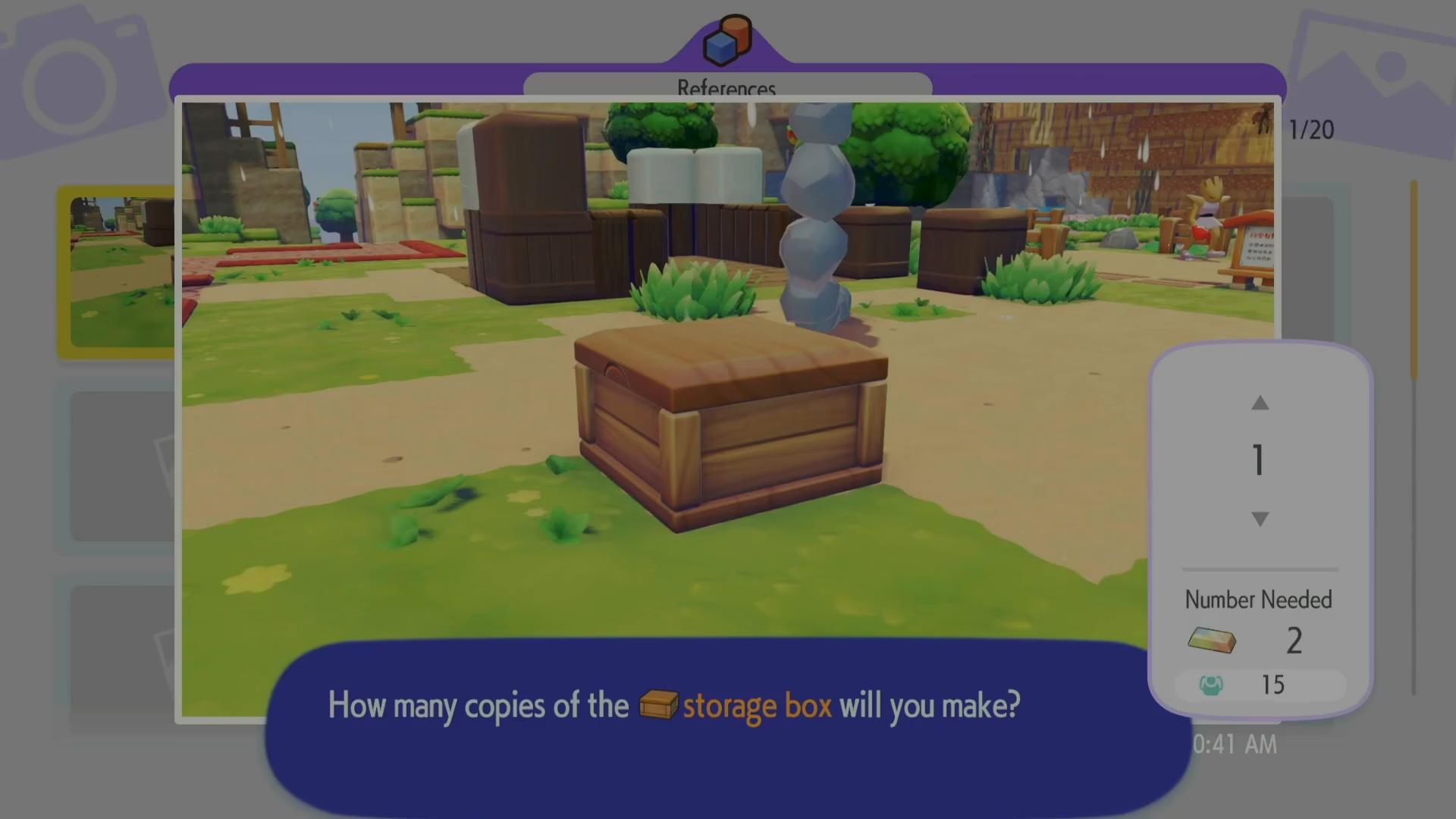
Interact with the printer and select the item you want to copy. The printer will prompt you to select how many copies you want to make. On the right-hand side of the screen, you’ll see a display showing how much Poke Metal currency is required for your cloning request.
Step 6: Confirm and Complete the Clone
Check your Poke Metal balance to ensure you have enough currency. For example, if you need 2 Poke Metal and have 15 available, you have sufficient funds. Confirm that you want to proceed with creating the Storage Box (or your chosen item), and the printer will begin the duplication process. Once complete, collect your cloned item.
Important Notes About Poke Metal
Poke Metal is the currency required to operate the printer. While it can be somewhat difficult to obtain early in the game, it becomes more accessible as you progress further through Pokopia. Budget your Poke Metal wisely when deciding which items to clone.
Summary
Using the printer in Pokopia is straightforward once you understand the process: access your camera, switch to Item mode, photograph the item you want to clone, return to the Poke Center, interact with the printer, select your desired quantity, and confirm the duplication using your Poke Metal. With this system, you can effectively duplicate any photographable item to expand your resources and inventory throughout your adventure.
Want to Support?
If you would like to help us continue making these guides – please consider joining our patreon here – https://www.patreon.com/c/JaviHeals
Alternatively – you can join our discord here – https://discord.gg/zD7Gjt6MHF