





How To Prevent Steam From Updating In Fallout 4
How To Prevent Steam From Updating Fallout 4
If you’re running mods or a specific version of Fallout 4 and don’t want Steam to automatically update your game, there’s a simple solution. By modifying a single file’s properties, you can prevent Steam from overwriting your game files. This guide walks you through the process step-by-step.
Accessing Your Game Files
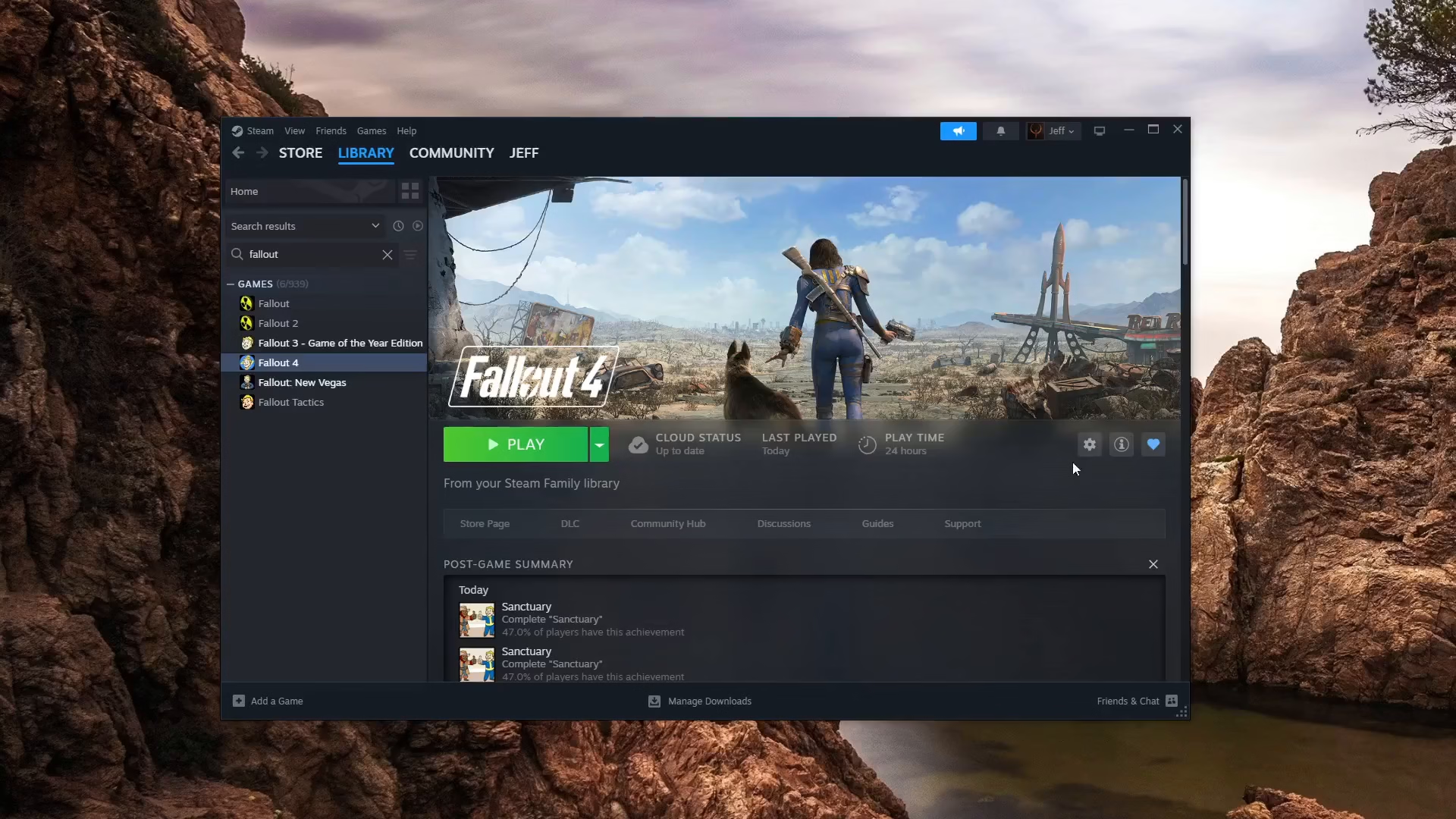
To start, navigate to your Fallout 4 page in Steam. Look for the small gear icon and click on it to open the options menu.
From the dropdown menu, select Manage, then click on Browse Local Files. This will open the folder where Fallout 4 is installed on your computer.
Locating the App Manifest File
Once you’re in the local files folder, you’ll need to back out of the current directory. Navigate back twice to reach the parent folder where Steam stores its app data.
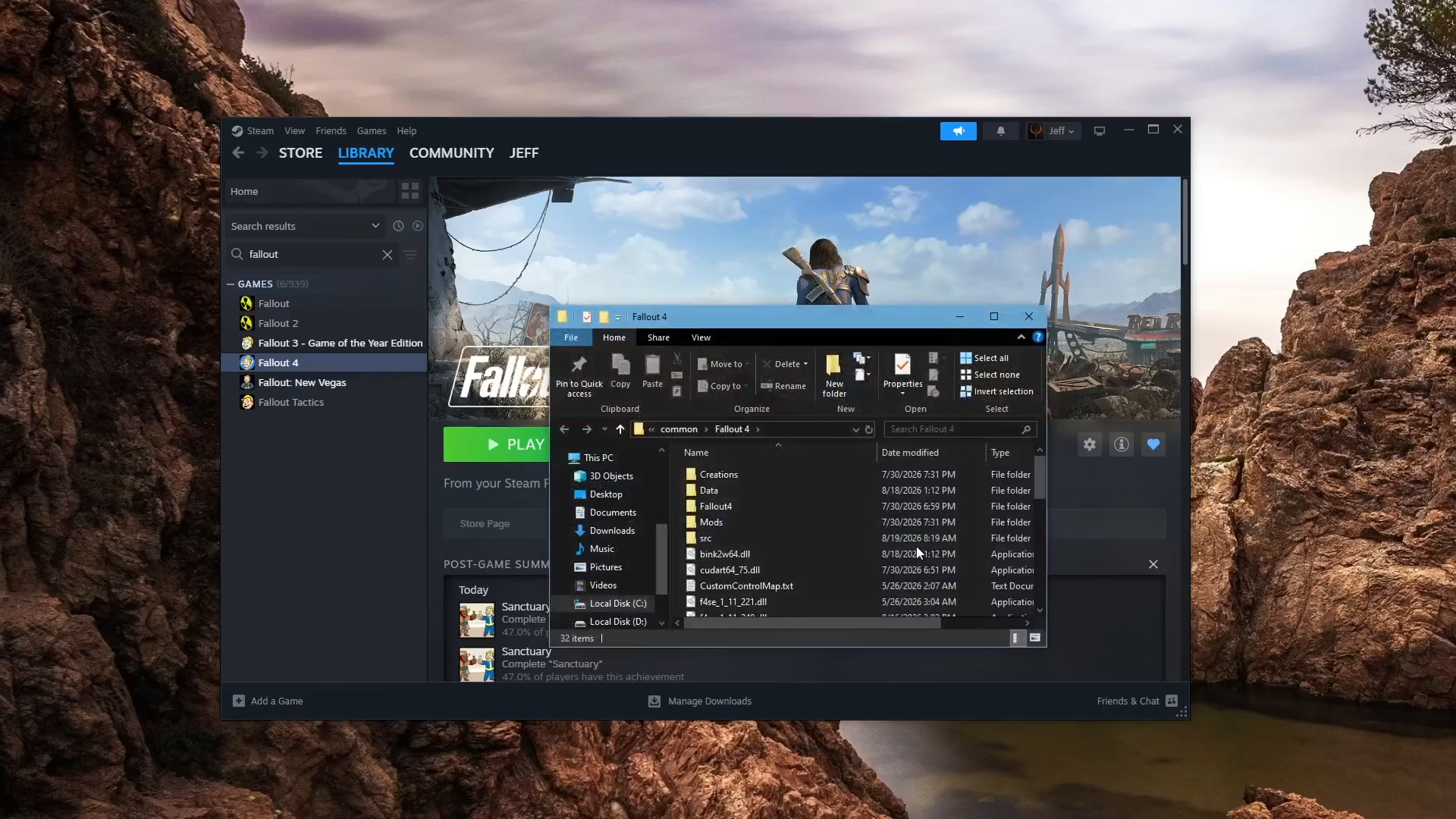
In this folder, look for the app manifest file for Fallout 4. The file you’re searching for is named appmanifest_237716 (or similar, depending on your installation). This is the critical file that controls how Steam manages updates for the game.
Setting the File to Read-Only
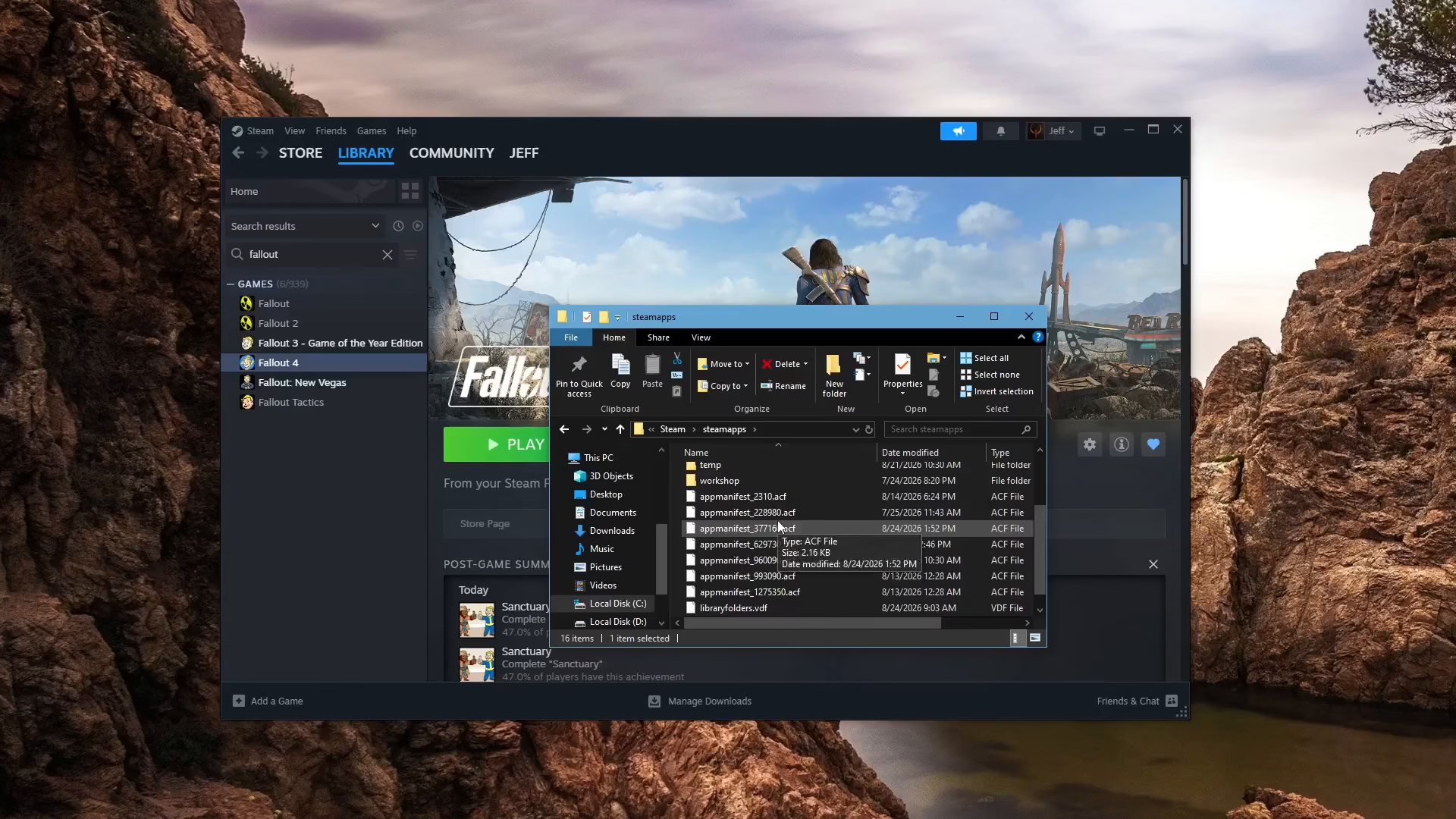
Once you’ve located the app manifest file, right-click on it to bring up the context menu.
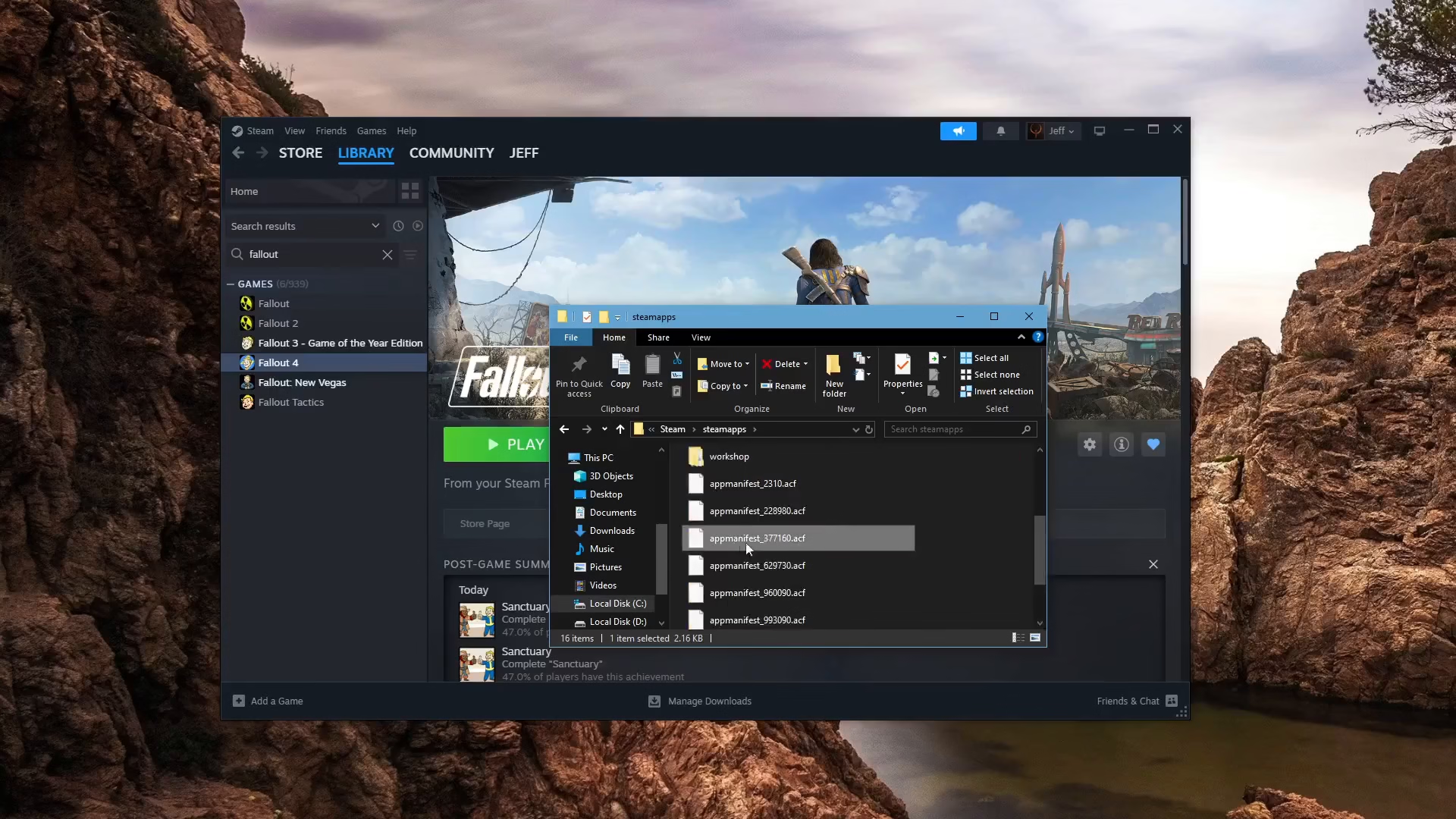
Select Properties from the menu to open the file properties dialog.
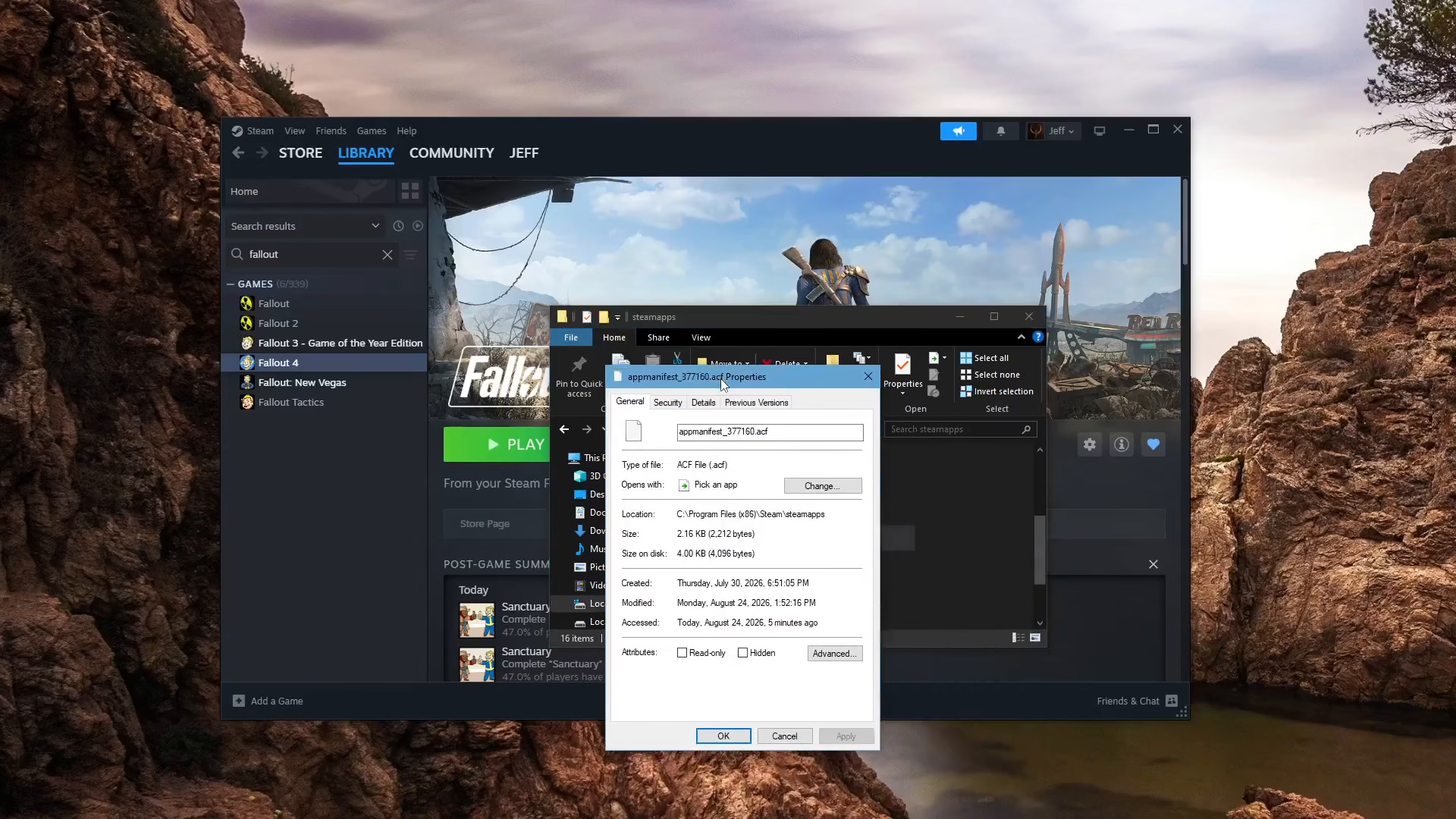
In the General tab, look for the Attributes section at the bottom of the window. Check the box next to Read-only. This is the key step that prevents Steam from updating Fallout 4.
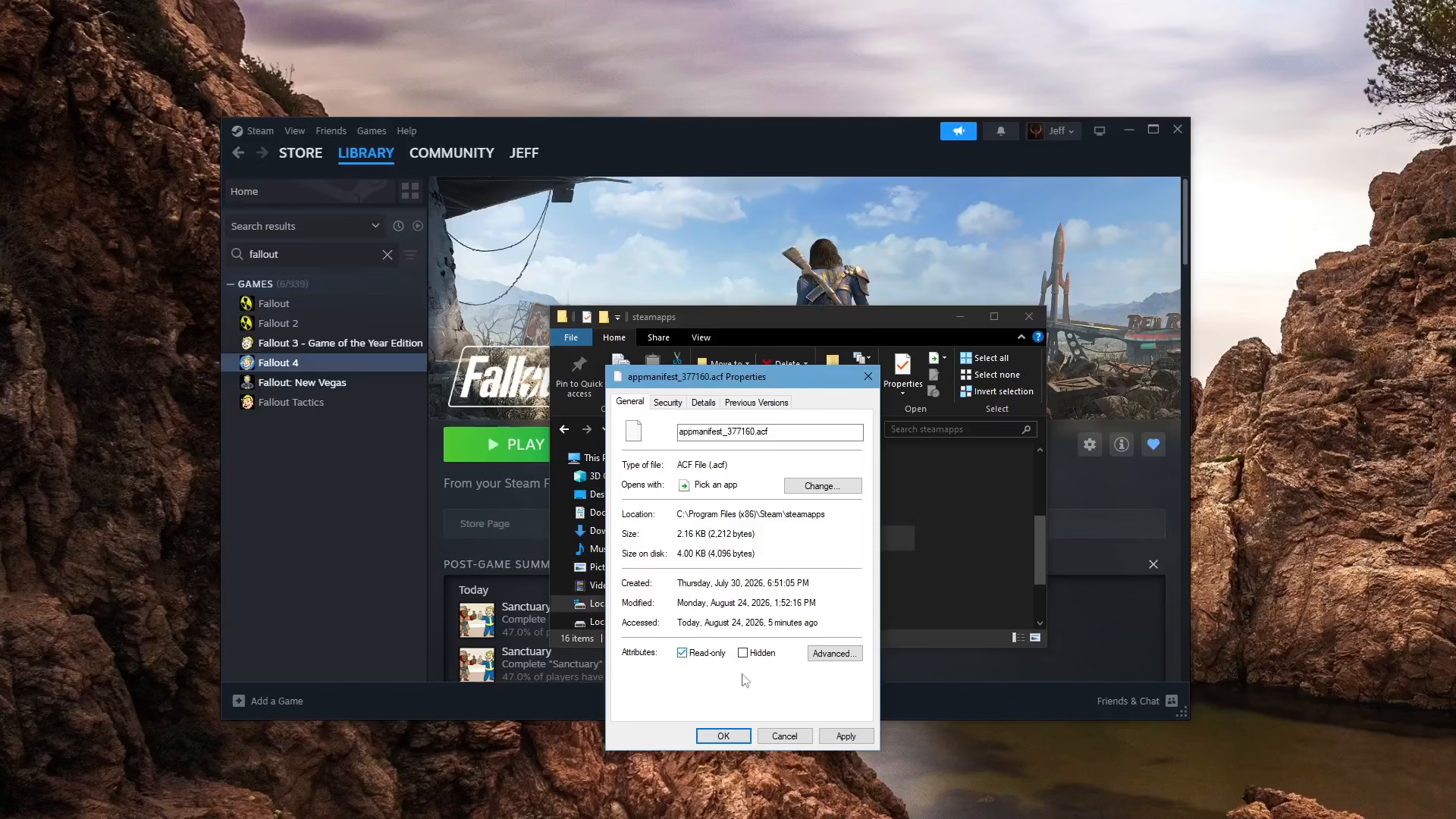
By setting this file to read-only, you’re preventing Steam from writing to or modifying it. Since Steam cannot update a read-only file, your game version will remain frozen at its current state, and automatic updates will be blocked.
Summary
Preventing Steam from updating Fallout 4 is straightforward: locate the appmanifest_237716 file in your Steam directory, right-click it, open Properties, and set it to read-only. This simple change tells Steam it cannot modify the file, effectively blocking all automatic updates. This method is useful for players who want to maintain a specific game version for modding purposes or compatibility reasons.
— Want to Support? —
If you would like to help us continue making these guides – please consider joining our patreon here – https://www.patreon.com/c/JaviHeals
Alternatively – you can join our discord here – https://discord.gg/zD7Gjt6MHF