




How to Use Admin Commands in Rust
How to Use Admin Commands in Rust
Admin commands in Rust give you powerful control over your server and gameplay experience. Whether you’re running a private server or managing your own game instance, learning to use admin commands is essential for server administration and testing features. This guide will walk you through the process of becoming an admin and using console commands effectively.
Setting Up Admin Access
Adding Your Steam ID to Your Server
Before you can use admin commands in Rust, you need to ensure you’re registered as an admin on your server. The process varies depending on your hosting provider, but the fundamental requirement is adding your Steam ID to the admin list.
If you’re hosting on G Portal or another hosting company, navigate to your server settings and locate the admin section. You’ll need to add your Steam ID to grant yourself admin privileges.
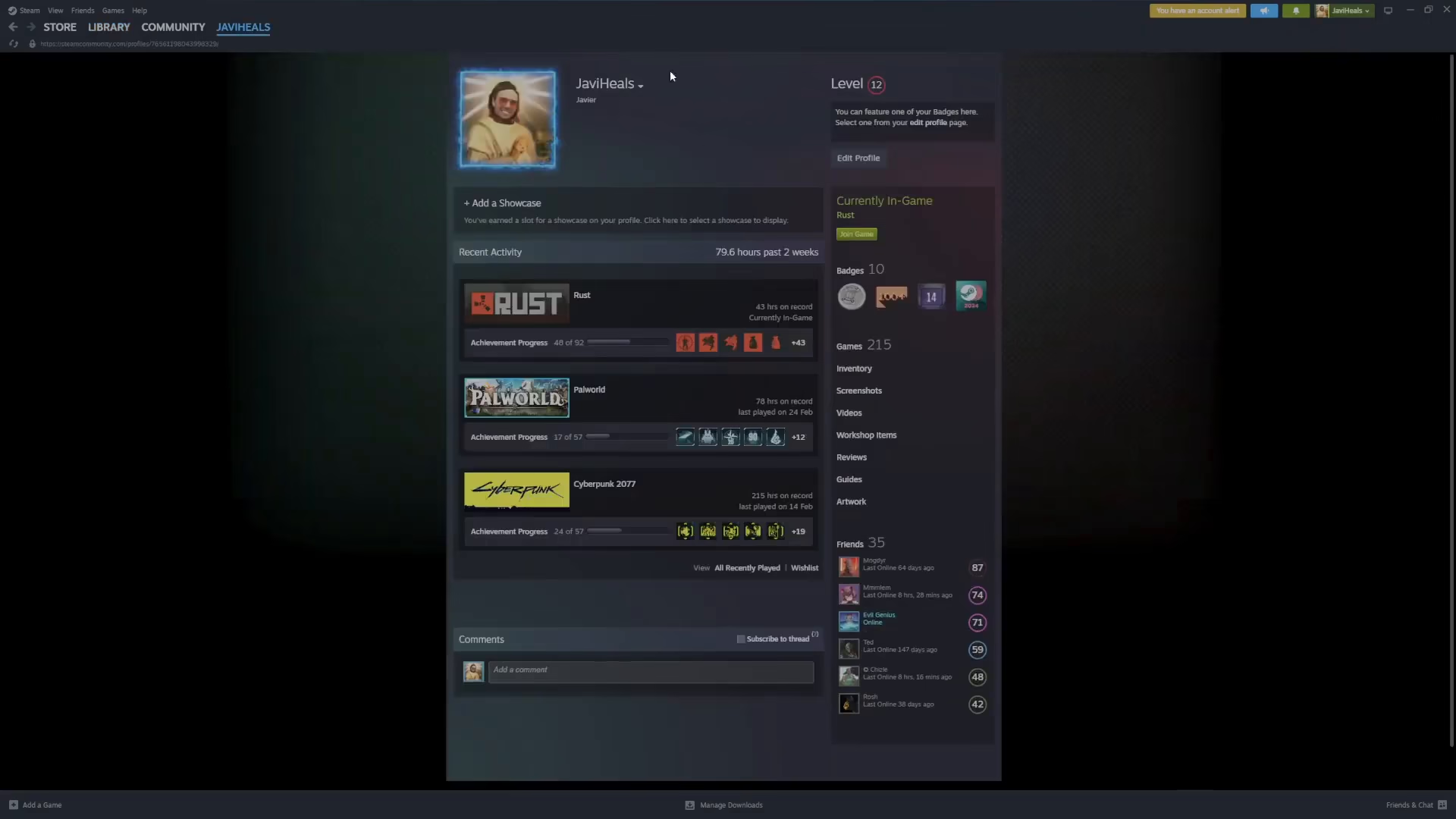
Finding Your Steam ID
To locate your Steam ID, follow these steps:
Go to your Steam profile
Right-click on your profile page
Select “Copy page URL”
Paste the URL into your browser
The numbers at the end of the URL are your unique Steam ID
Restarting Your Game
After your Steam ID has been added to the admin list by your server host or administrator, it’s crucial that you restart your game client. Note that you only need to restart your game—not the entire server. Once you restart, your admin status will be activated.
Accessing the Admin Console
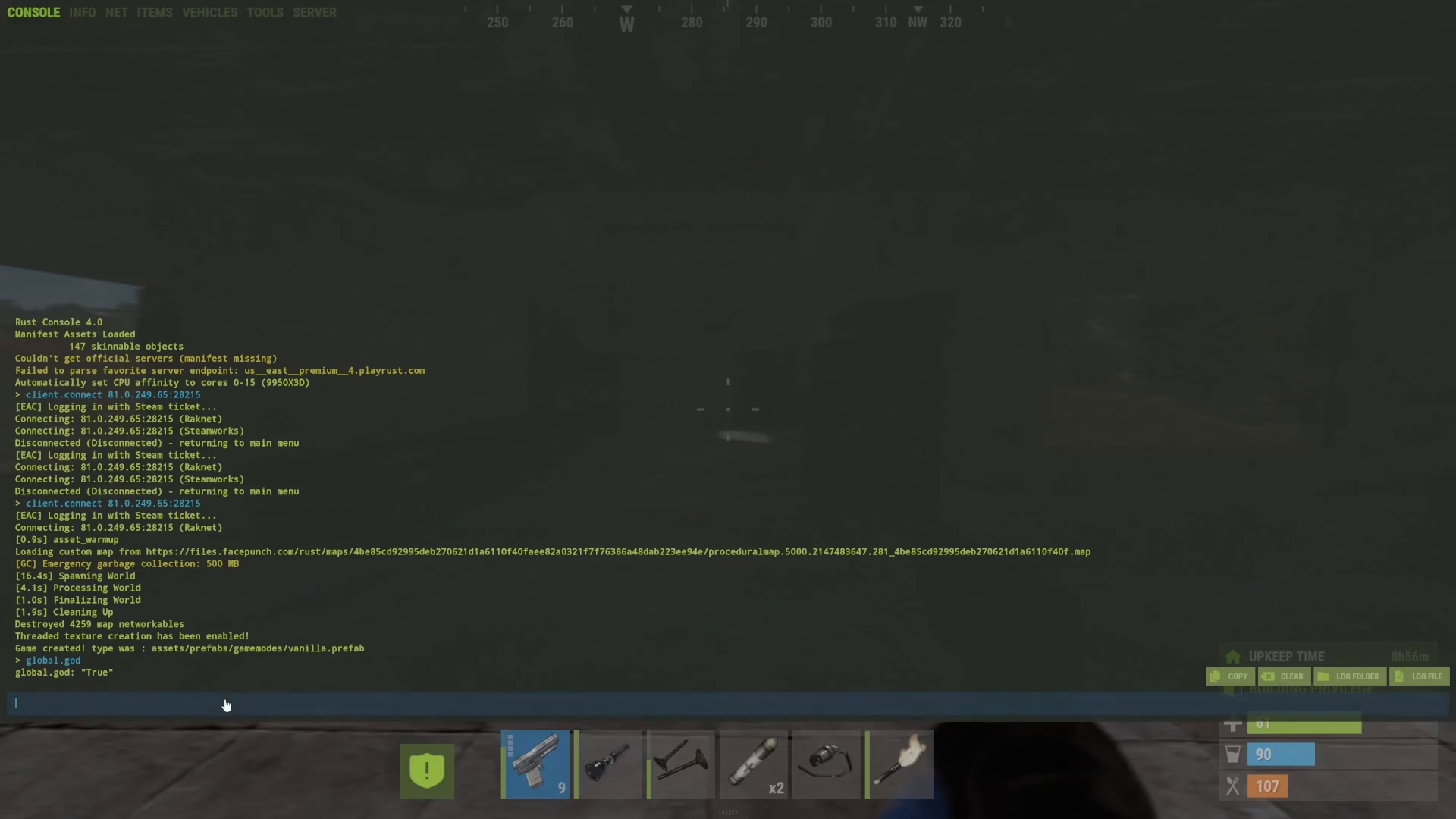
Once you’re set up as an admin and have restarted your game, accessing the console is simple and straightforward.
Press the F1 key on your keyboard. This will bring up the admin console window, which is your gateway to executing admin commands in Rust.
Using Admin Commands
Basic Command Entry
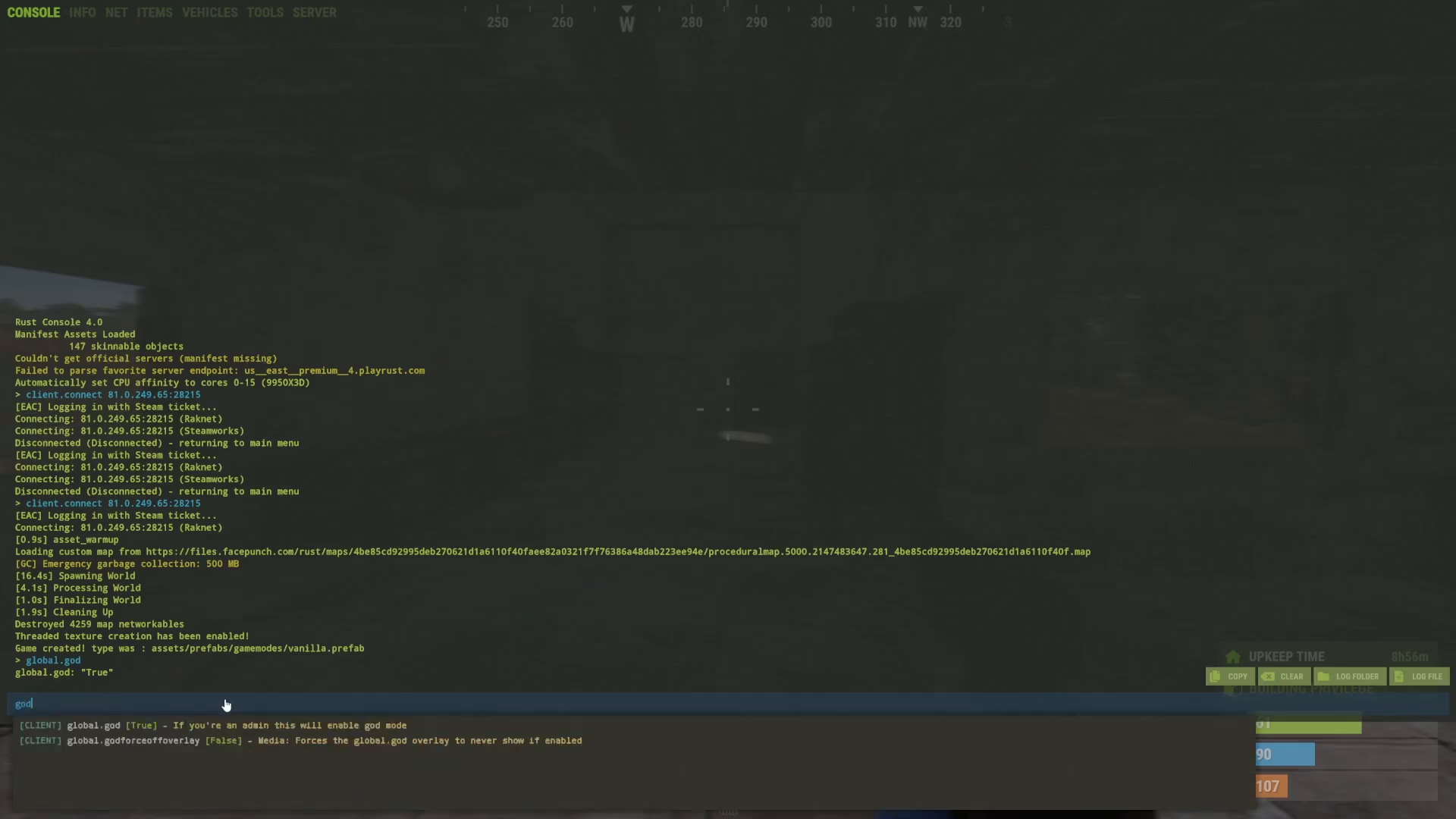
Once the console is open, you can type any admin command directly into the input field. The console features an intelligent autocomplete system that suggests relevant commands as you type.
For example, if you type a partial command, the system will display matching options based on what you’ve entered so far.
Example: Enabling God Mode
One of the most useful admin commands is the God mode command. To enable God mode:
Press F1 to open the console
Type global.God (or simply start typing “God” and use the autocomplete suggestion)
Press Enter to execute the command
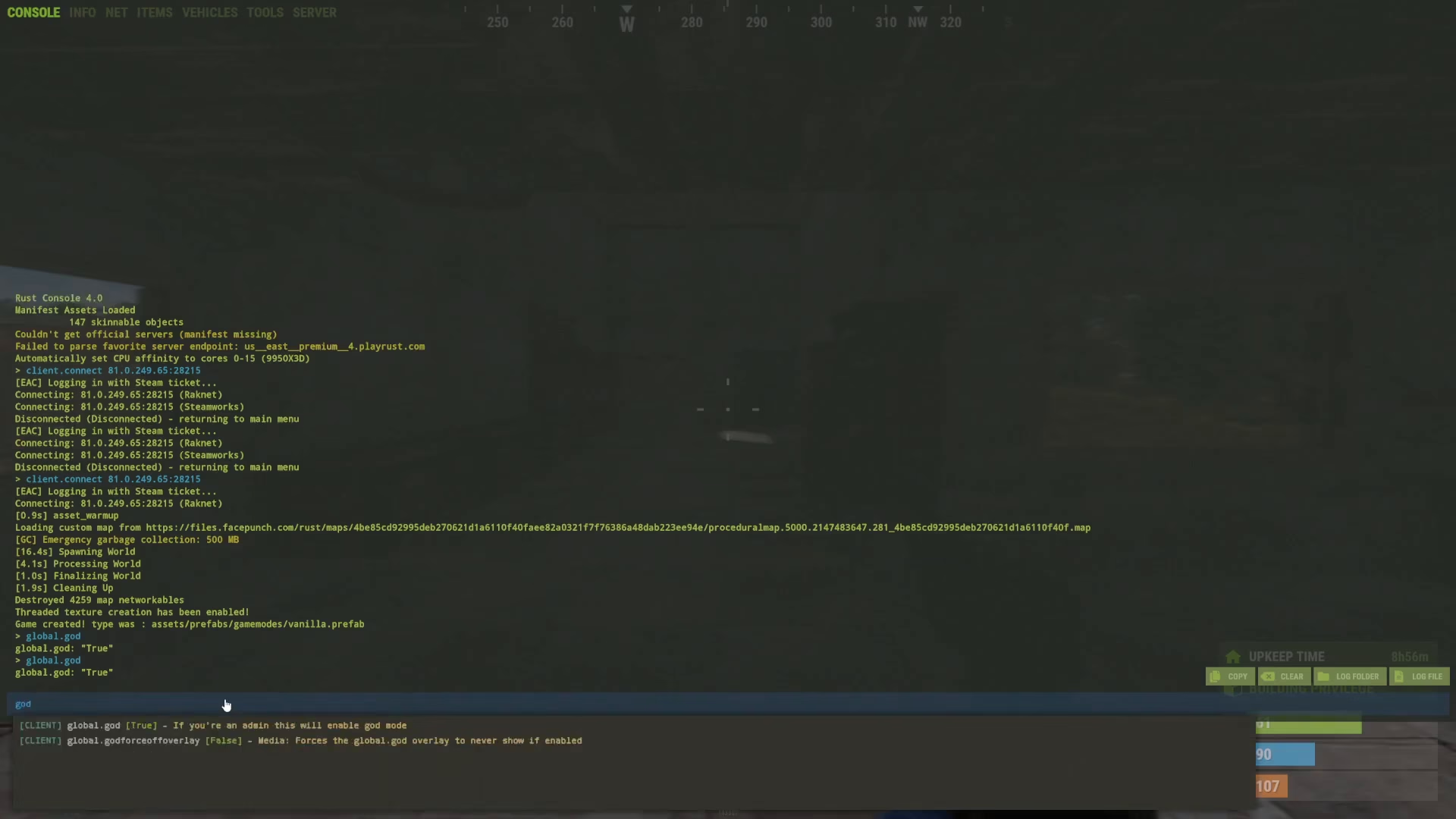
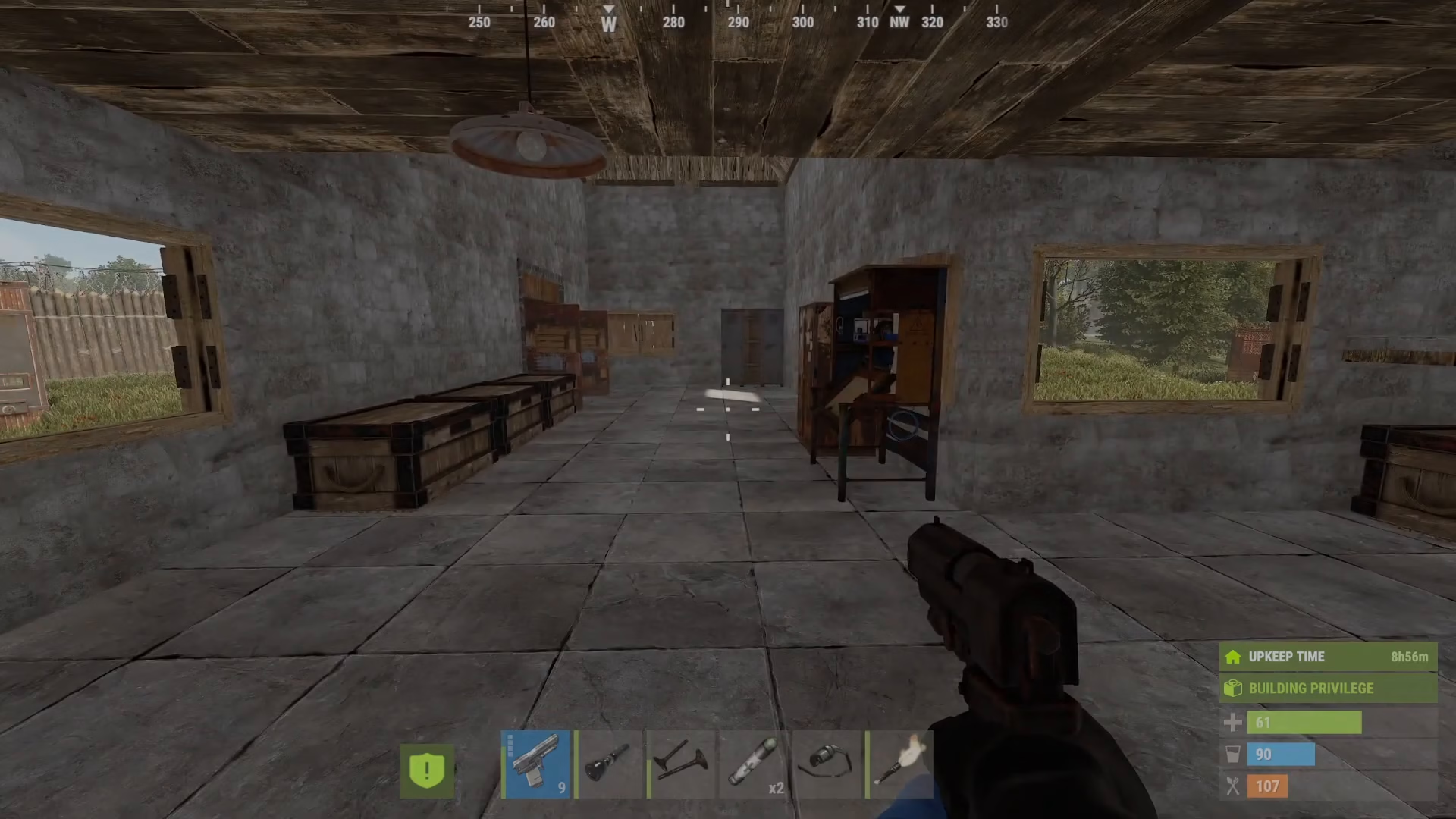
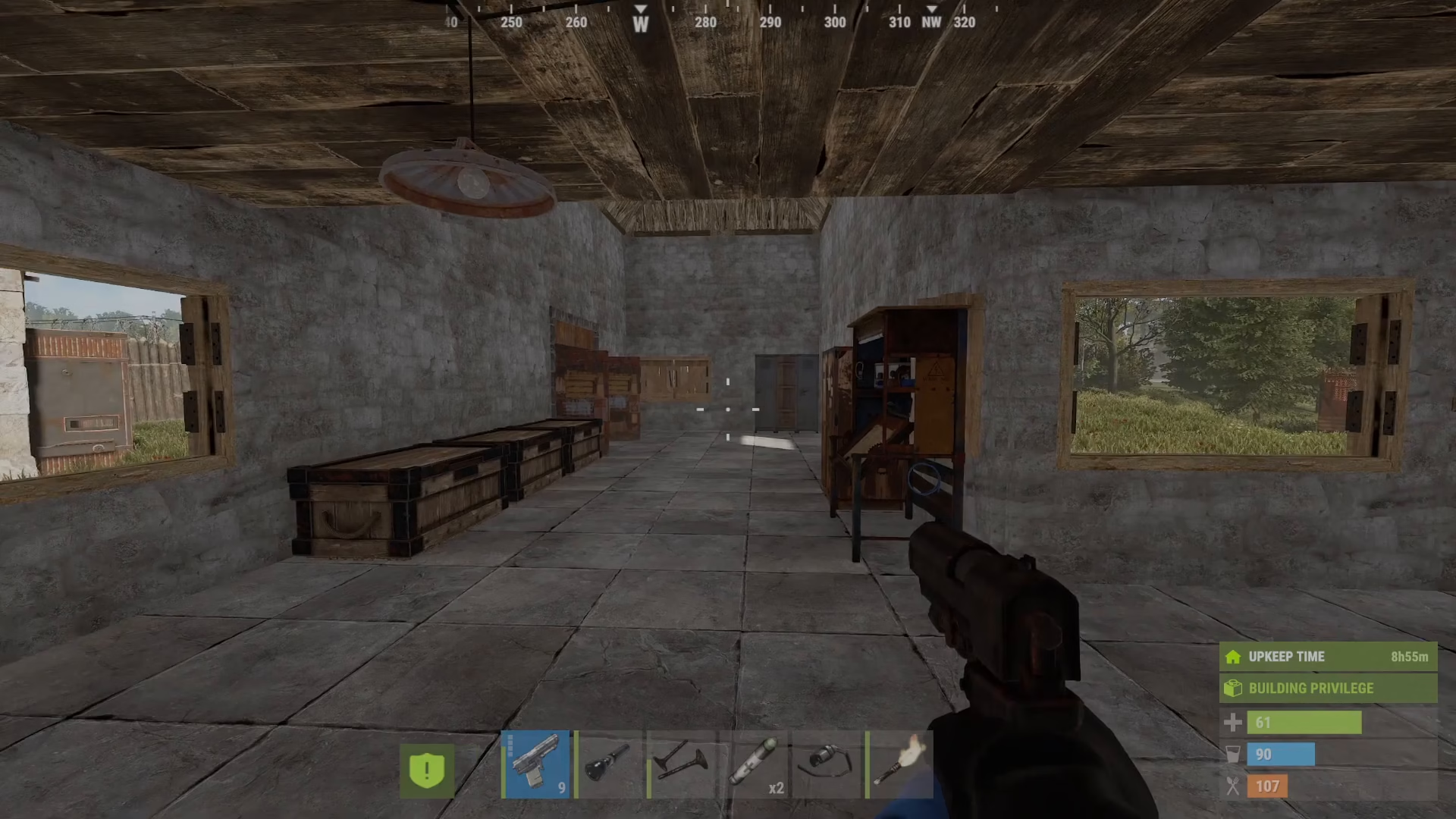
Once enabled, God mode makes your player character invulnerable—you cannot be harmed or take damage from any source. This is incredibly useful for testing map design, building without interruption, or exploring dangerous areas.
Command Discovery and Autocomplete
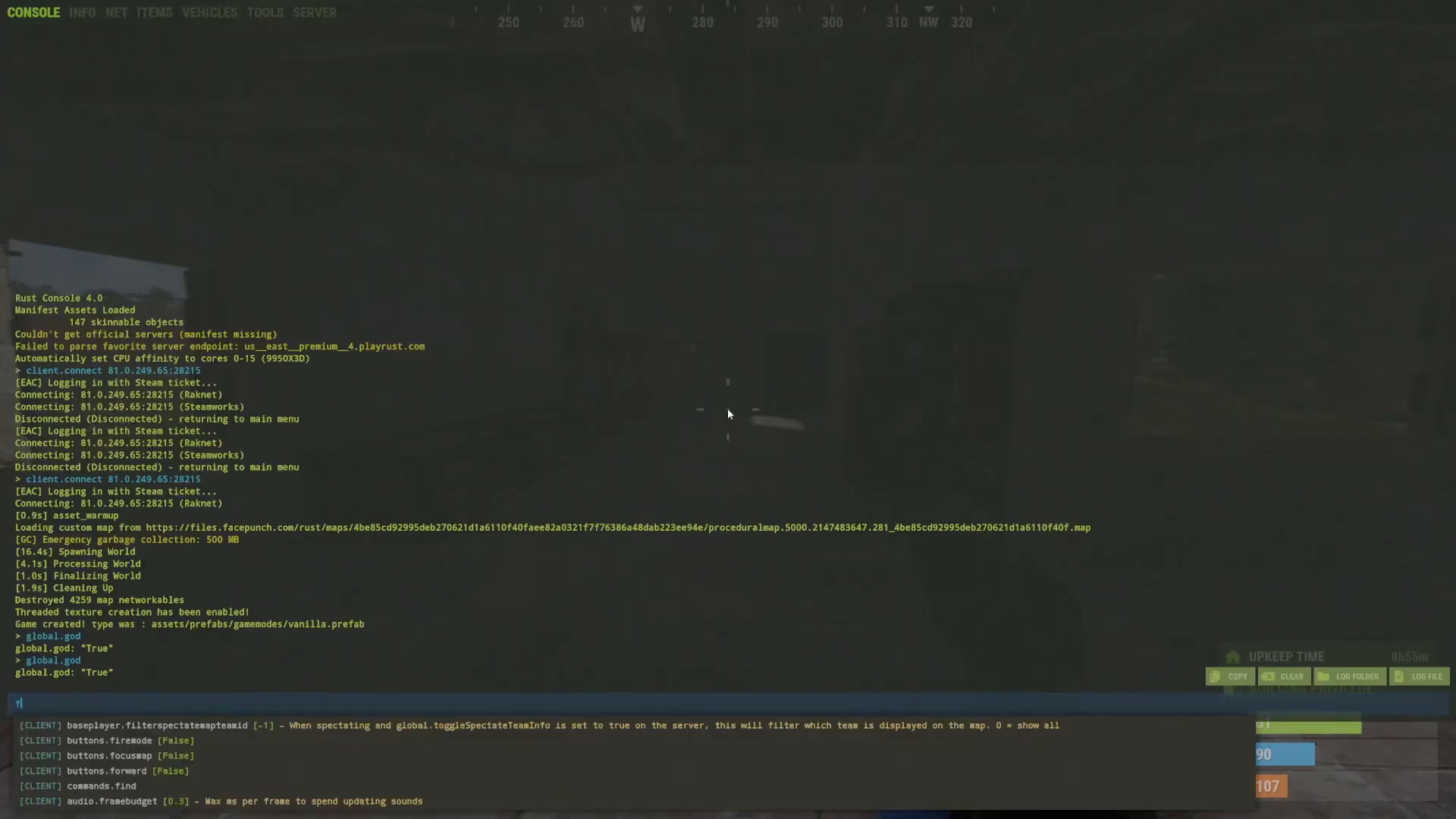
The console’s autocomplete feature is your best friend when exploring available commands. Simply press F1, begin typing any command or keyword, and the system will display all matching commands based on your input. This makes it easy to discover new admin functions without needing to memorize every command.
Conclusion
Using admin commands in Rust is a straightforward process once you’ve set up your admin access. Remember to add your Steam ID to your server’s admin list through your hosting provider, restart your game to activate your admin status, and then use the F1 console to access the full range of admin commands available. With the autocomplete feature helping guide you, discovering and using new commands becomes intuitive. Now you’re ready to take full control of your Rust server and gameplay experience.
Want to Support?
If you would like to help us continue making these guides – please consider joining our patreon here – https://www.patreon.com/c/JaviHeals
Alternatively – you can join our discord here – https://discord.gg/zD7Gjt6MHF