





How To Change The Language in Civ 6
How To Change The Language in Civilization 6
Changing the language settings in Civilization 6 is a straightforward process that takes just a few clicks. Whether you want to switch the display language, spoken language, or adjust subtitle preferences, this guide will walk you through each step to get your game running in your preferred language.
Accessing the Language Settings
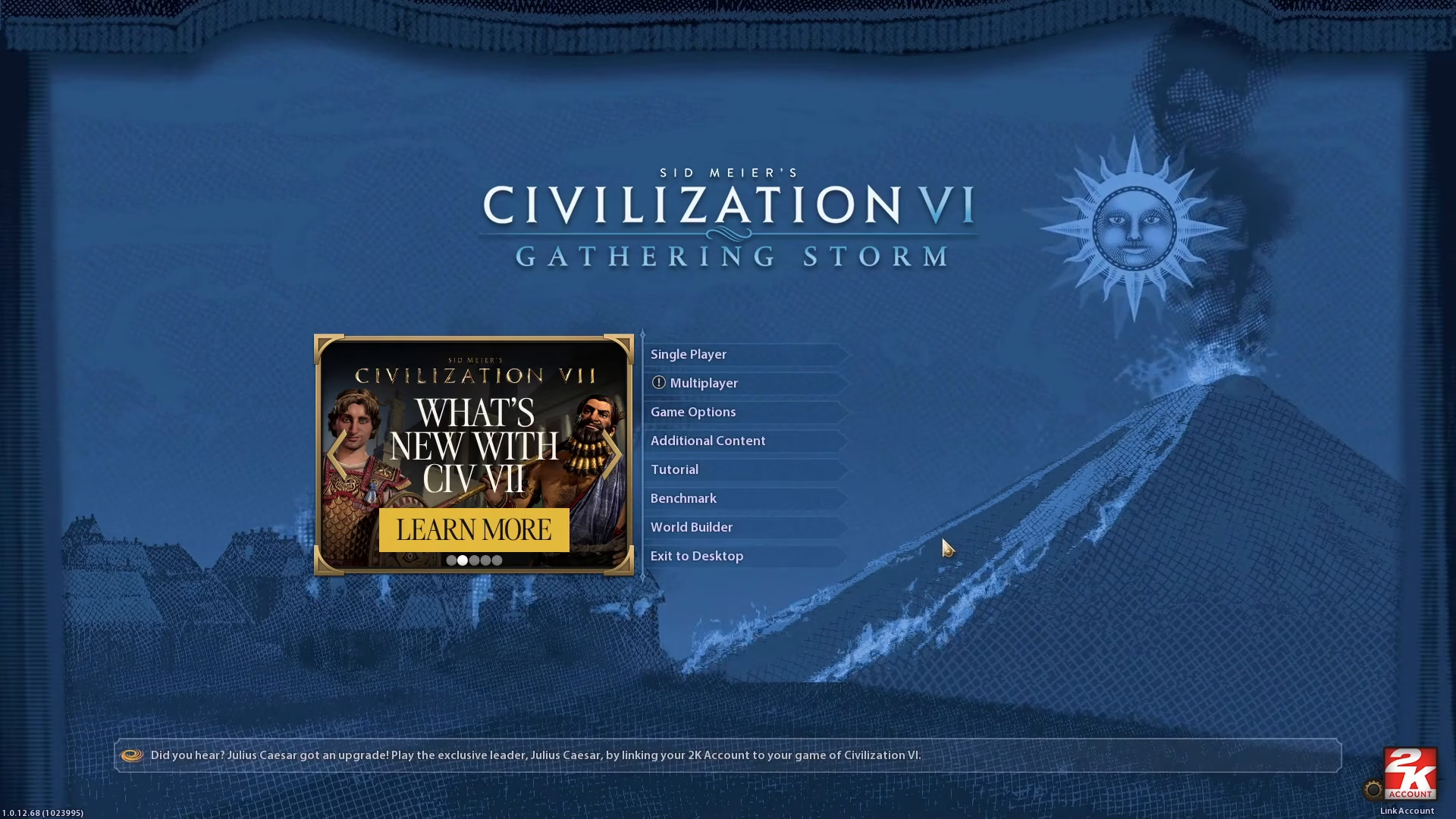
Start by launching Civilization 6 and navigating to the main menu. From here, locate and click on Options to access the game settings.
Configuring Display and Spoken Languages
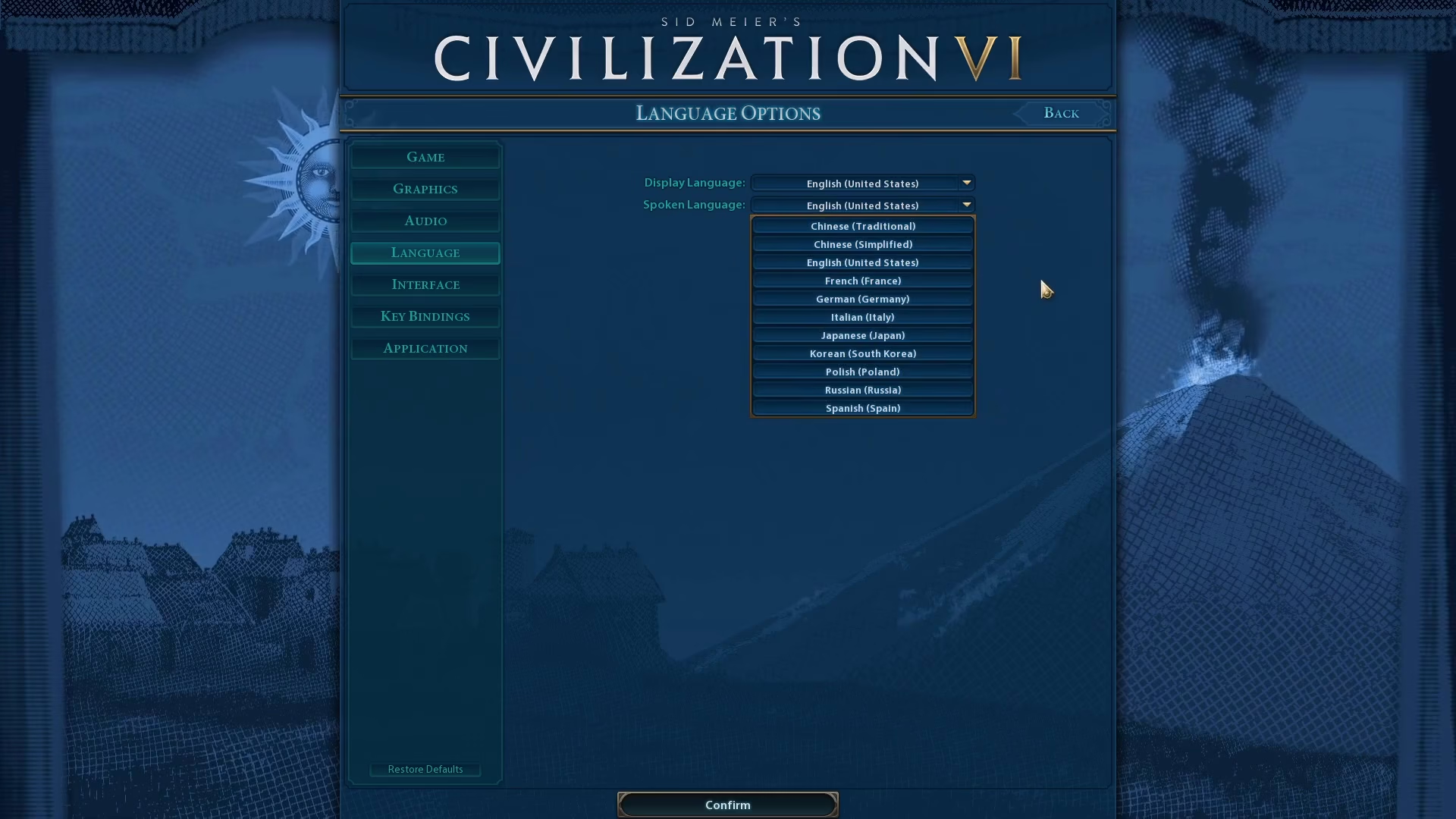
Once you’re in the Options menu, look at the left side of the screen and click on Language. You’ll see two language options available:
Display Language
Spoken Language
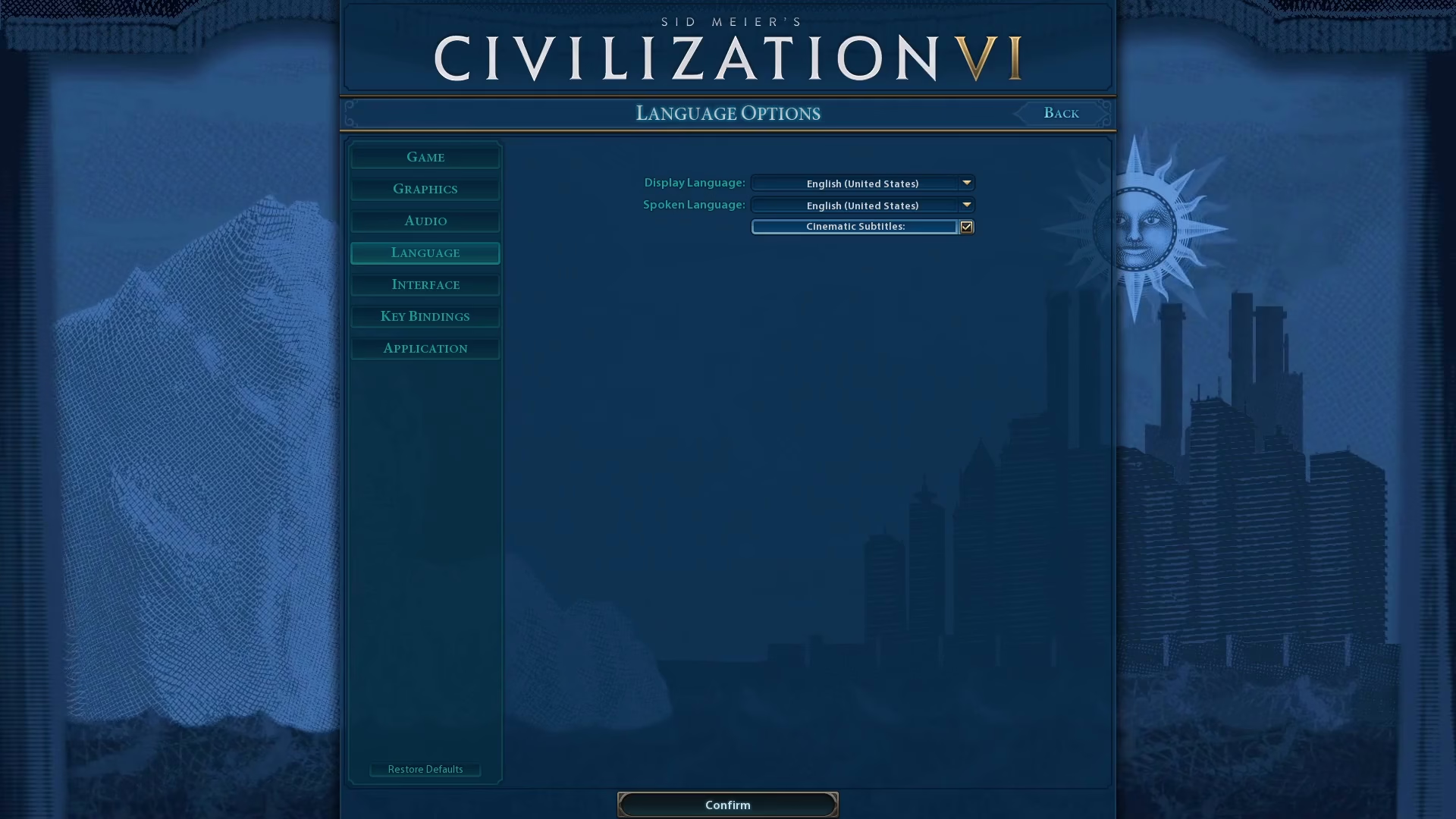
For each language option, click on the drop-down menu on the right side and select the language you want to use. You can configure both the Display Language and Spoken Language independently to suit your preferences.
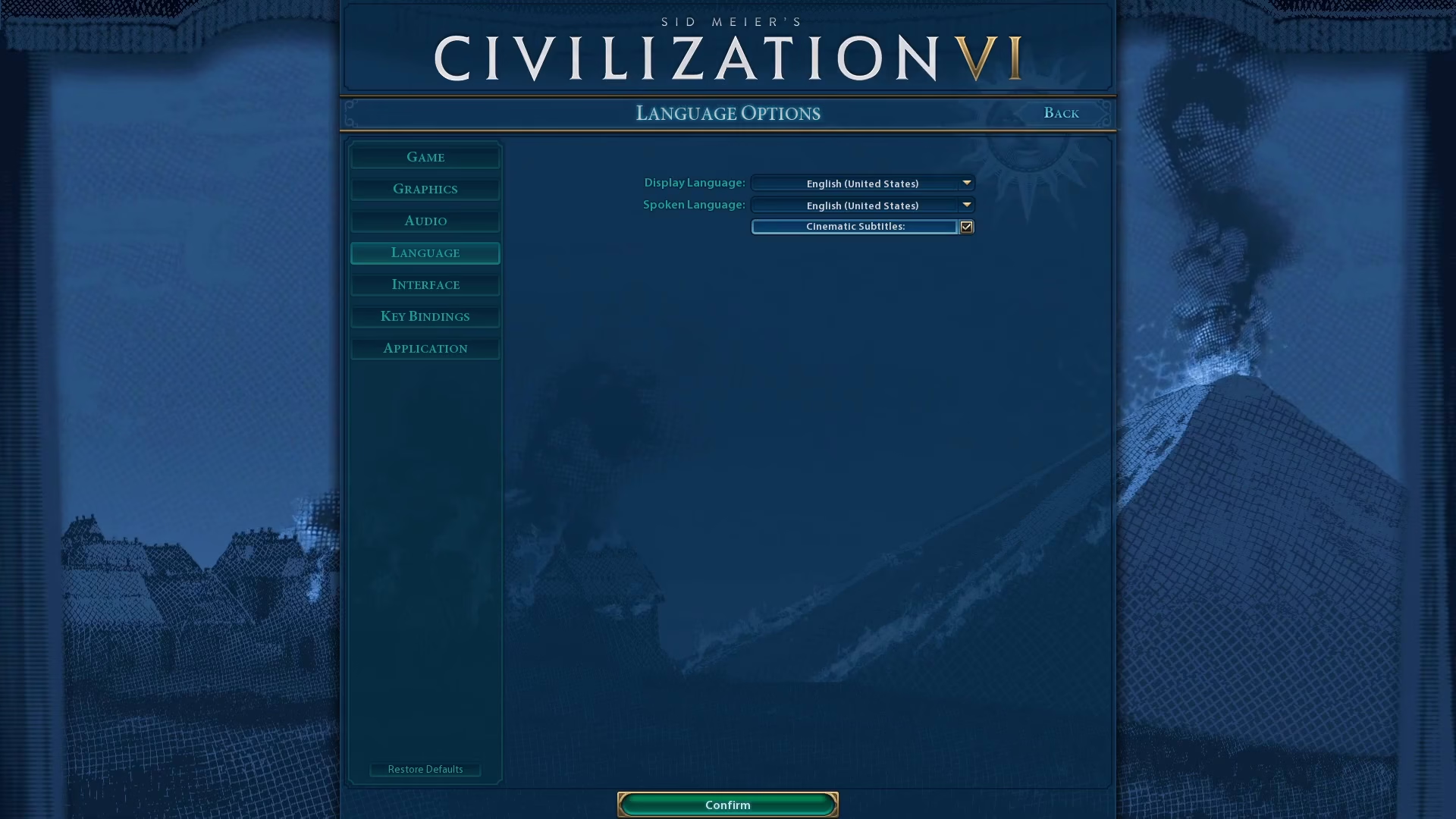
Adjusting Cinematic Subtitles
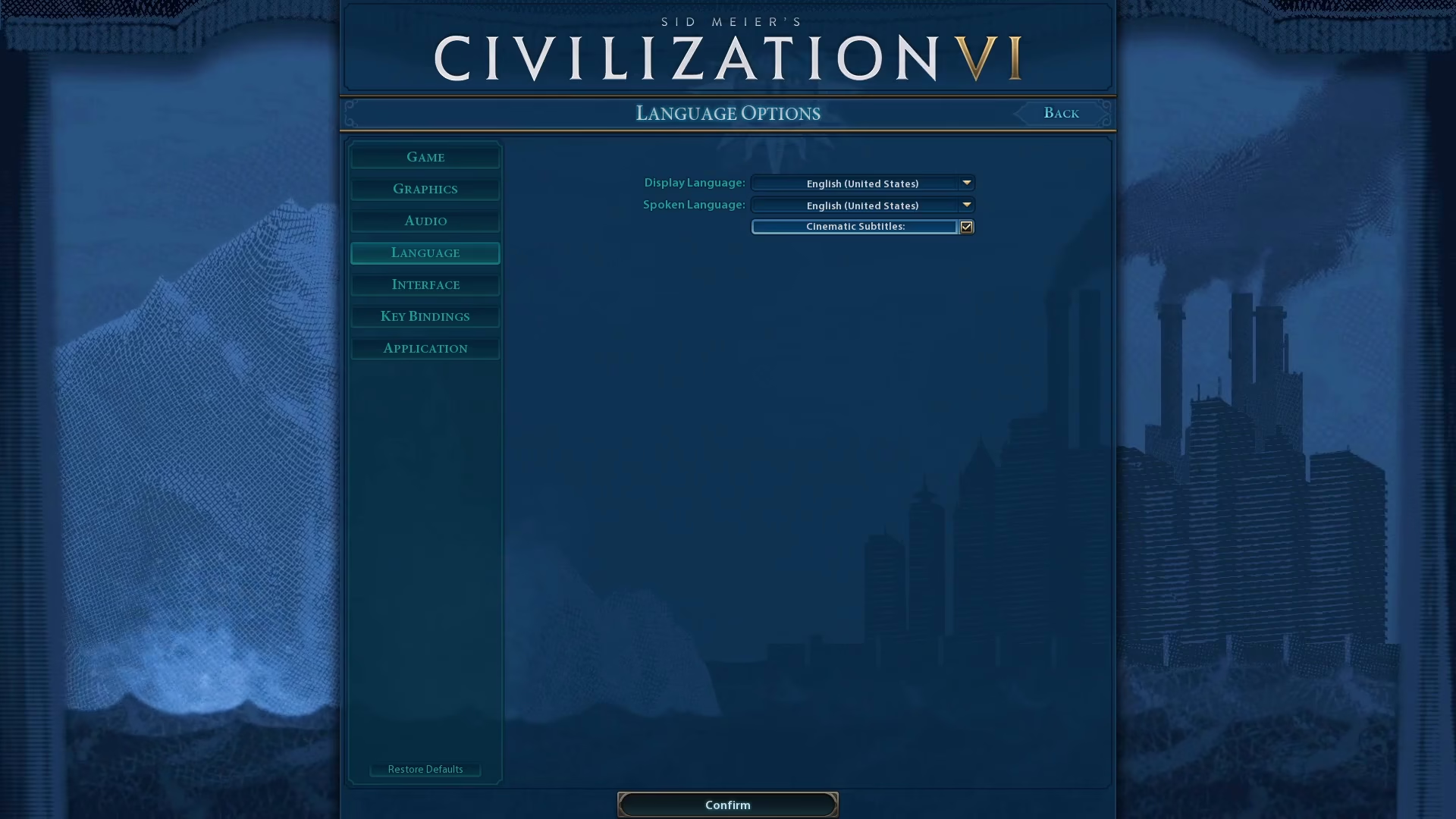
If you’d like to enable or disable subtitles for the game’s cinematics, you can toggle this setting on or off in the same Language menu.
Applying Your Changes
Once you’re satisfied with your language and subtitle settings, confirm your choices by clicking the button at the bottom of the menu to apply the changes.
Summary
That’s all there is to changing the language in Civilization 6! By following these simple steps—accessing Options, selecting Language, choosing your preferred Display and Spoken Languages, adjusting cinematic subtitles if desired, and confirming your settings—you’ll have your game running in your chosen language in no time.
Want to Support?
If you would like to help us continue making these guides – please consider joining our patreon here – https://www.patreon.com/c/JaviHeals
Alternatively – you can join our discord here – https://discord.gg/zD7Gjt6MHF