How to Save In Crimson Desert
How to Save in Crimson Desert
Saving your progress in Crimson Desert isn’t immediately obvious, but once you know where to look, it’s simple and straightforward. This guide will walk you through the save system step-by-step so you never lose your progress again.
Opening the Menu
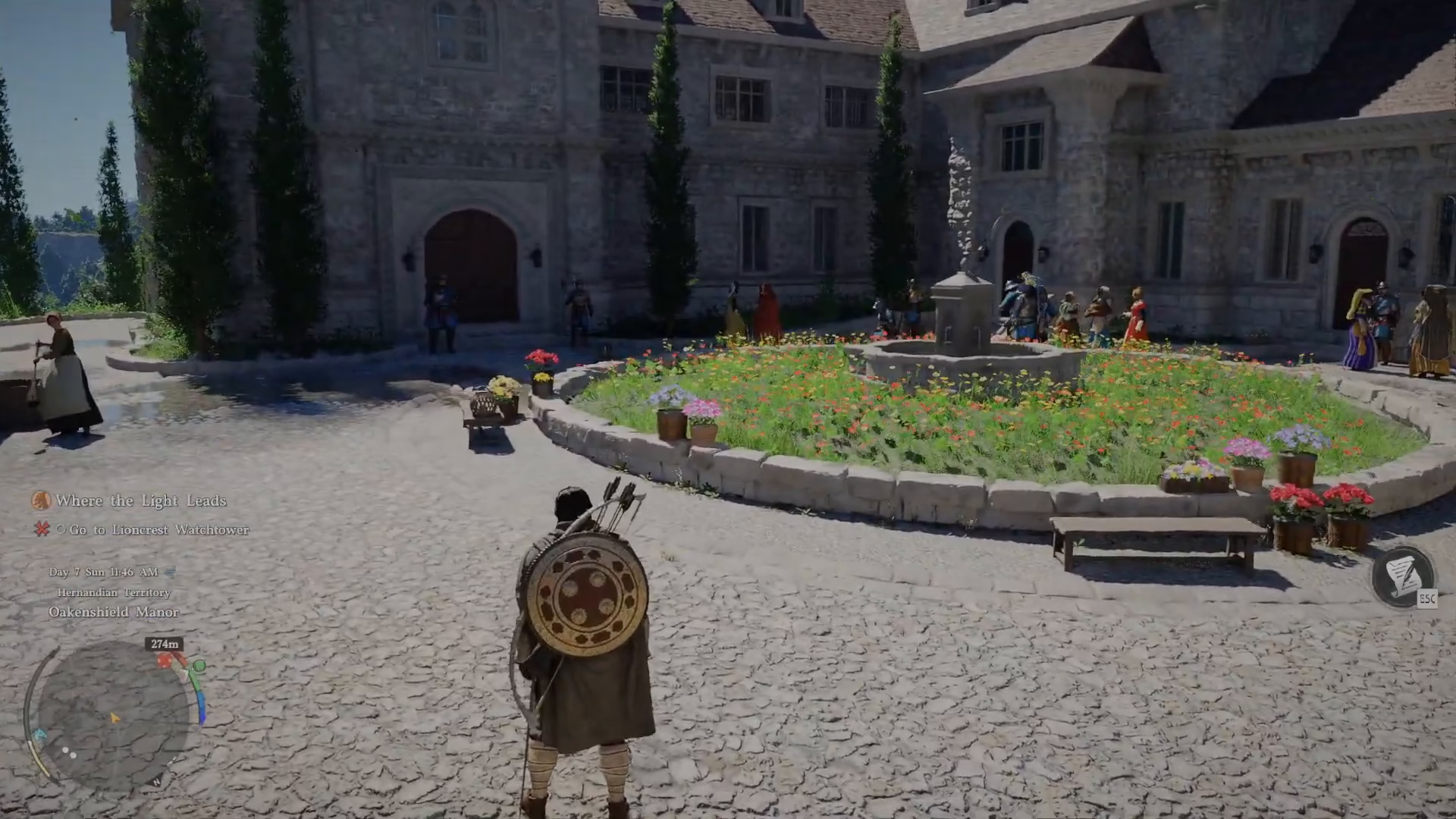
To begin saving your game, you need to access the main menu. Press the Escape key or navigate to your menu however you prefer.
Locating the Save Option
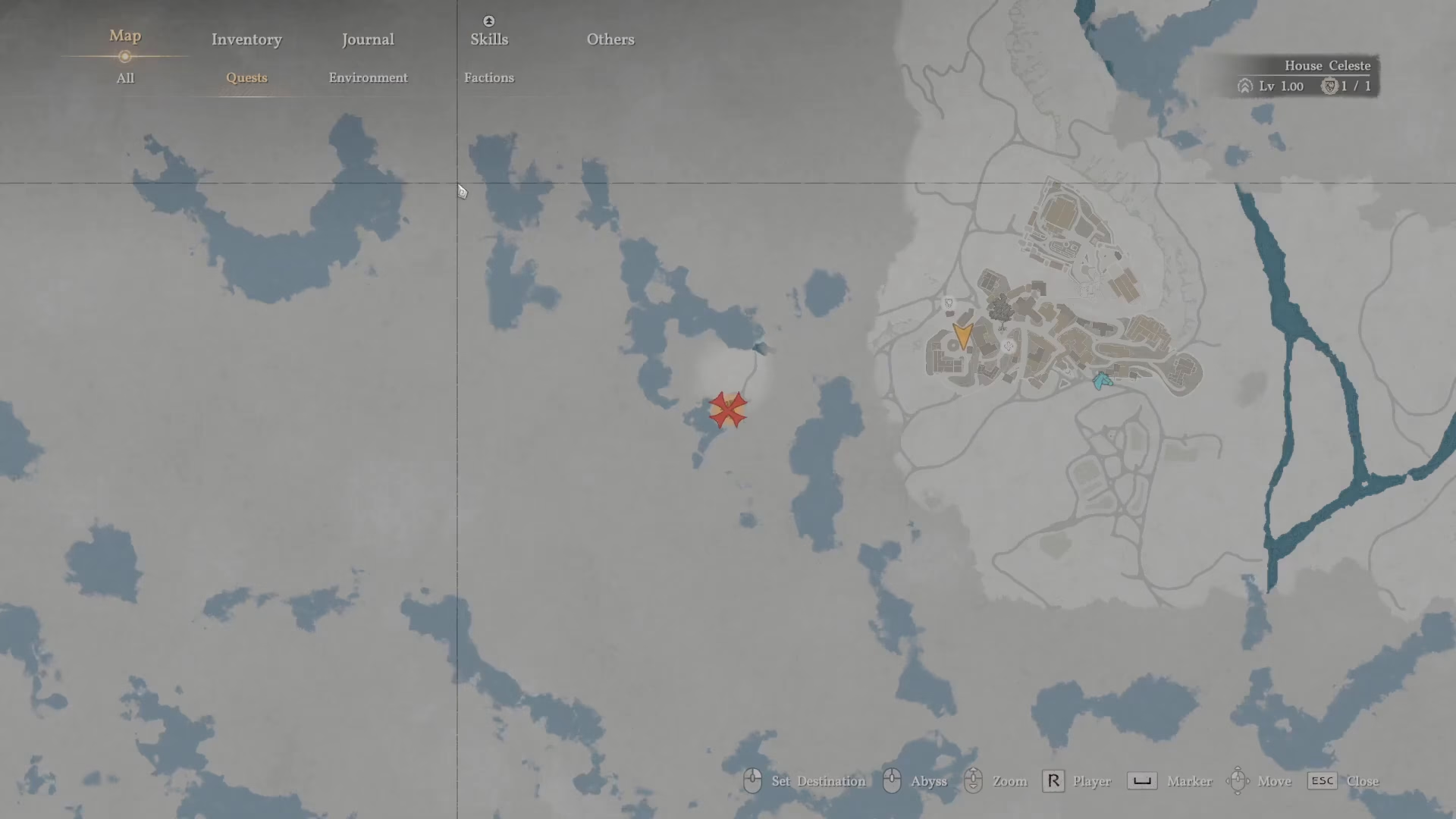
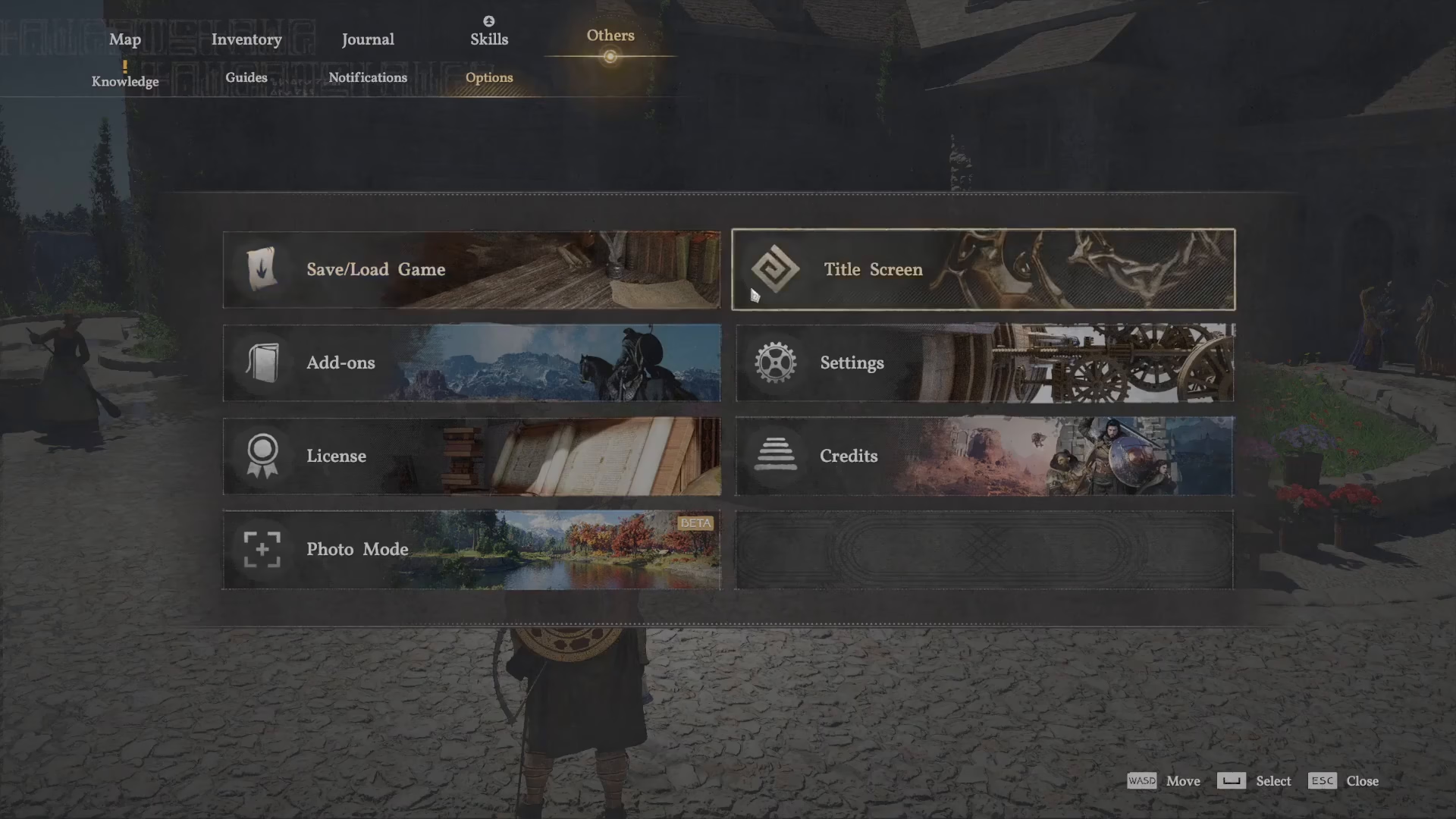
Once your menu opens, you’ll see several options displayed: Map, Inventory, Journal, Skills, and Others. The save feature isn’t found in any of the first four—it’s hidden under the Others section.
What’s Inside the “Others” Menu?
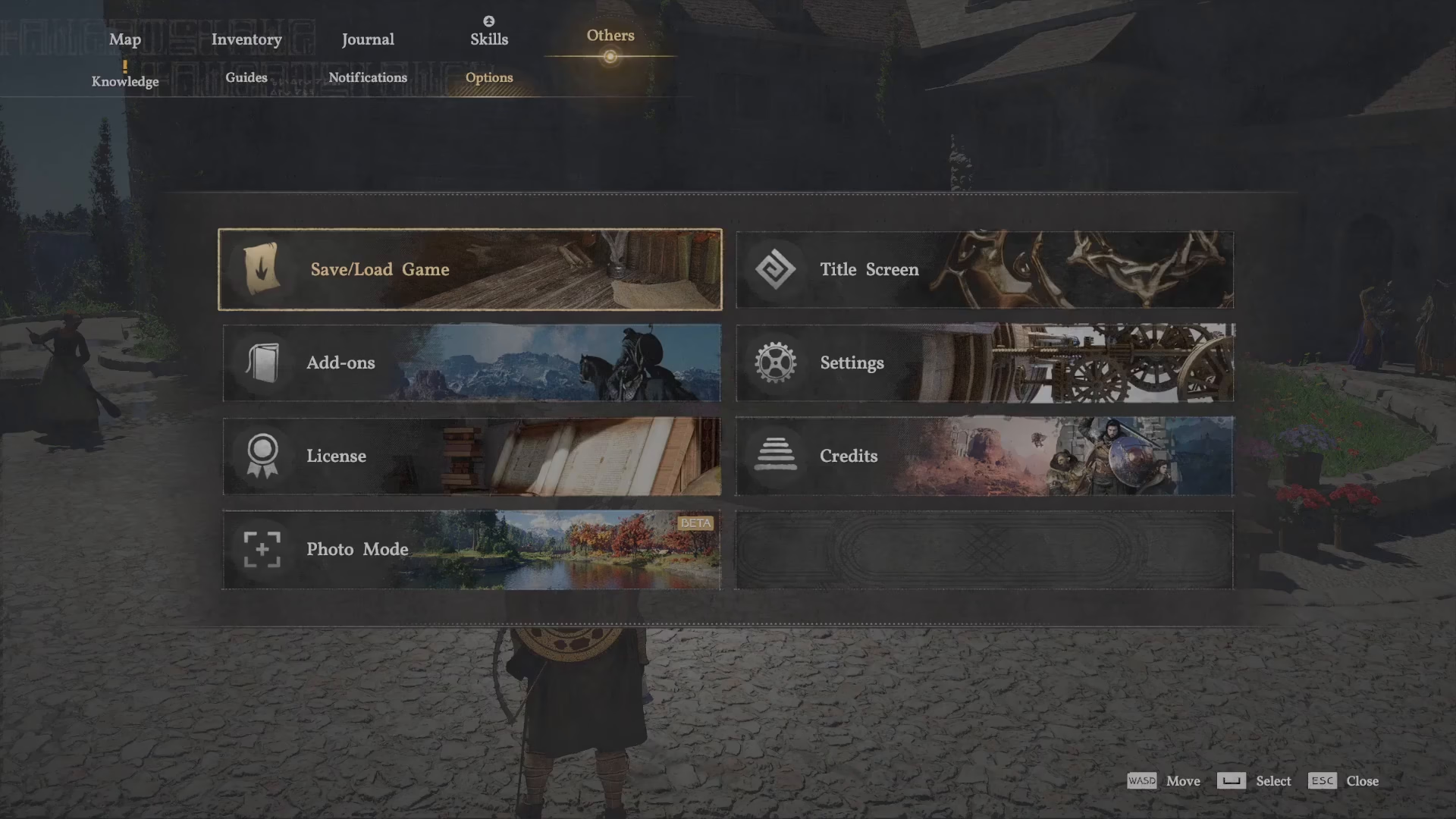
The Others menu contains various options including Save, Load, Add-ons, License, Photo Mode, Credits, Settings, and Title Screen. Don’t worry about the vague name—it simply houses all the miscellaneous features that don’t fit into the main categories.
Saving Your Game
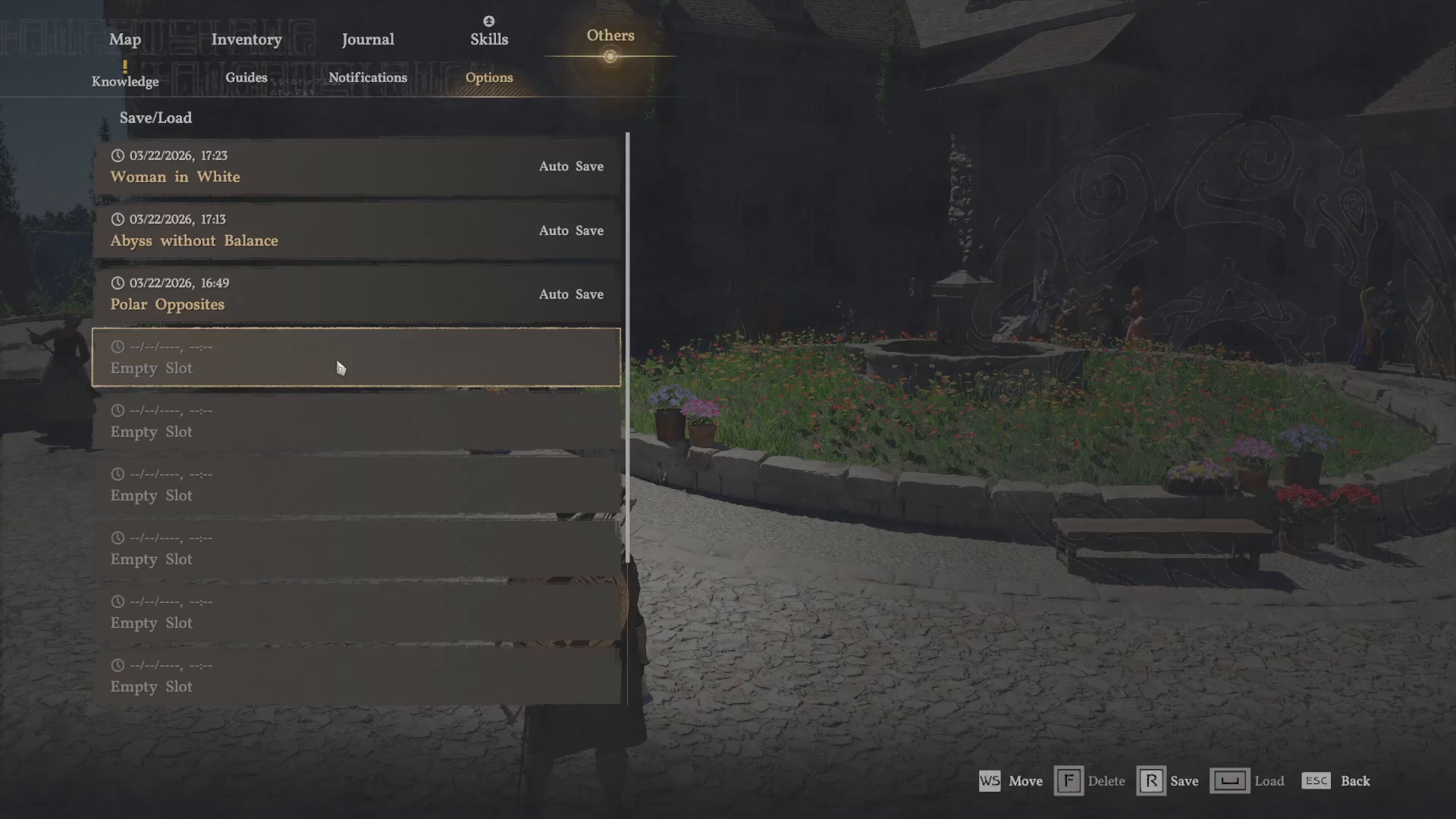
Within the Others menu, simply click on Save to create a new save file. You can also select Load Empty Slot if you want to manage your saves more deliberately.
Naming Your Save
After clicking Save, you’ll be prompted to name your save file. You can use any name you’d like—for example, “My Manual Save” or anything else that helps you identify it later. The save will then appear in your save list with the custom name you’ve chosen.
Conclusion
That’s all there is to saving in Crimson Desert! Remember: press Escape to open your menu, navigate to Others, and click Save. Give your save a memorable name, and you’re done. Now you can explore the world of Crimson Desert with confidence, knowing your progress is safely stored.
Want to Support?
If you would like to help us continue making these guides – please consider joining our patreon here – https://www.patreon.com/c/JaviHeals
Alternatively – you can join our discord here – https://discord.gg/zD7Gjt6MHF