






How To Change Language In Fallout 4
How To Change Language In Fallout 4
Changing the language in Fallout 4 is a quick and simple process that takes just a few clicks through Steam. Whether you want to play in English, French, German, or any other supported language, this guide will walk you through every step of the process. Follow along to learn how to access the language settings and install your preferred language patch.
Accessing Fallout 4 in Steam
To begin, open Steam and locate Fallout 4 in your library. Once you’ve found the game, you need to access its settings menu.
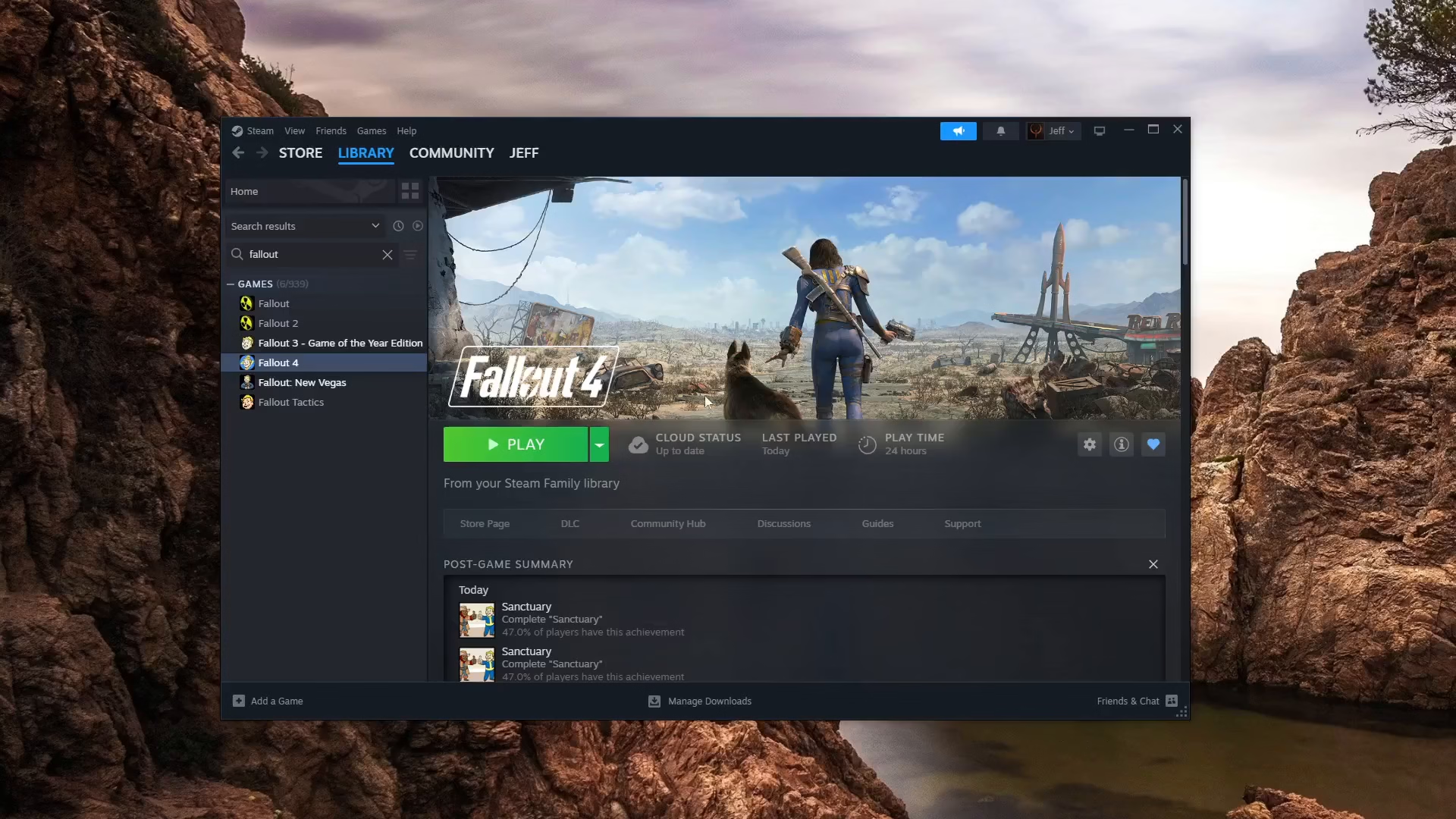
Opening the Properties Menu
Right-click on Fallout 4 in your Steam library. You’ll see a small gear icon appear next to the game title. Click on this gear icon to reveal a dropdown menu.
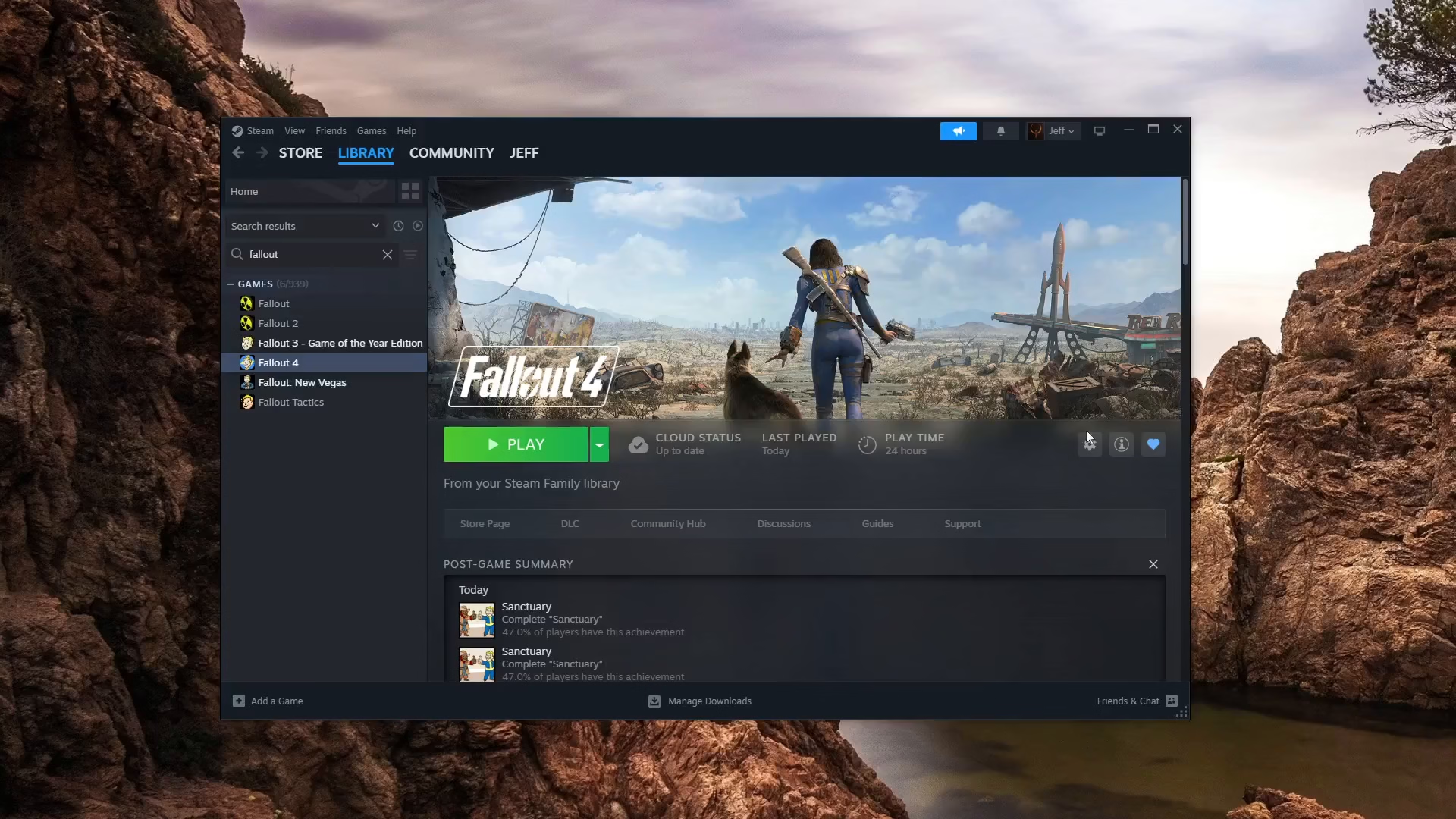
From the dropdown menu, select Properties. This will open the game’s settings window.
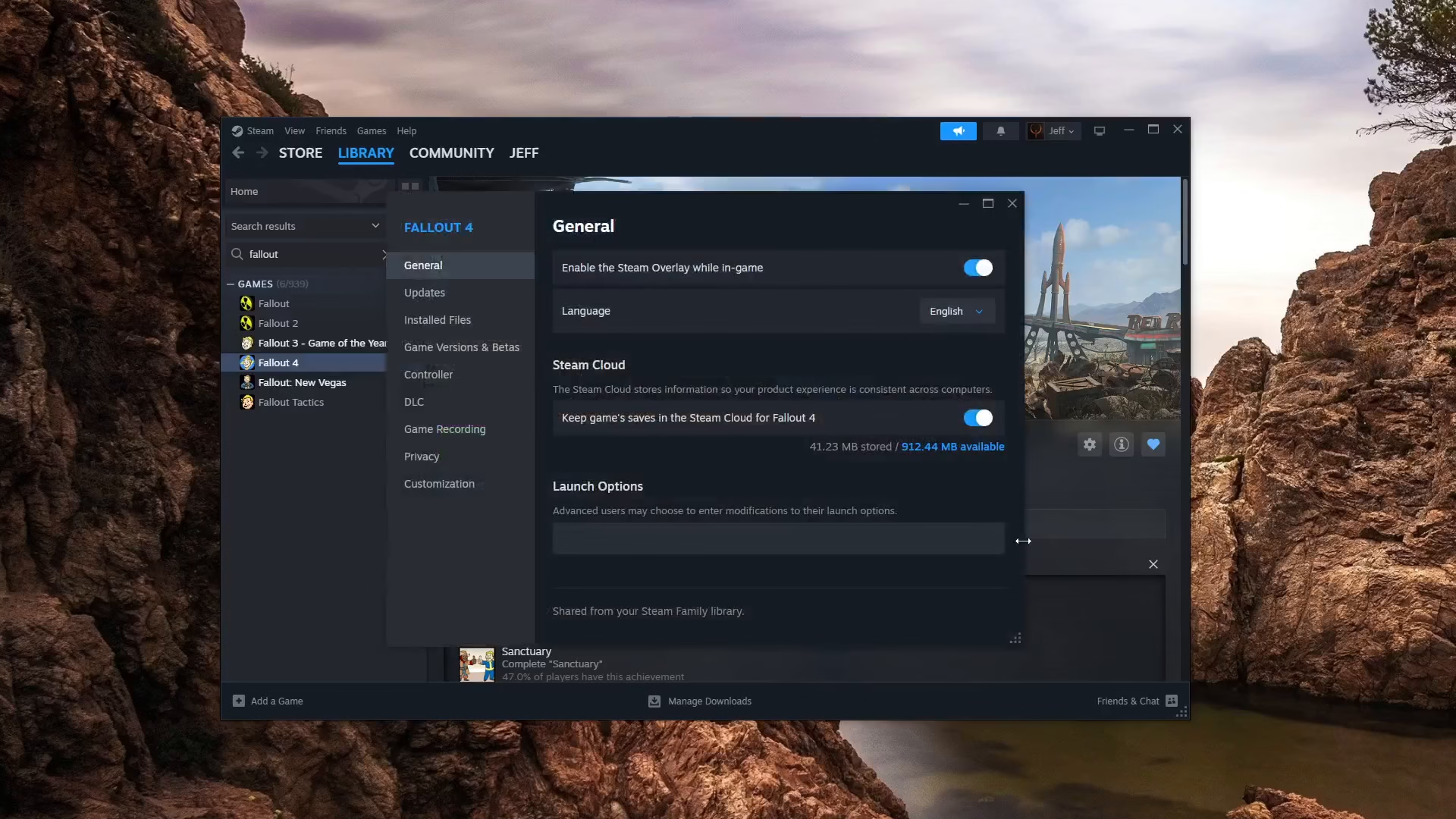
Locating the Language Selector
Once the Properties window opens, you’ll automatically be on the General tab. This is where all the language settings are located. Look for the language selector option on this page.
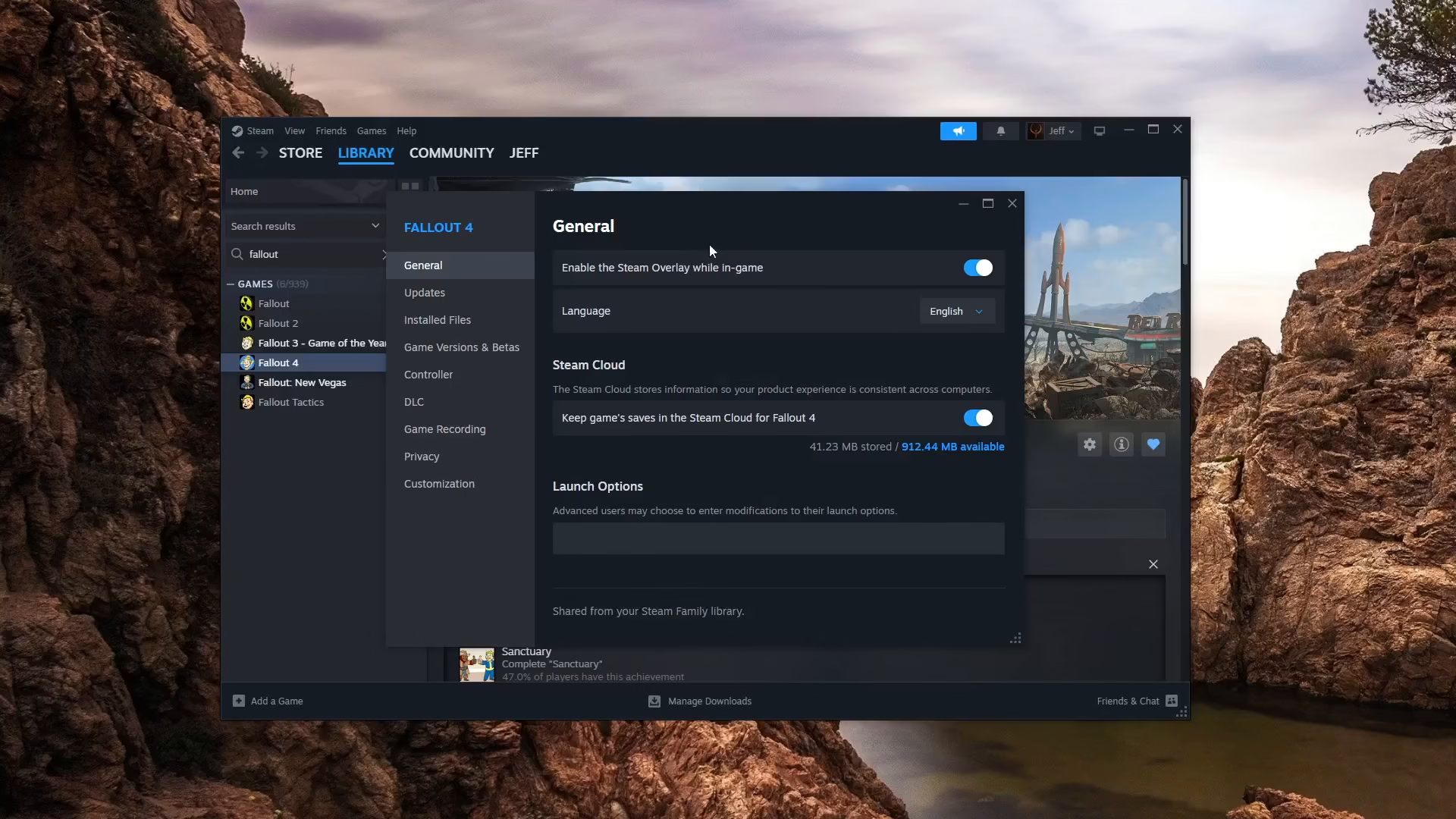
The language selector displays your currently selected language. By default, most installations are set to English, but there are numerous language options available to choose from.
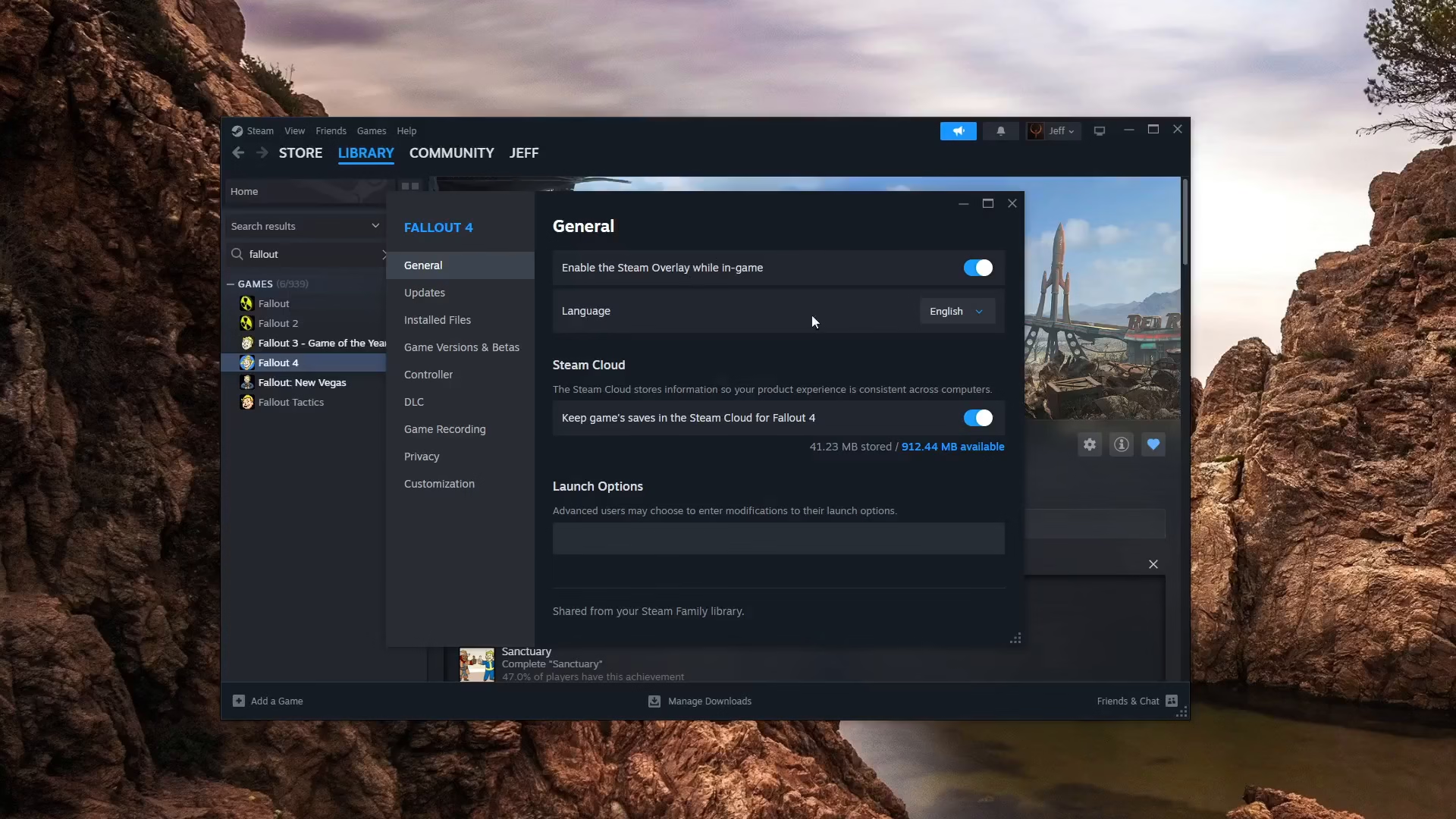
Selecting Your Preferred Language
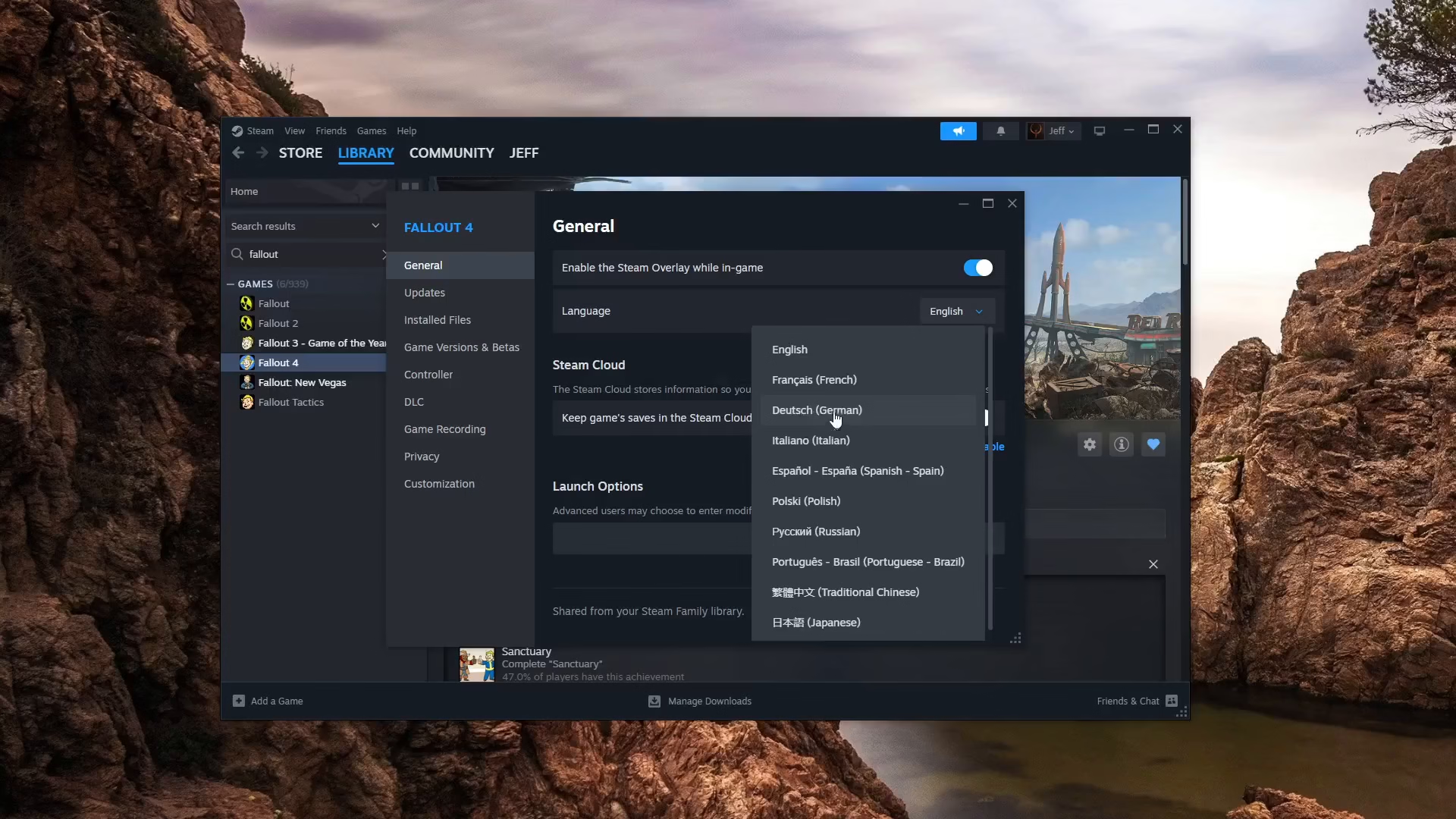
Click on the language dropdown menu to view all available language options. Simply select the language you want to play Fallout 4 in.
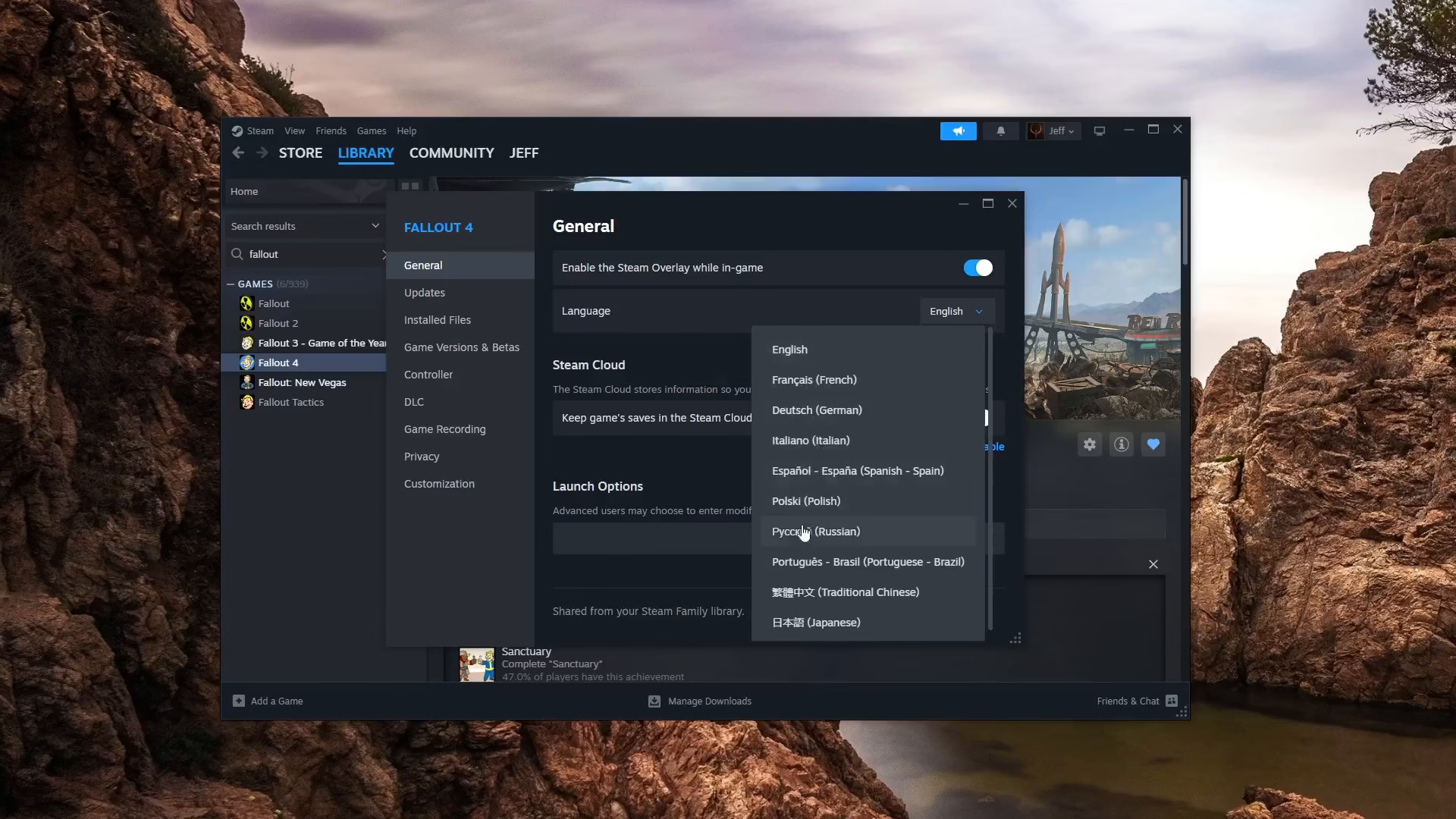
Once you’ve selected your preferred language, Steam will automatically begin installing the language patch for the game. There’s no additional action required—the system handles everything in the background.
Summary
Changing the language in Fallout 4 is straightforward and can be completed in just a few simple steps. Navigate to your Steam library, access Fallout 4’s Properties through the gear icon, find the language selector in the General tab, and choose your desired language. Steam will automatically install the appropriate language patch, allowing you to enjoy Fallout 4 in your preferred language.
— Want to Support? —
If you would like to help us continue making these guides – please consider joining our patreon here – https://www.patreon.com/c/JaviHeals
Alternatively – you can join our discord here – https://discord.gg/zD7Gjt6MHF