





How To Change Graphics Settings Without Launcher In Fallout 4
How To Change Graphics Settings Without Launcher In Fallout 4
If you need to adjust your Fallout 4 graphics settings but prefer to bypass the official launcher, there’s a straightforward method to do so directly through your configuration files. This guide walks you through accessing and modifying your graphics settings manually, giving you complete control over your game’s visual performance and display options.
Accessing Your Configuration Files
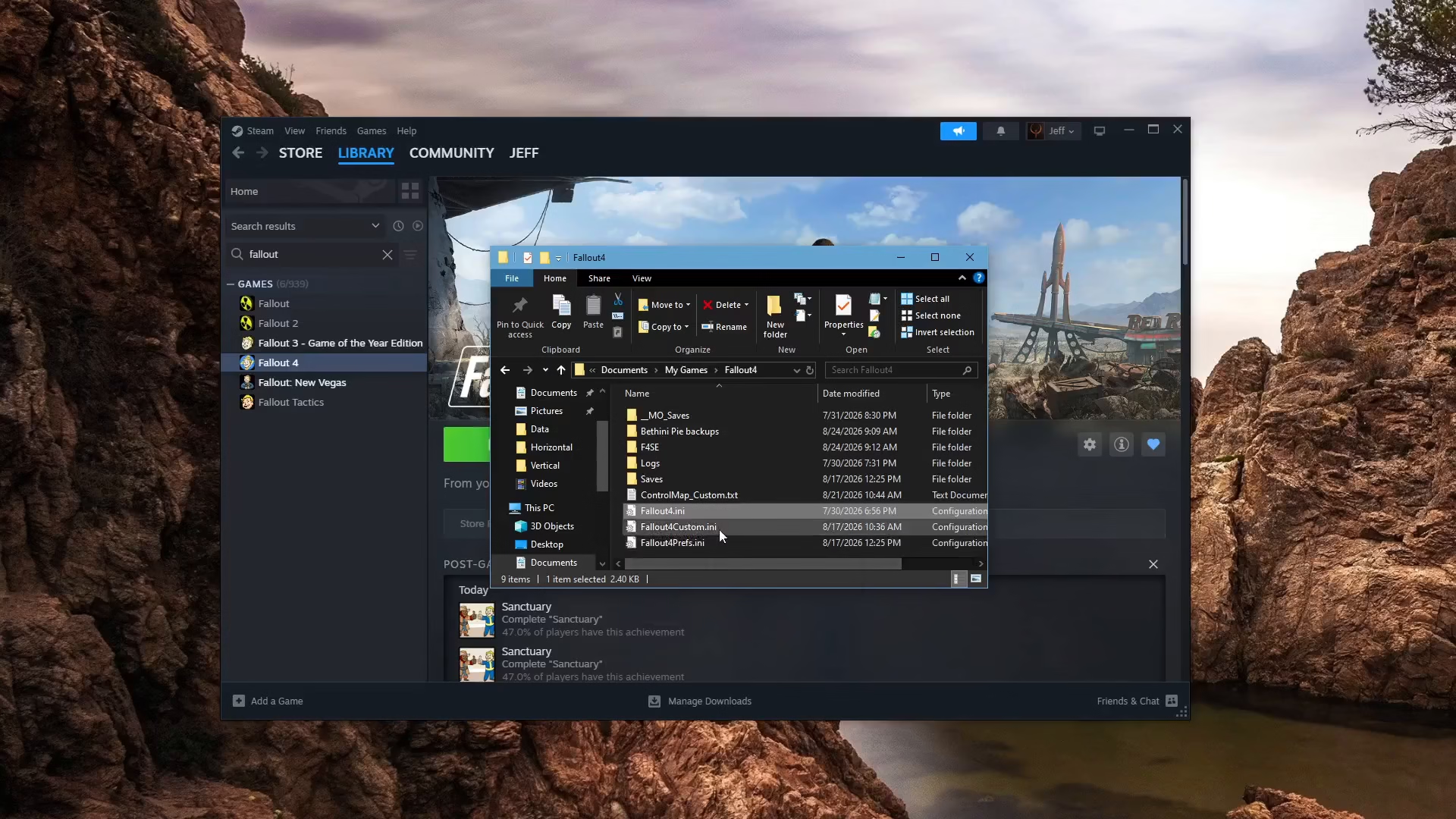
To begin changing graphics settings without the launcher, open File Explorer on your computer.
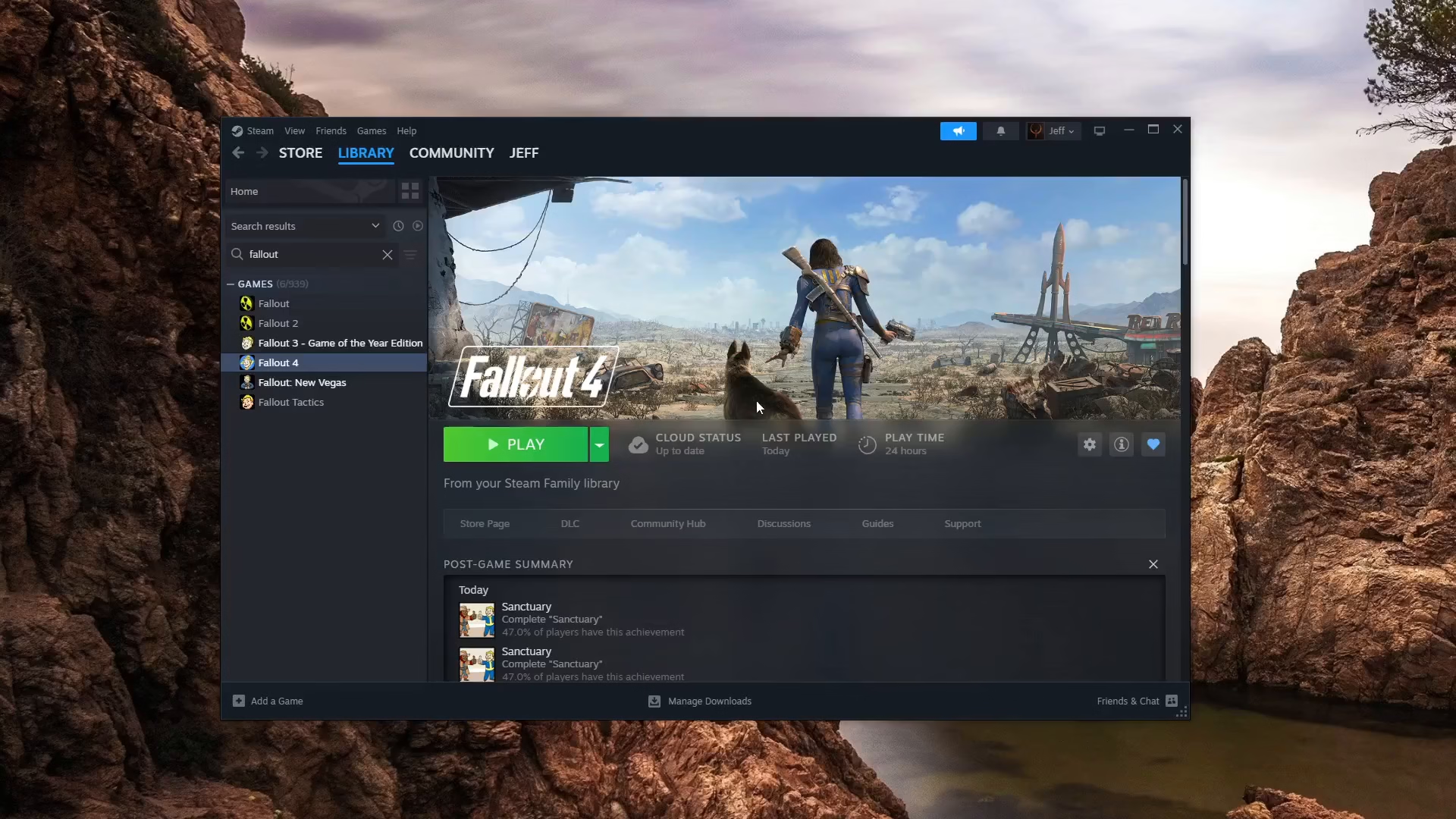
Navigate to your Documents folder, then proceed to My Games > Fallout 4. Once you’re in this directory, you’ll see all of your configuration files stored here.
Modifying Your Graphics Settings
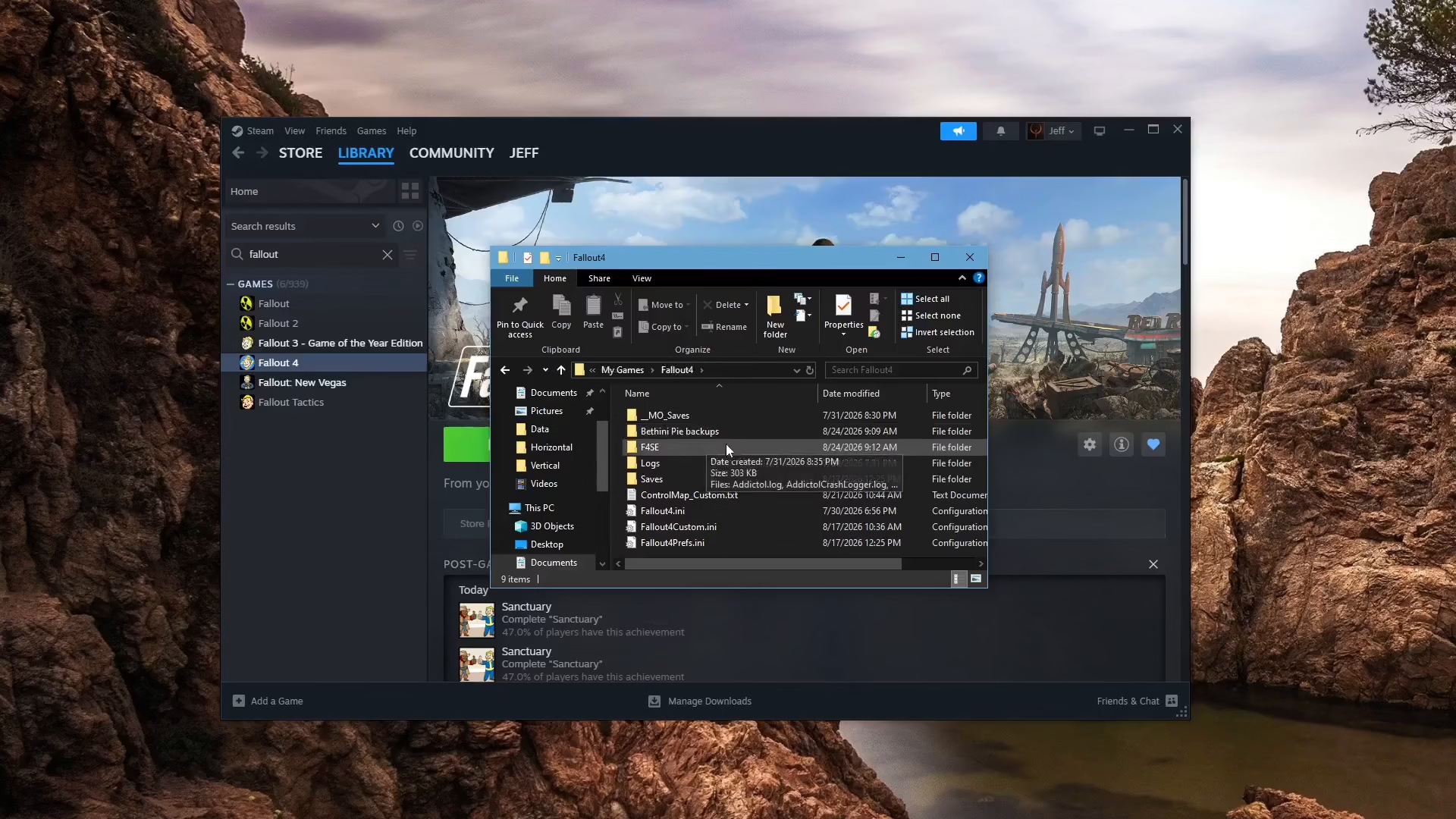
Inside the Fallout 4 folder, you can open up these configuration files and change different aspects of your graphics settings and display options directly.
Important Configuration Files to Update
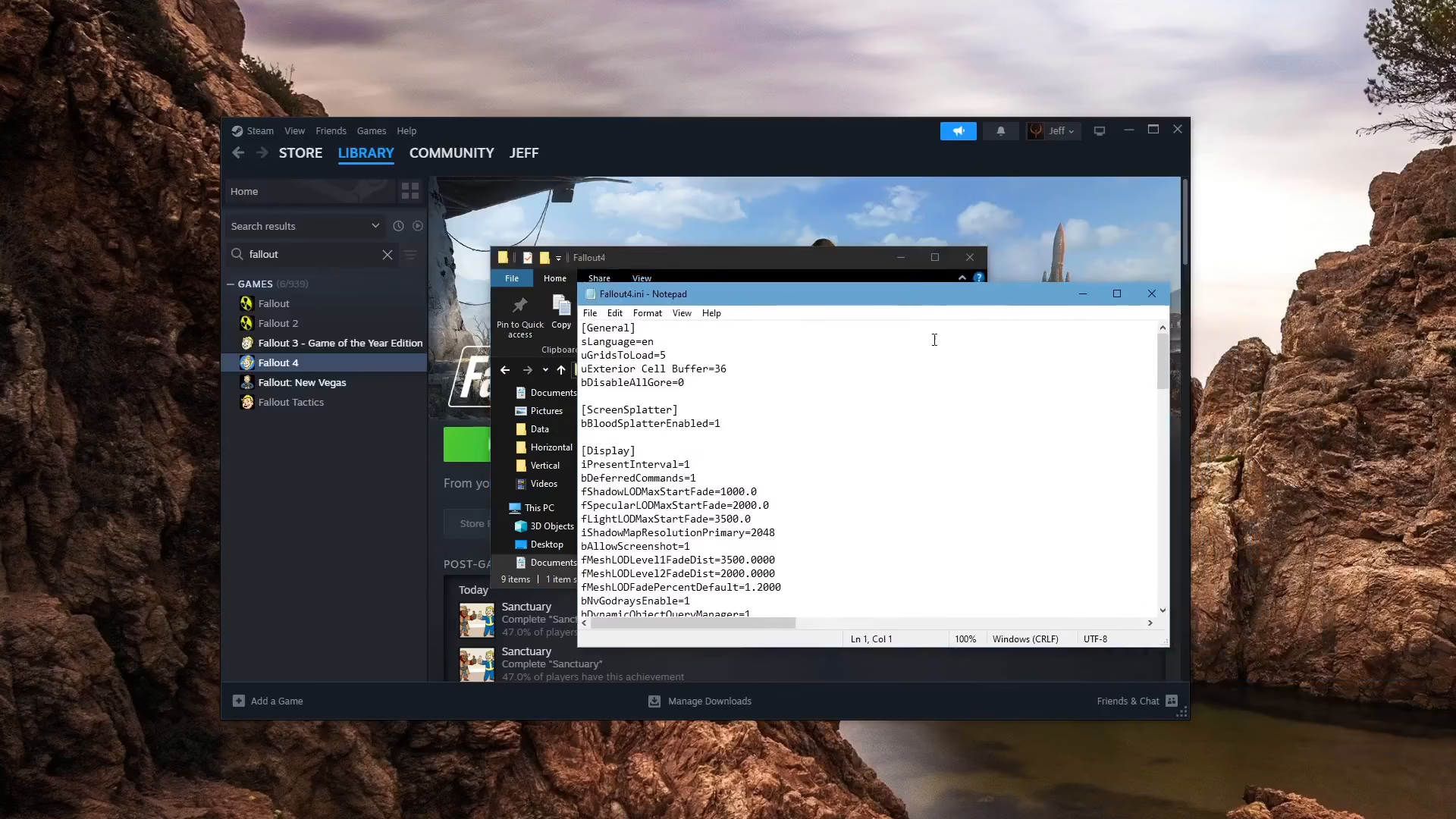
When you’re making changes to your settings, it’s crucial that you update both of the following files:
Fallout4.ini
Fallout4Prefs.ini
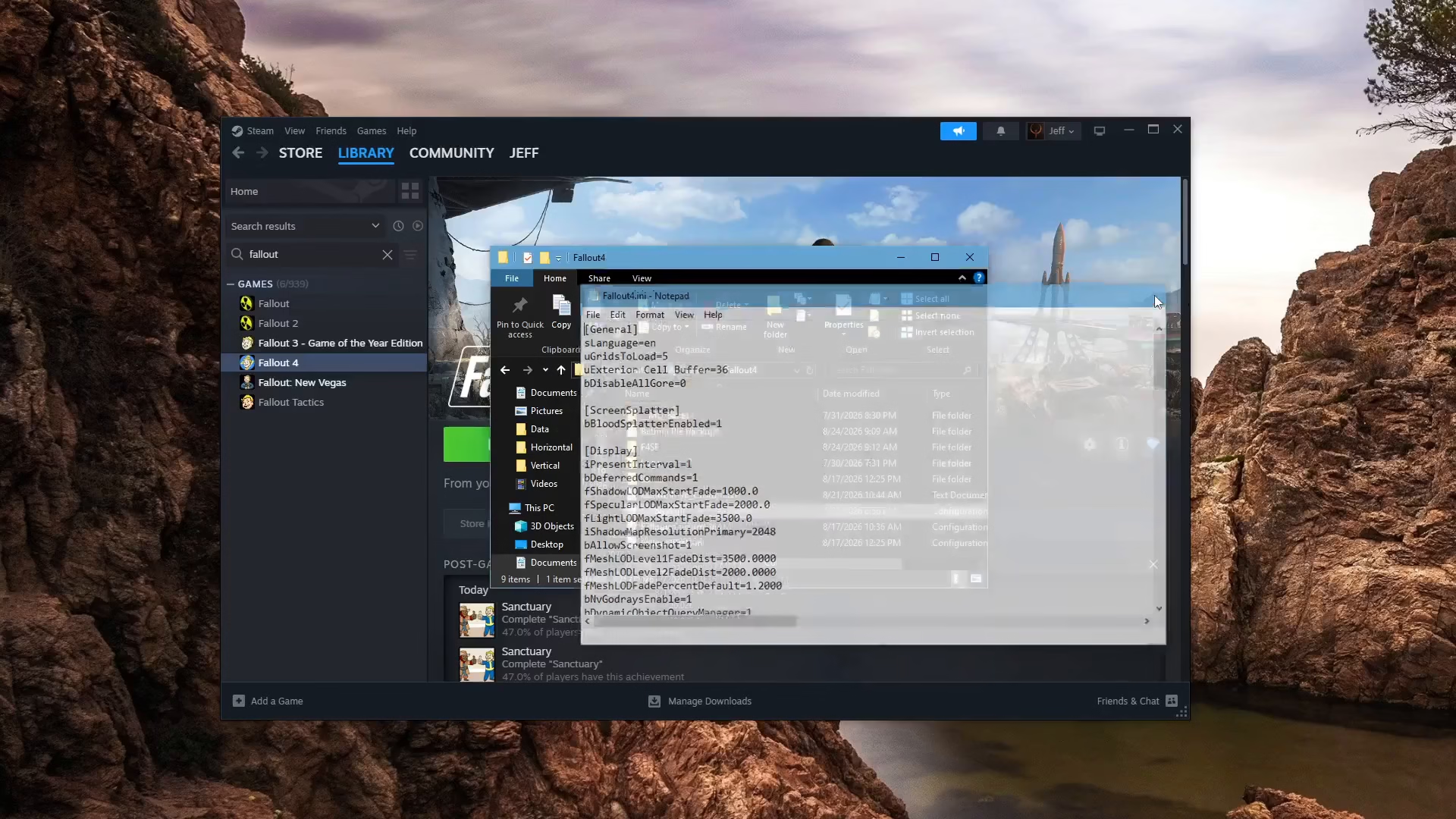
Modifying both files ensures your graphics changes are properly applied and persist when you launch the game.
If You’re Using Mod Organizer
If you’re using Mod Organizer to manage your Fallout 4 mods, you may also want to update the Fallout4Custom.ini file. This configuration file is typically associated with Mod Organizer and allows for additional customization specific to your modded setup.
Summary
Changing your Fallout 4 graphics settings without the launcher is simple once you know where to find your configuration files. By navigating to Documents > My Games > Fallout 4 and editing your .ini files directly, you can customize your graphics and display settings to your exact preferences. Remember to update both Fallout4.ini and Fallout4Prefs.ini, and if you’re using Mod Organizer, also update Fallout4Custom.ini for comprehensive control over your game’s appearance and performance.
— Want to Support? —
If you would like to help us continue making these guides – please consider joining our patreon here – https://www.patreon.com/c/JaviHeals
Alternatively – you can join our discord here – https://discord.gg/zD7Gjt6MHF