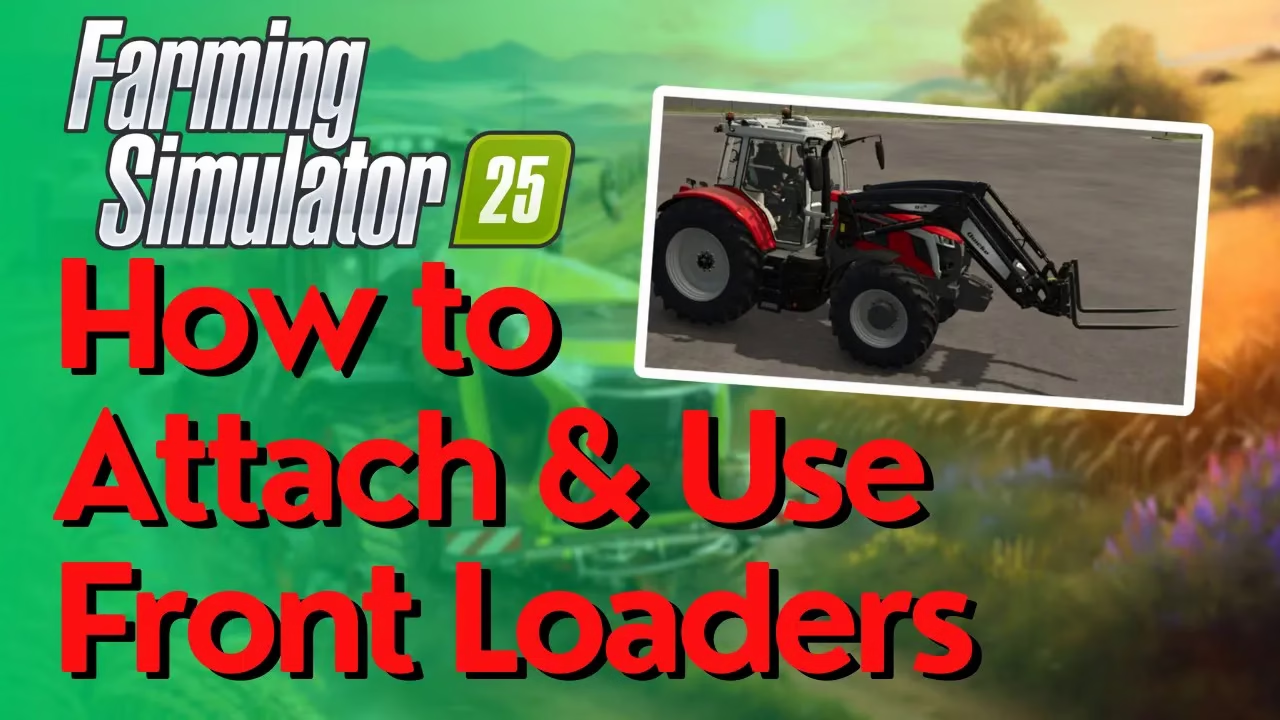
How To Attach & Use Front Loaders in Farming Simulator 25
How To Attach & Use Front Loaders in Farming Simulator 25
Front loaders are essential tools in Farming Simulator 25, but many players struggle with the attachment process. In this comprehensive guide, we’ll walk you through everything you need to know to successfully attach and operate front loaders on your tractors, including the critical setup step that many players miss.
Step 1: Purchase Your Tractor with Front Loader Support
The first thing you need to do is buy a tractor. You can choose any tractor model you prefer. For this tutorial, we’ll use the M8 series as an example.
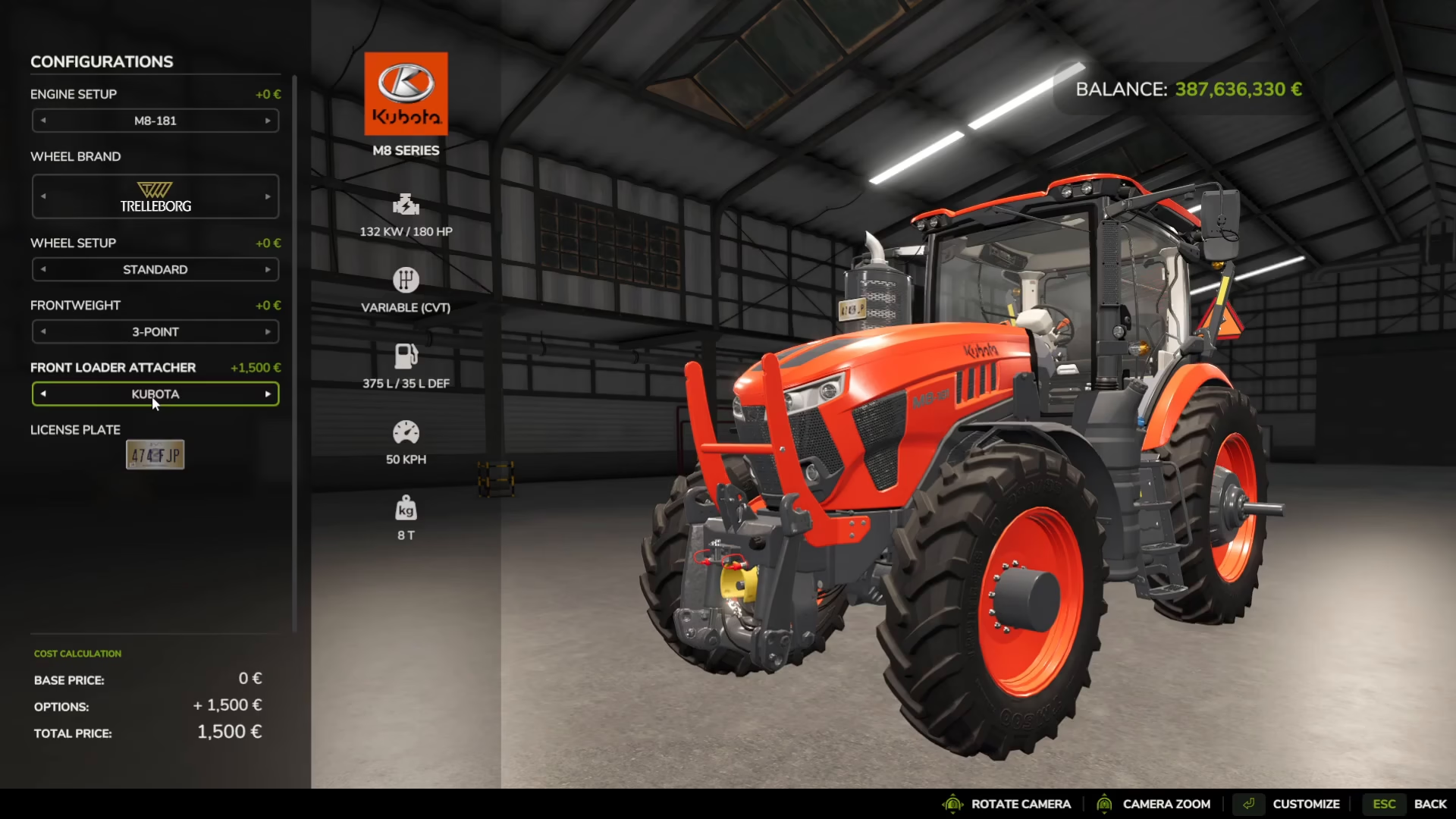
Important: When you’re at the purchase screen, look at the left side where it says “Front loader attacher.” This is the critical step that many players overlook. You must set this option to “yes” to enable front loader compatibility on your tractor. When enabled, you’ll see an orange attachment piece appear on the front of the tractor. If you don’t enable this option before purchasing, you won’t be able to attach front loaders to your tractor later.
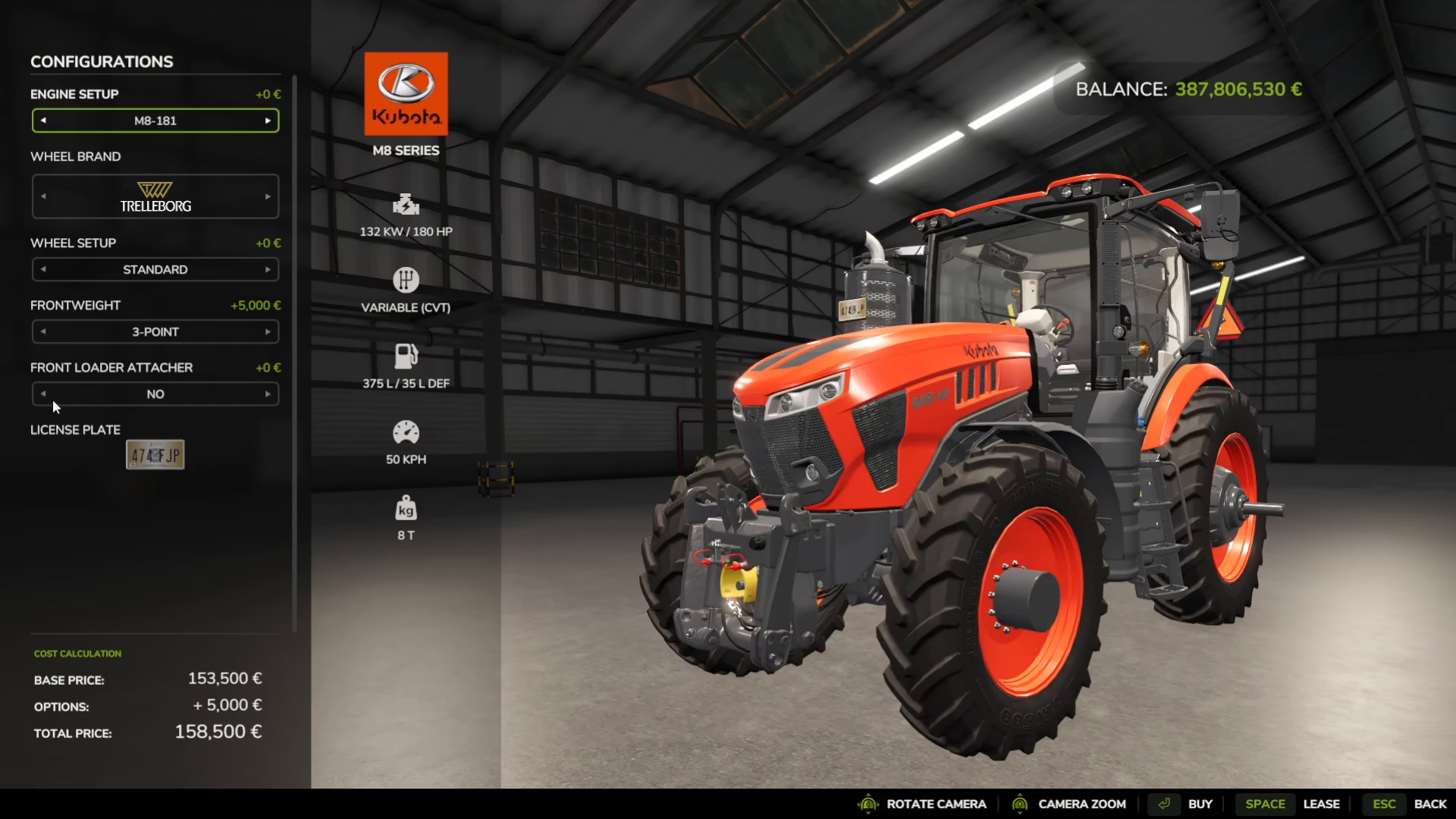
Once you’ve confirmed the front loader attacher is set to yes, proceed with buying your tractor.
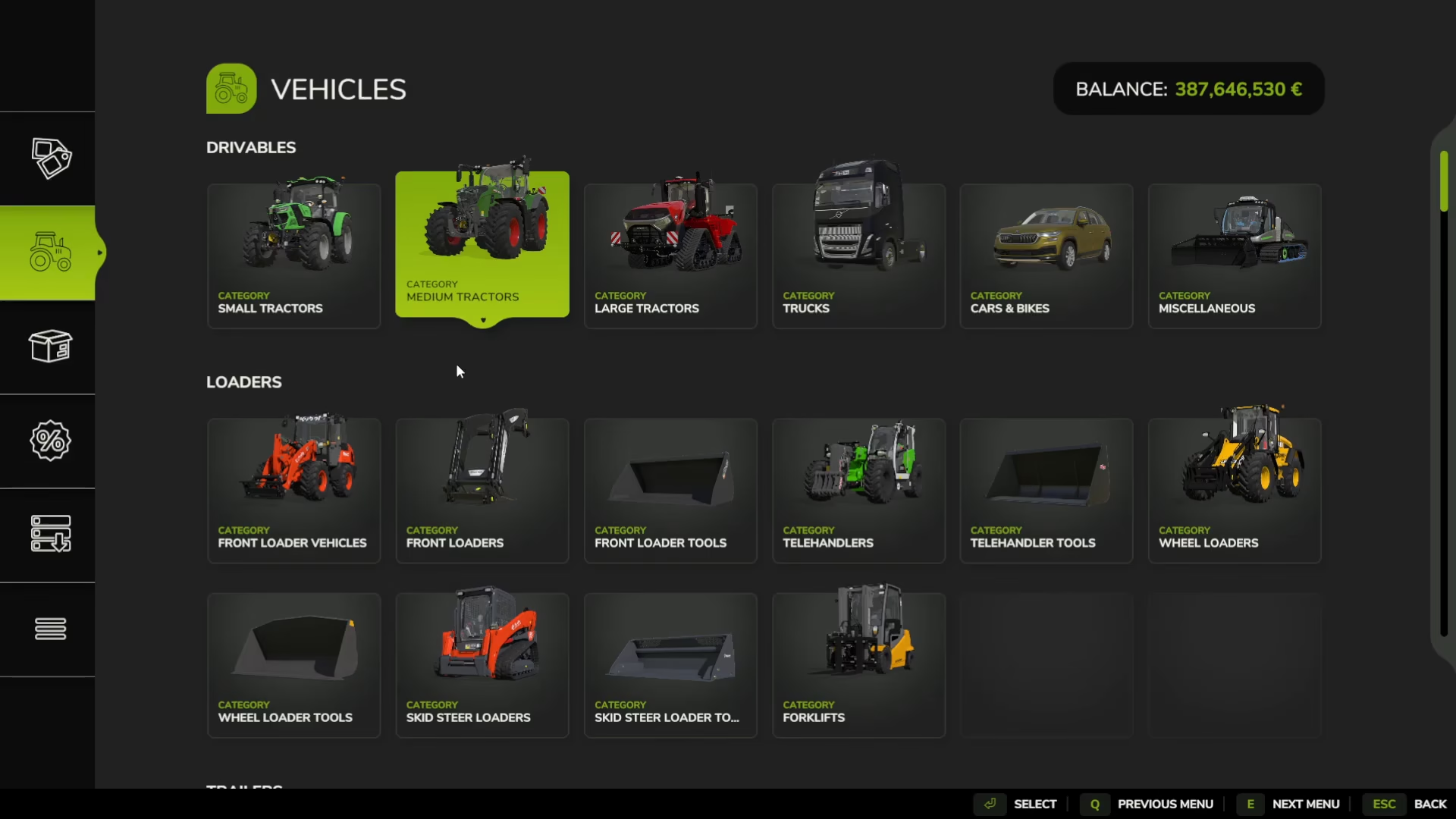
Step 2: Purchase Your Front Loader
Next, you need to buy the front loader unit itself. While you can purchase front-loading vehicles, it’s generally better to attach a loader to your standard tractor for more flexibility.
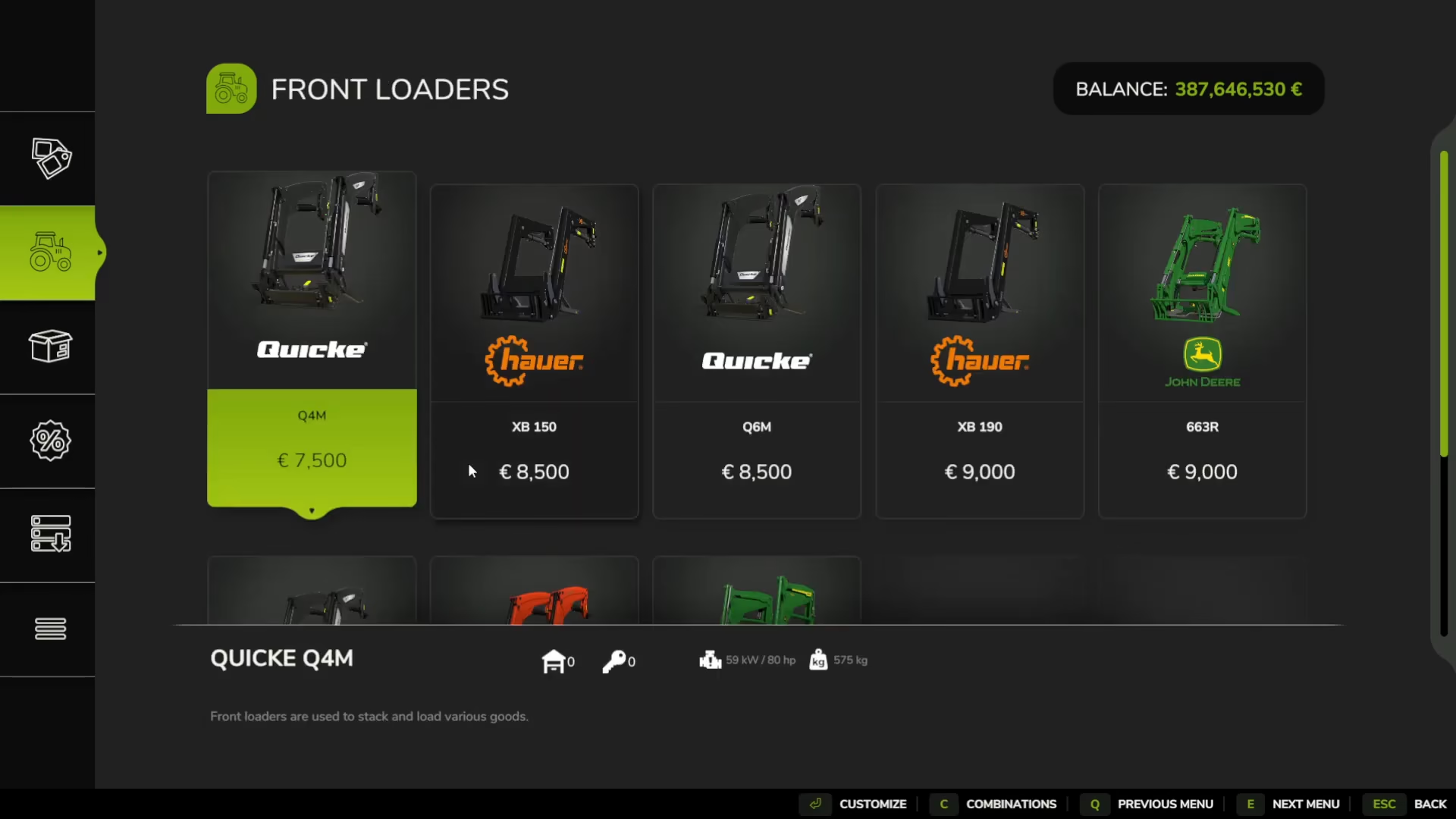
Step 3: Select Your Front Loader Tool Attachment
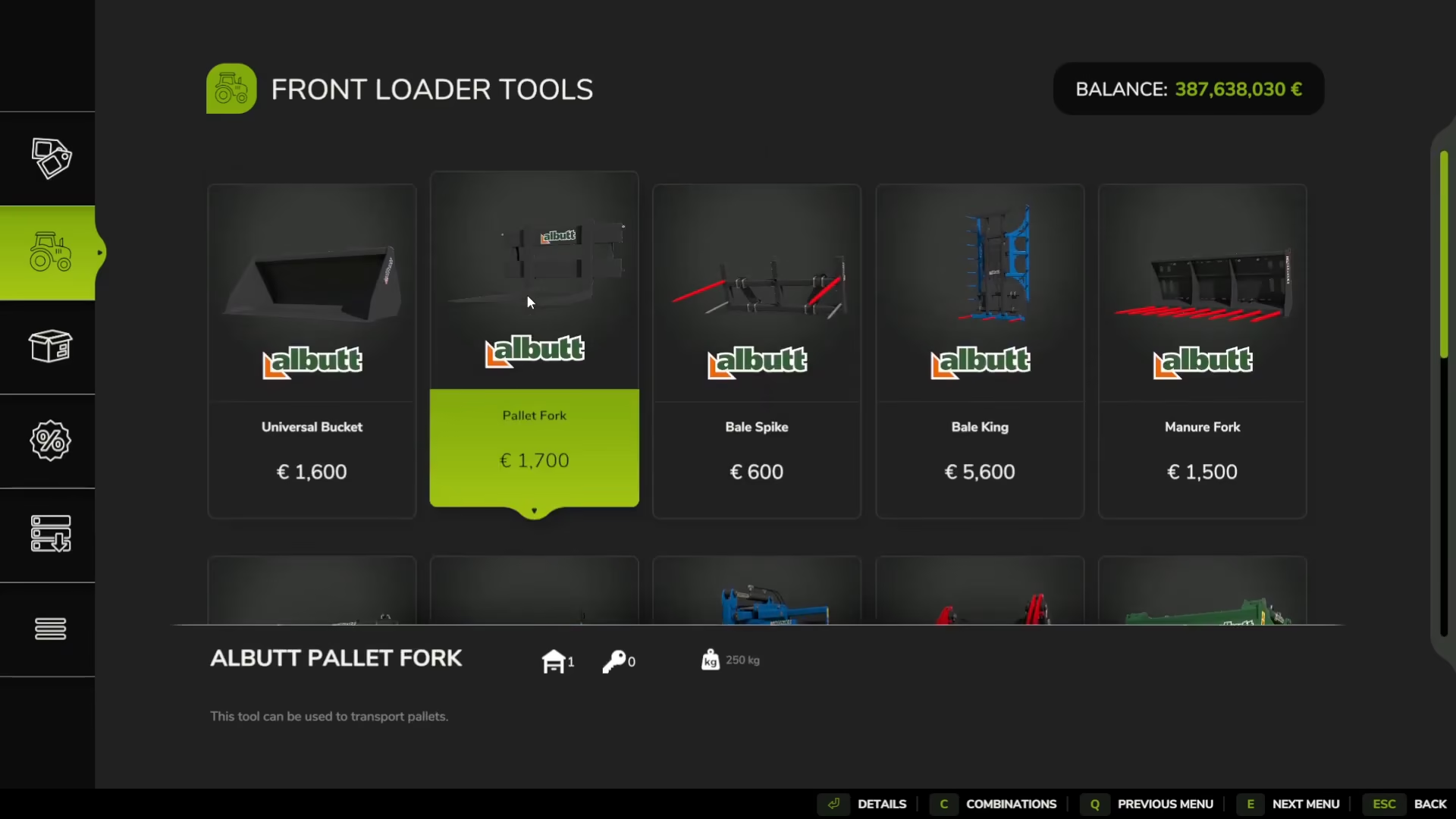
After purchasing the loader, you need to select a tool to attach to the front. There are several free tool options available, each designed for different tasks:
Sugarbeet Cutter: Cuts sugarbeets to feed into your biogas plant
Bag Lifter: Lifts and moves bags
Bale Handler: Handles hay bales
Pallet Fork: Perfect for lifting and moving pallets
For this tutorial, we’ll use the pallet fork as our example tool.
Step 4: Attach the Front Loader to Your Tractor
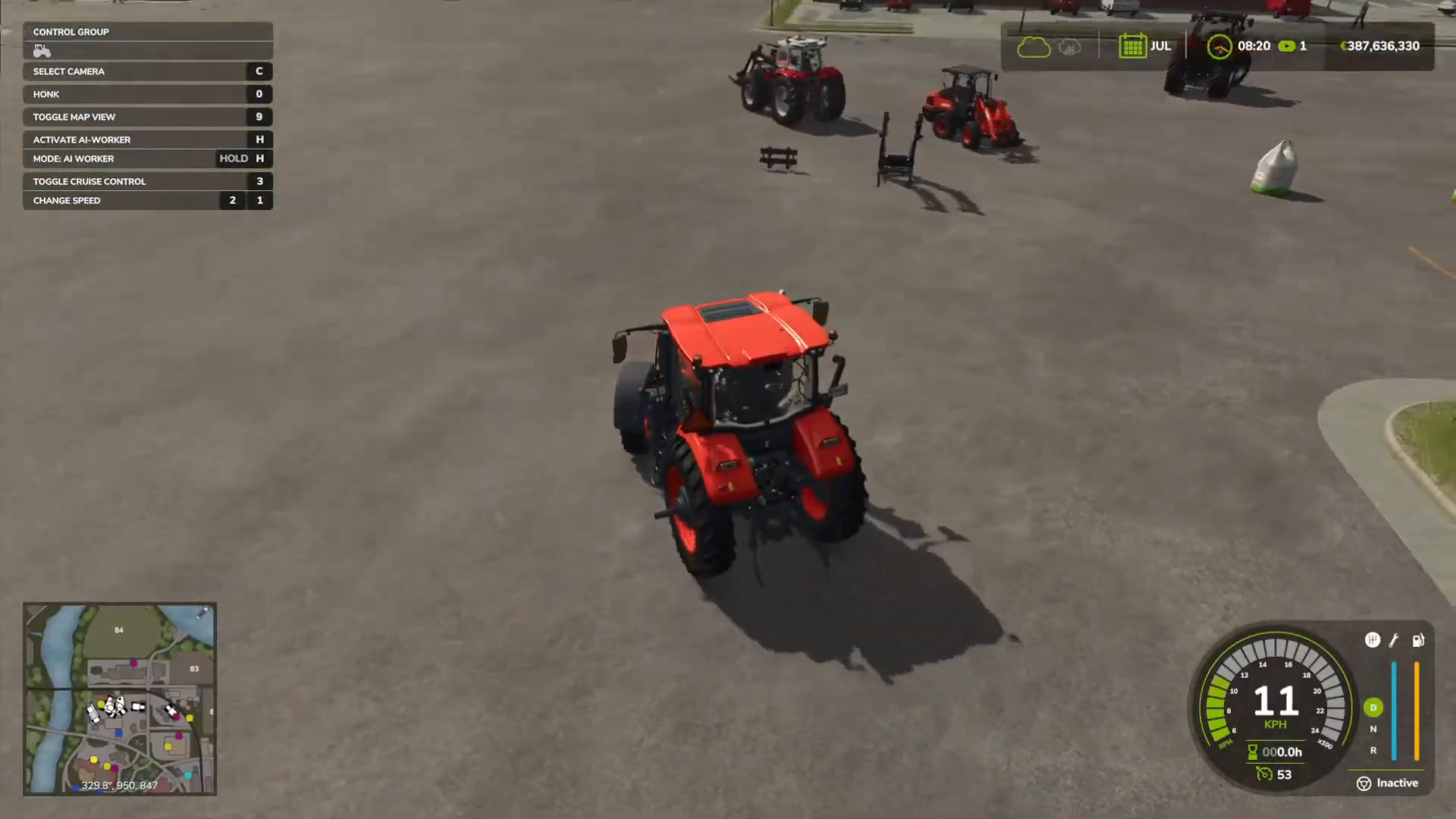
Now it’s time to assemble everything together. Drive your front loader up to your tractor. As you get close, you’ll see a prompt to attach. Position yourself carefully and complete the attachment of the front loader to the tractor.
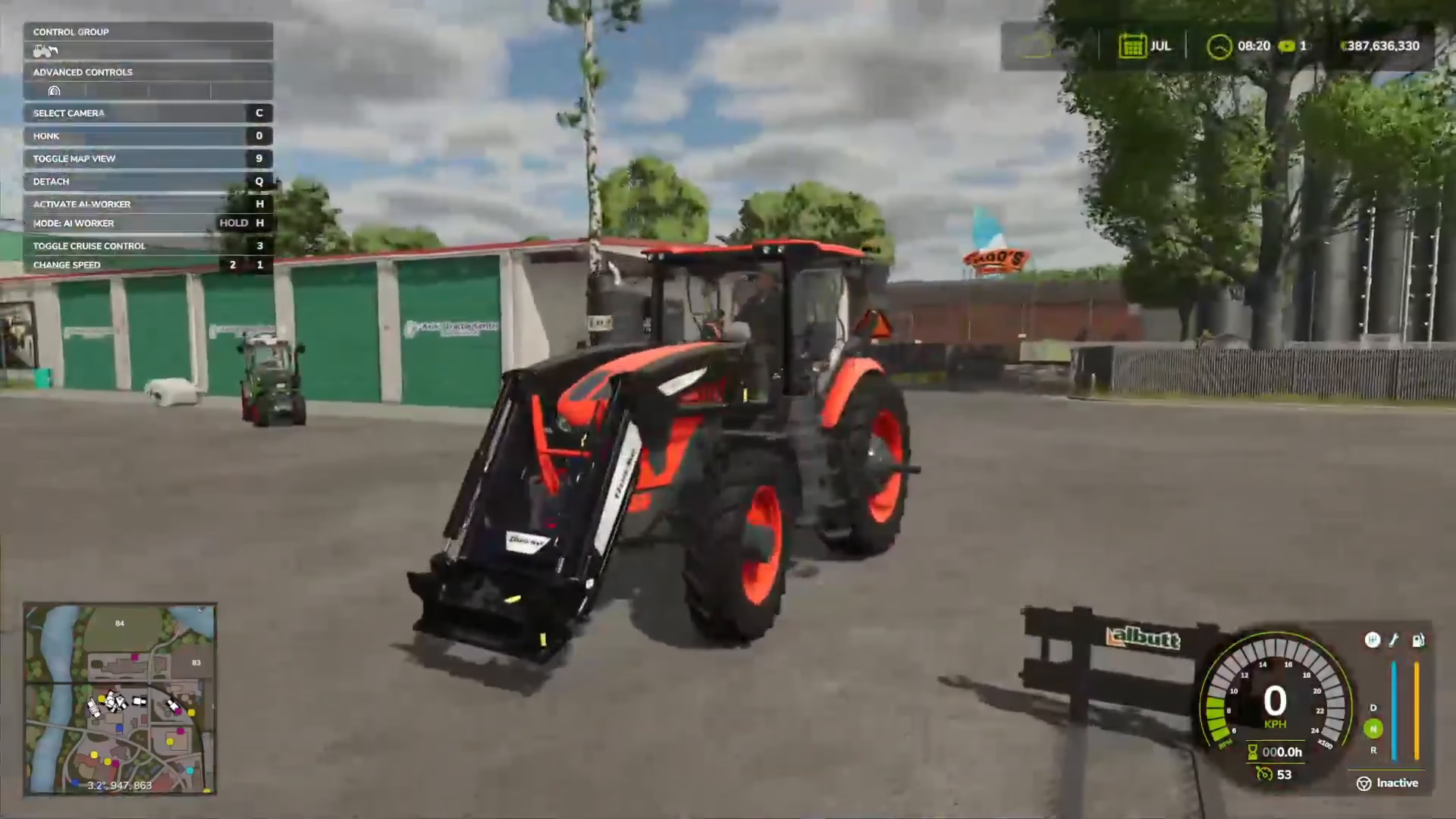
Next, drive the tool (pallet fork in this case) up to the front loader attachment point. Once you’re close enough, you’ll see another attachment prompt. Complete this attachment to secure the tool to the front loader.
Step 5: Operating Your Front Loader – Basic Controls
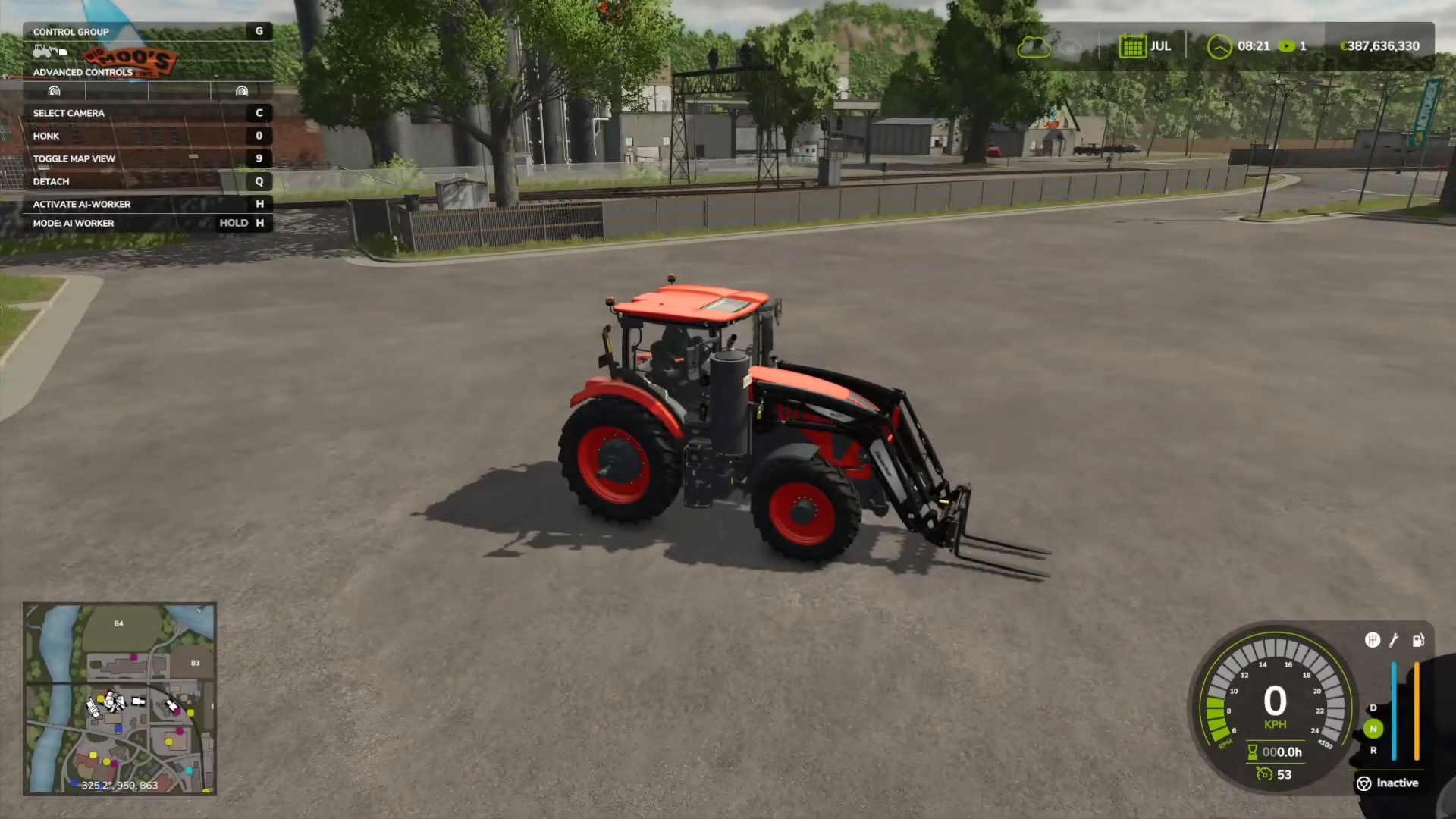
Once everything is attached, you can now operate your front loader. You’ll notice at the top left of the screen it says “Advanced controls.” To switch between different equipment attachments, press G.
When you have the front loader selected, use these controls to maneuver it:
Right Click: Moves the attachment in and out (adjusts the width or closes/opens the fork)
Left Click: Raises and lowers the attachment
Mouse Down: Pulls the mouse down to lift the loader up
Mouse Up: Pulls the mouse up to lower the loader down
Mouse Left: Moves the loader to the left
Mouse Right: Moves the loader to the right
Step 6: Repairing or Modifying an Existing Tractor
If you’ve already purchased a tractor without the front loader attacher enabled, don’t worry. You can still modify it. Head to the shop location and position your tractor within the marked area. You’ll see a spanner icon appear.
Press R to open the equipment menu. This will display all equipment in the area. Select your tractor, and you’ll see a list of options. Click on “Front load attacher” and select “yes” to enable front loader compatibility on your existing tractor.
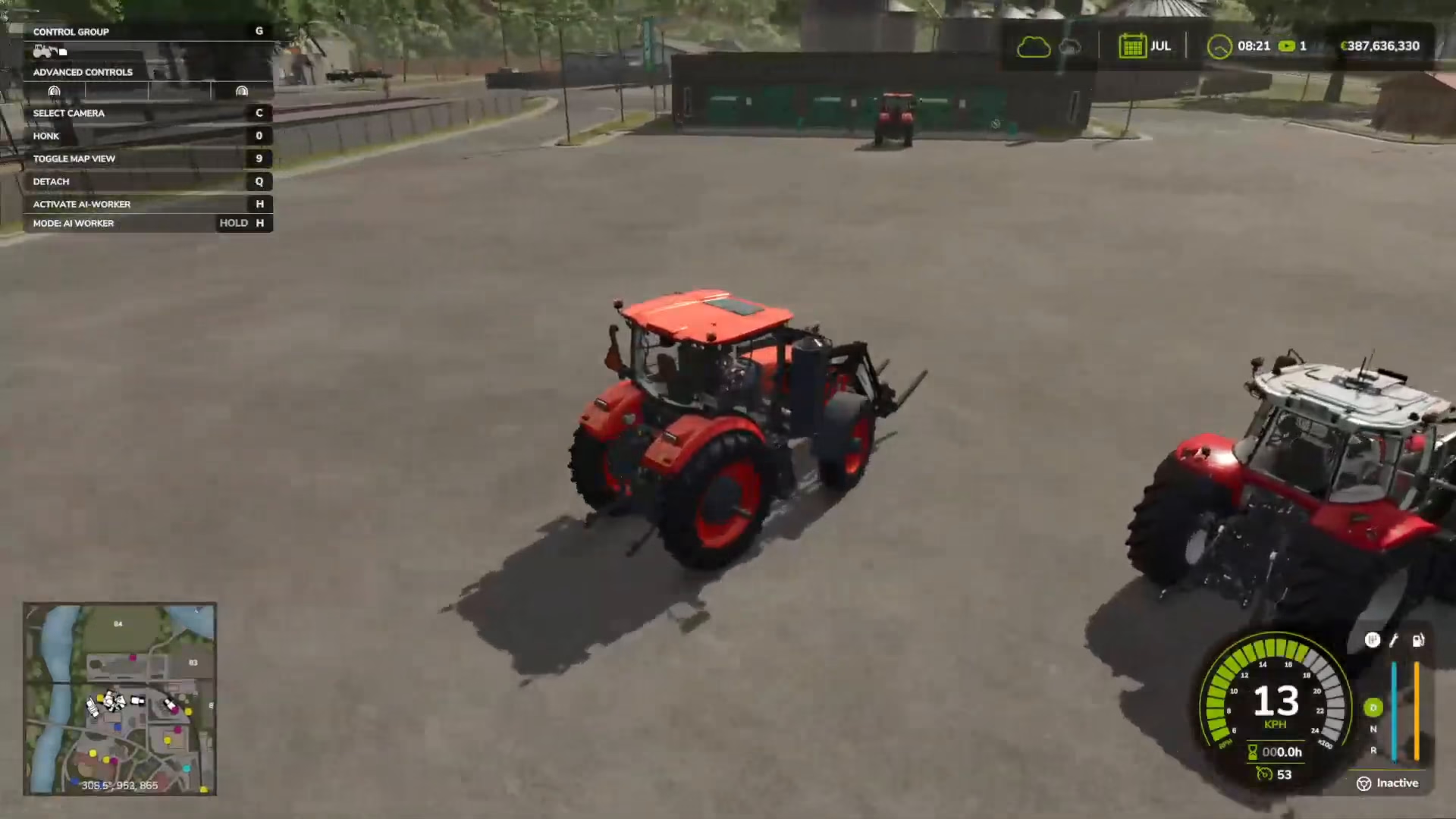
This same location is also where you can sell tractors, repaint them, or repair them without needing to buy entirely new vehicles.
Summary
Attaching and using front loaders in Farming Simulator 25 is straightforward once you know the process. The most important step is remembering to enable the “Front loader attacher” option when purchasing your tractor—this is where most players get stuck. Once you’ve done that, simply purchase your loader unit, select your tool attachment, and connect everything together. With practice, you’ll be efficiently moving materials and completing tasks in no time.
— Want to Support? —
If you would like to help us continue making these guides – please consider joining our patreon here – https://www.patreon.com/c/JaviHeals
Alternatively – you can join our discord here – https://discord.gg/zD7Gjt6MHF