





How To Change Language In FrostPunk 2
How To Change Language In Frostpunk 2
Changing the language in Frostpunk 2 is a straightforward process that can be completed in just a few clicks from the main menu. Whether you prefer to play in English, French, German, or any of the other supported languages, this guide will walk you through the simple steps needed to adjust your language settings.
Accessing the Settings Menu
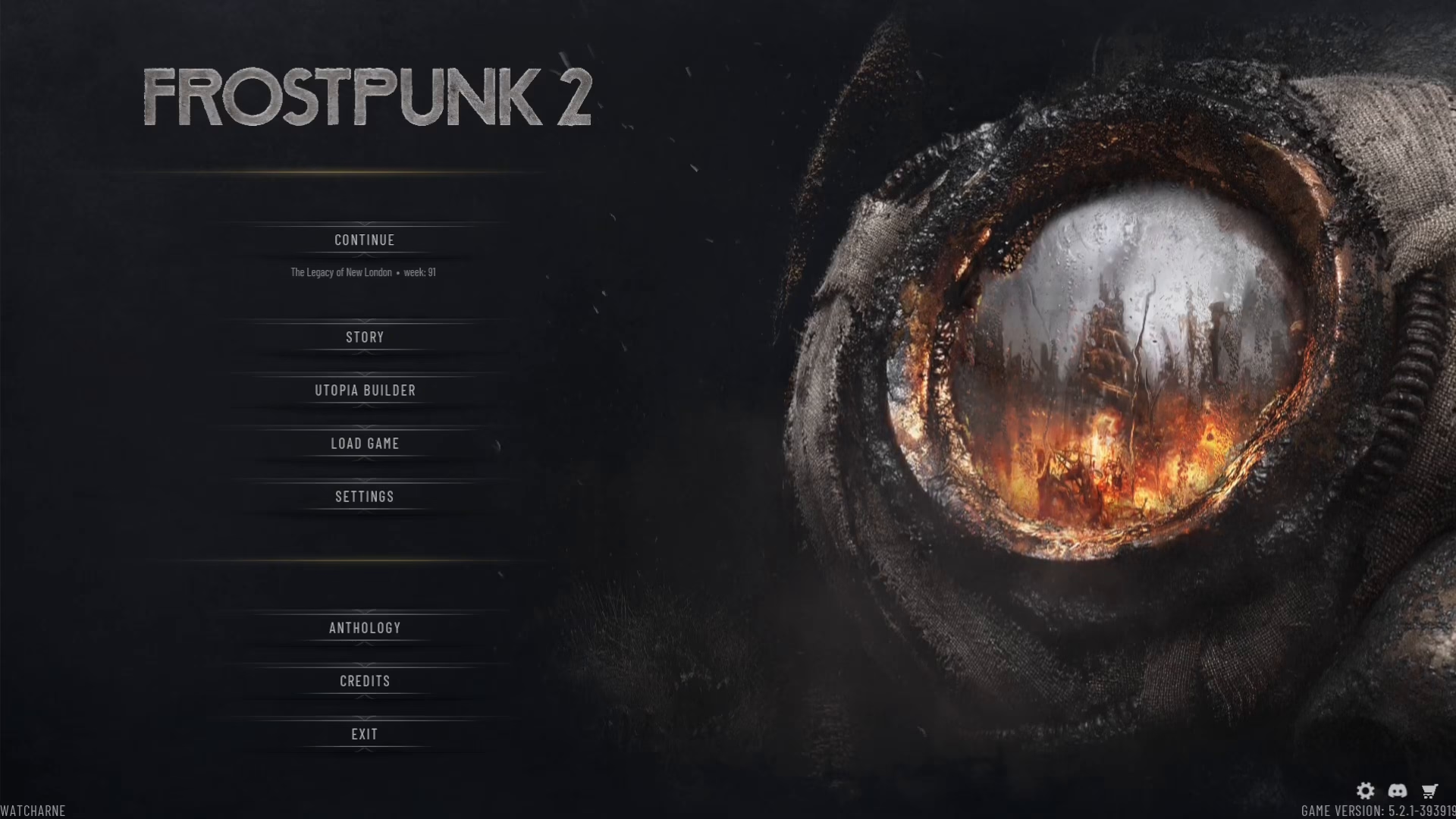
Once you have loaded up Frostpunk 2, navigate to the main menu. From there, locate and click on the Settings option. This will open the settings panel where you can modify various game configurations.
Finding the Language Option
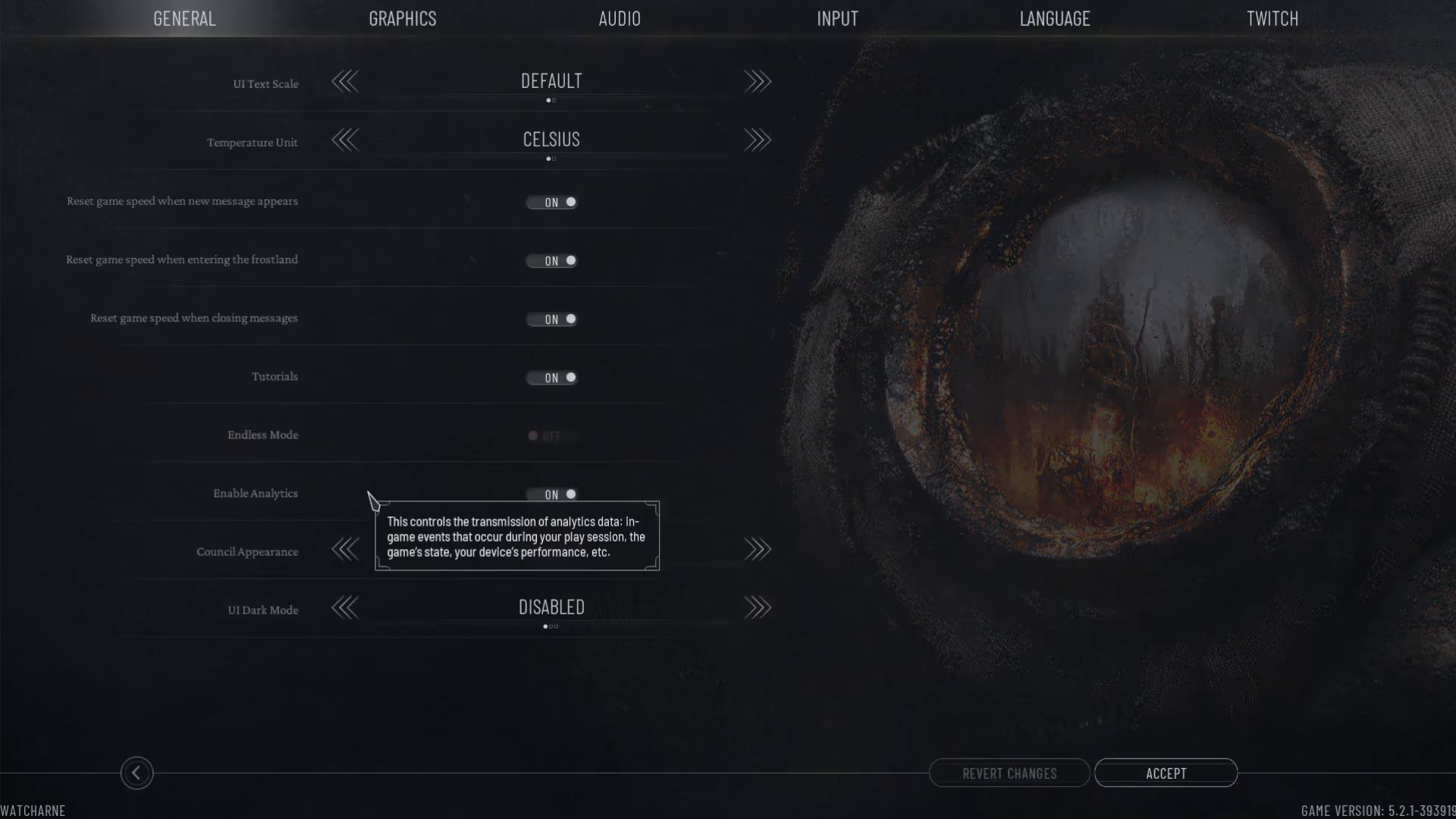
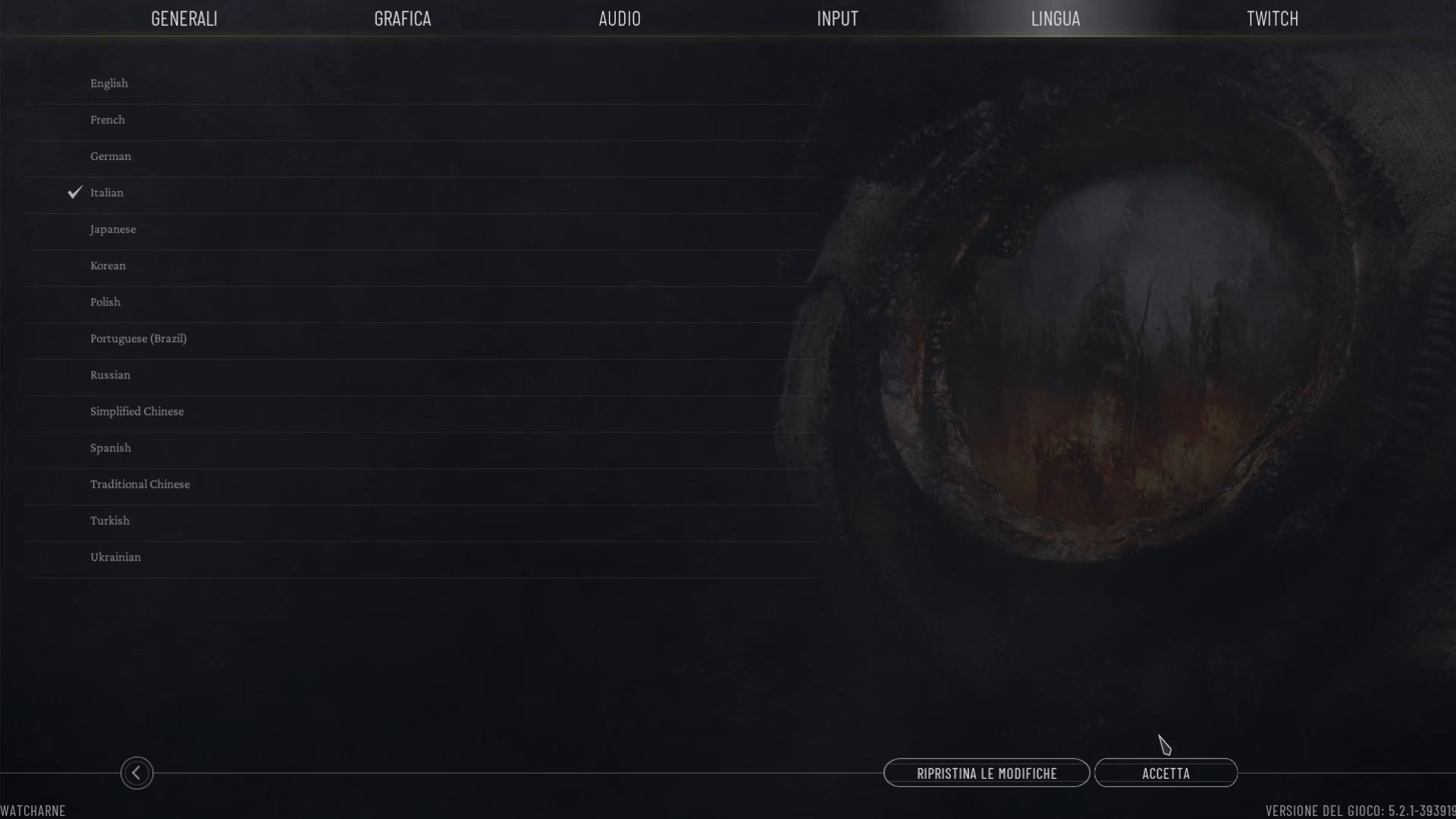
Within the Settings menu, you will see several tabs at the top: General, Graphics, Audio, Input, and Language. Click on the Language tab to access all available language options.
Available Languages
Frostpunk 2 supports the following languages:
English
French
German
Italian
Japanese
Korean
Polish
Brazilian Portuguese
Russian
Simplified Chinese
Spanish
Traditional Chinese
Turkish
Ukrainian
Selecting Your Preferred Language
Click on your desired language from the list. As soon as you select a language, you will immediately see a preview of the changes. The menu options and text at the top of the screen will display in the newly selected language, allowing you to confirm your choice before finalizing it.
Confirming Your Language Change
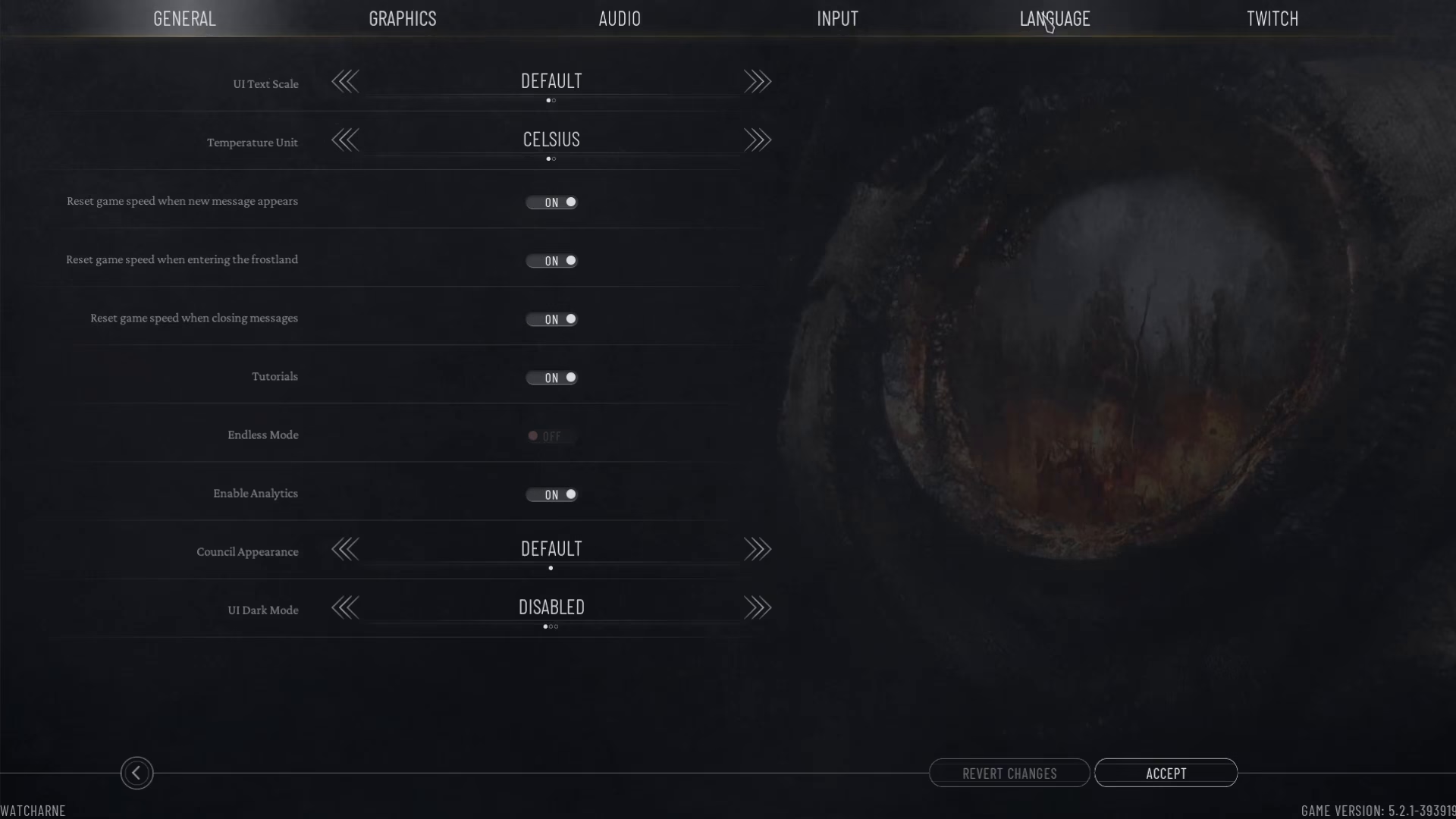
Once you have selected your preferred language and verified the preview, click the Accept button to apply the changes. The entire game interface and all in-game text will now be displayed in your chosen language.
Summary
Changing the language in Frostpunk 2 is an easy process that takes less than a minute. Simply open Settings from the main menu, navigate to the Language tab, select your preferred language from the 14 available options, and click Accept. Your game will immediately switch to the new language, and you’re all set to begin playing in your chosen language.
— Want to Support? —
If you would like to help us continue making these guides – please consider joining our patreon here – https://www.patreon.com/c/JaviHeals
Alternatively – you can join our discord here – https://discord.gg/zD7Gjt6MHF