How to Change The Camera Distance (FOV) in Pokopia
How to Change The Camera Distance (FOV) in Pokopia
Feeling claustrophobic while playing Pokopia? The default camera distance might feel too close for comfort. Fortunately, adjusting your camera position is quick and easy. This guide will walk you through the steps to change your camera distance (FOV) settings so you can get a better view of your surroundings in the game.
Accessing the Settings Menu
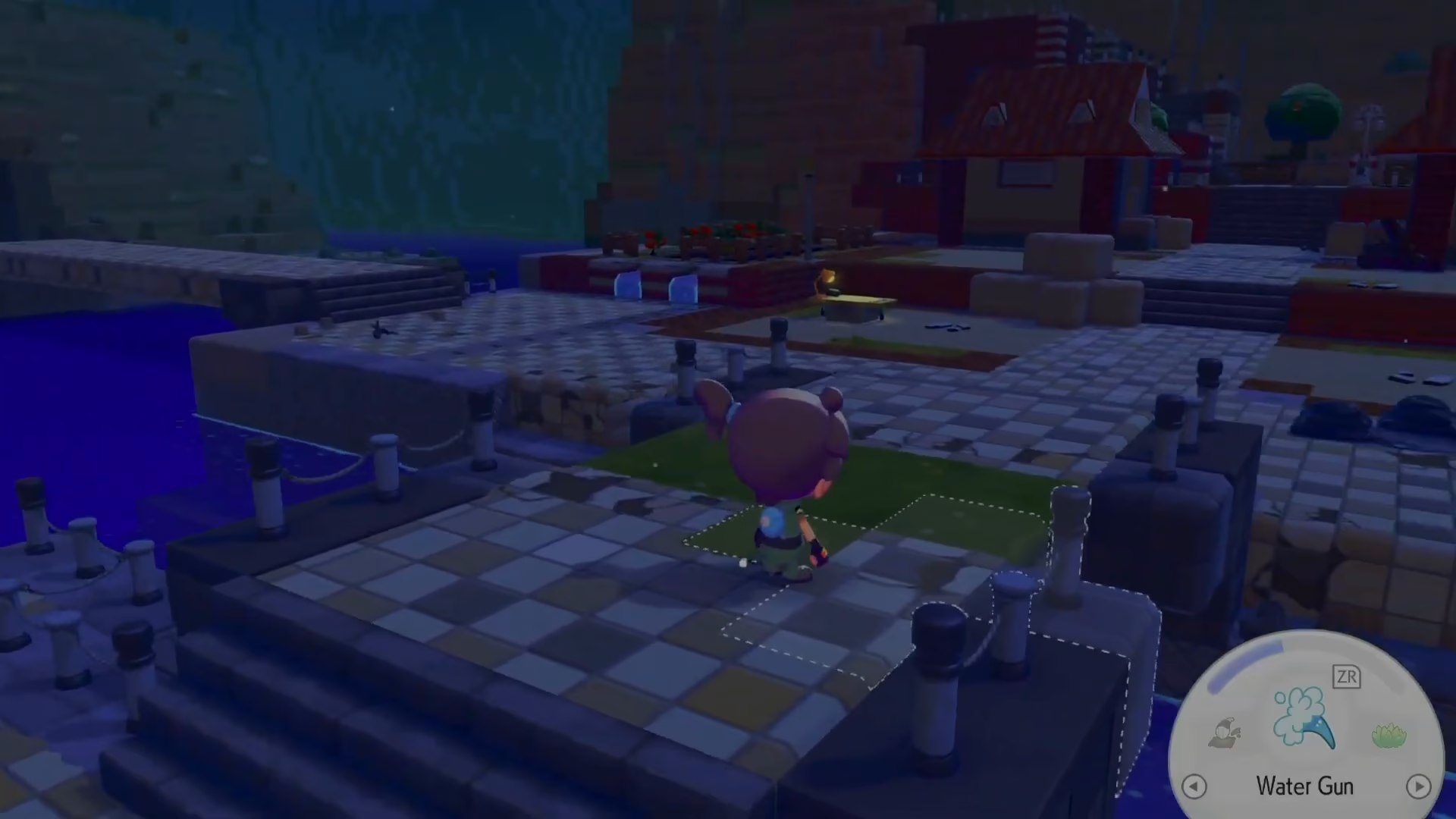
To begin, open the settings menu. You’ll find the settings option readily available from the main interface.
Navigating to Camera Settings
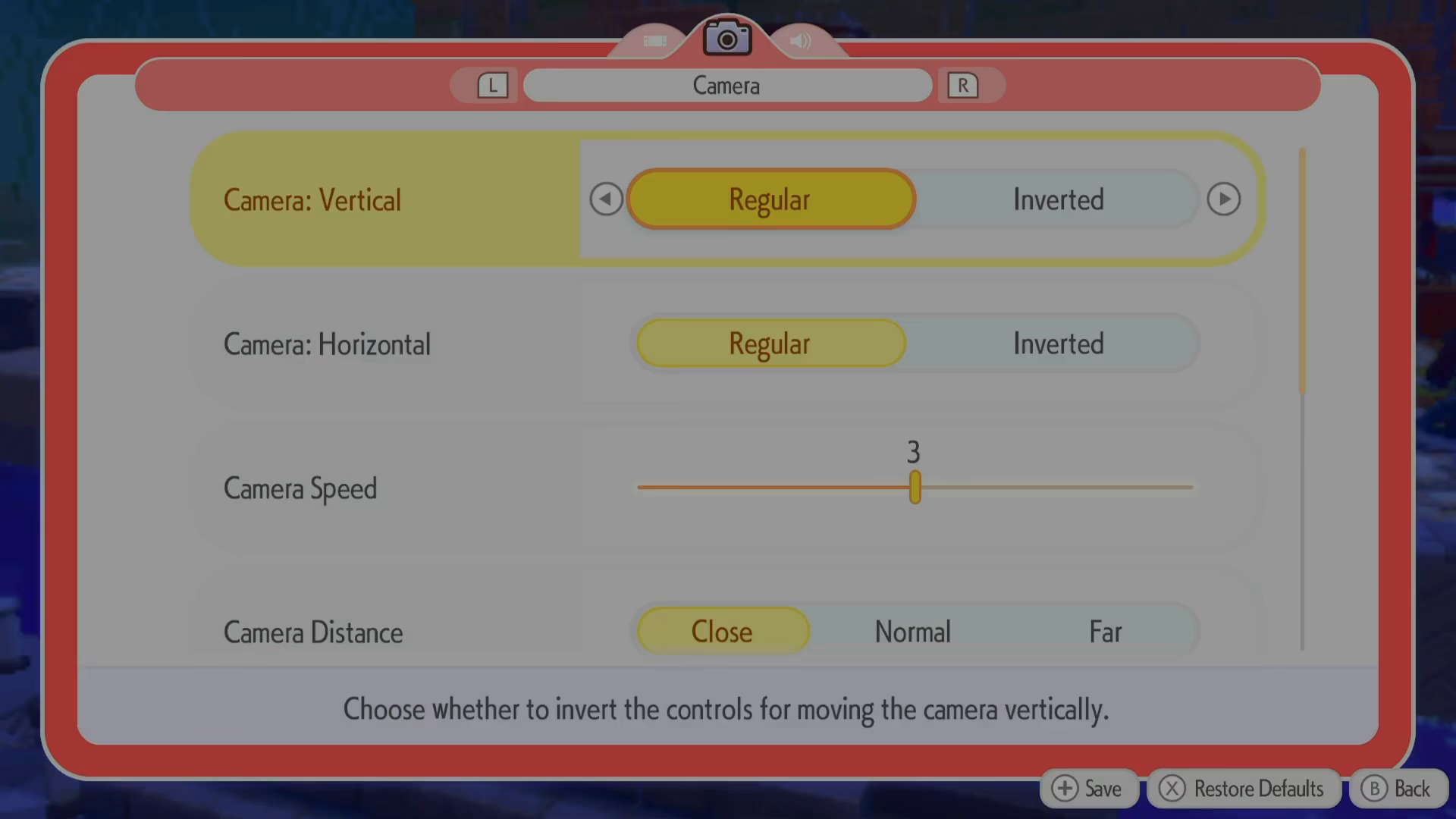
Once in the settings menu, you’ll see several options. Look for and select the Camera tab to access camera-related settings.
Adjusting Camera Distance
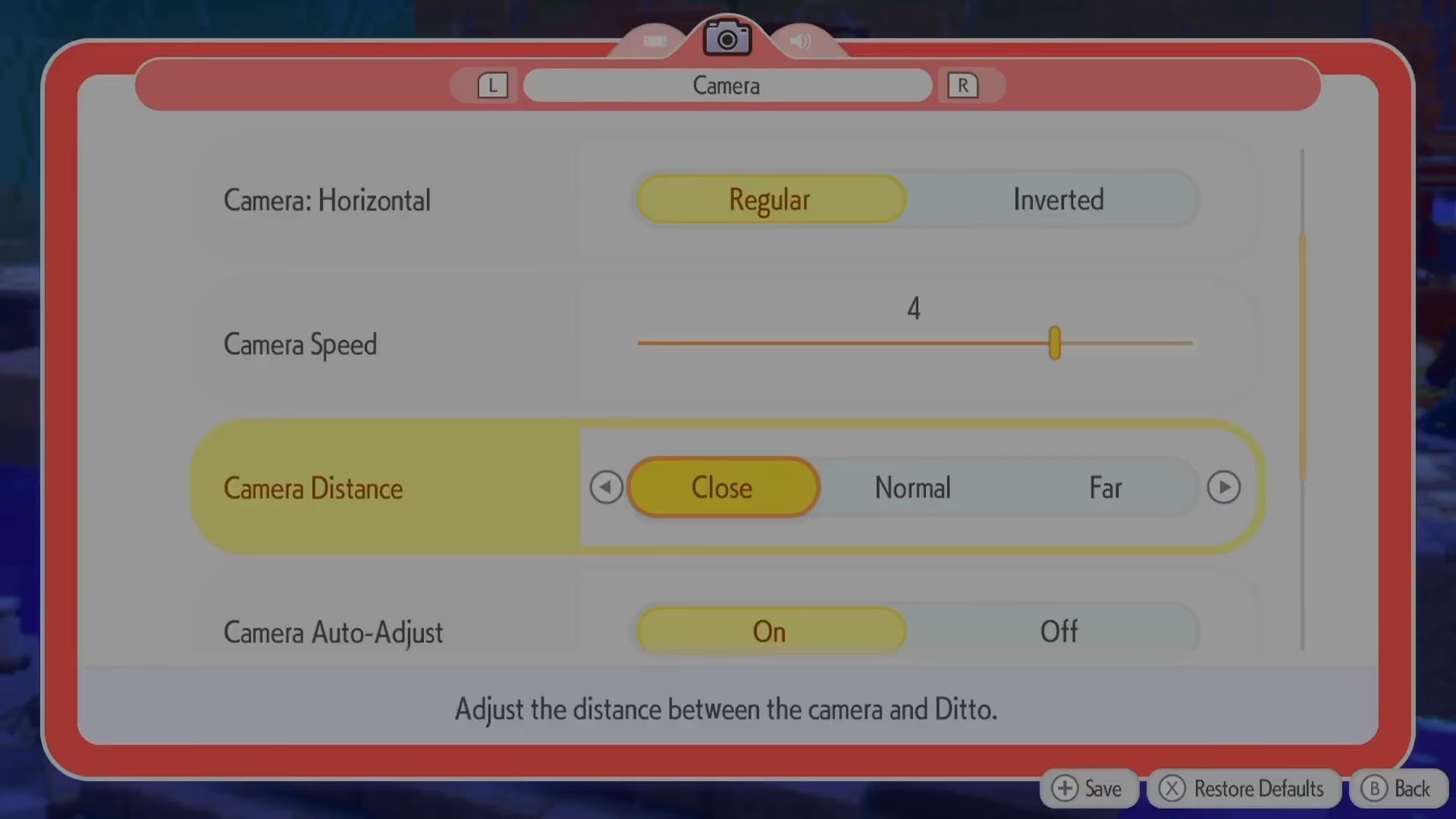
Under the Camera settings, you’ll find the Camera Distance option. By default, this is set to Close. You have the following options available:
Close (default setting)
Normal
Far
Select your preferred distance. The Far option pushes the camera significantly further out, giving you a much wider view of the game world and helping you feel less confined.
Saving Your Changes
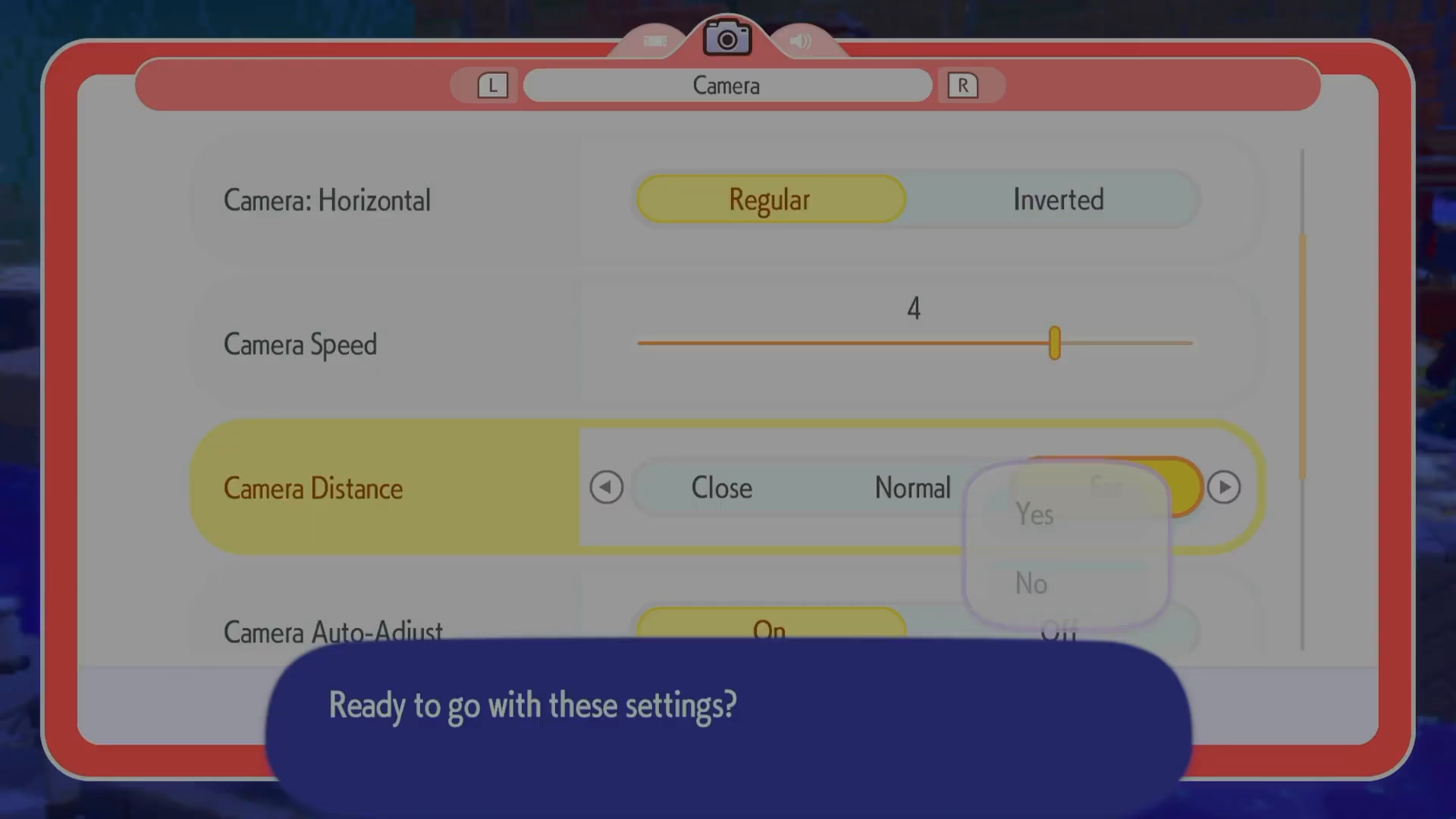
After selecting your desired camera distance, make sure to save your settings. Your new camera distance will now be applied whenever you play Pokopia.
Summary
Changing your camera distance (FOV) in Pokopia is a simple three-step process: open Settings, navigate to the Camera tab, and select your preferred distance from Close, Normal, or Far. Experiment with each option to find what feels most comfortable for your gameplay experience.
— Want to Support? —
If you would like to help us continue making these guides – please consider joining our patreon here – https://www.patreon.com/c/JaviHeals
Alternatively – you can join our discord here – https://discord.gg/zD7Gjt6MHF