





How To Turn Off & Change The Radio in CyberPunk 2077
How To Turn Off & Change The Radio in Cyberpunk 2077
One of the most common annoyances while playing Cyberpunk 2077 is the radio playing constantly throughout your gameplay. Many players don’t realize how simple it is to control the radio in the game. This guide will walk you through the easy steps to turn off the radio, switch stations, and adjust the volume to suit your preferences.
Locating the Radio Controls
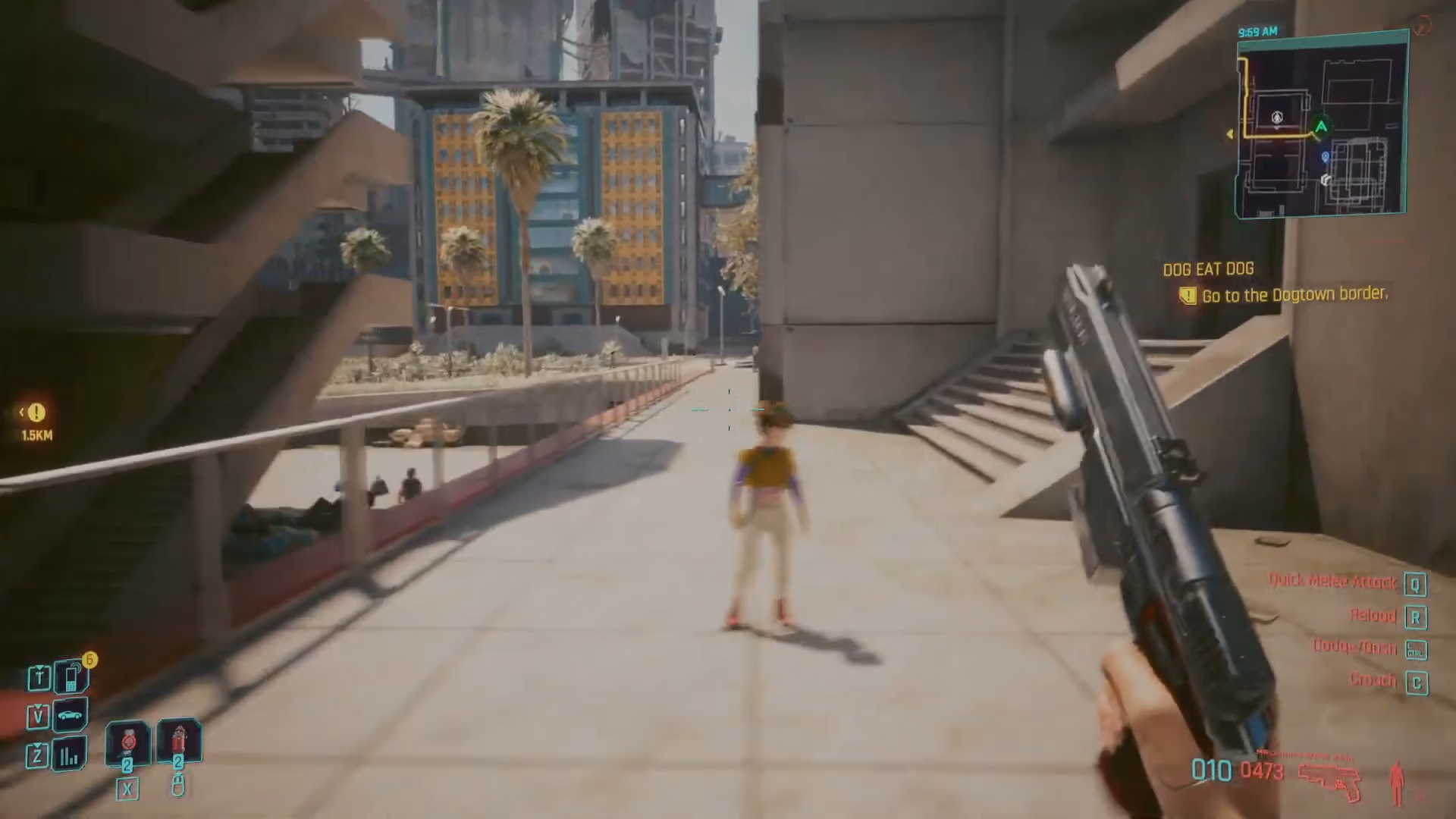
When the radio is playing in Cyberpunk 2077, you’ll notice a small audio bar on the bottom left side of your screen. This audio bar moves up and down as the music plays, and you’ll see a “Z” indicator next to it. This “Z” is your key to controlling all radio functions in the game.
Turning the Radio Off
To turn off the radio completely, simply press the Z key on your keyboard. This will immediately stop the music from playing and give you silence while you explore Night City.
Changing Radio Stations
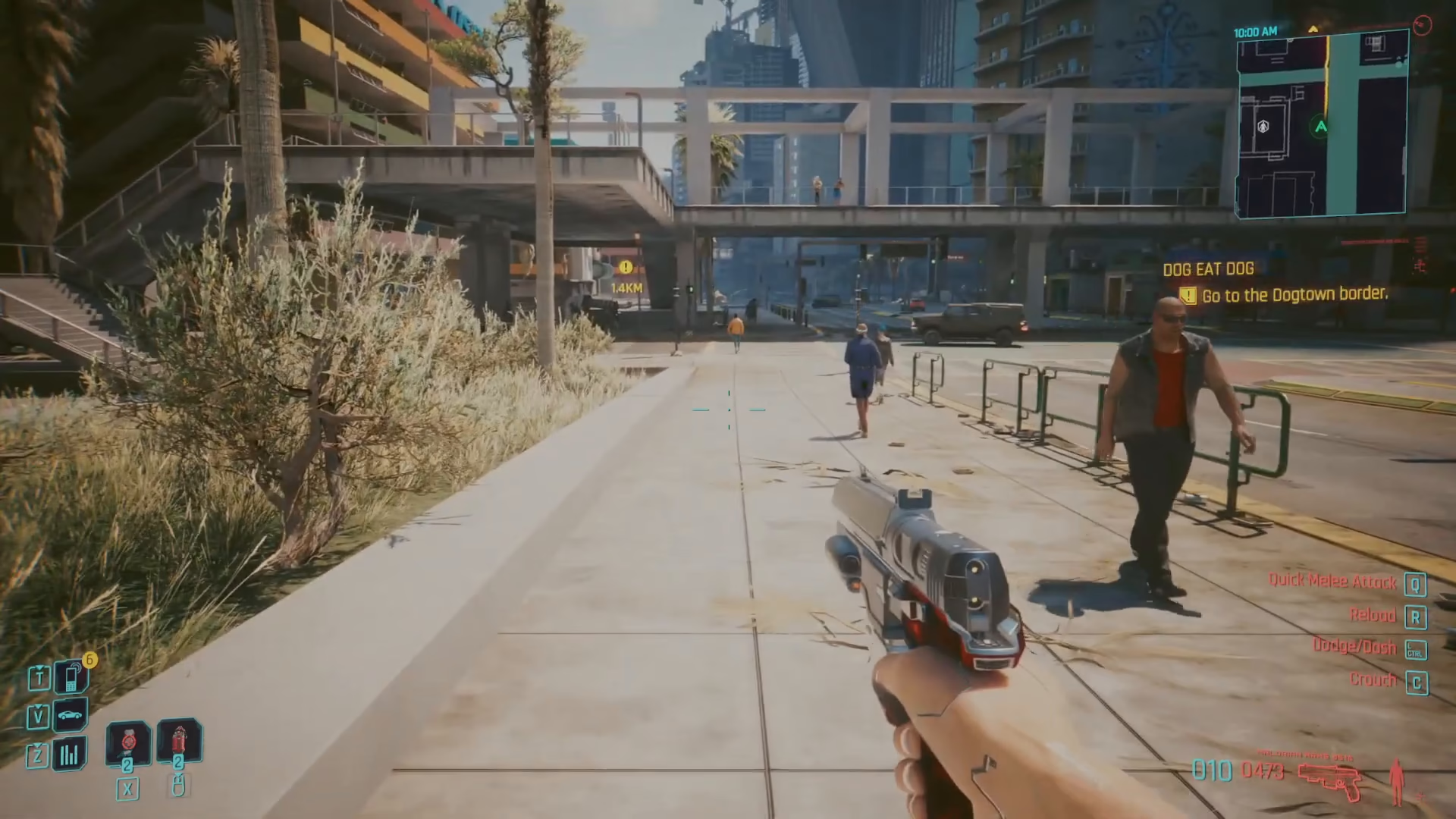
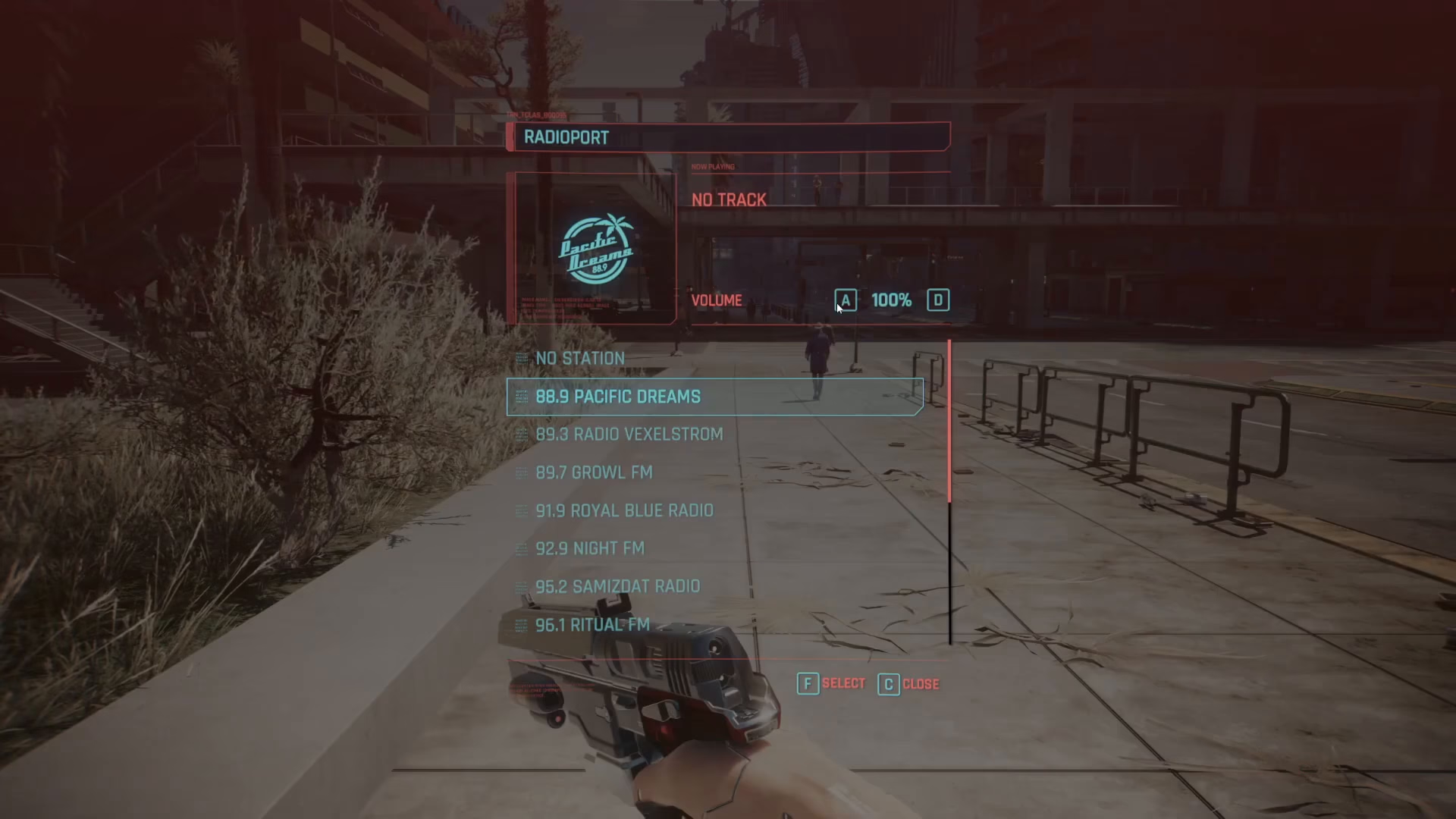
If you prefer to keep the music on but want to switch to a different station, hold down the Z key instead of just pressing it. A menu will appear displaying all available radio stations. You can browse through the different stations and select whichever one you’d like to listen to during your gameplay.
Adjusting the Volume
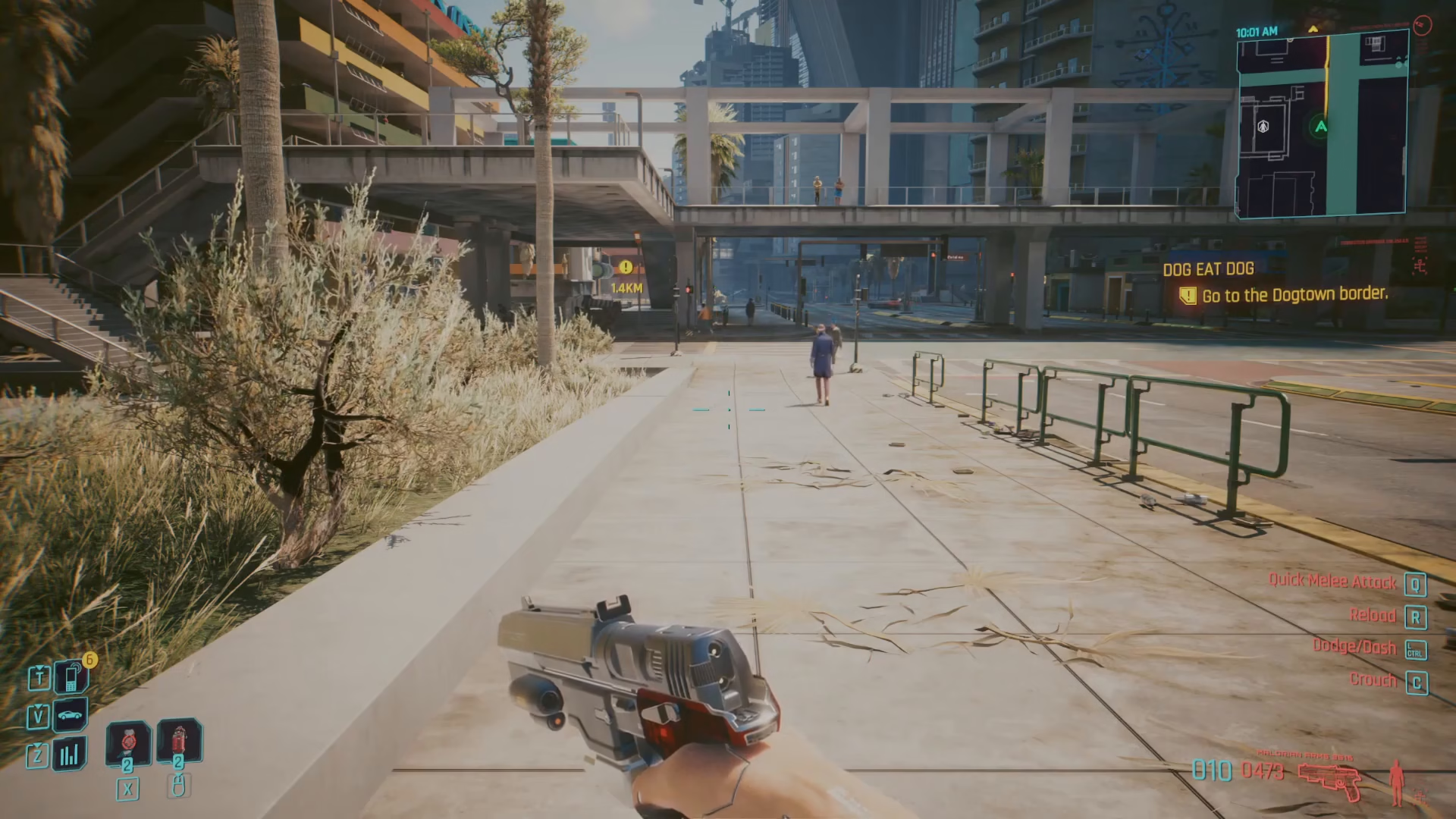
You don’t necessarily have to turn the radio off completely if it’s too loud. Through the same Z key menu, you can adjust the radio volume to a level that’s more comfortable for you. Whether you want to lower it to a background level or turn it up for a more immersive experience, the volume control is right there in the same interface.
Summary
Controlling the radio in Cyberpunk 2077 is straightforward once you know where to look. Remember: press Z to toggle the radio off and on, and hold Z to access the full radio menu where you can change stations and adjust the volume. Now that you know these simple controls, you can customize your audio experience exactly the way you want it while exploring the neon-soaked streets of Night City.
— Want to Support? —
If you would like to help us continue making these guides – please consider joining our patreon here – https://www.patreon.com/c/JaviHeals
Alternatively – you can join our discord here – https://discord.gg/zD7Gjt6MHF