





How To Turn Off Text To Speech In Age of Empires 4
How To Turn Off Text To Speech In Age of Empires 4
Text to Speech can be helpful for accessibility, but if you prefer to disable it in Age of Empires 4, the process is straightforward. This guide will walk you through the simple steps needed to turn off Text to Speech so incoming chat messages won’t be read aloud during your gameplay.
Accessing the Settings Menu
Start by opening Age of Empires 4 and navigating to the main menu. Look for the Settings option located in the bottom right corner of the screen. Click on Settings to access the main settings panel.

Opening Accessibility Settings
Once in the Settings menu, locate and click on the Accessibility option. This section contains all accessibility-related features and preferences for the game.
Finding and Disabling Narration
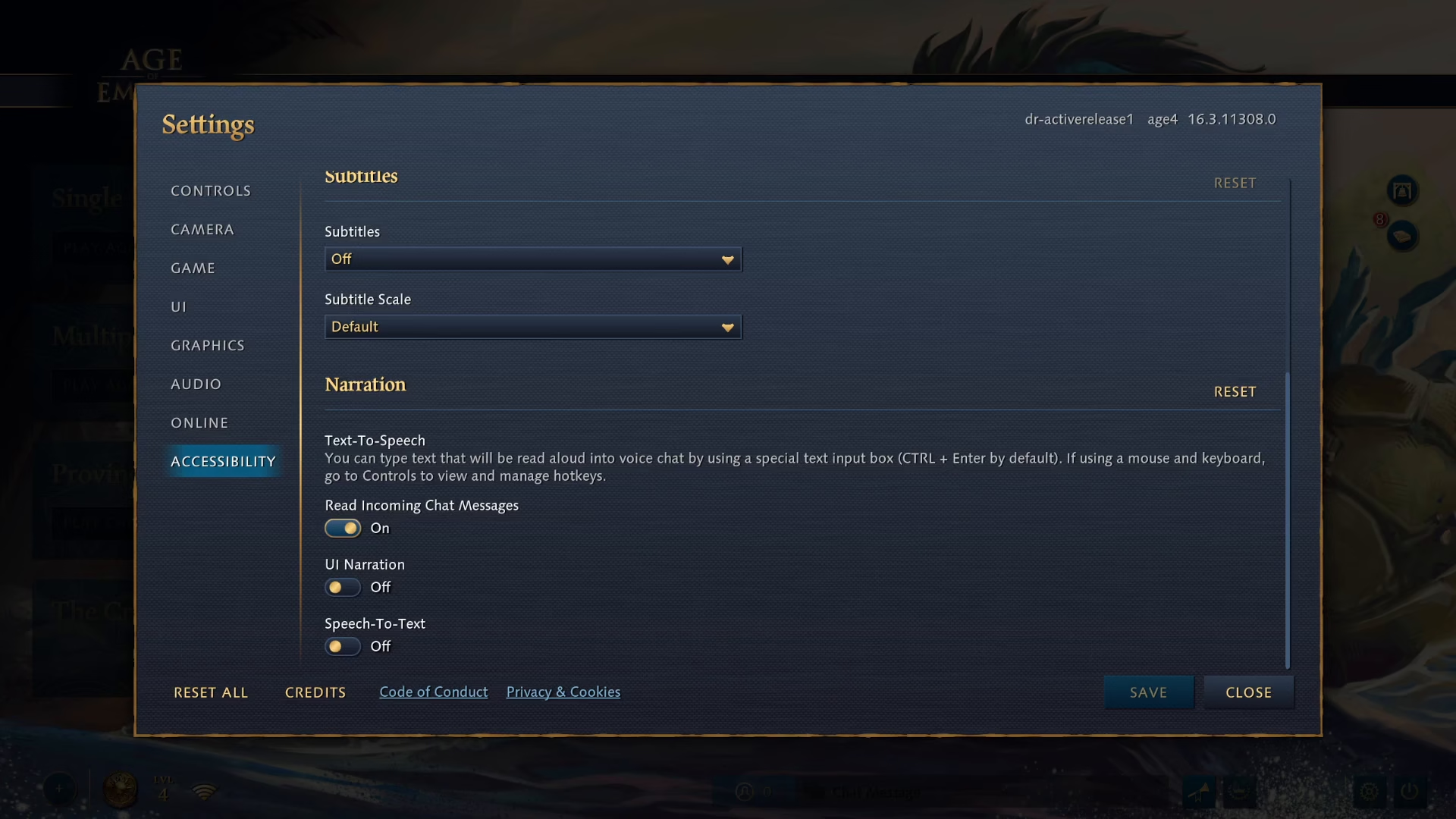
In the Accessibility settings, scroll down until you find the Narration section. By default, the Text to Speech feature reads incoming chat messages aloud whenever someone types in the chat during gameplay. To disable this feature, click on the toggle or checkbox next to “read incoming chat messages” to turn it off.
Saving Your Changes
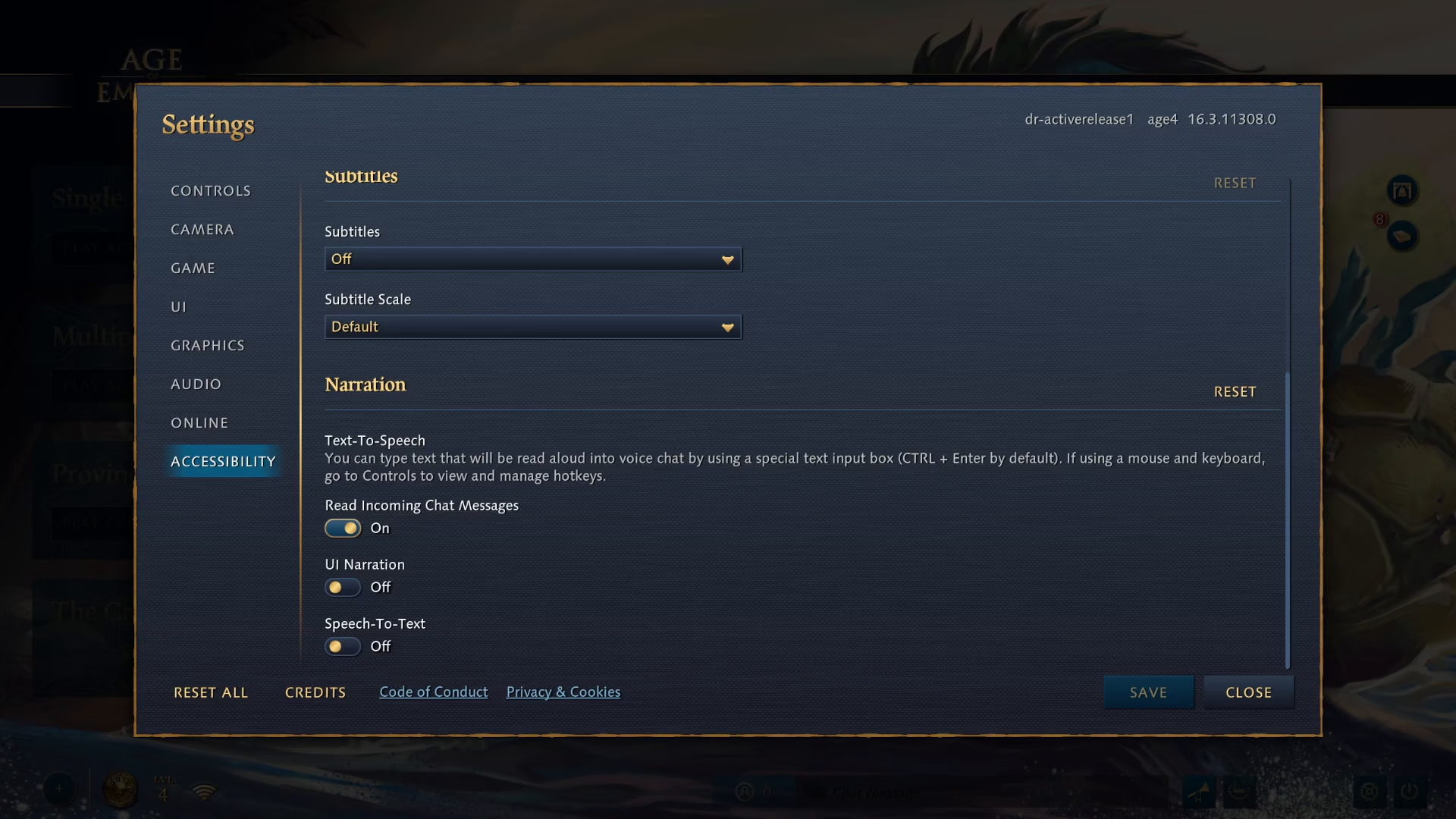
After disabling the “read incoming chat messages” option, make sure to click the Save button to apply your changes. Your Text to Speech settings will now be permanently disabled until you choose to re-enable them.
Summary
Turning off Text to Speech in Age of Empires 4 is a quick and easy process. Simply navigate to Settings > Accessibility, scroll to the Narration section, disable the “read incoming chat messages” option, and click Save. You’ll now enjoy your gameplay without automatic text-to-speech notifications from chat messages.
— Want to Support? —
If you would like to help us continue making these guides – please consider joining our patreon here – https://www.patreon.com/c/JaviHeals
Alternatively – you can join our discord here – https://discord.gg/zD7Gjt6MHF