How To Turn On Video Camera On Ps5 In Phasmophobia
How To Turn On Video Camera On PS5 In Phasmophobia
Learn how to activate and use the video camera on PlayStation 5 while playing Phasmophobia. This guide covers the essential controller inputs you need to record footage and place cameras strategically during your ghost-hunting missions.
Activating the Video Camera
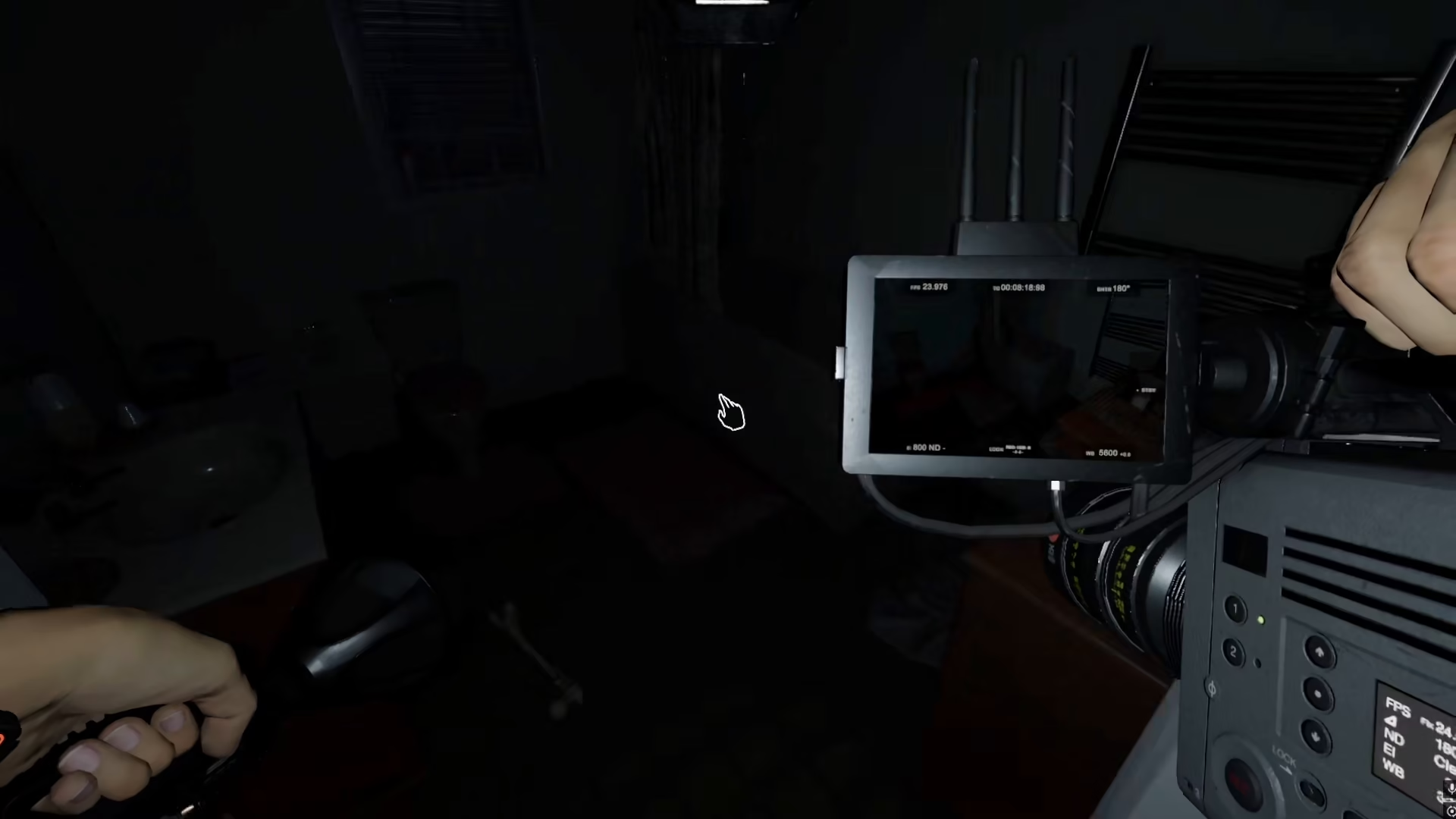
To turn on the video camera on PS5, you need to hold the video camera in your hand and press the Square button on your controller. This is the crucial step that will start the recording function.
It’s important to note that simply pressing the Square button without actively holding the video camera in your hand will not activate the recording. You must have the camera equipped in your inventory before pressing the button.
Placing the Video Camera
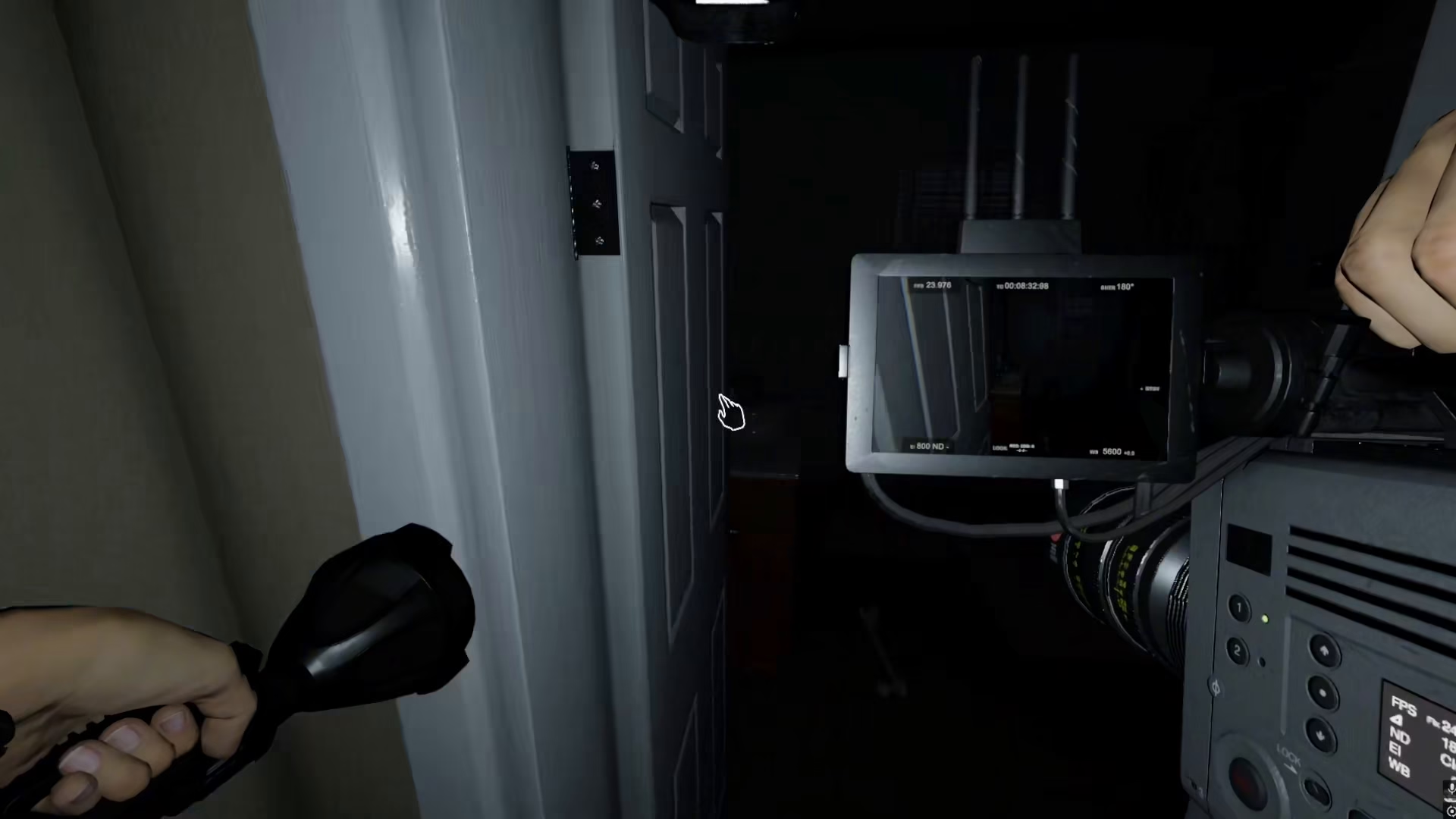
Beyond turning on the camera, you can also place it in strategic locations throughout your investigation. Press the X button to place the camera directly on the floor, on a table, or any other location you choose.
This placement mechanic applies to both the video camera and the normal camera, giving you flexibility in how you set up your monitoring equipment during your ghost-hunting gameplay.
Quick Control Summary
Here’s a quick breakdown of the controls you need to master:
Square button: Turn on the video camera while holding it
X button: Place the camera on the floor, table, or any surface
Conclusion
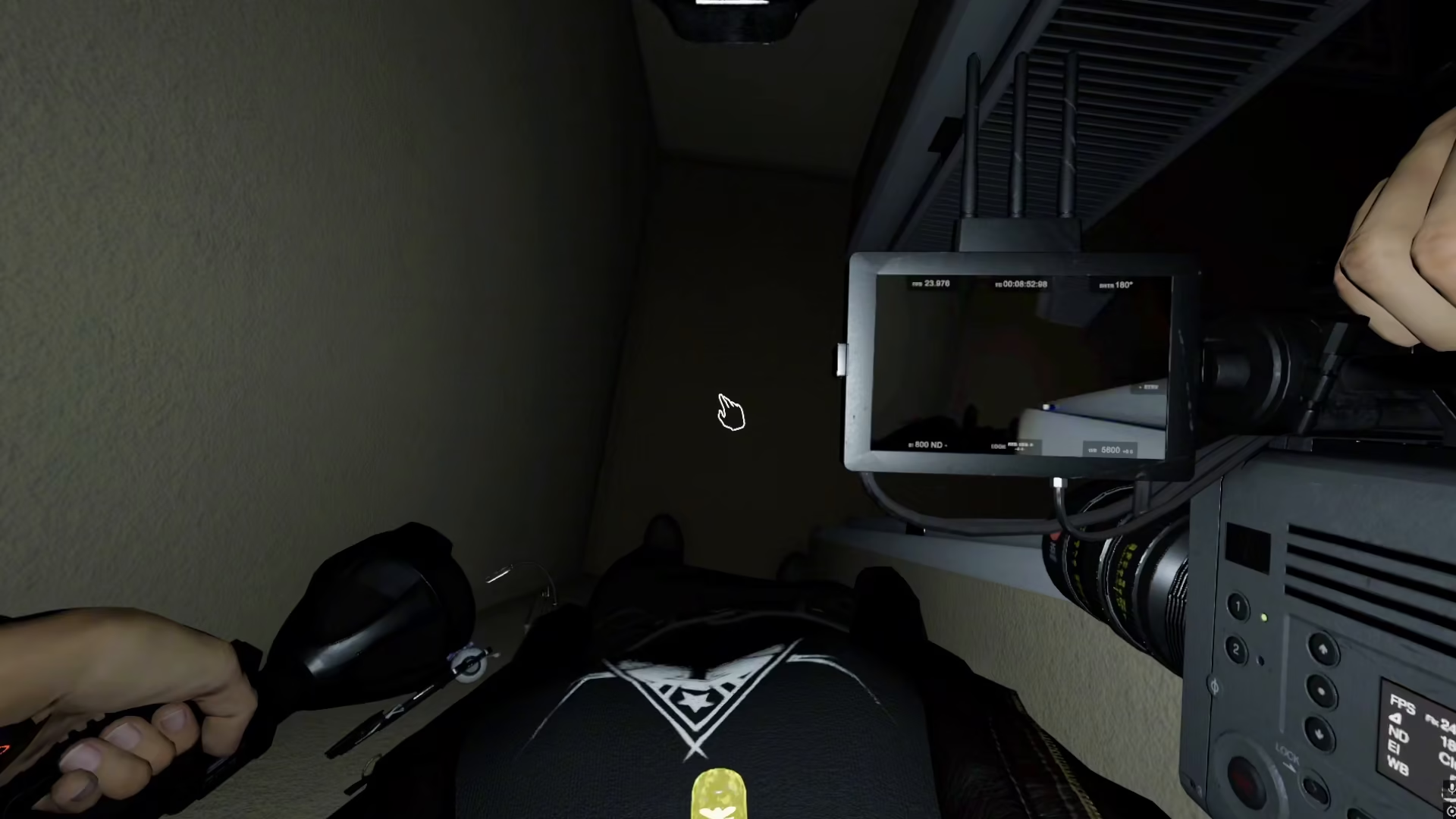
Using the video camera on PS5 in Phasmophobia is straightforward once you know the controls. Remember to always hold the camera before pressing Square to activate it, and use the X button to position your cameras in key locations for better ghost detection. Master these simple inputs and you’ll be recording evidence like a pro investigator.
Want to Support?
If you would like to help us continue making these guides – please consider joining our patreon here – https://www.patreon.com/c/JaviHeals
Alternatively – you can join our discord here – https://discord.gg/zD7Gjt6MHF