How To Use Monkey Paw Without Mic In Phasmophobia
How To Use Monkey Paw Without Mic In Phasmophobia
If you want to use the Monkey Paw in Phasmophobia’s fast mode without a microphone, you’re in luck. This guide will walk you through the simple process of switching your voice recognition settings to text mode, allowing you to ask questions using the Monkey Paw through typing instead of speaking. Follow these steps to get started.
Accessing the Settings Menu
To begin, navigate to the main menu in Phasmophobia and locate your settings. This is where you’ll find all the configuration options needed to enable text-based questions for the Monkey Paw.
Changing Voice Recognition Mode to Text
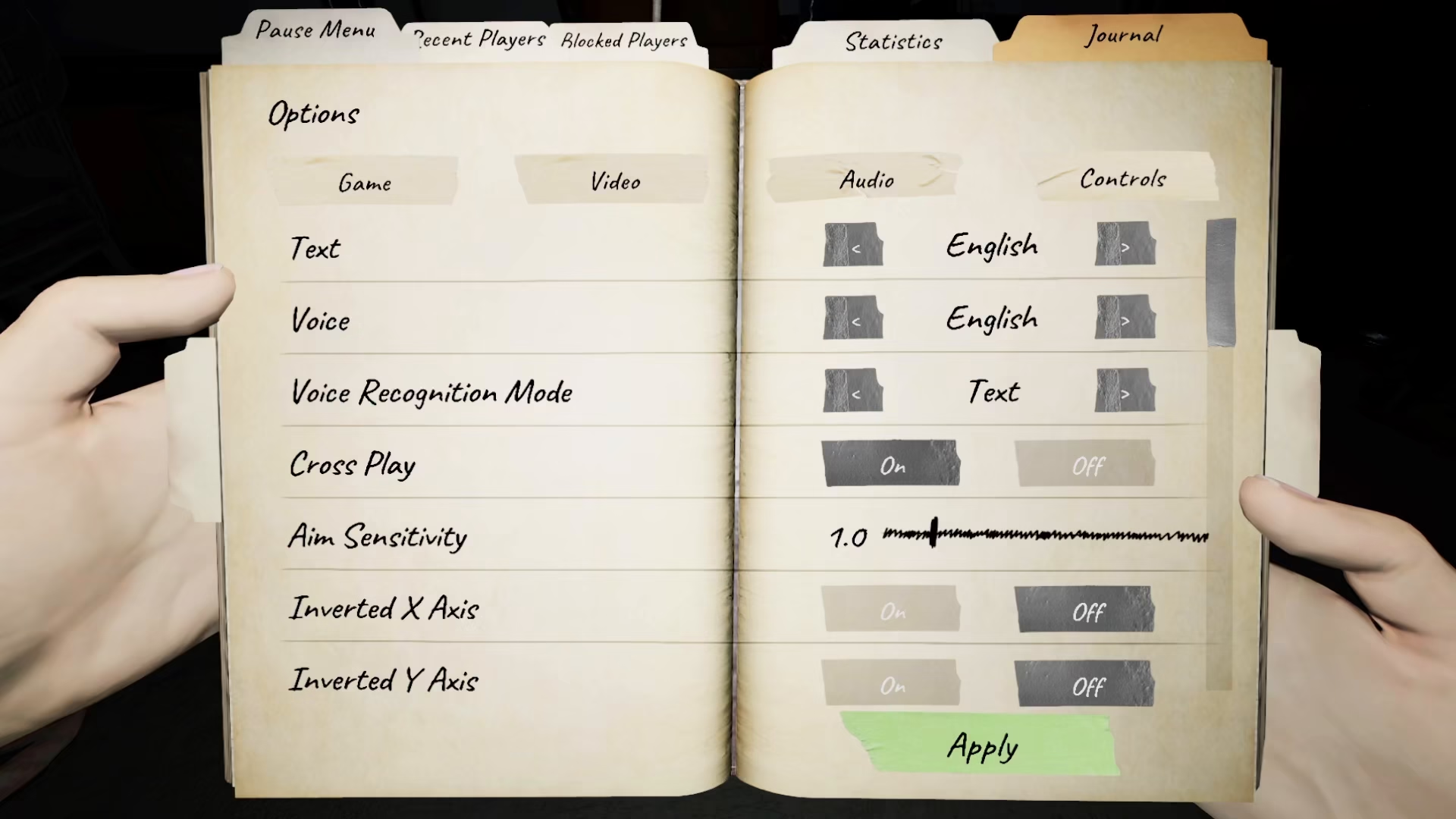
In the settings menu, find the voice recognition mode option. Change this setting from voice-based recognition to text-only mode. This modification will allow you to interact with the Monkey Paw by typing your questions instead of speaking them into a microphone.
Using the Monkey Paw with Text Input
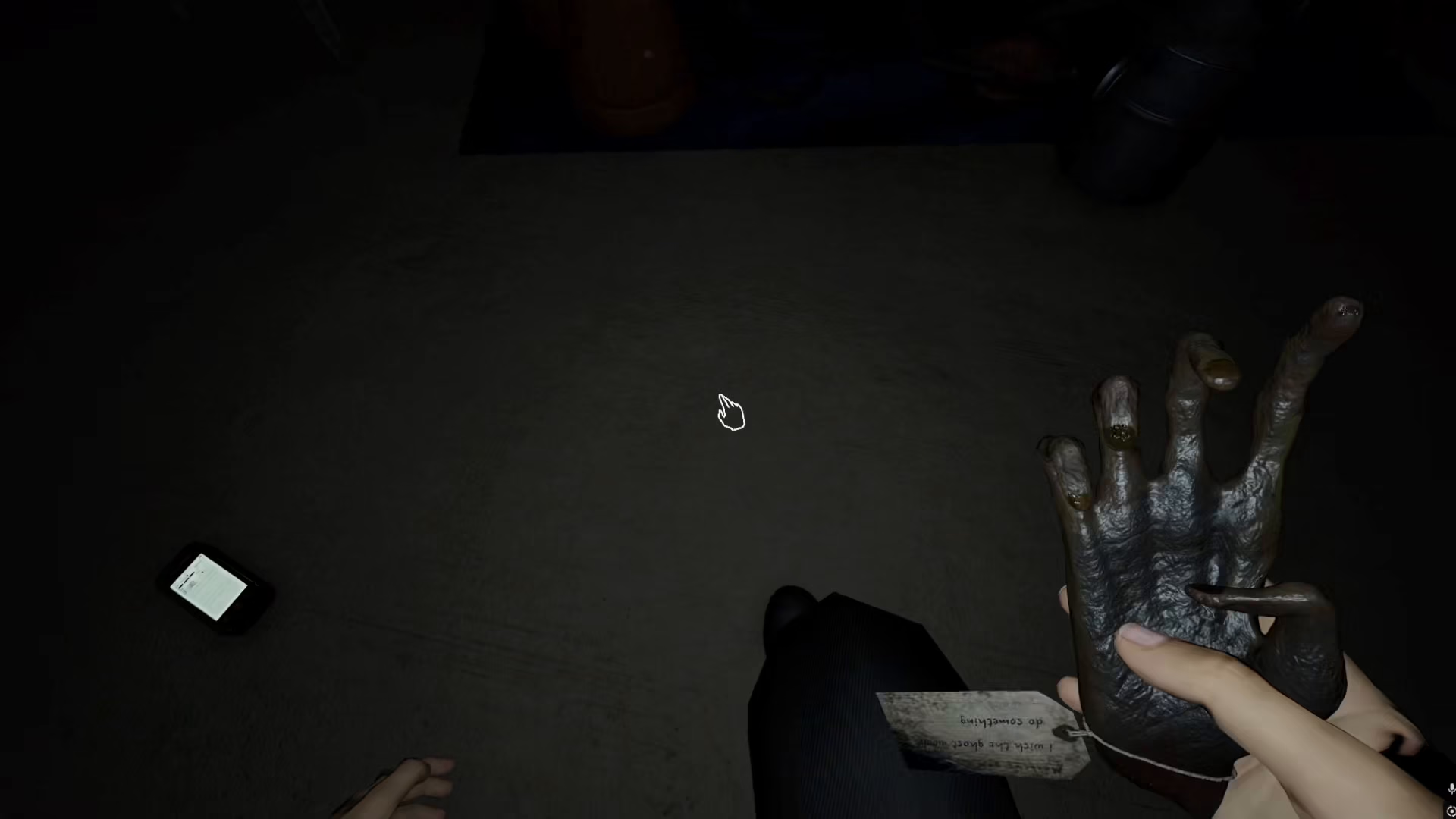
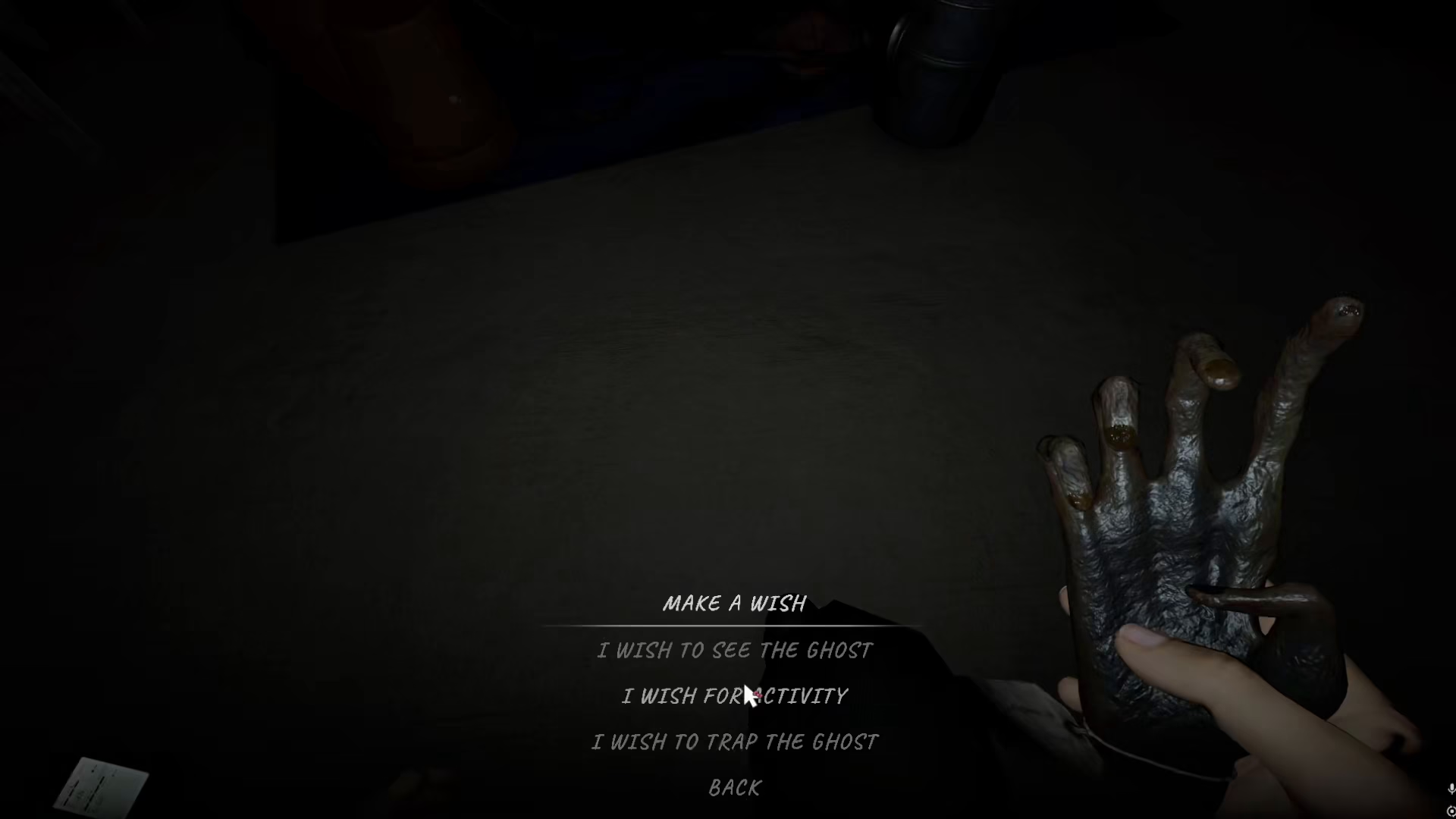
Once you’ve switched to text-only voice recognition mode, simply click on the Monkey Paw once with your mouse. When you do, a list of all available questions will appear on the screen. You can now select from these questions by typing, and the Monkey Paw will respond accordingly in fast mode without requiring a microphone.
Summary
Using the Monkey Paw without a microphone in Phasmophobia is straightforward. Simply access your settings, switch the voice recognition mode to text-only, and click on the Monkey Paw to see all available questions. You can now ask questions through text input in fast mode, making ghost hunting accessible to everyone regardless of microphone availability.
— Want to Support? —
If you would like to help us continue making these guides – please consider joining our patreon here – https://www.patreon.com/c/JaviHeals
Alternatively – you can join our discord here – https://discord.gg/zD7Gjt6MHF