How to Change Button Icon Type In Onimusha Way of the Sword
How to Change Button Icon Type in Onimusha: Way of the Sword
Customizing your button icon display in Onimusha: Way of the Sword is a quick and easy way to match your controller type or personal preference. Whether you’re playing on Xbox, PlayStation, or Nintendo Switch, this guide will walk you through the simple steps to change your button icon type in just a few seconds.
Accessing the Settings Menu
Start by pausing your game to bring up the main menu.
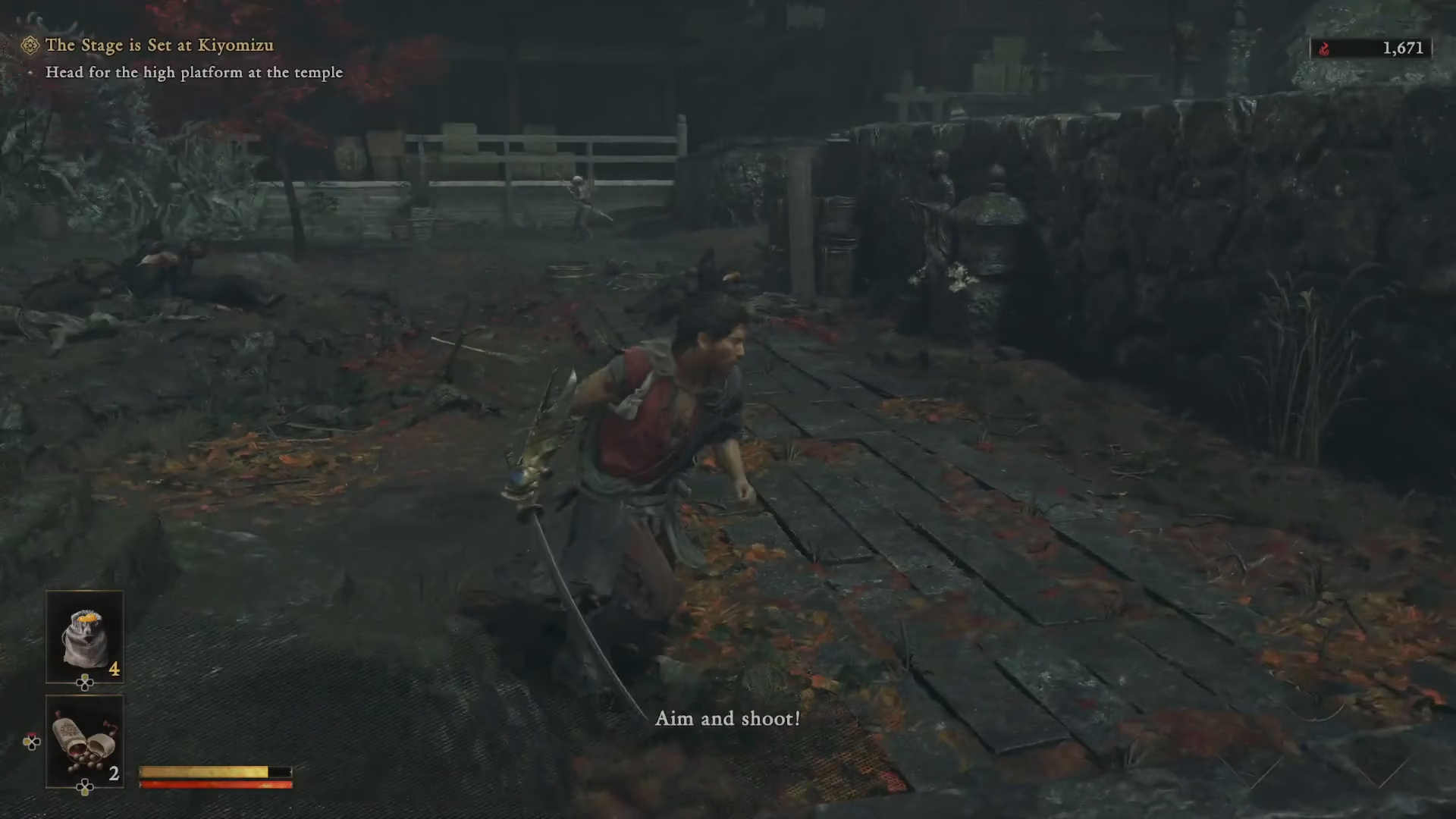
From the pause screen, navigate to Settings.
Finding the Gameplay Tab
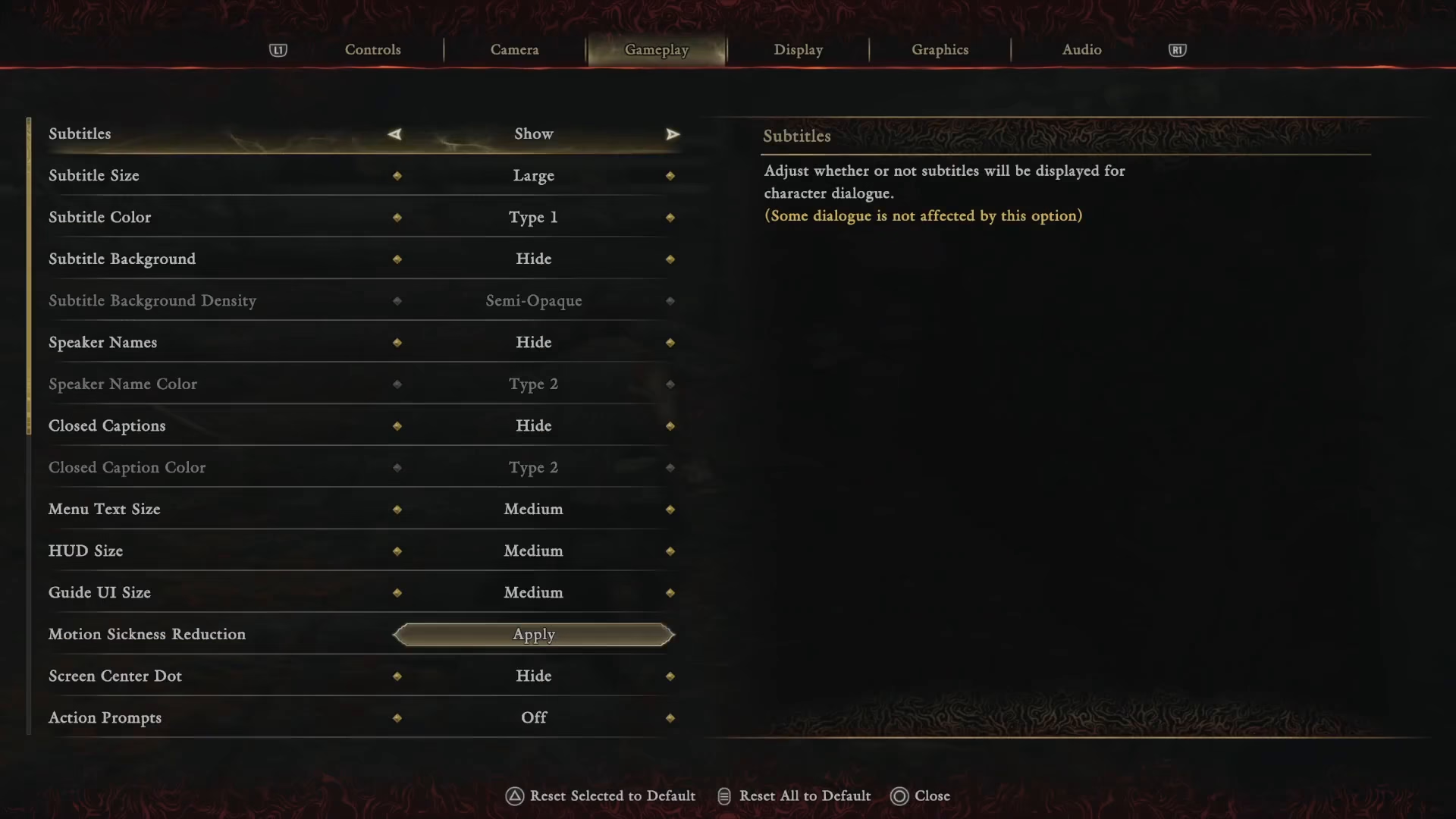
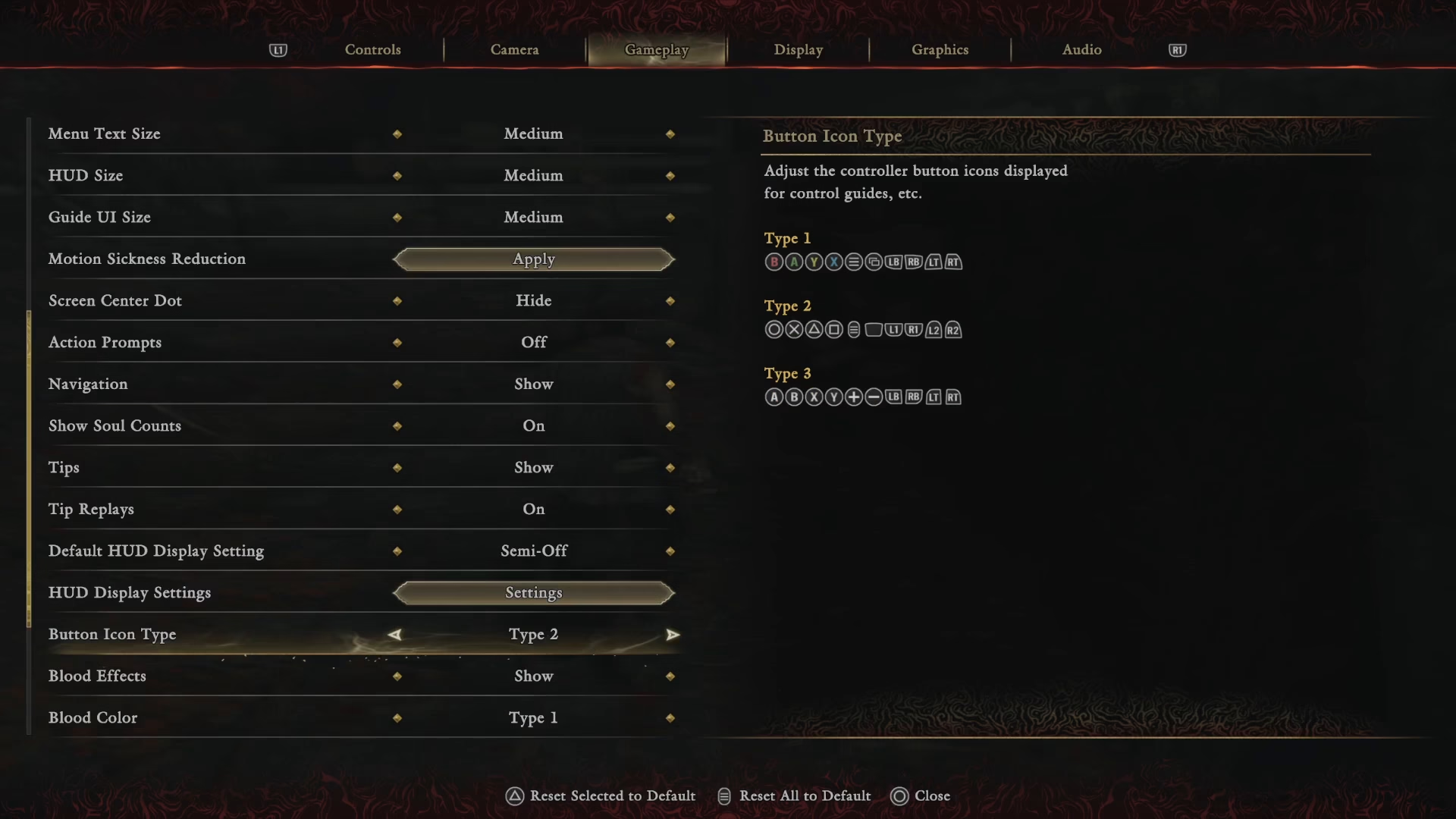
Once you’re in the Settings menu, locate and select the Gameplay tab.
Locating the Button Icon Type Option
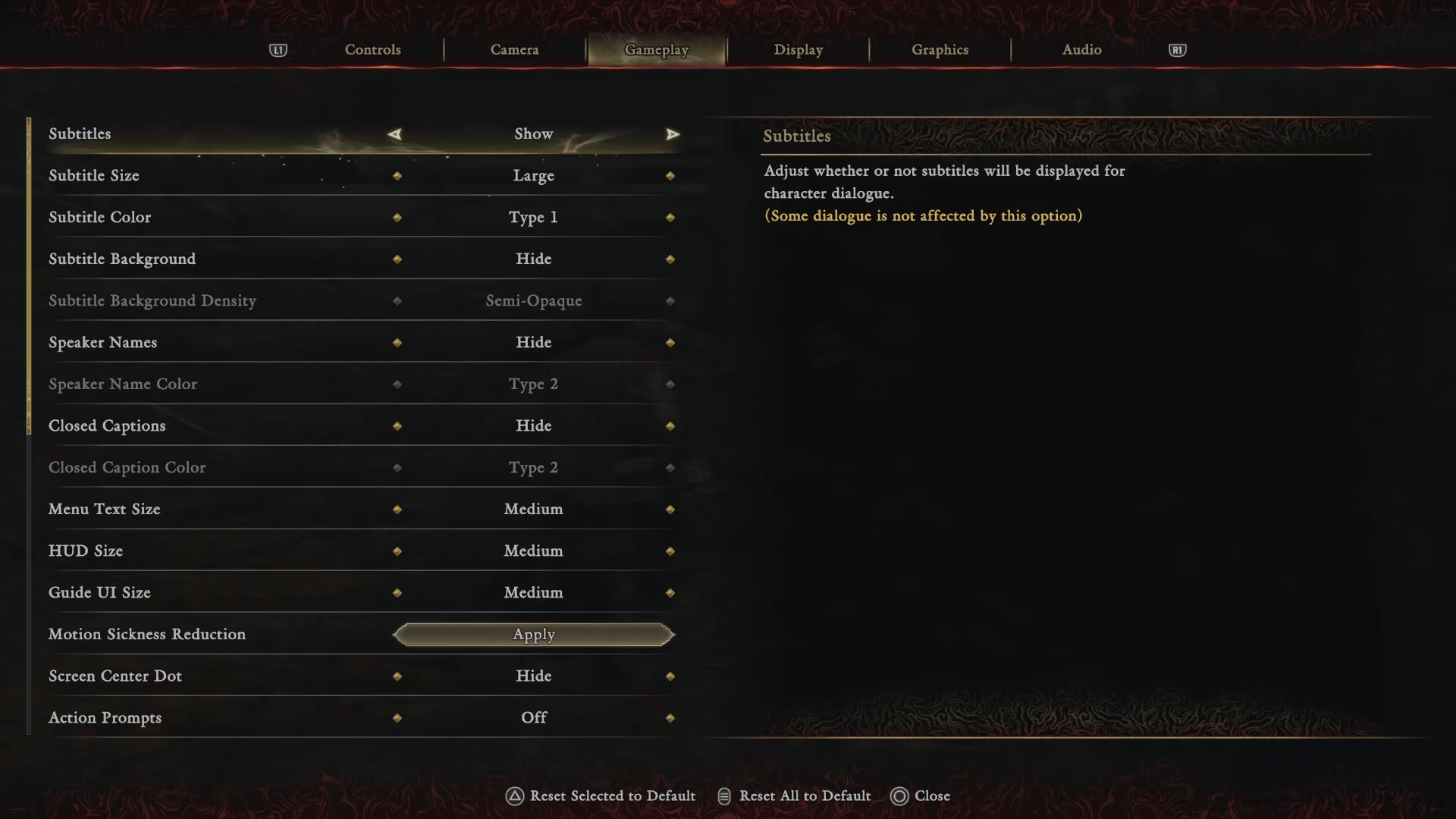
In the Gameplay tab, scroll down through the available options until you find the Button Icon Type setting.
Understanding Your Button Icon Options
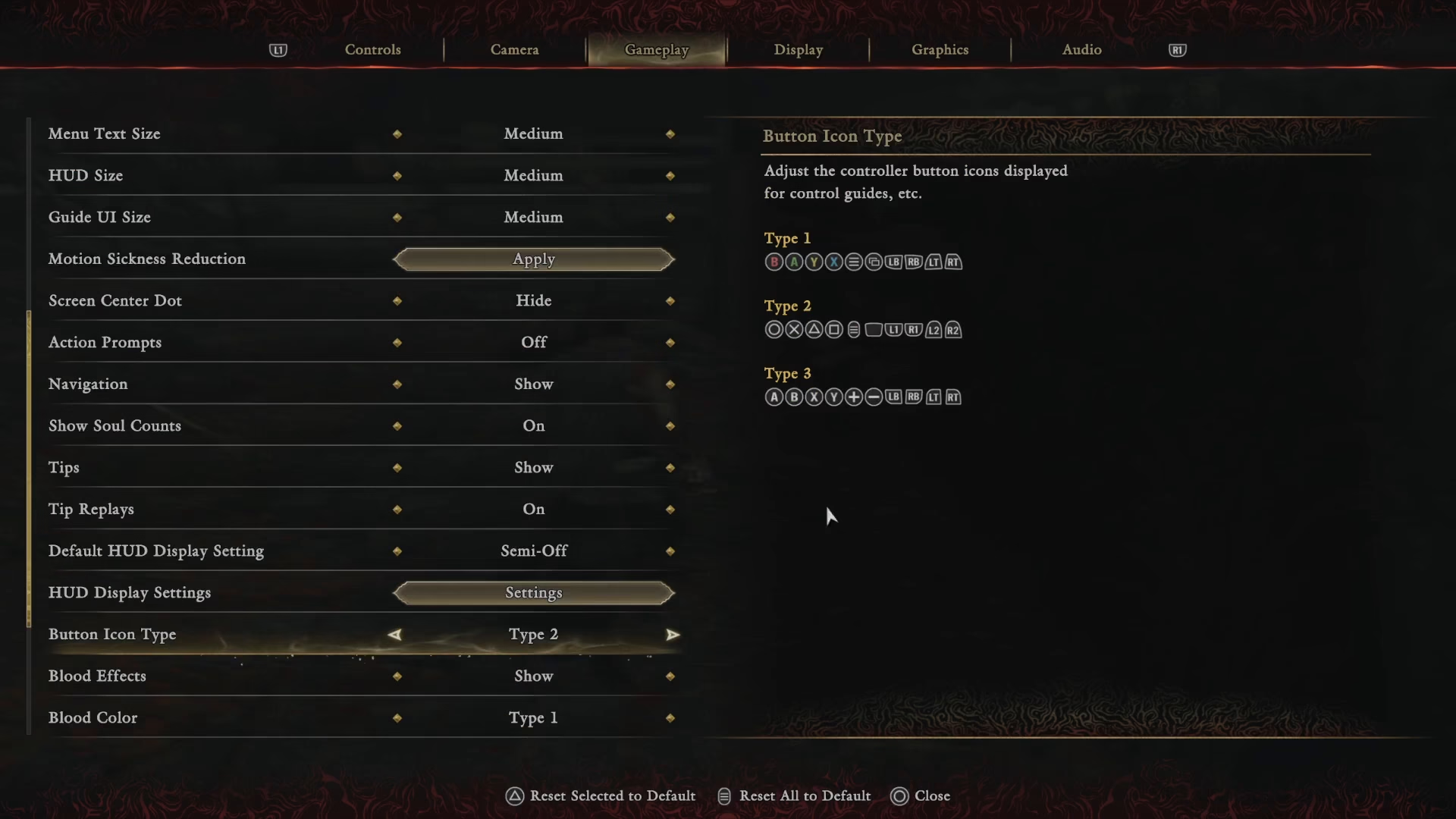
The Button Icon Type setting displays different controller layouts on the right side of the screen. You’ll find three distinct options:
Type 1: Xbox button icons
Type 2: PlayStation button icons
Type 3: Nintendo Switch button icons
Applying Your Preferred Button Type
Select the button type that matches your controller or your preference. Once you’ve made your choice, close the Settings menu to apply the changes immediately.
Summary
Changing your button icon type in Onimusha: Way of the Sword is straightforward: pause the game, go to Settings, navigate to the Gameplay tab, find the Button Icon Type option, choose your preferred controller type (Xbox, PlayStation, or Nintendo Switch), and close the menu. Your new button icons will be displayed throughout your gameplay right away.
— Want to Support? —
If you would like to help us continue making these guides – please consider joining our patreon here – https://www.patreon.com/c/JaviHeals
Alternatively – you can join our discord here – https://discord.gg/zD7Gjt6MHF