






How To Change Hotkeys In Age of Mythology Retold
How To Change Hotkeys In Age of Mythology Retold
Customizing your hotkeys in Age of Mythology Retold can significantly improve your gameplay experience and reaction times. This guide will walk you through the hotkey settings menu, showing you how to search for specific commands, modify individual hotkeys, and reset them to defaults whenever needed.
Accessing the Hotkeys Settings Menu
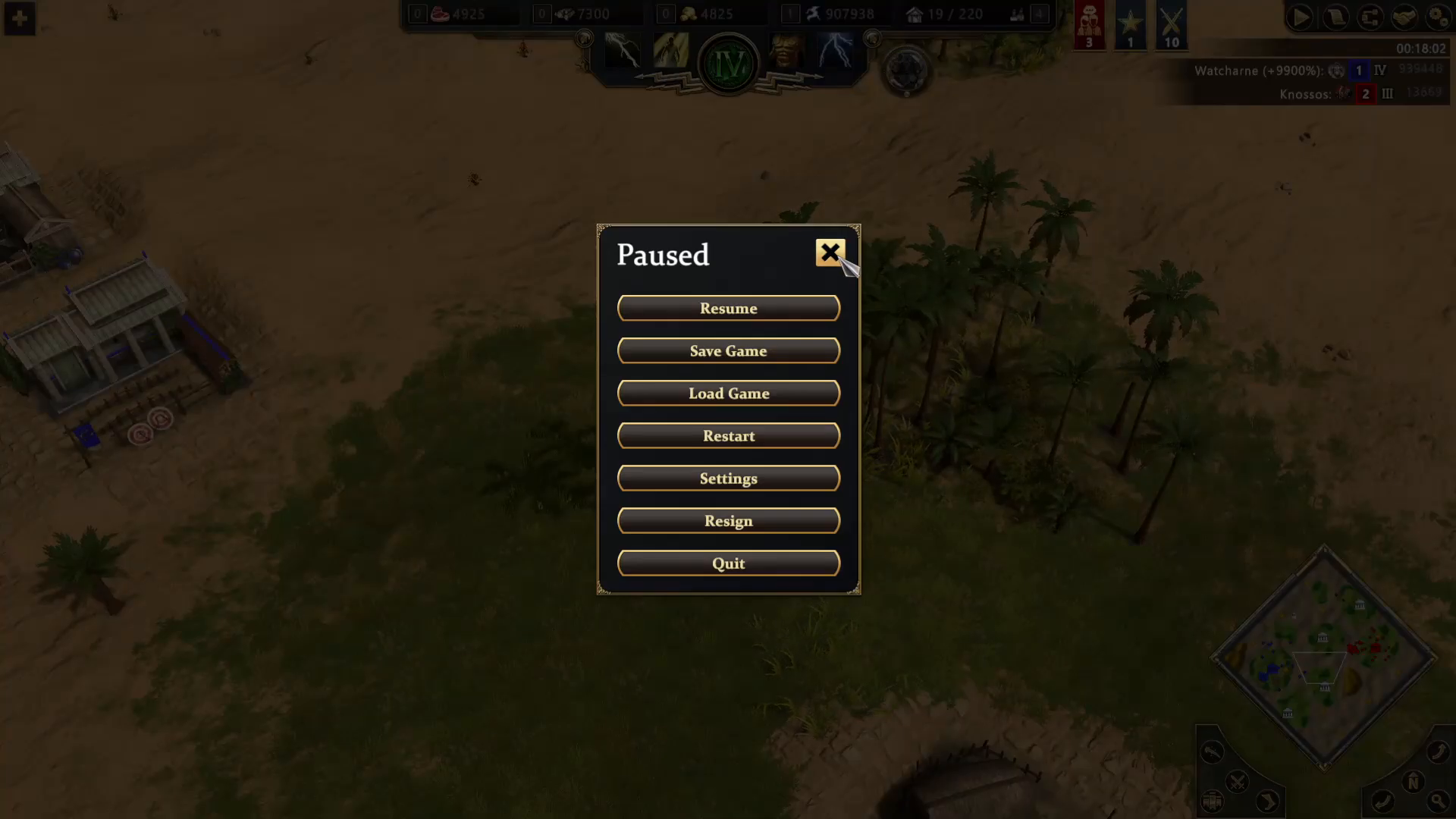
To begin changing your hotkeys, press Escape to open the main menu. Once the menu appears, navigate down to Settings on your menu bar.
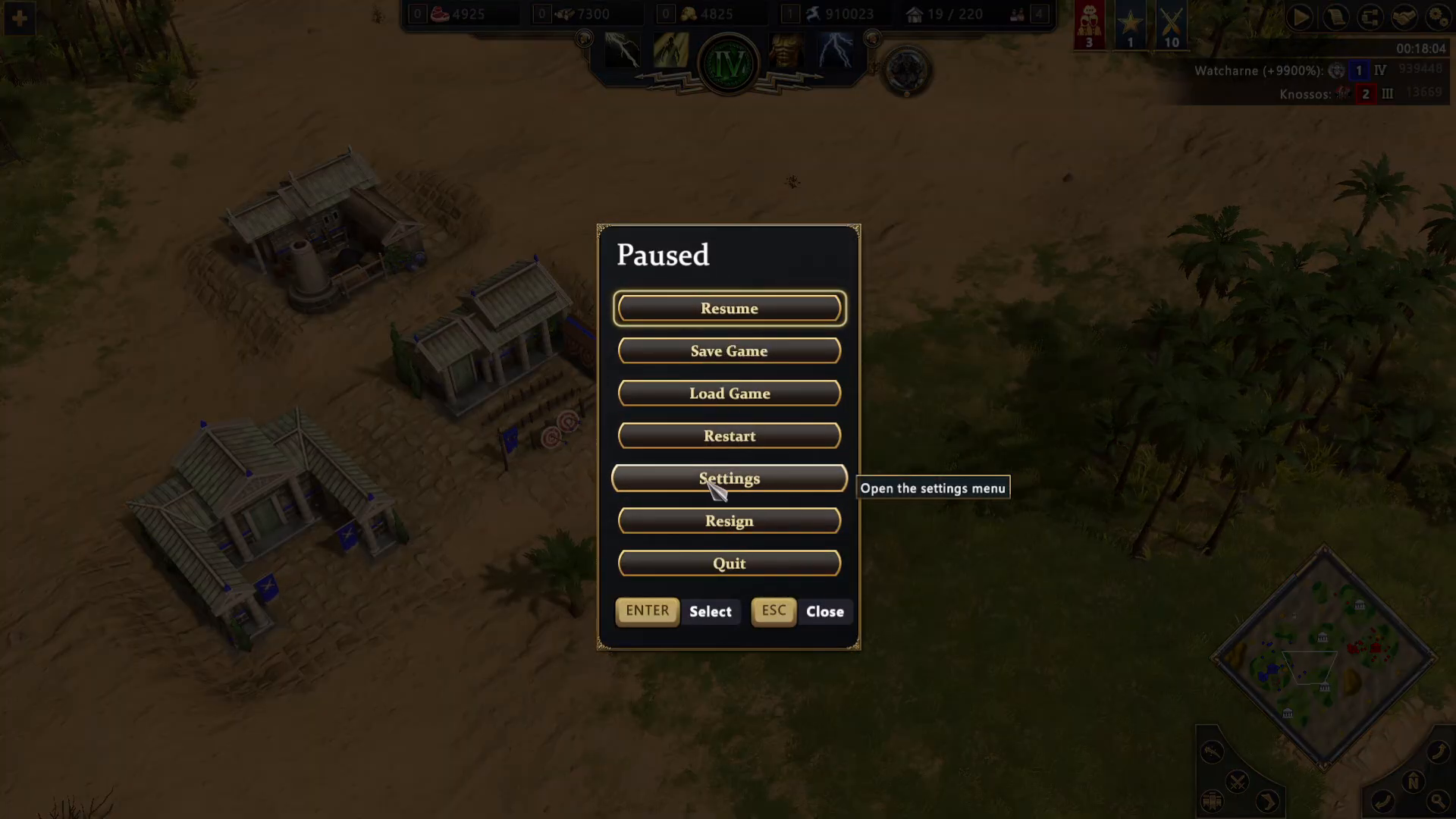
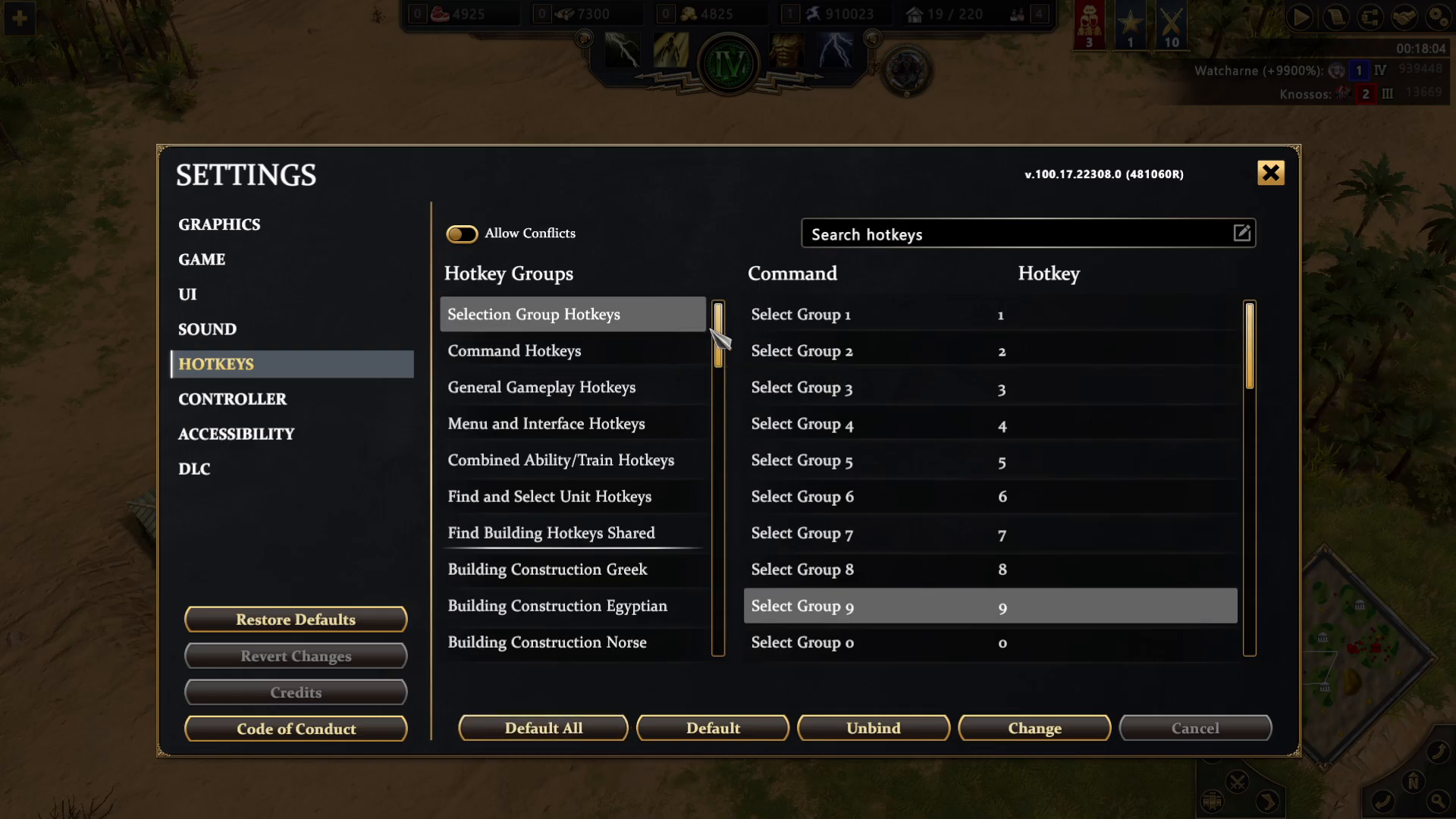
Inside the Settings menu, you’ll find a dedicated tab labeled Hotkeys. Click on this tab to access all hotkey customization options.
Understanding Hotkey Conflict Settings
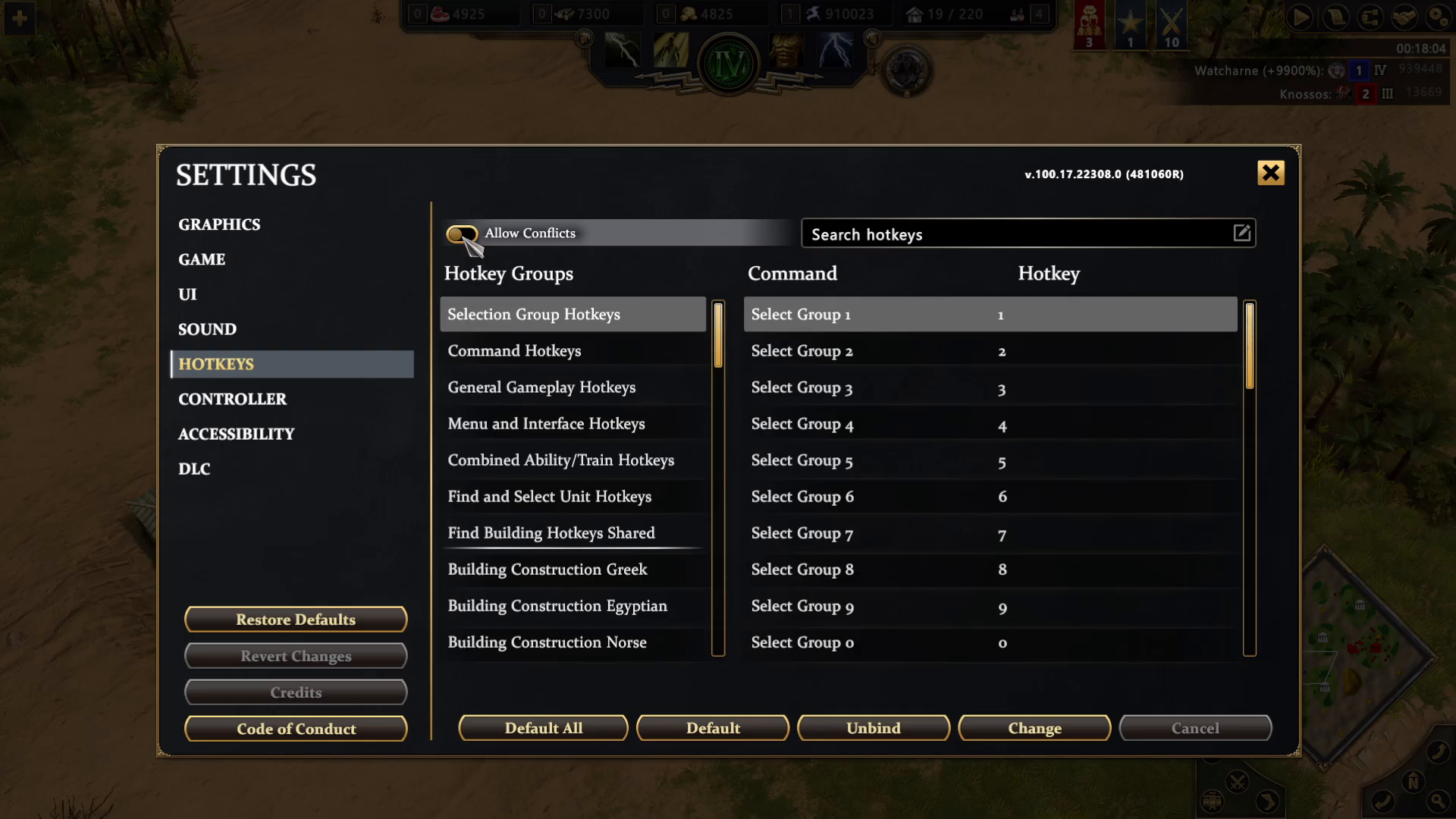
Within the Hotkeys tab, you’ll see an option to allow or disallow conflicts. This setting determines whether you can assign a single hotkey to multiple commands simultaneously. If you enable conflict allowance, one hotkey can be bound to more than one action at a time. Conversely, disabling conflicts ensures each hotkey is unique to a single command.
Searching for Specific Hotkeys
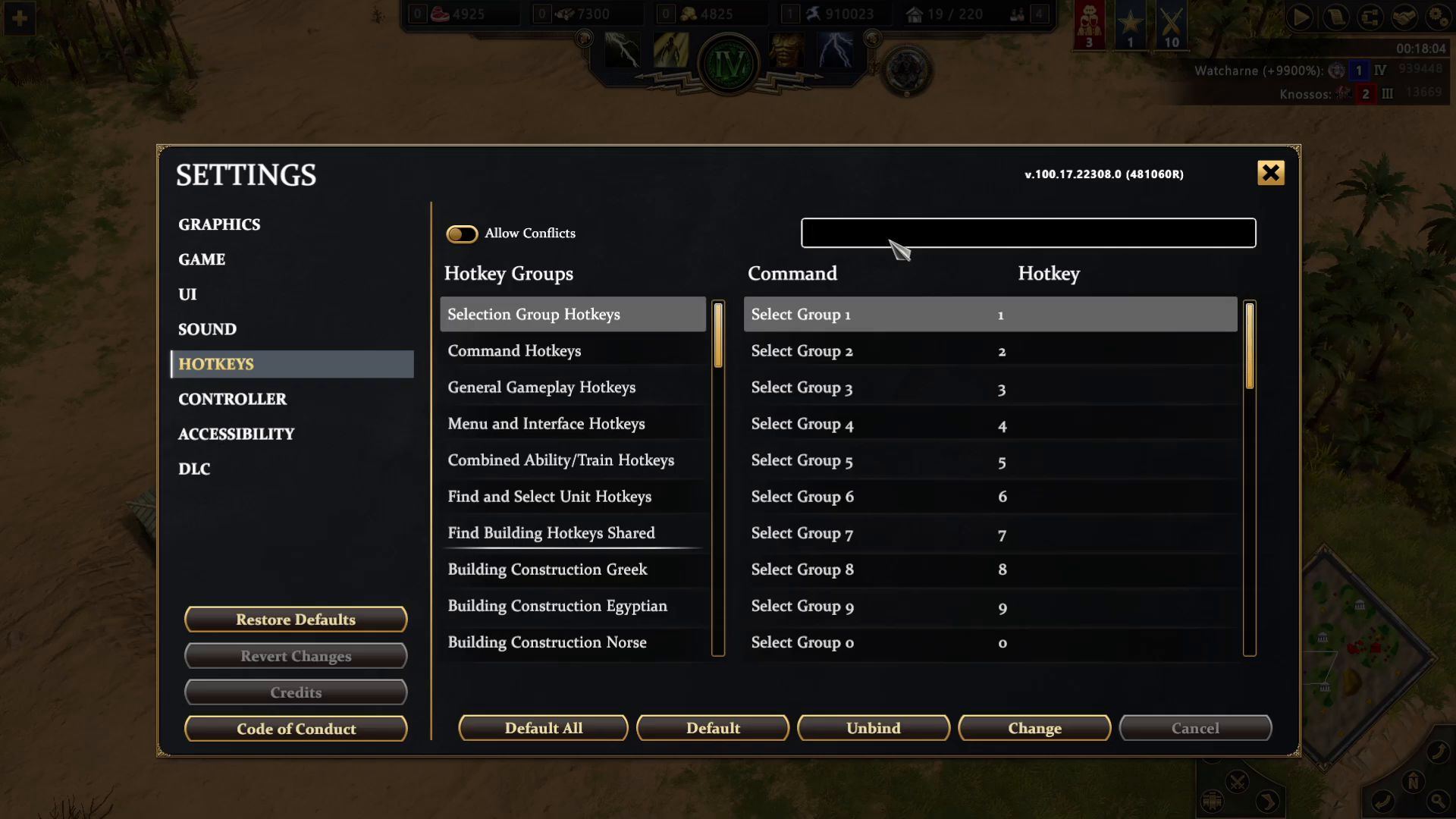
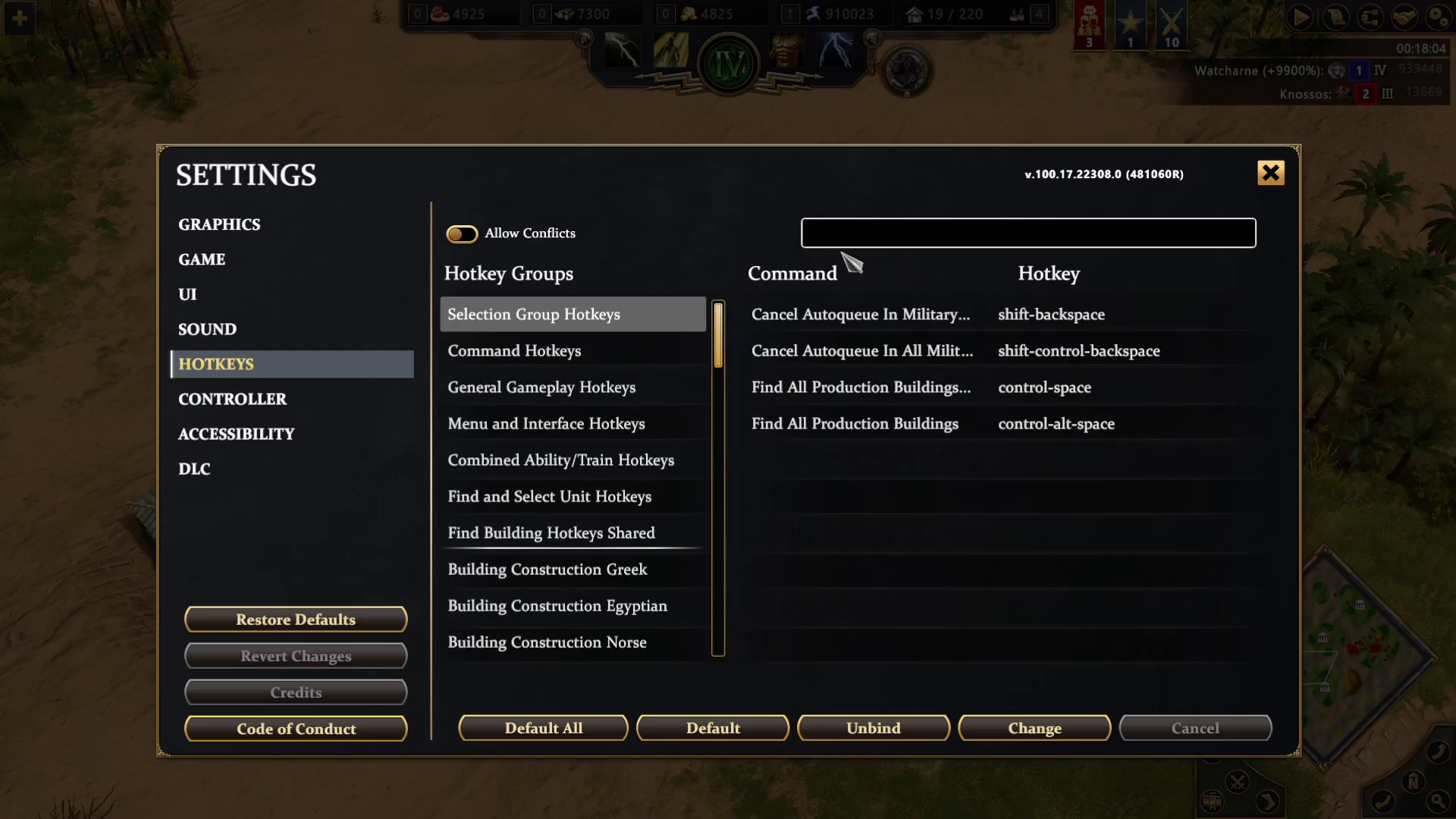
The hotkeys menu includes a search bar that makes finding specific commands much easier. For example, if you type “building” into the search bar, you’ll see relevant results such as Council Auto Queue in the Military Academy, Council Auto Queue, and Find All Production Buildings. This feature is particularly useful when managing large lists of hotkeys.
Modifying Individual Hotkeys
To change a specific hotkey, select the command you wish to modify from the list. You have two primary options:
Unbinding a Hotkey
If you want to remove a hotkey assignment entirely, click the unbind option next to your selected command. This will clear any existing hotkey for that action.
Assigning a New Hotkey
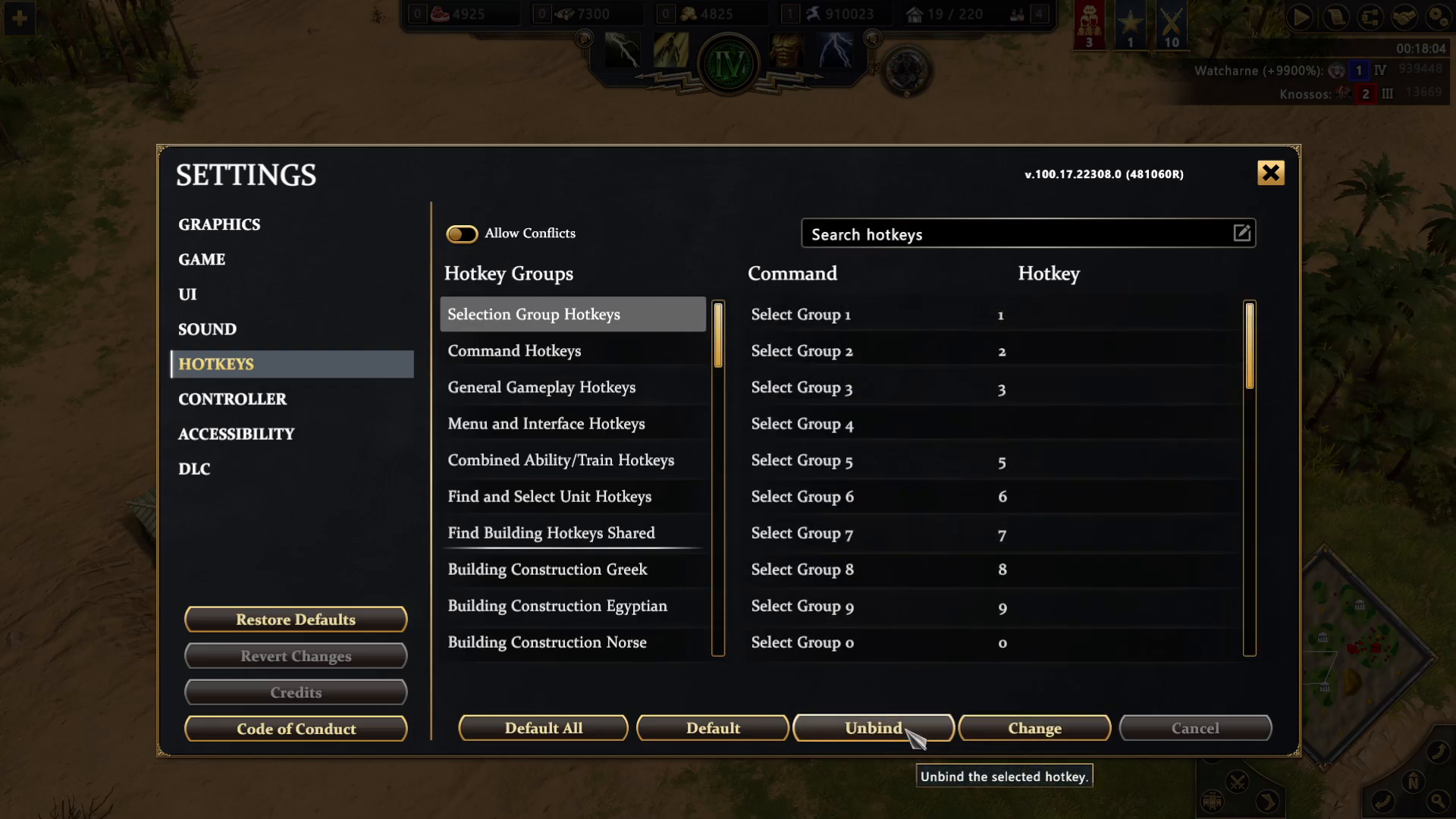
To assign a new hotkey to a command, select the command and click the Change button. A prompt will appear allowing you to input your desired hotkey. For example, you could change Select Group Nine from its default assignment to Numpad Six by pressing Change and then entering Numpad Six.
Resetting Hotkeys to Default
If you decide you want to revert a hotkey back to its default setting, click the Default button next to that specific command. This will restore just that one hotkey to its original configuration.
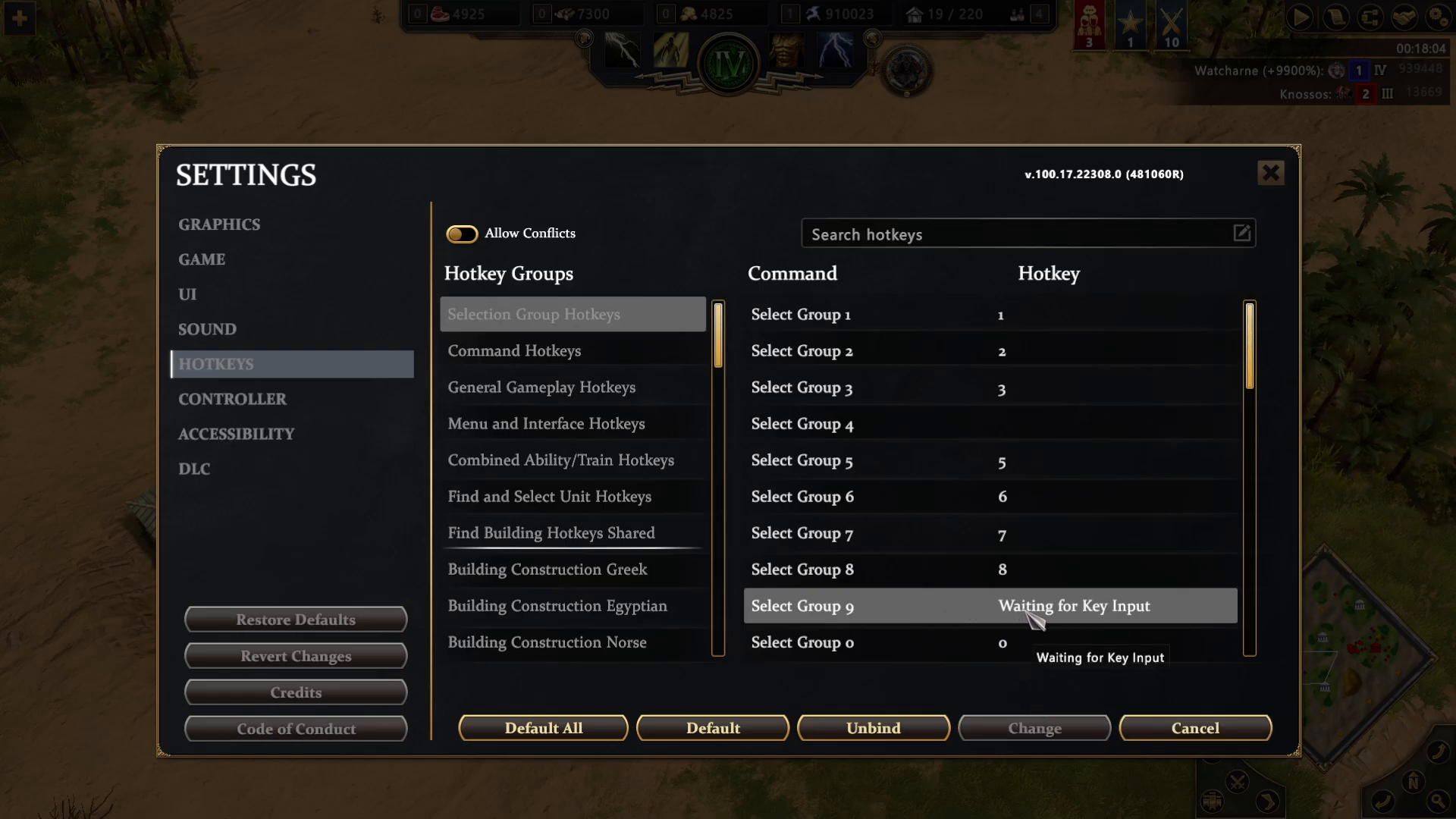
If you want to reset all hotkeys to their default settings at once, use the Default All button. This will restore every single hotkey in Age of Mythology Retold to its original state, which is useful if you’ve made multiple changes and want to start fresh.
Navigating Hotkey Categories
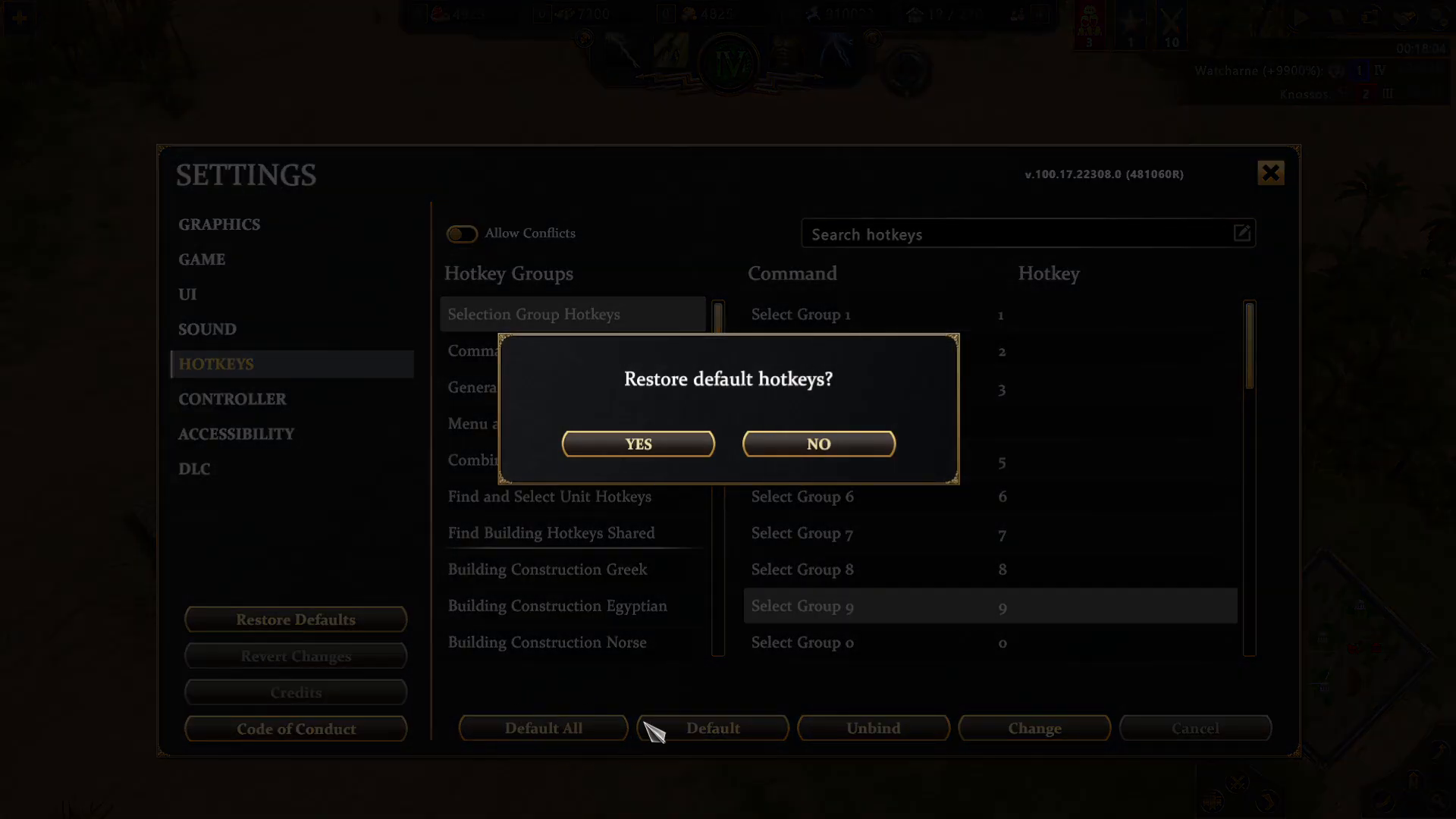
The hotkeys menu is organized into multiple categories to help you find commands more easily. As you scroll down through the list, you’ll encounter different groups of hotkeys separated by dividing lines. These categories include settings for towers, walls, armory, and many other in-game structures and actions. The clear visual separation between categories makes it simple to identify which section you’re currently viewing.
Conclusion
Changing hotkeys in Age of Mythology Retold is straightforward once you understand the Settings menu structure. Whether you’re searching for specific commands, modifying individual hotkeys, or resetting everything to default, the hotkeys tab provides all the tools you need to customize your control scheme. Take time to set up hotkeys that match your playstyle—it will make your gameplay smoother and more efficient.
— Want to Support? —
If you would like to help us continue making these guides – please consider joining our patreon here – https://www.patreon.com/c/JaviHeals
Alternatively – you can join our discord here – https://discord.gg/zD7Gjt6MHF