






How To Check Version On Steam In Fallout 4
How To Check Version On Steam In Fallout 4
Knowing which version of Fallout 4 you have installed is essential for mod compatibility and troubleshooting. Fortunately, Steam provides multiple straightforward methods to check your game version. This guide walks you through both options so you can quickly verify whether you’re running the standard edition or the Anniversary Edition.
Method 1: Check Version Through Steam Settings
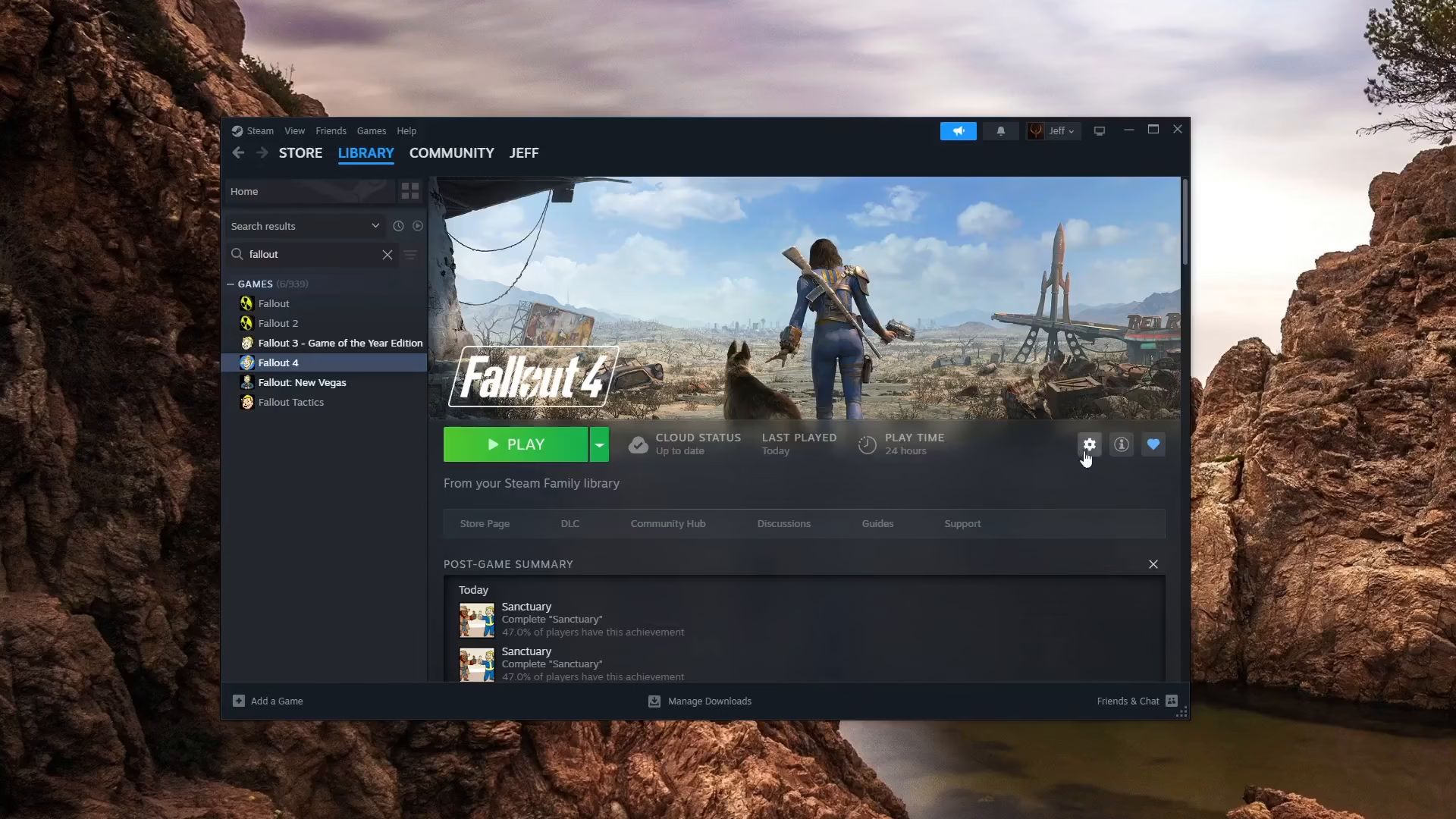
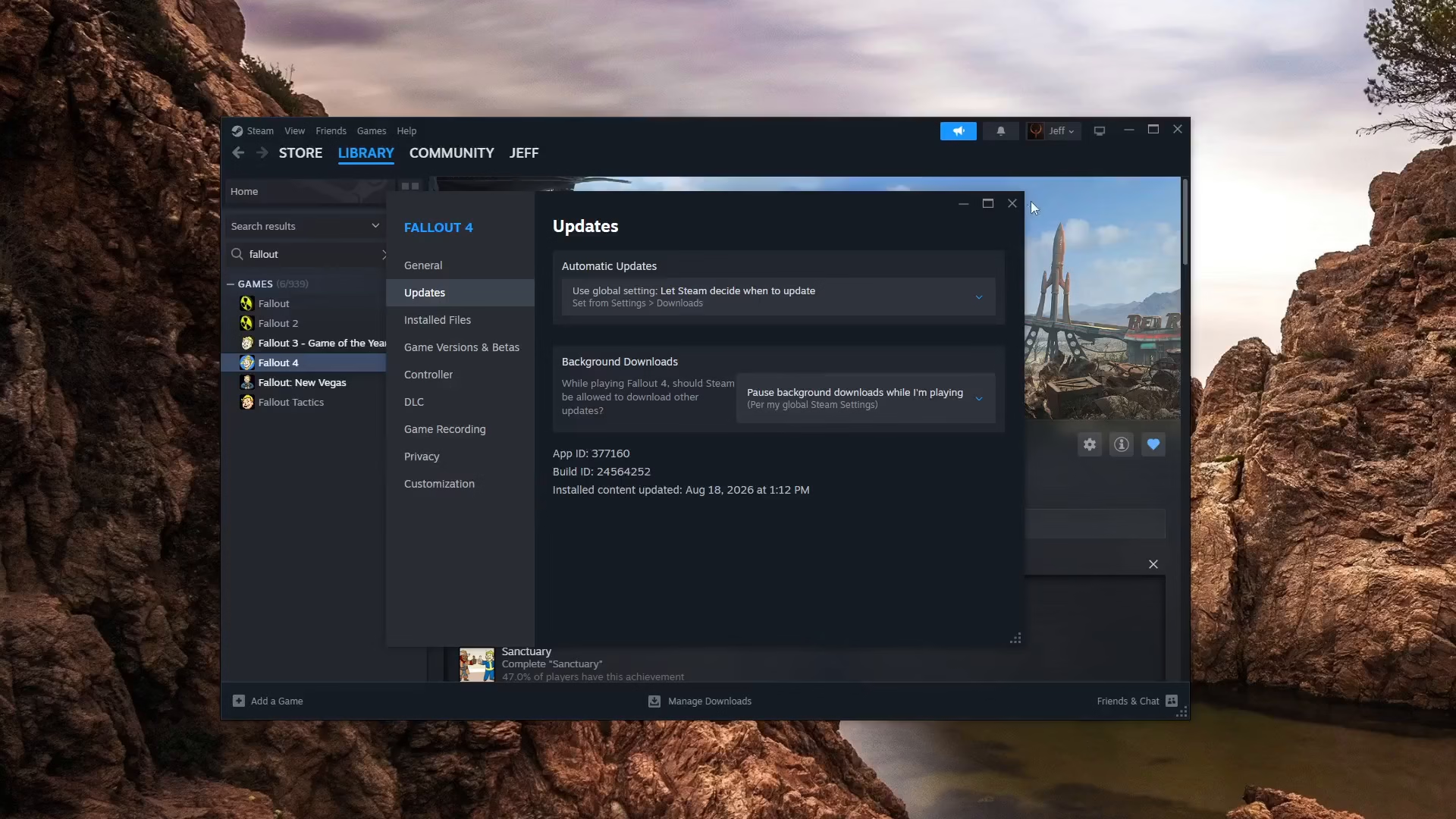
The first method is the quickest way to view your Fallout 4 version directly from Steam. Simply navigate to the Settings for Fallout 4, then click on the Updates section. Here you’ll find the Build ID for the Fallout 4 app, which identifies your specific game version.
Method 2: Check Version Through Game Properties
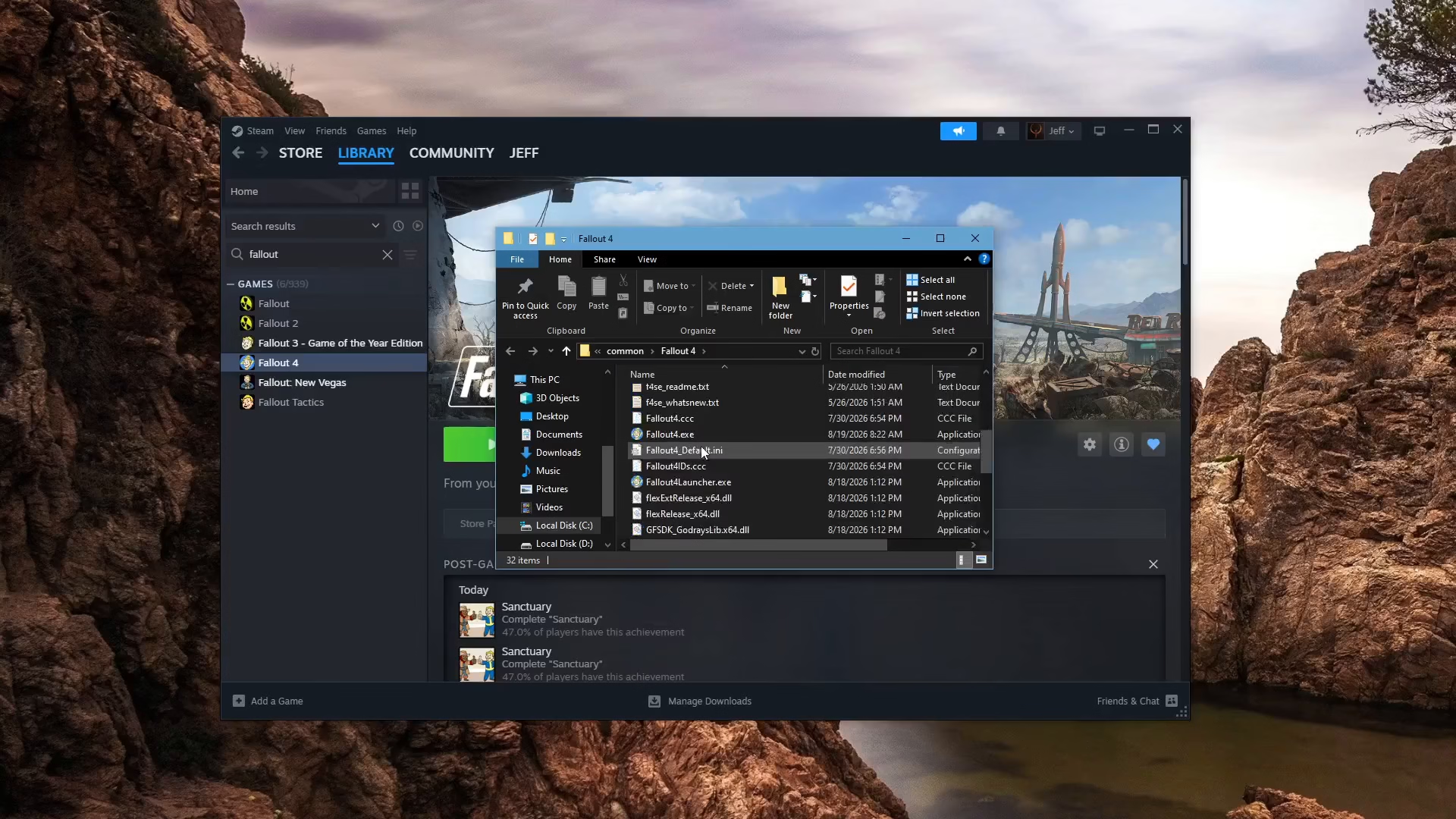
The second method gives you more detailed information about your game executable. Start by clicking on Manage and then Browse Local Files to open the Fallout 4 directory on your computer.
Accessing File Properties
Once you’ve opened the Fallout 4 directory, locate the Fallout 4.exe file. Right-click on it and select Properties from the context menu.
Viewing Version Details
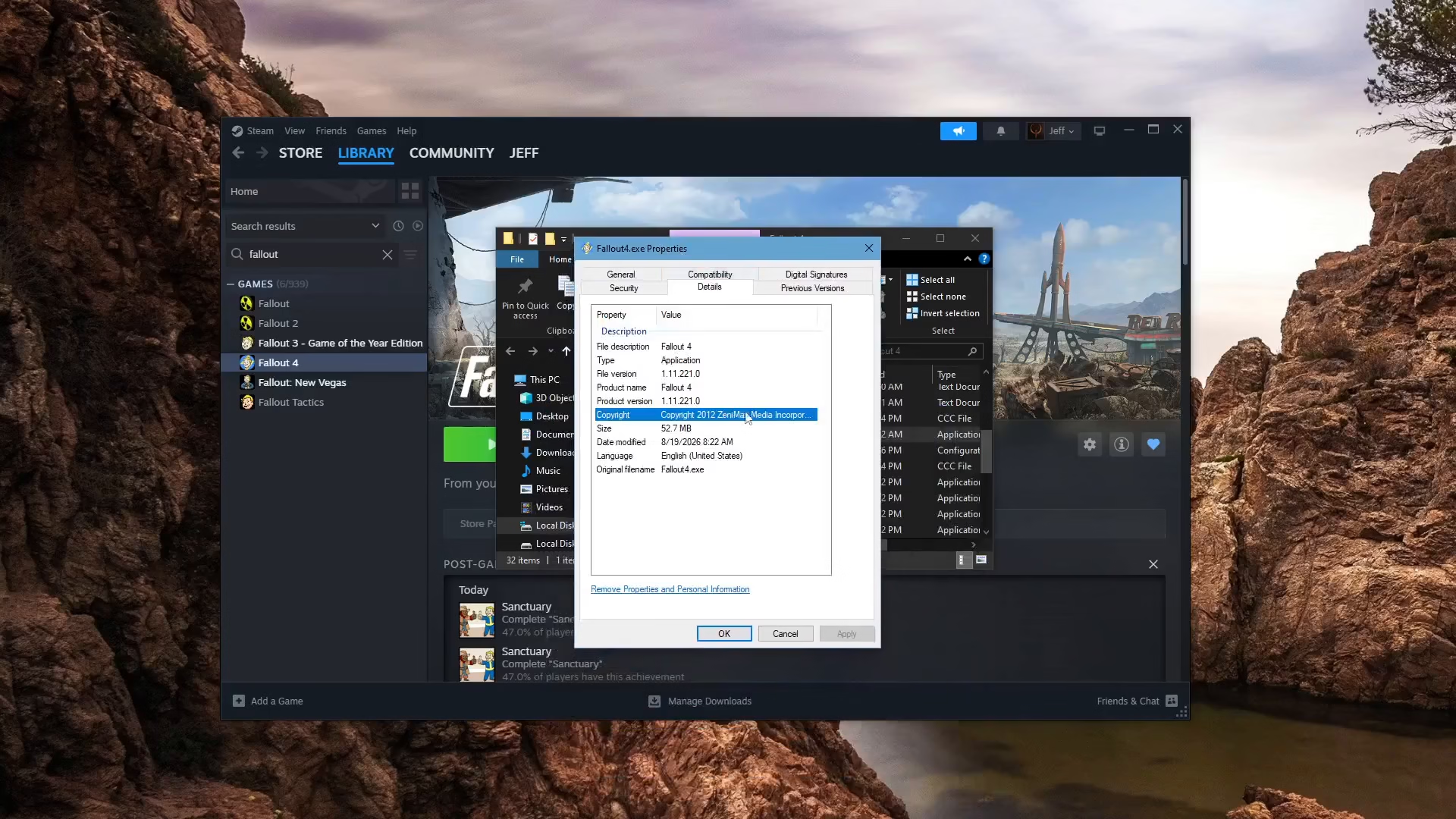
In the Properties window, click on the Details tab. You’ll now see the actual version of the game that is signed to the executable. This will clearly show you whether you’re playing the Anniversary Edition or another version of Fallout 4.
Summary
Both methods are simple and effective for checking your Fallout 4 version on Steam. Whether you prefer using the Steam interface or checking the executable properties directly, you’ll have your answer in seconds. Knowing your version is particularly important if you’re planning to install mods, as version compatibility is critical for stability and performance.
— Want to Support? —
If you would like to help us continue making these guides – please consider joining our patreon here – https://www.patreon.com/c/JaviHeals
Alternatively – you can join our discord here – https://discord.gg/zD7Gjt6MHF