How To Mute Yourself In Phasmophobia
How To Mute Yourself In Phasmophobia
Need to mute your microphone while playing Phasmophobia? Whether you need a quick way to silence yourself during gameplay or want easier access to mute controls, this guide will walk you through the simple process. Muting yourself in Phasmophobia 4BF is straightforward and can be done directly through the game’s audio settings.
Muting Yourself Through Game Settings
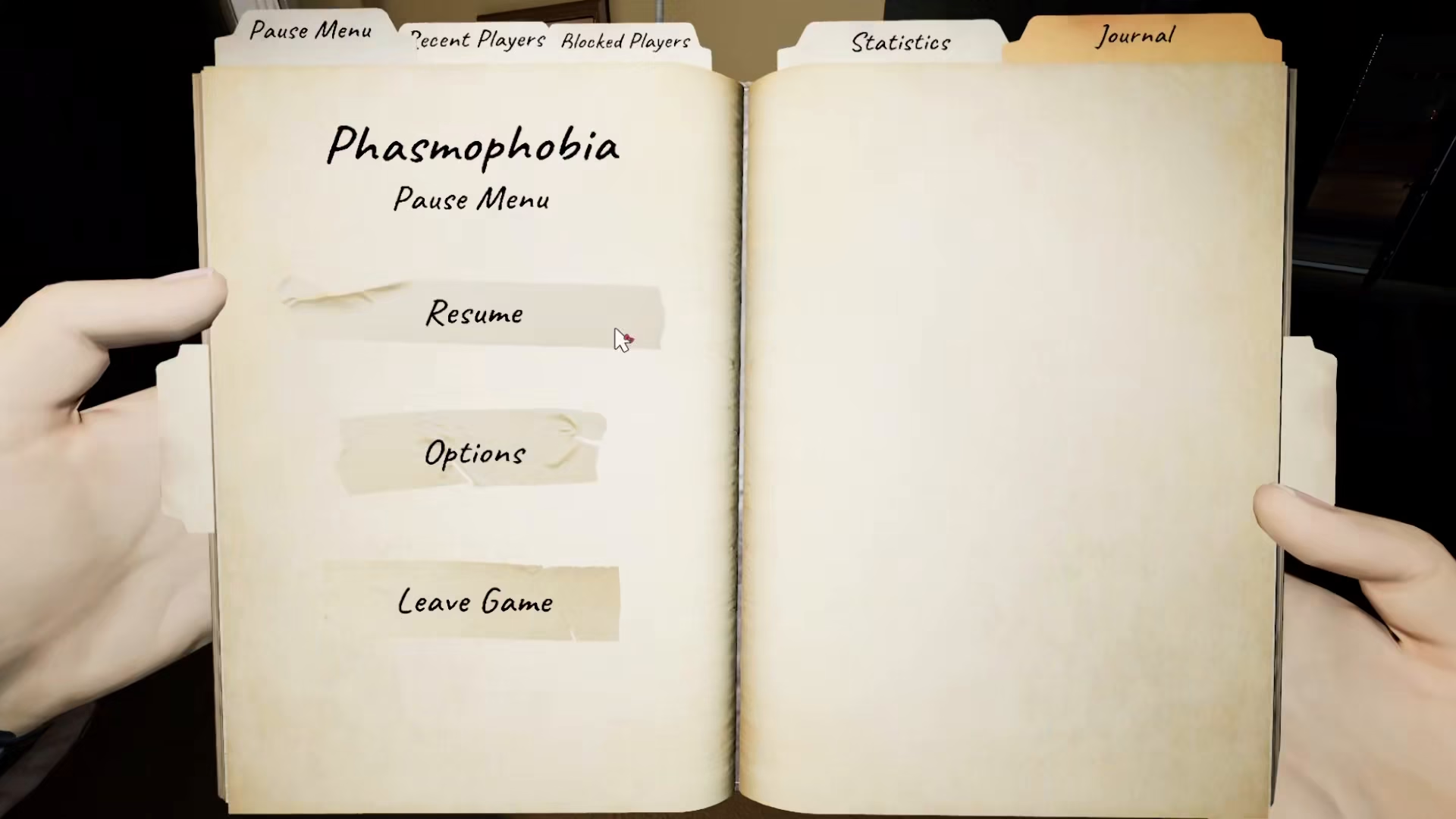
The easiest way to mute yourself in Phasmophobia 4BF is through the in-game settings menu. Start by pressing the Escape key to open the main menu.
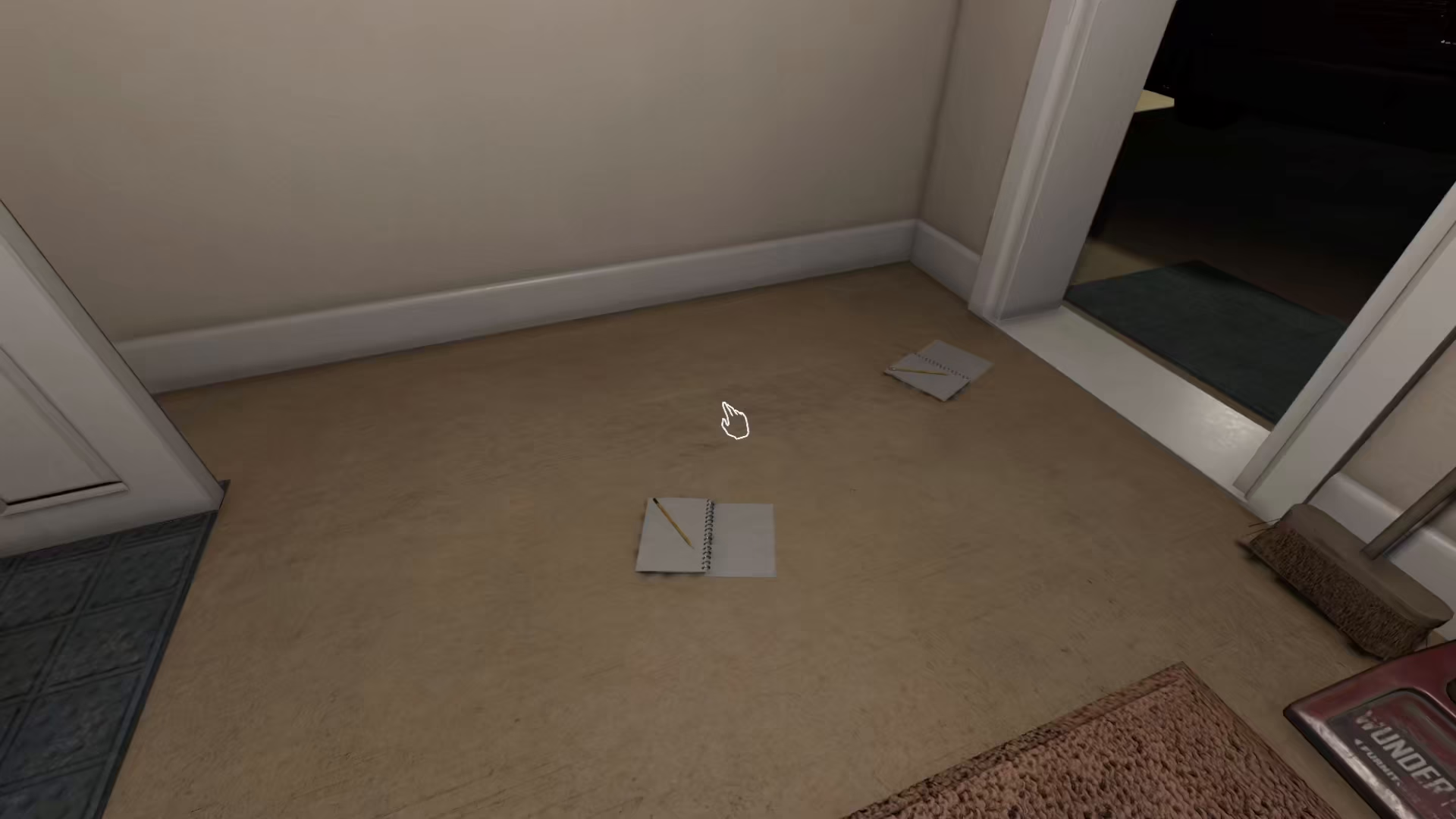
Step 1: Access the Options Menu
Once you’ve pressed Escape, navigate to the Options section of the menu.
Step 2: Open Audio Settings
From the Options menu, select the Audio Settings. This is where you’ll find all microphone and sound-related controls for your game.
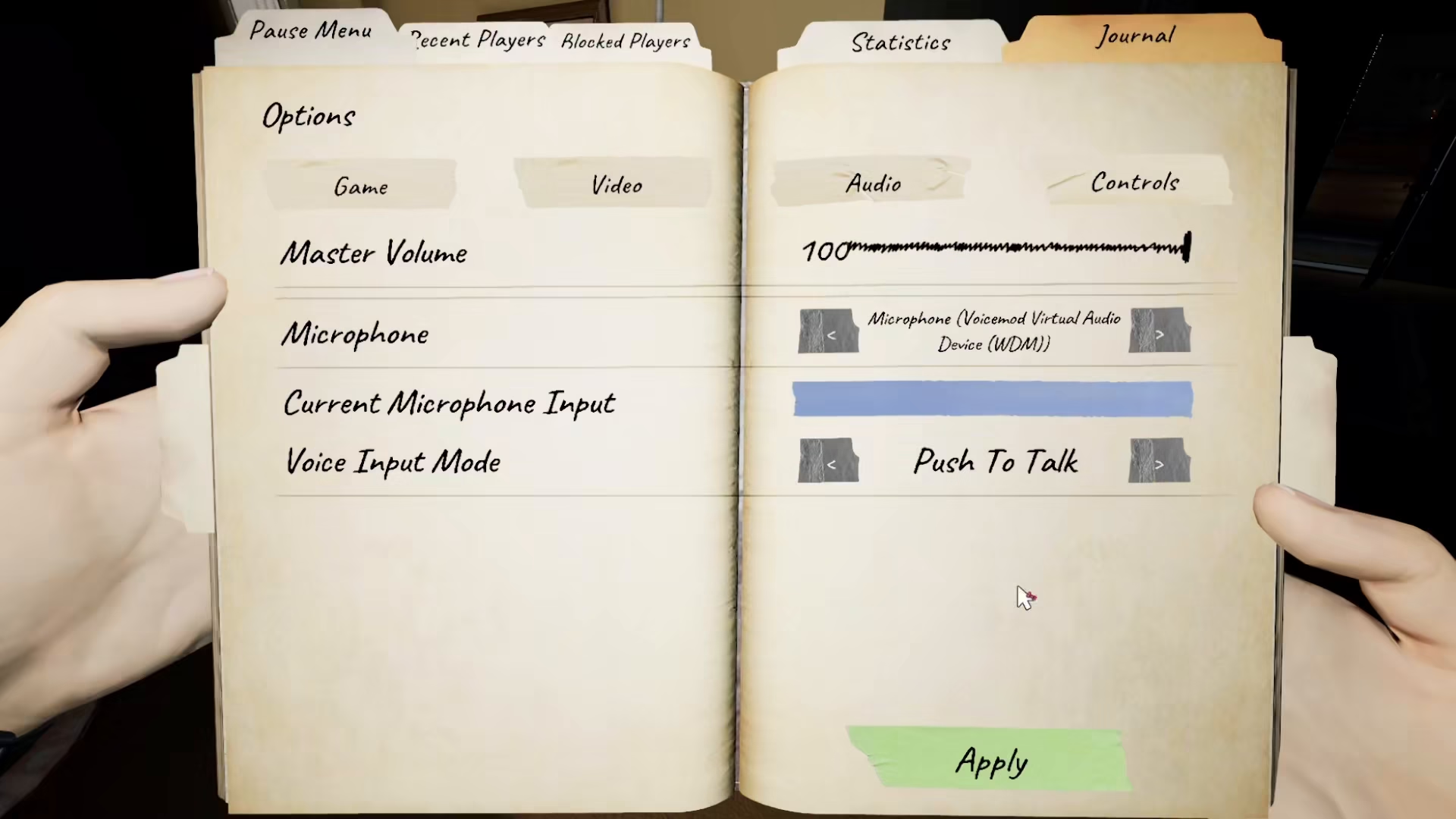
Step 3: Mute Your Microphone
In the Audio Settings, you’ll see the option to mute yourself. Simply toggle this setting to mute your microphone. This is the primary method for silencing your mic directly within Phasmophobia 4BF.
Alternative Muting Methods
If you prefer not to navigate through the game settings every time, you have an alternative option. You can also mute yourself directly from your headphones or audio device. Many headsets have a dedicated mute button on the headphones themselves, which provides quick access without entering the game menu.
Summary
Muting yourself in Phasmophobia 4BF is super easy and can be accomplished in just a few clicks. Simply press Escape, navigate to Options, open Audio Settings, and toggle the mute option. Alternatively, use your headphones’ mute button for even faster control. Choose whichever method works best for your gaming setup.
— Want to Support? —
If you would like to help us continue making these guides – please consider joining our patreon here – https://www.patreon.com/c/JaviHeals
Alternatively – you can join our discord here – https://discord.gg/zD7Gjt6MHF