How To Start A Game In Phasmophobia
How To Start A Game In Phasmophobia
Getting started in Phasmophobia is straightforward once you know the basic steps. Whether you’re playing solo or with friends, this guide will walk you through launching your first investigation from the lobby to entering the haunted location.
Accessing the Lobby
To begin a game in Phasmophobia, you need to first access your lobby. This is where you’ll make all your initial game decisions before the investigation starts.
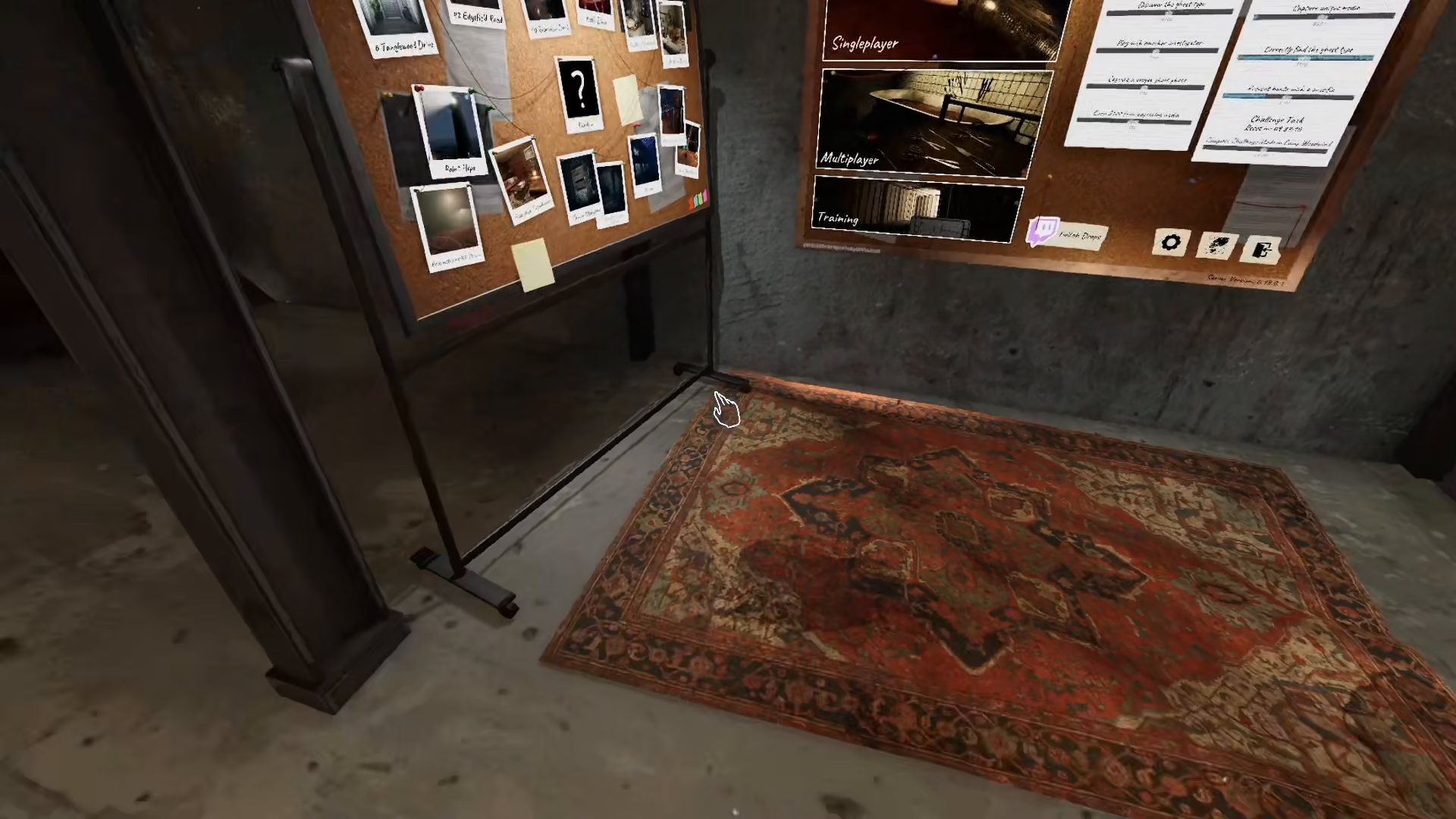
Selecting Your Game Mode and Map
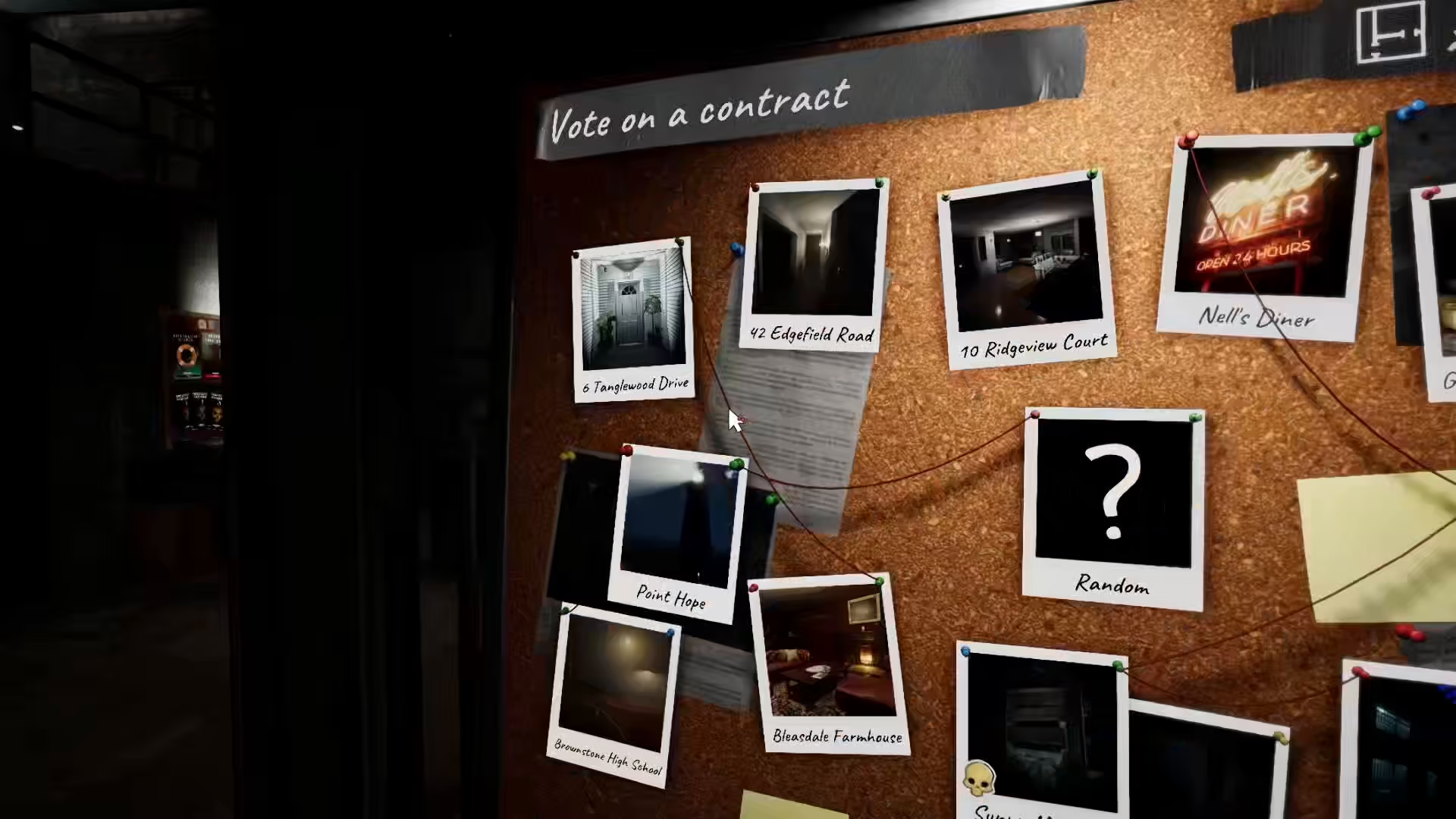
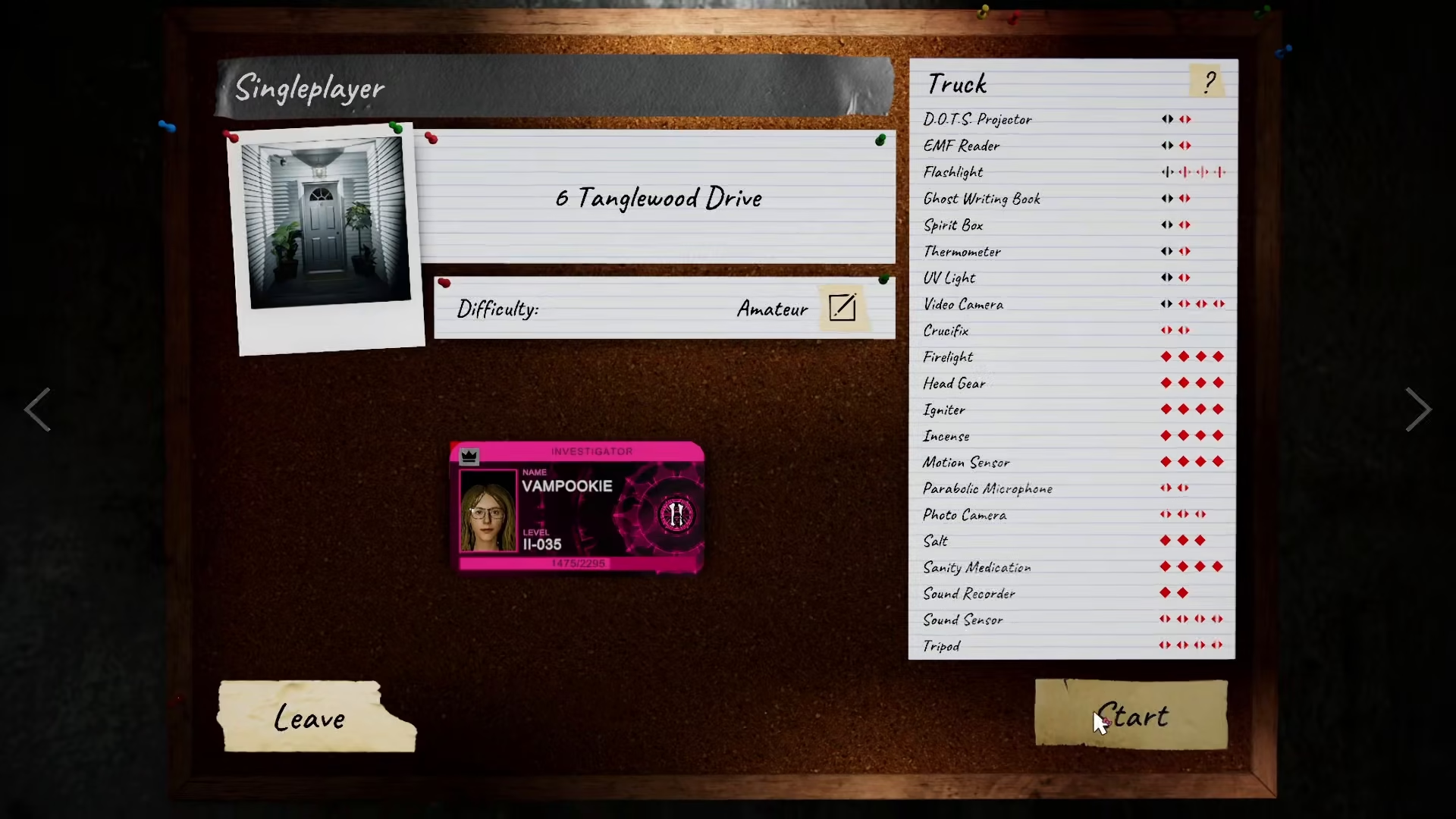
Once in the lobby, choose between single player or multiplayer mode depending on your preference. After selecting your game mode, pick the map you want to investigate. In this example, the Denglewood map is selected.
Choosing Your Difficulty Preset
Phasmophobia offers several difficulty presets to suit different skill levels. You can select from the following options:
Amateur
Intermediate
Professional
Custom
Nightmare
Choose the difficulty that matches your experience level and click to confirm your selection.
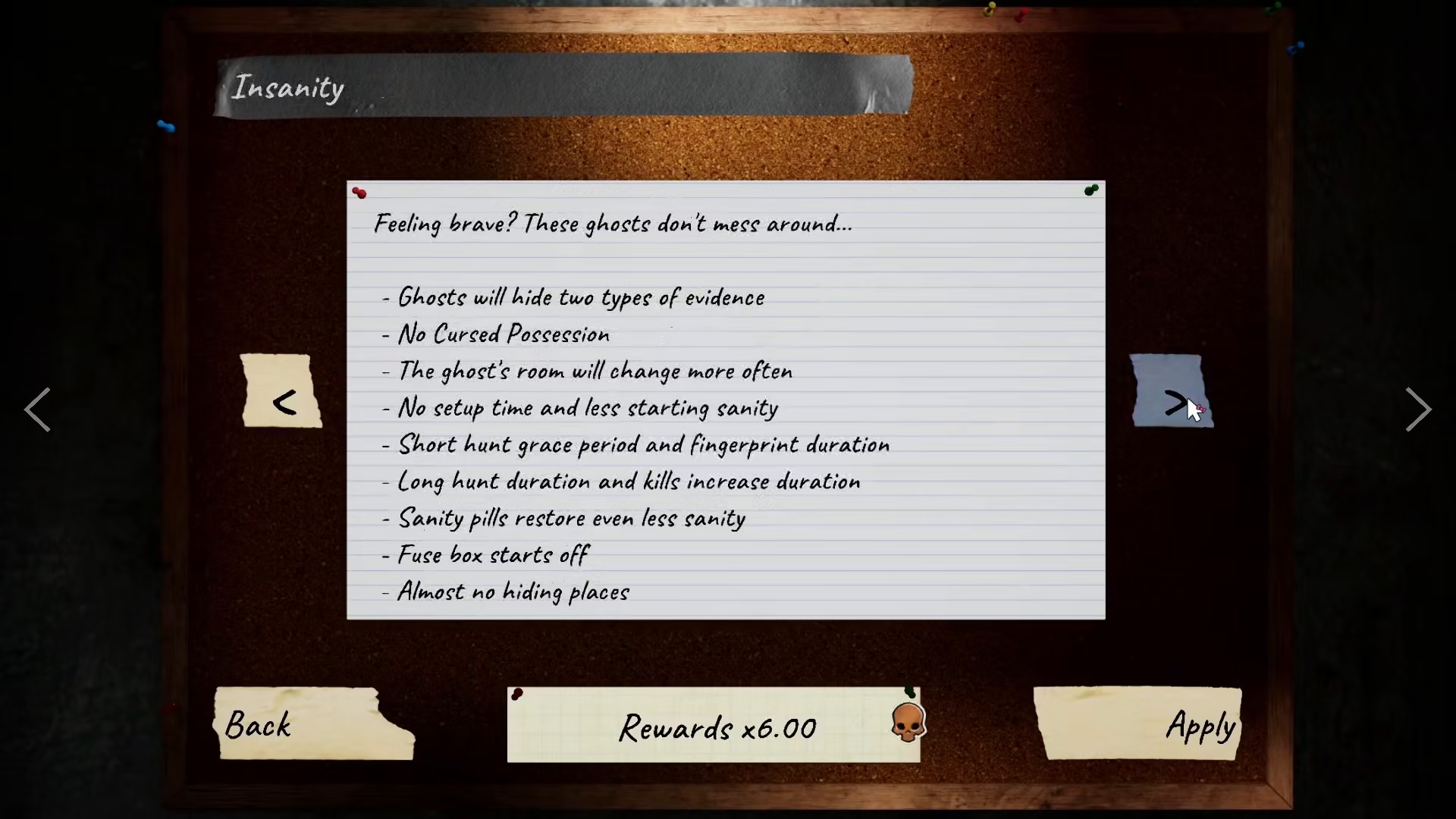
Starting the Game
After selecting your difficulty preset, simply press the “Start” button to begin your investigation. Your game will now load.
Spawning in the Van
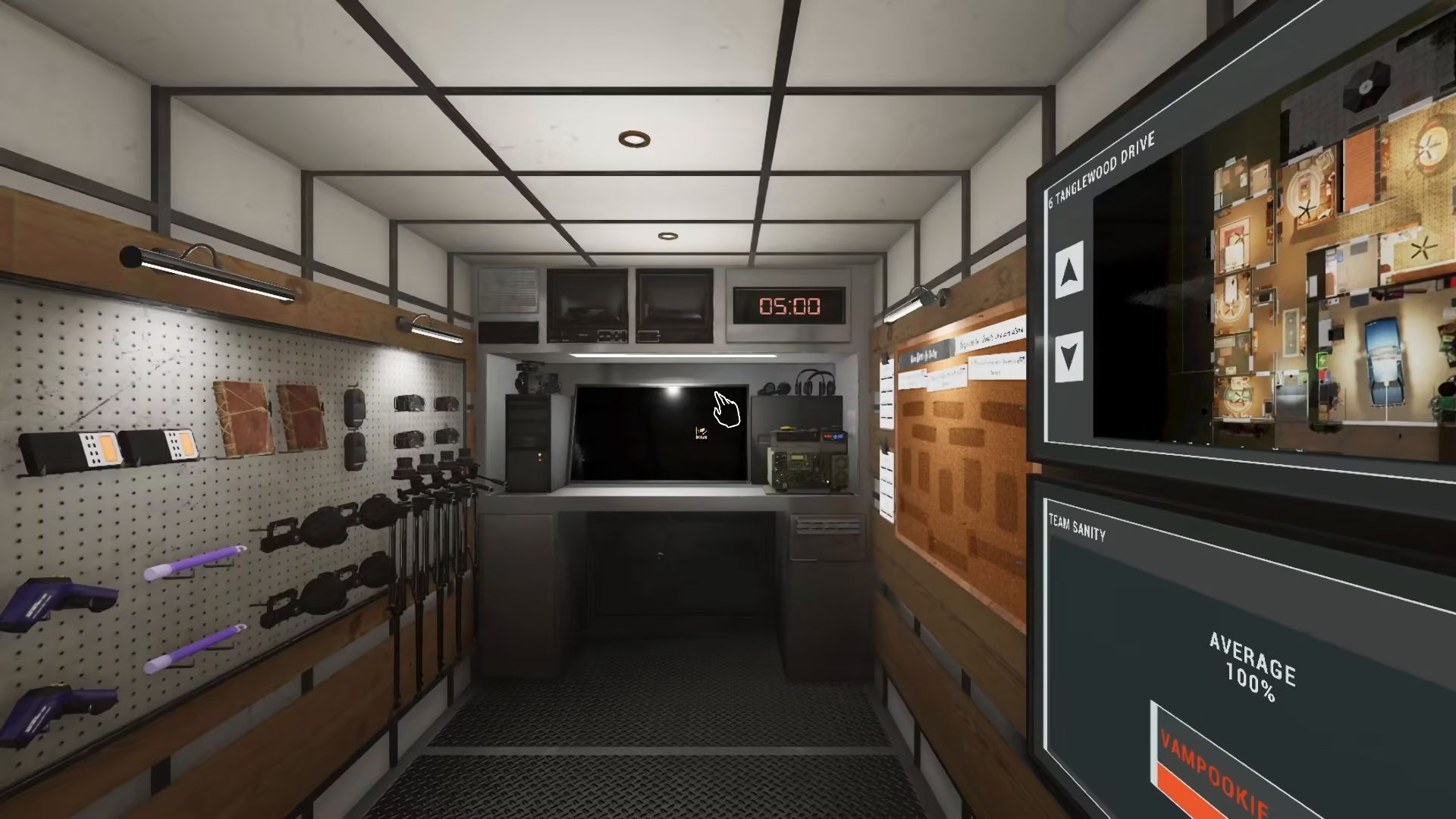
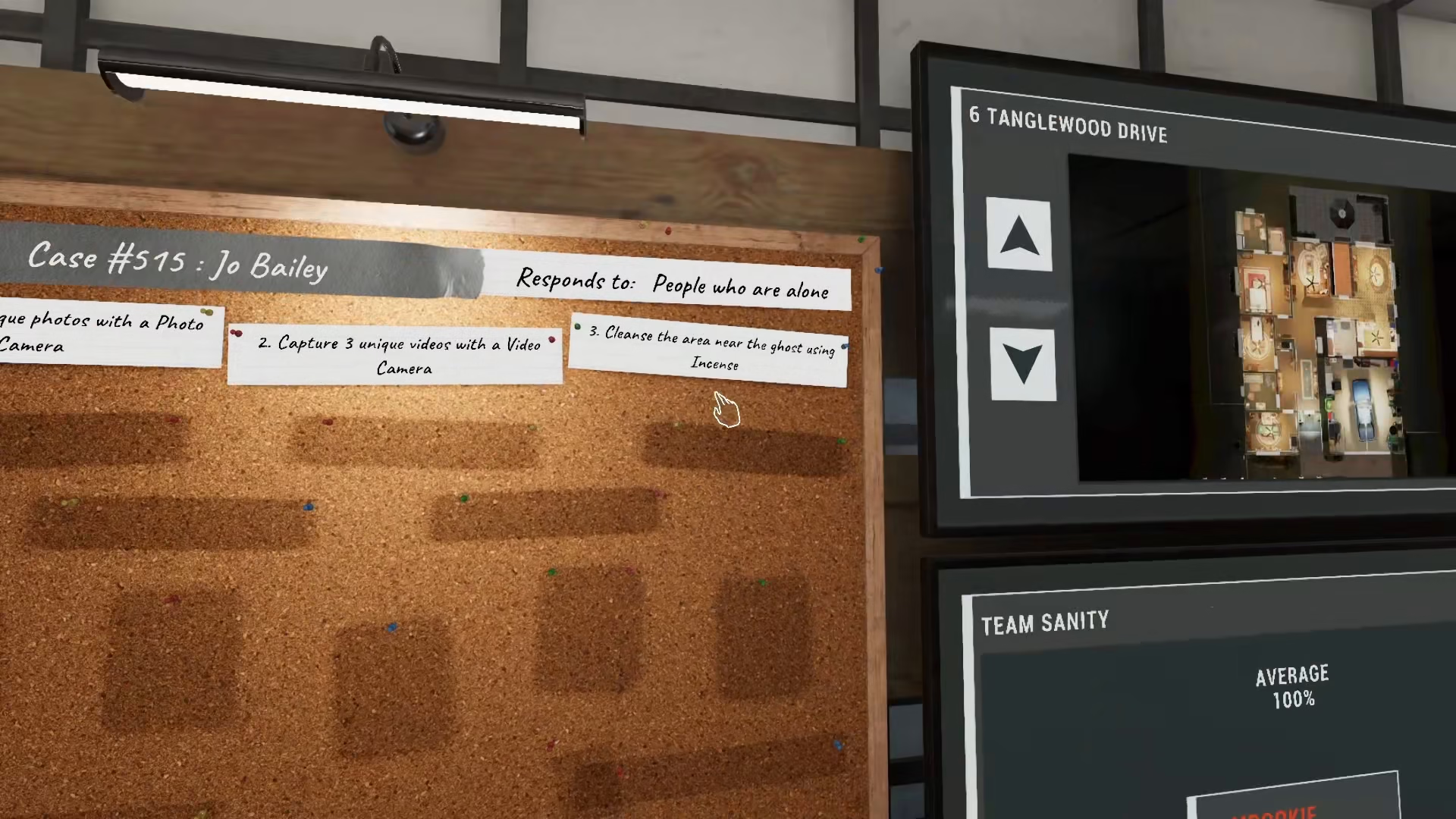
Once the game starts, you’ll spawn in the van at the investigation location. The van serves as your base of operations and contains all your equipment for the investigation. You can view all your current objectives on the van’s display.
Exiting the Van and Beginning Your Investigation
To leave the van and start investigating, take the key from inside the van and use it on the keypad located at the van’s exit. This will unlock the door and allow you to proceed with your ghost hunting investigation.
Summary
Starting a game in Phasmophobia involves five simple steps: access the lobby, select your game mode and map, choose your difficulty preset, press start, and then use the key on the keypad to exit the van. Now you’re ready to begin your paranormal investigation and collect evidence of ghostly activity!
Want to Support?
If you would like to help us continue making these guides – please consider joining our patreon here – https://www.patreon.com/c/JaviHeals
Alternatively – you can join our discord here – https://discord.gg/zD7Gjt6MHF