






How To Turn On Vsync In Fallout 4
How To Turn On Vsync In Fallout 4
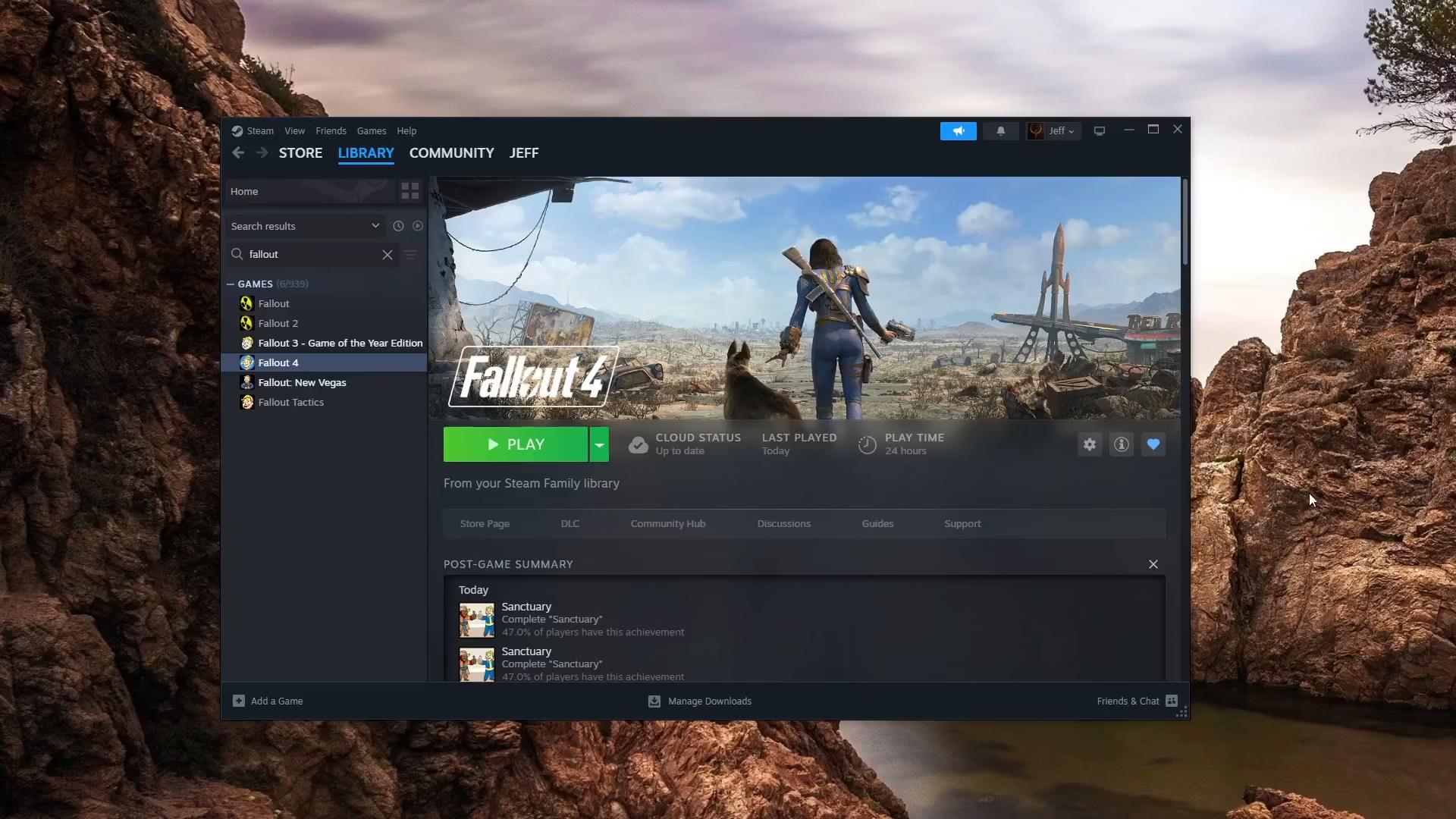
VSync (Vertical Synchronization) is a useful graphics setting that can help reduce screen tearing in Fallout 4. This guide walks you through the simple process of enabling VSync by editing your game’s configuration files. By the end of this tutorial, you’ll have VSync turned on and ready to improve your gaming experience.
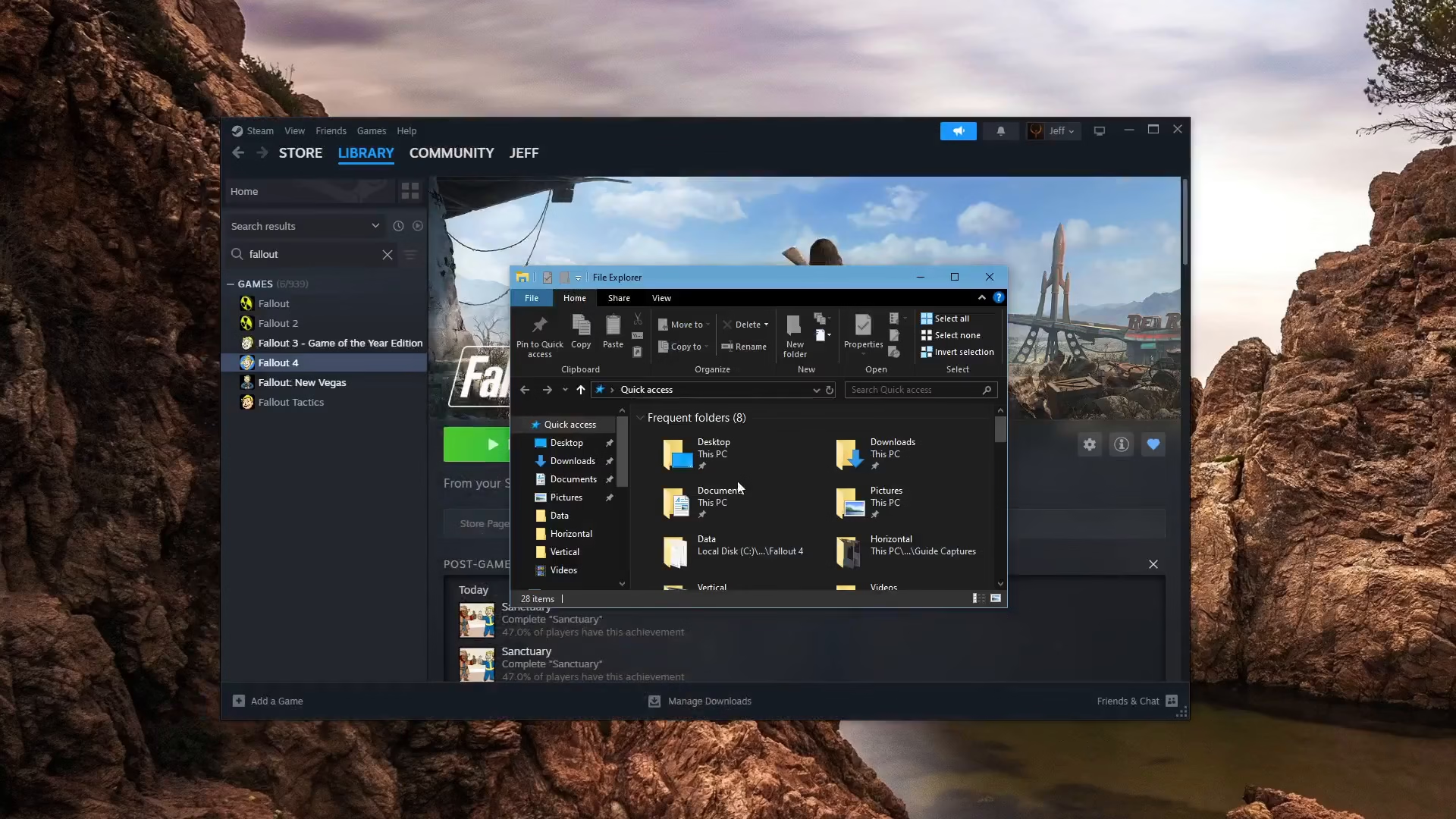
Opening File Explorer
To begin, you need to open File Explorer on your computer. This will allow you to navigate to the Fallout 4 configuration files where the VSync setting is located.
Navigating to the Fallout 4 Directory
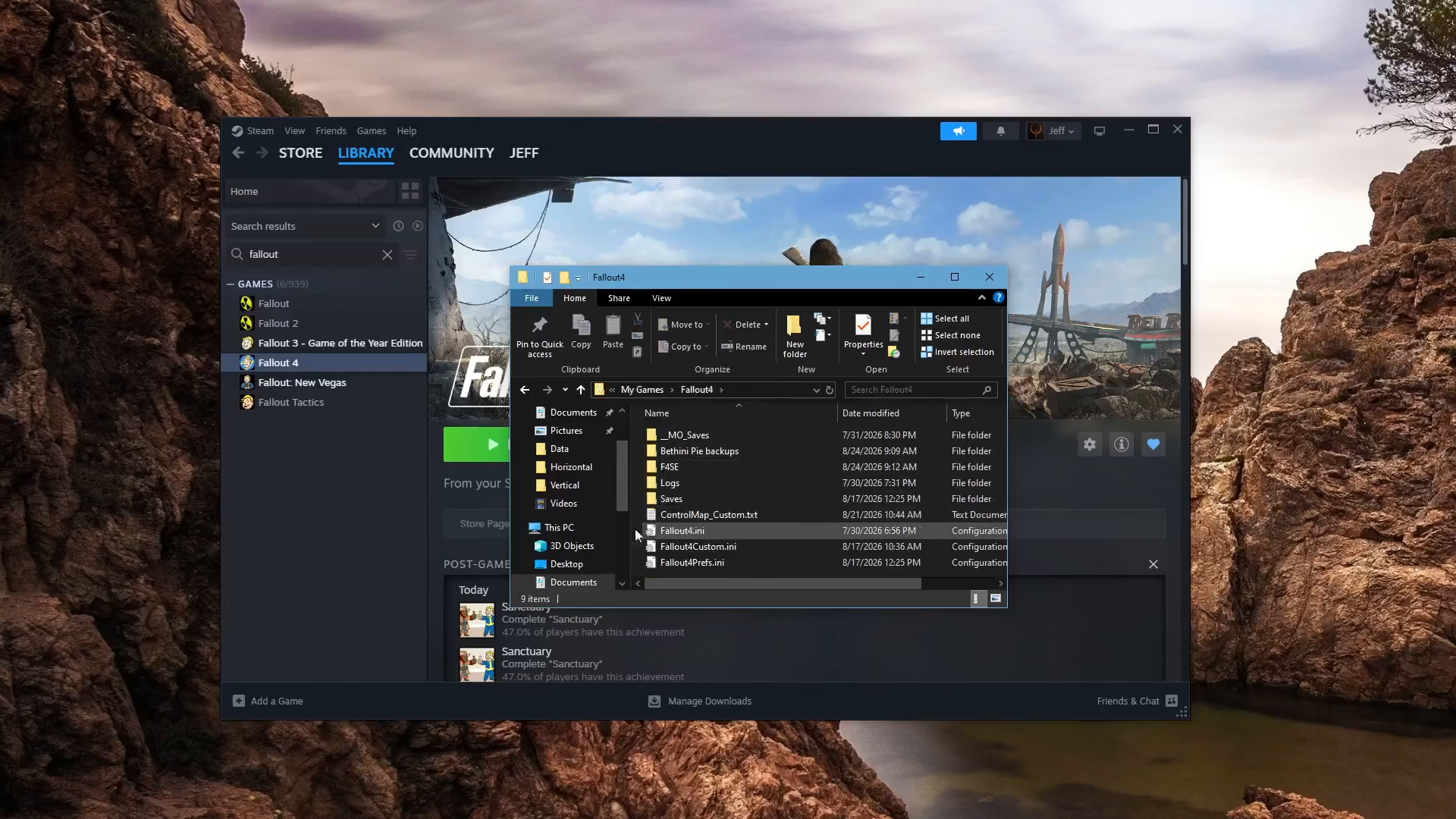
Once File Explorer is open, navigate to the following path: Documents > My Games > Fallout 4. This is where Fallout 4 stores its configuration files.
Editing the Configuration Files
Finding Fallout4.ini
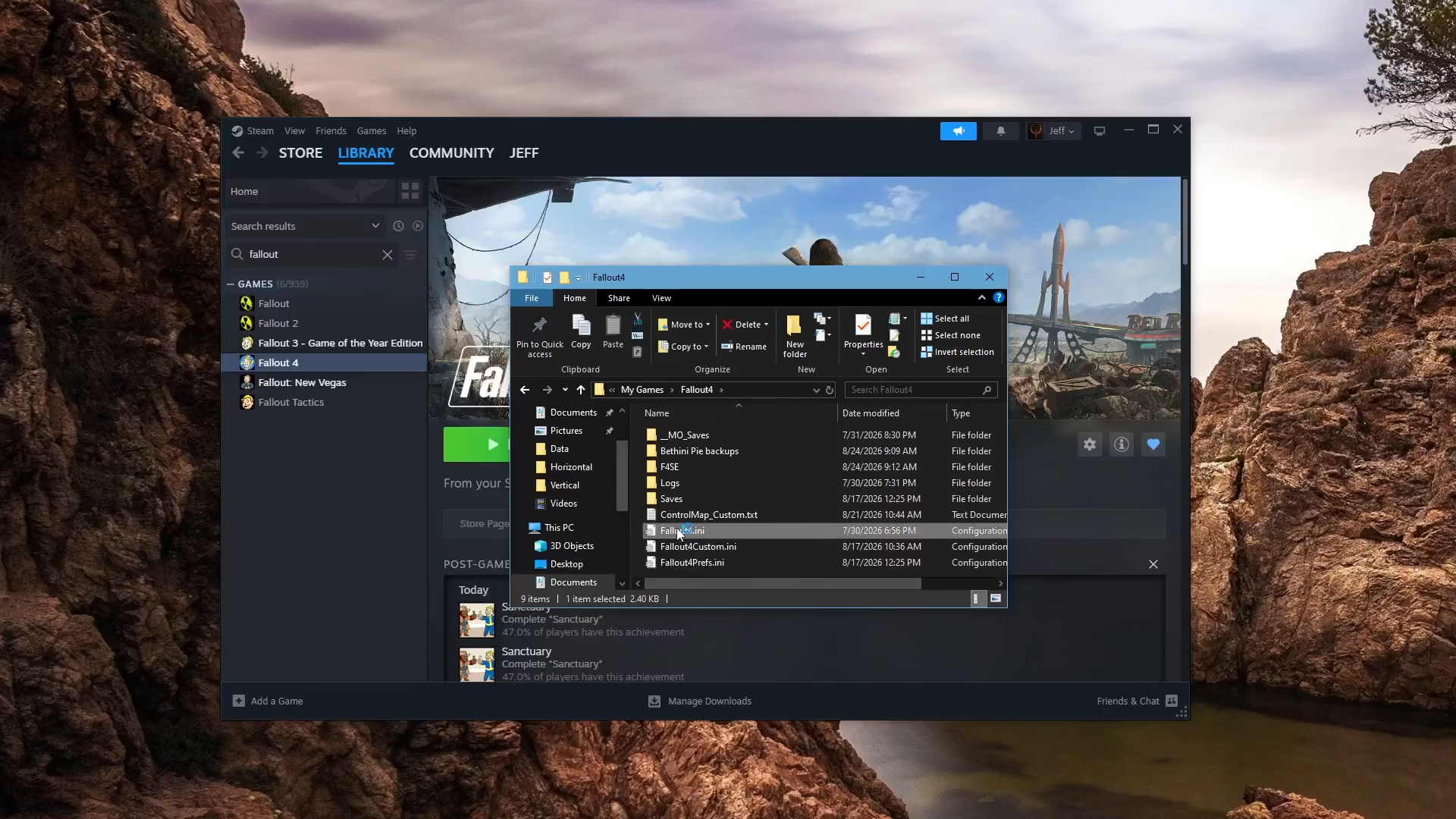
In the Fallout 4 directory, locate and open the file named Fallout4.ini. This is one of the primary configuration files for the game.
Setting iPresentInterval in Fallout4.ini
Inside the Fallout4.ini file, look for the iPresentInterval setting. This is the VSync option for Fallout 4. Make sure this value is set to 1 to enable VSync. If it’s currently set to 0, change it to 1.
Checking Fallout4Prefs.ini
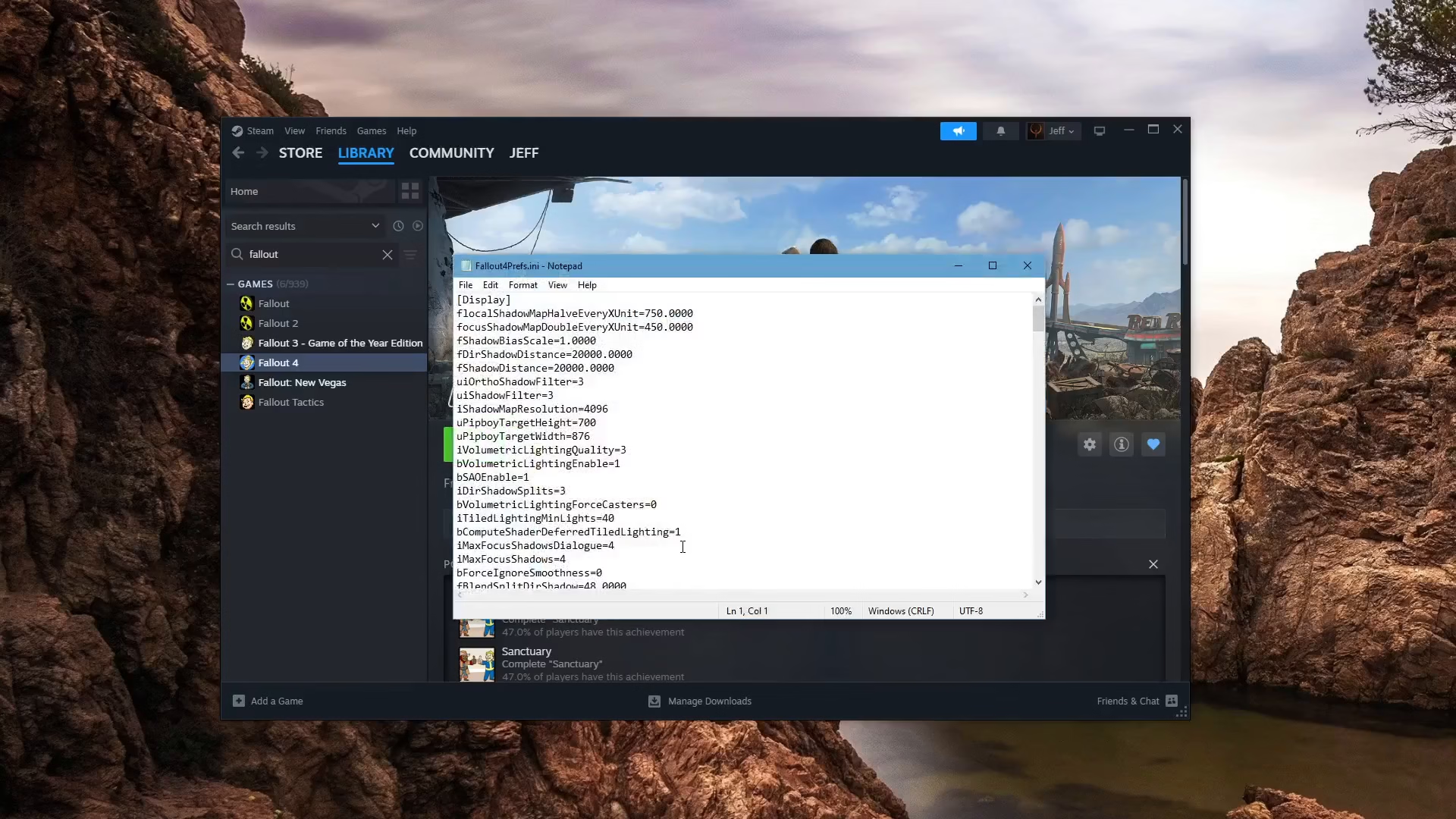
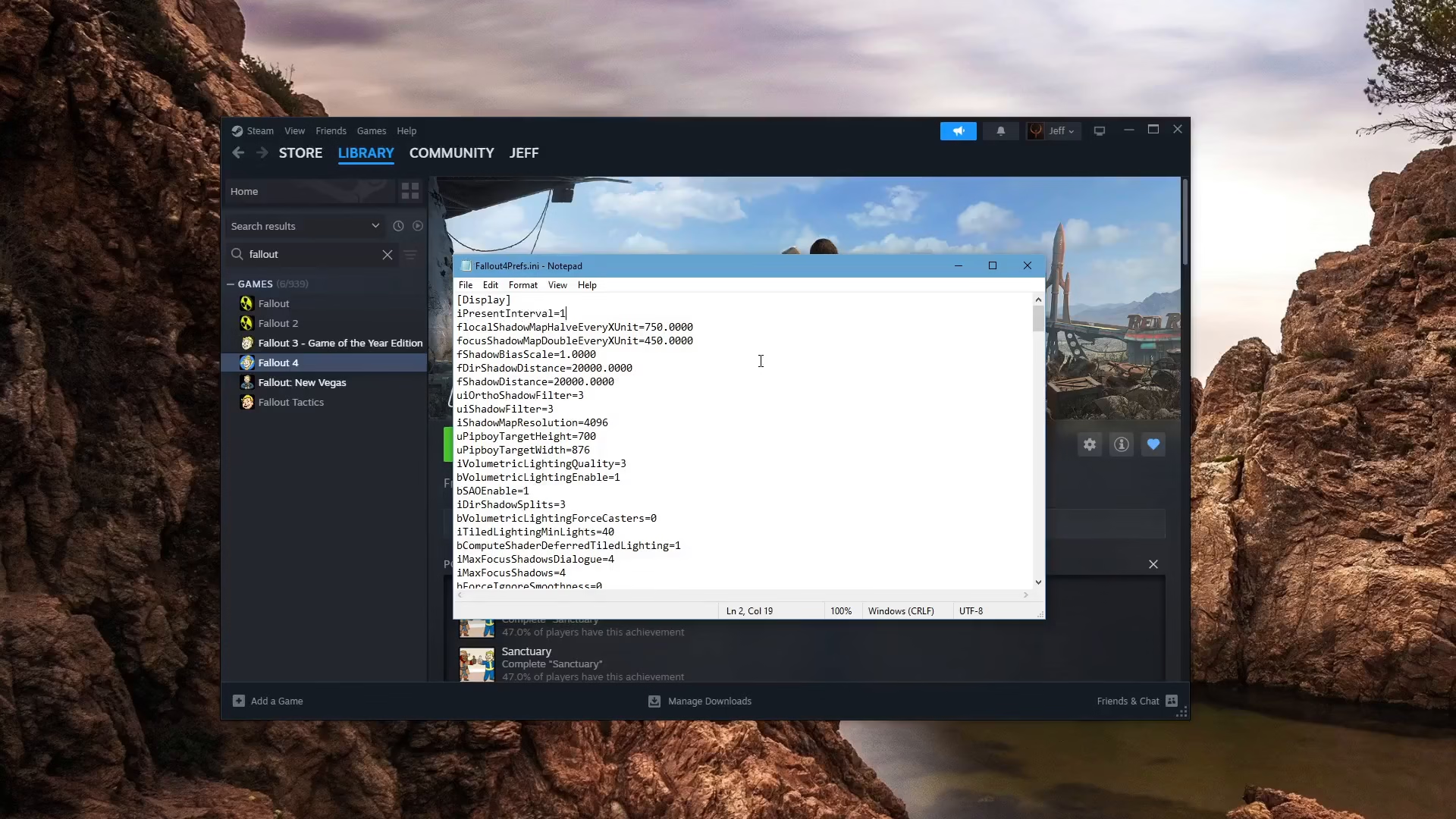
Next, you also need to check the Fallout4Prefs.ini file in the same directory. Look for the iPresentInterval setting in this file as well and ensure it is set to 1. If this setting does not exist in the file, you can add it manually.
Saving Your Changes
Once you’ve set iPresentInterval to 1 in both configuration files, save your changes by pressing Ctrl + S on your keyboard. This ensures that your VSync settings are properly saved.
Summary
You have successfully enabled VSync in Fallout 4! By setting the iPresentInterval value to 1 in both Fallout4.ini and Fallout4Prefs.ini files, VSync should now be active in your game. This setting will help eliminate screen tearing and provide a smoother visual experience during gameplay. Remember to save your changes before launching the game.
— Want to Support? —
If you would like to help us continue making these guides – please consider joining our patreon here – https://www.patreon.com/c/JaviHeals
Alternatively – you can join our discord here – https://discord.gg/zD7Gjt6MHF