How to Type in Chat in Rust
How to Type in Chat in Rust
Communication is essential in Rust, whether you’re coordinating with teammates or interacting with other players on the server. Learning how to access and use the chat system is one of the first things you should master. This guide will walk you through the simple process of typing in chat and show you all the useful features available through the chat interface.
Accessing the Chat Settings
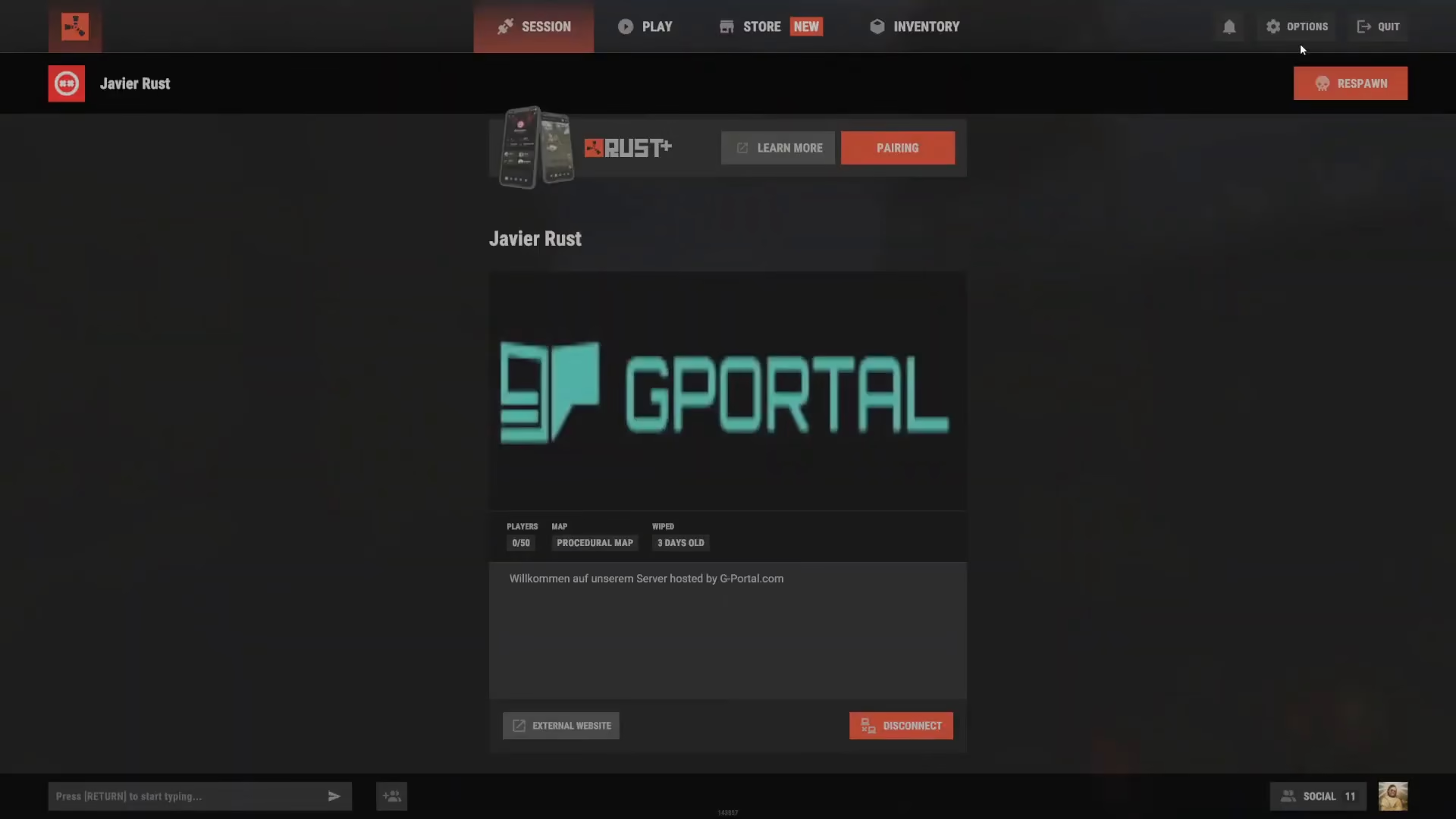
To begin, you’ll need to navigate to your game settings. Start by opening your Options menu, then select Key Binds. This will display all the customizable controls for your Rust experience.
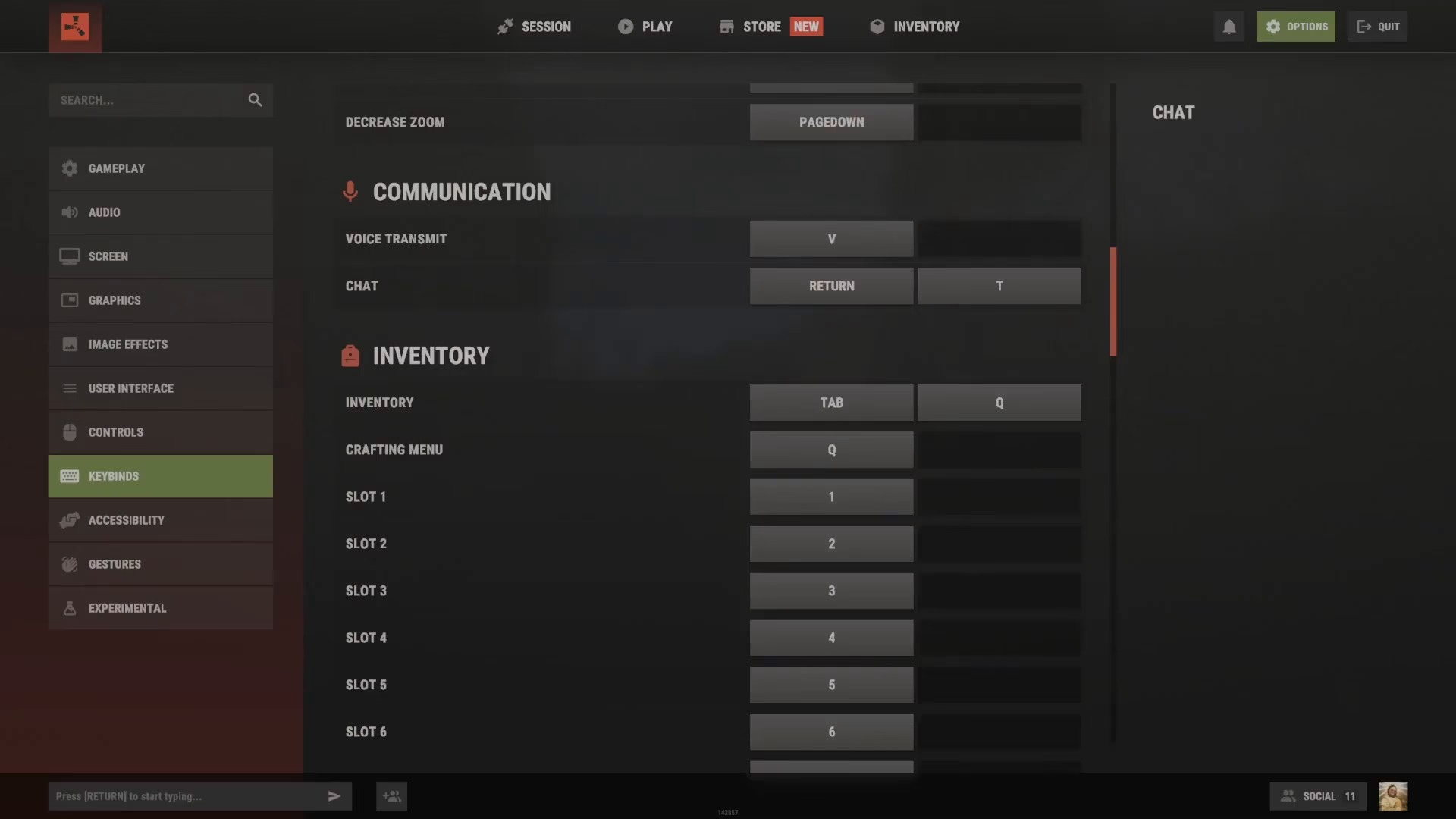
Within the Key Binds menu, look for the Communication section. Here you’ll find the chat settings listed alongside voice chat options.
Finding Your Chat Keybind
In the Communication section, you’ll see that chat is set to the T key by default. This is the standard keybind for opening the chat interface. However, if you’re playing on console or prefer a different key, you can customize this binding to suit your preference.
Opening and Using Chat
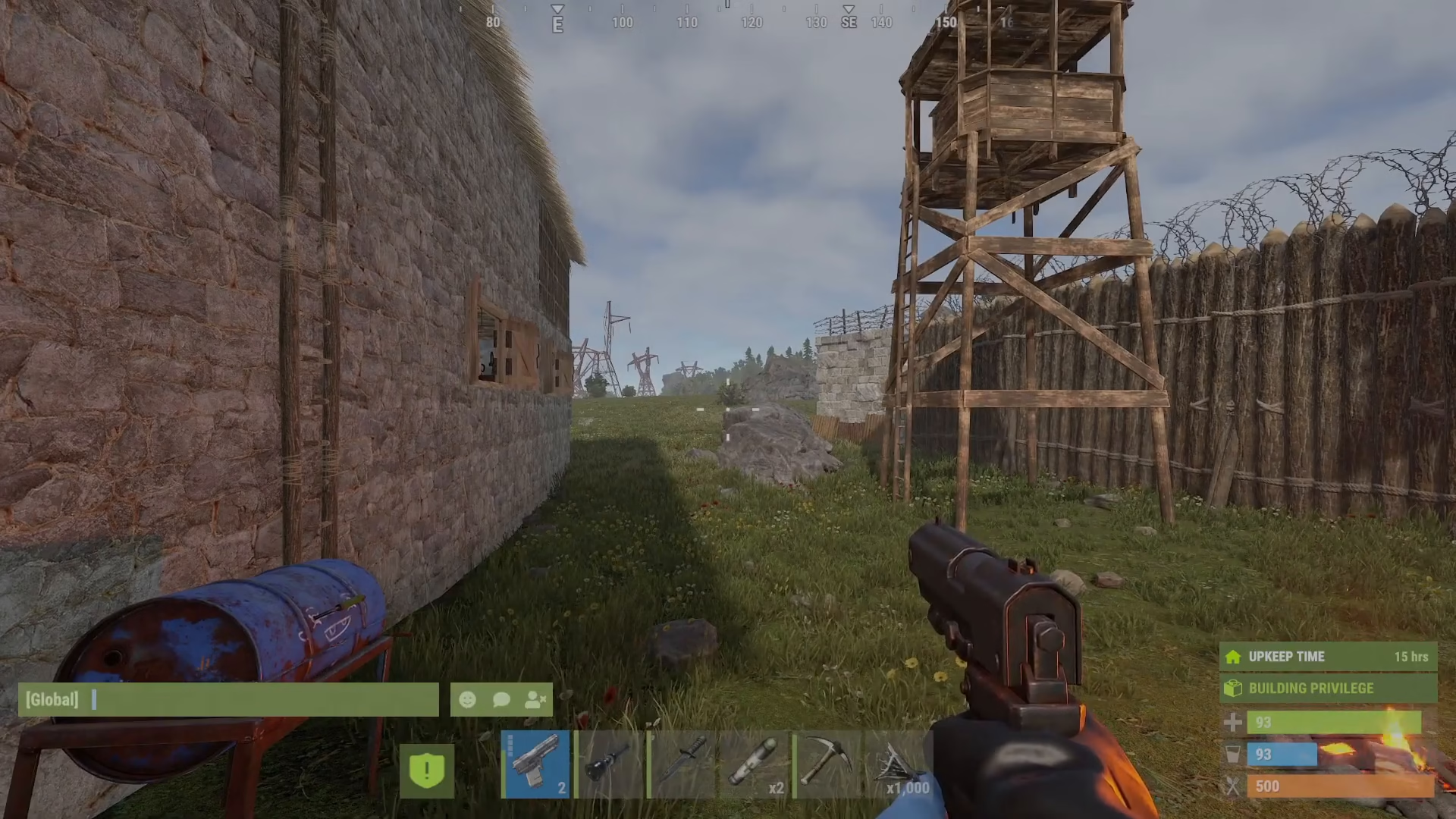
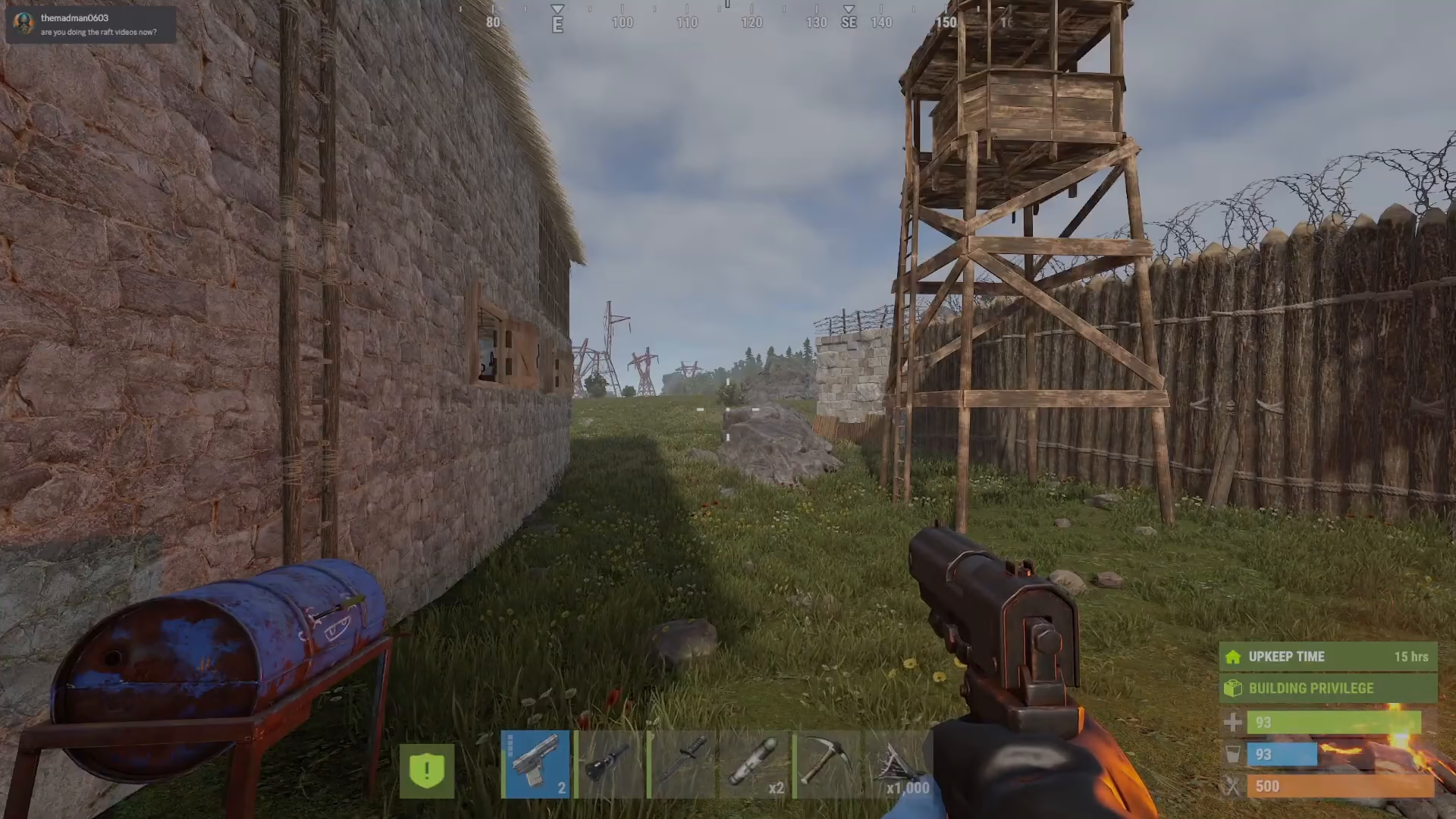
To open the chat window during gameplay, simply press your designated chat key (T by default). The chat interface will appear on the left side of your screen, ready for you to type your message.
Once the chat is open, you can type your message and press Enter to send it. Your message will be visible to all players on the server, and your Steam profile picture will be displayed next to your text.
Safety and Privacy Considerations
One important security feature in Rust is that other players cannot determine your location on the map when you use chat. This means you can communicate safely without revealing your base or position to potential threats.
However, exercise caution about the information you share in chat. Other players may use personal details or resource information you reveal against you later. Always think carefully before disclosing sensitive information about your gameplay situation.
Chat Management Features
The chat interface includes several useful features beyond simple messaging. You can interact with player profiles directly from the chat window. Pressing T again or clicking on a player’s name in the chat allows you to access their profile information.
From the chat menu, you have access to several helpful options:
View Steam Profile: Click on a player’s name to see their full Steam profile immediately
Copy Text: Easily copy chat messages for reference or documentation
Clear Chat: Remove chat history from your screen when needed
Manage Muted Players: Control which players’ messages you want to see
Add Friends: Send friend requests directly from the chat interface
Send Direct Messages: Communicate privately with other players
Access Emojis: Use emoji expressions in your chat messages
Summary
Typing in chat in Rust is straightforward and intuitive. Press T (or your customized keybind) to open the chat, type your message, and press Enter to send. The chat system provides numerous features for managing your social interactions, from viewing player profiles to muting disruptive players. Remember to communicate responsibly and avoid sharing information that could compromise your safety in-game. With these tools at your disposal, you’re ready to engage with the Rust community effectively.
— Want to Support? —
If you would like to help us continue making these guides – please consider joining our patreon here – https://www.patreon.com/c/JaviHeals
Alternatively – you can join our discord here – https://discord.gg/zD7Gjt6MHF