






How To Use Controller In Age of Empires 4
How to Use Controller in Age of Empires 4
Want to play Age of Empires 4 with a controller instead of a keyboard and mouse? It’s easier than you might think. This guide walks you through the simple steps to enable and configure controller support in Age of Empires 4, allowing you to enjoy the game with your preferred input device.
Accessing the Settings Menu
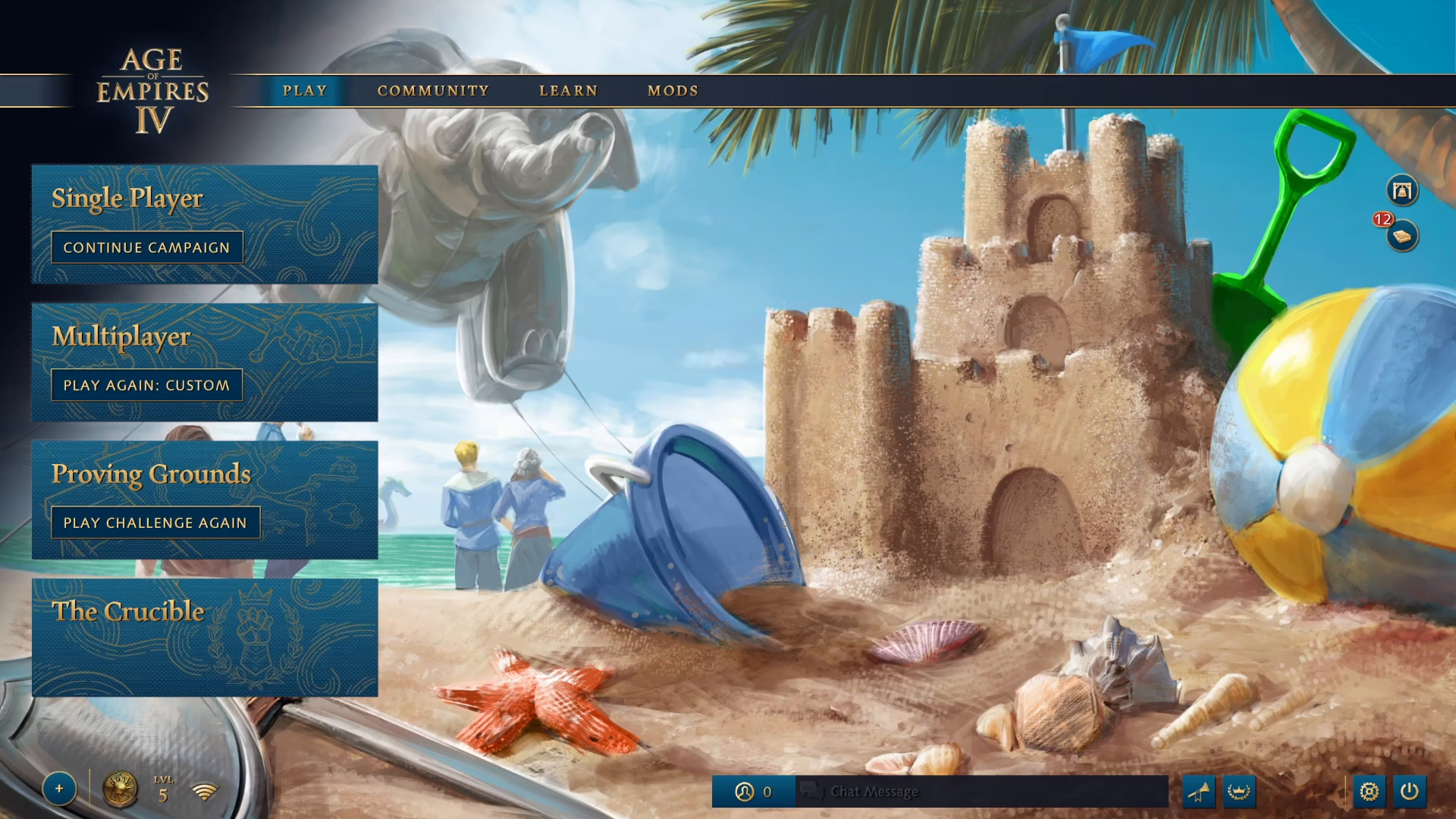
Start from the main menu of Age of Empires 4. Look toward the bottom right corner of your screen and click on Settings.
Navigating to Control Settings
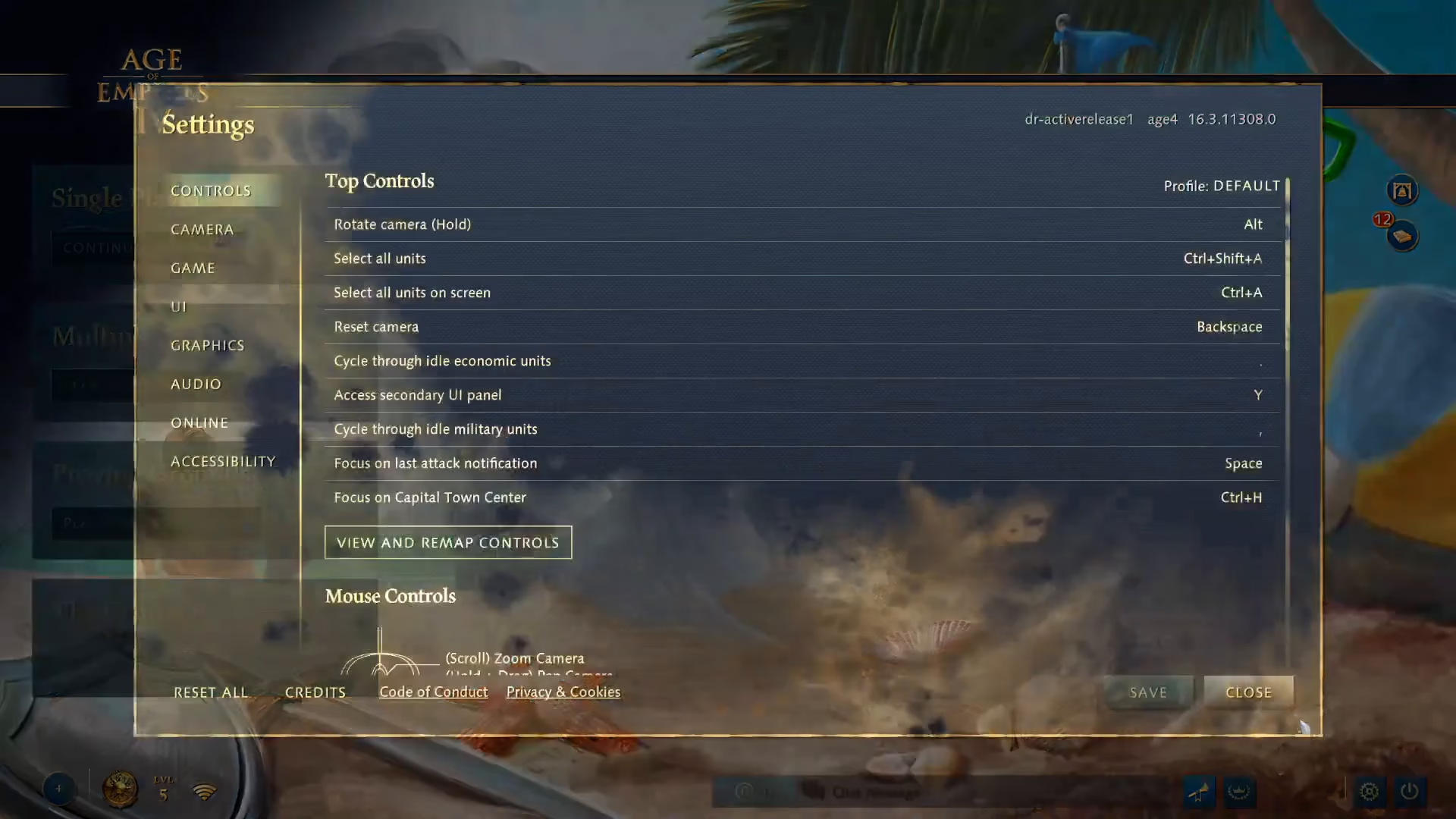
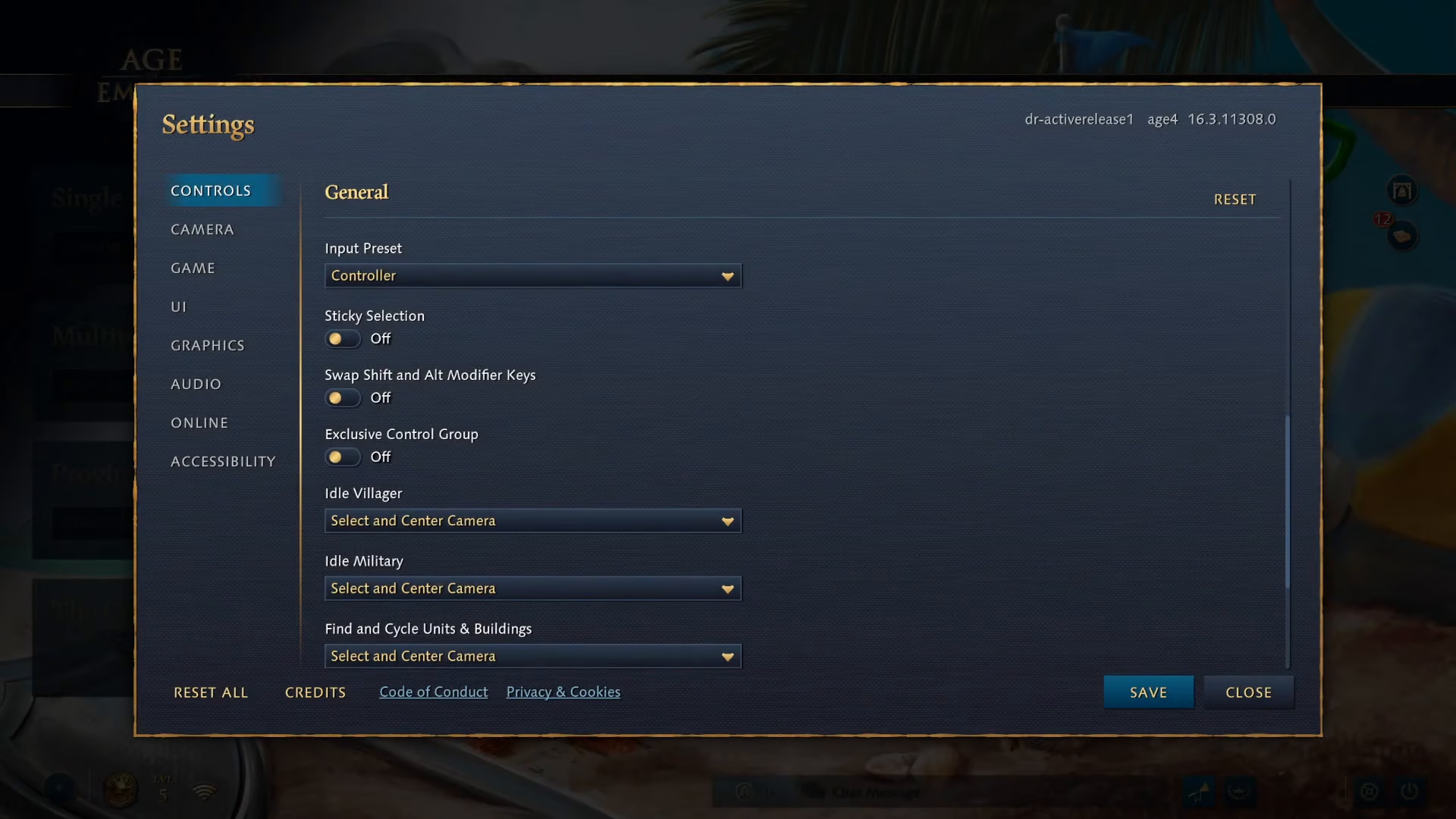
Once you’re in the Settings menu, find the Controls option on the left side and select it.
Selecting the Controller Input Preset
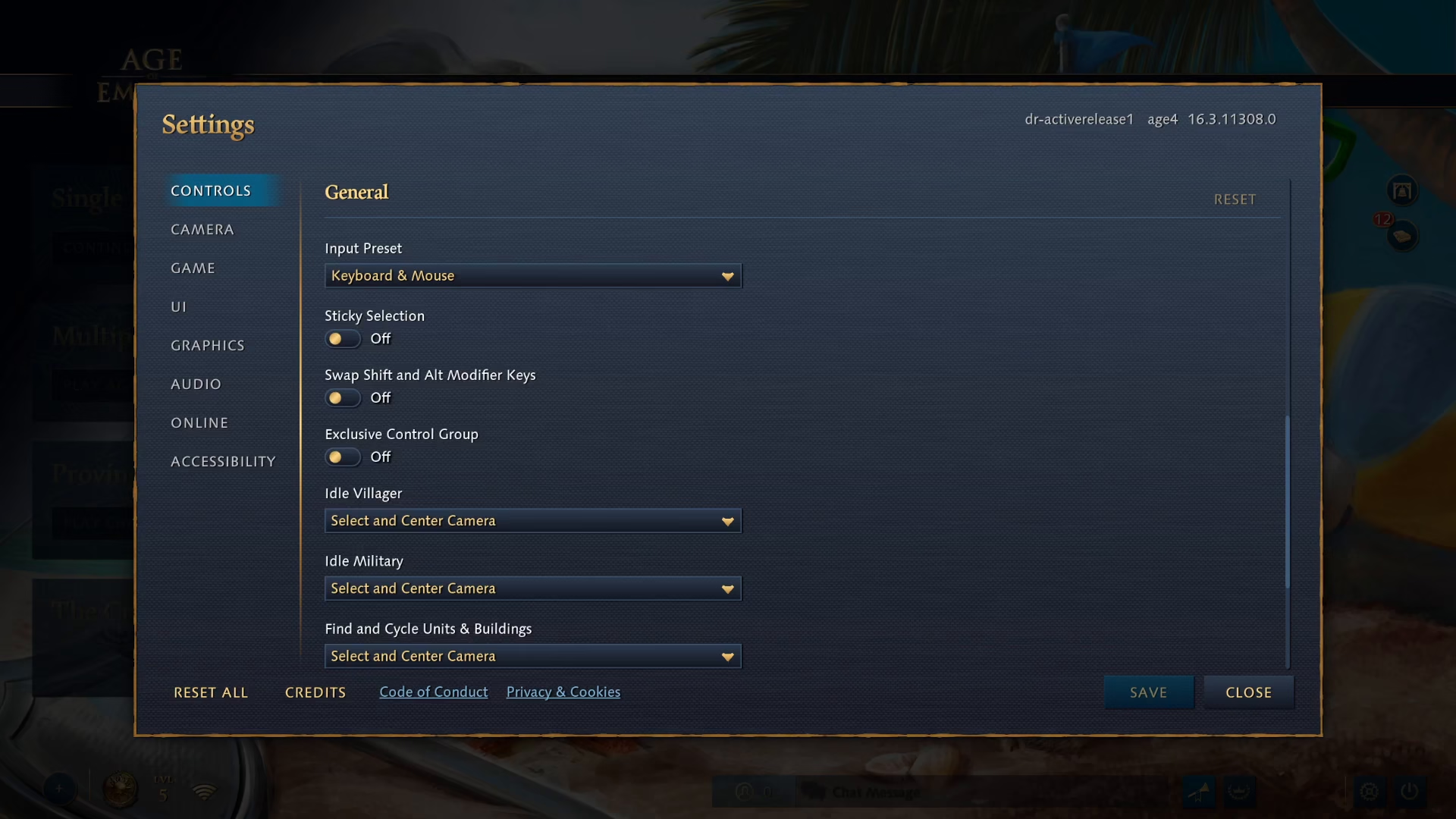
In the Controls menu, scroll down until you locate the Input Preset option. Click on the dropdown menu and select Controller from the available options.
Applying Your Changes
After selecting Controller from the dropdown, click on Change to apply this preset to your control scheme.
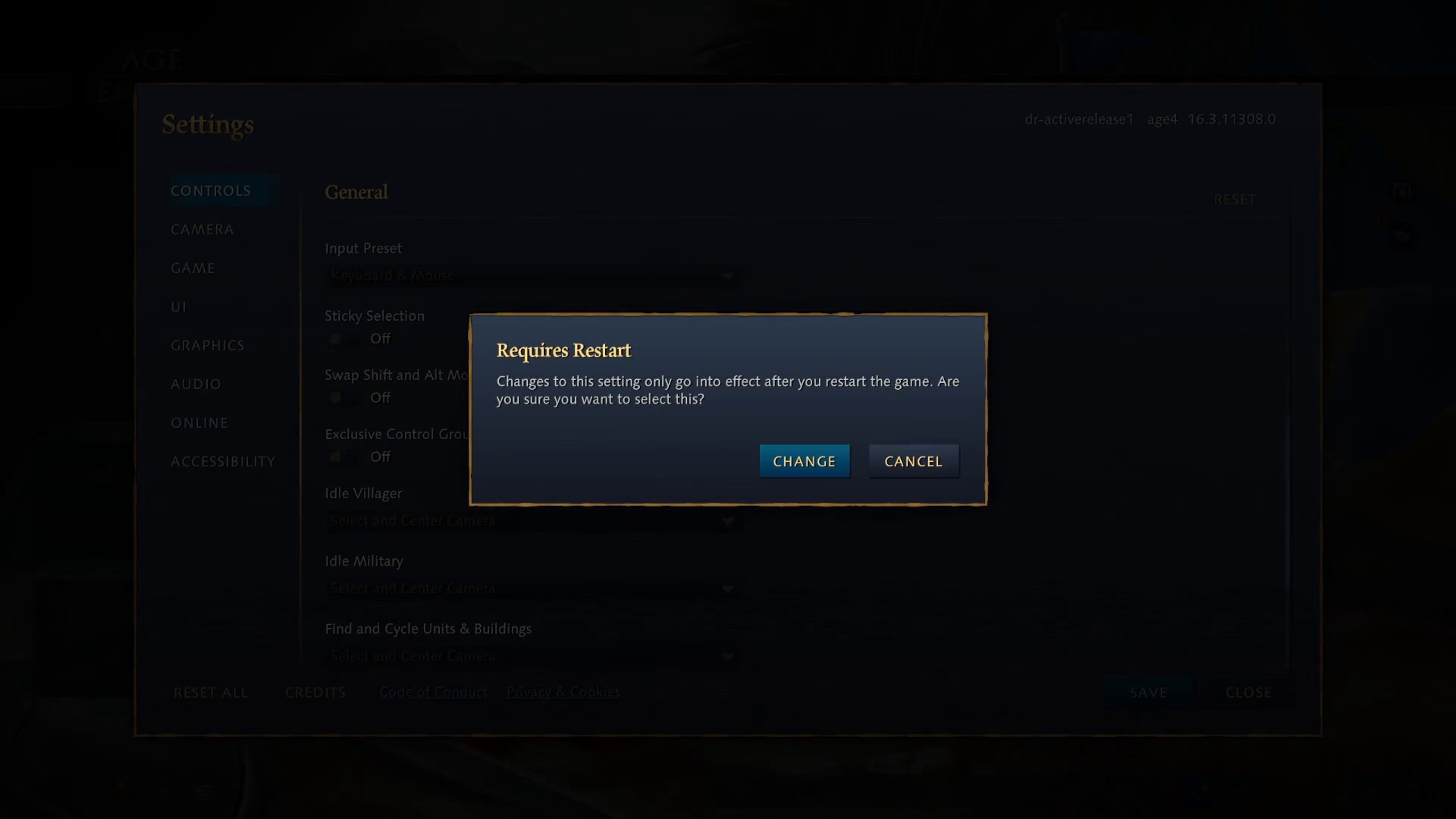
Next, locate the Save button in the bottom right corner of the settings window and click it to save your configuration changes.
Restarting and Playing
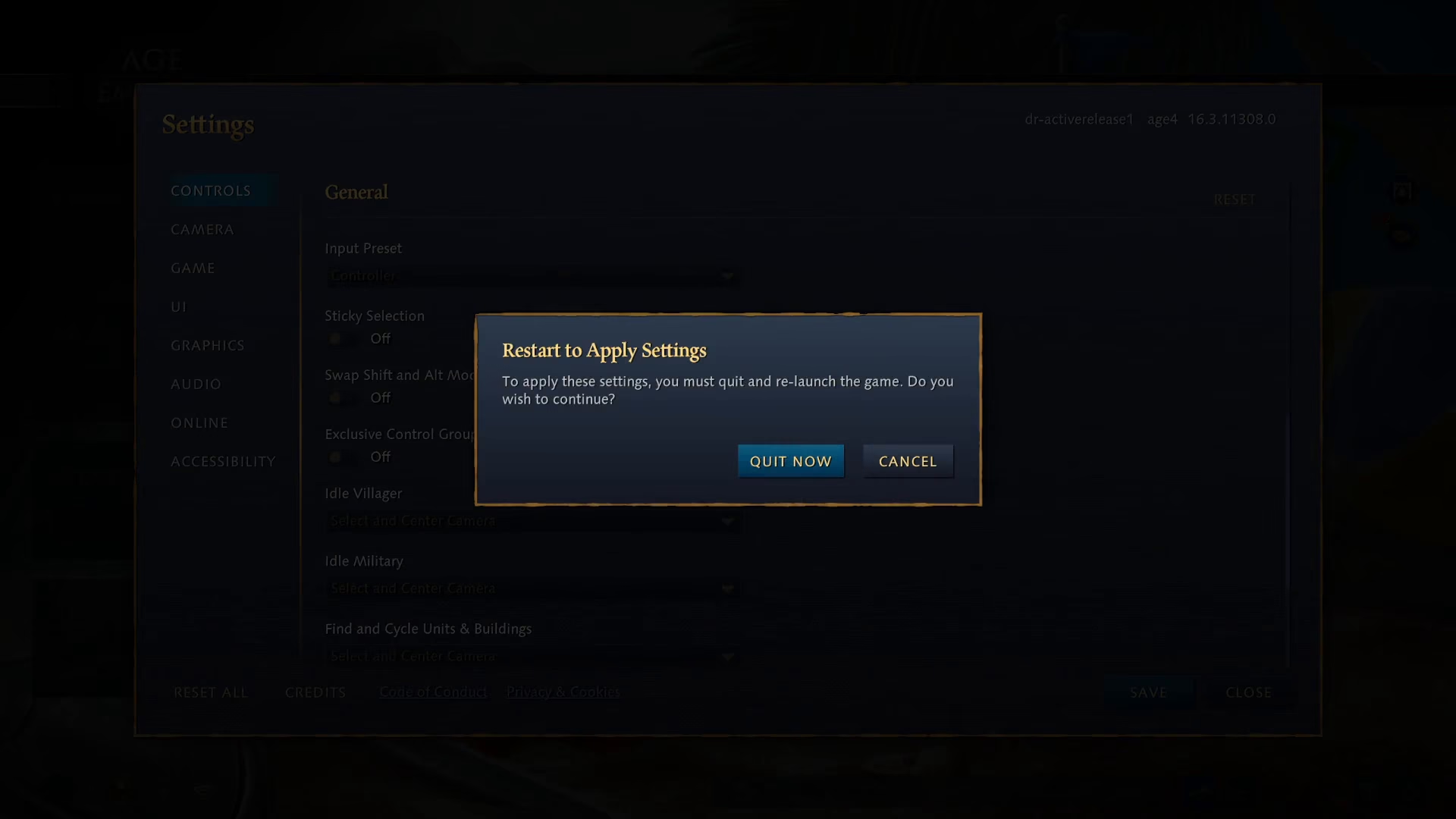
Now you can click Quit to close the settings menu. Age of Empires 4 will automatically restart, and your controller will be fully functional and ready to use for gameplay.
Summary
Enabling controller support in Age of Empires 4 is straightforward and takes just a few clicks. By navigating to Settings, selecting Controls, changing the Input Preset to Controller, and saving your changes, you’ll be ready to enjoy the game with your controller. It’s that simple!
— Want to Support? —
If you would like to help us continue making these guides – please consider joining our patreon here – https://www.patreon.com/c/JaviHeals
Alternatively – you can join our discord here – https://discord.gg/zD7Gjt6MHF