How To Use Voice Chat in ARC Raiders
How To Use Voice Chat in ARC Raiders
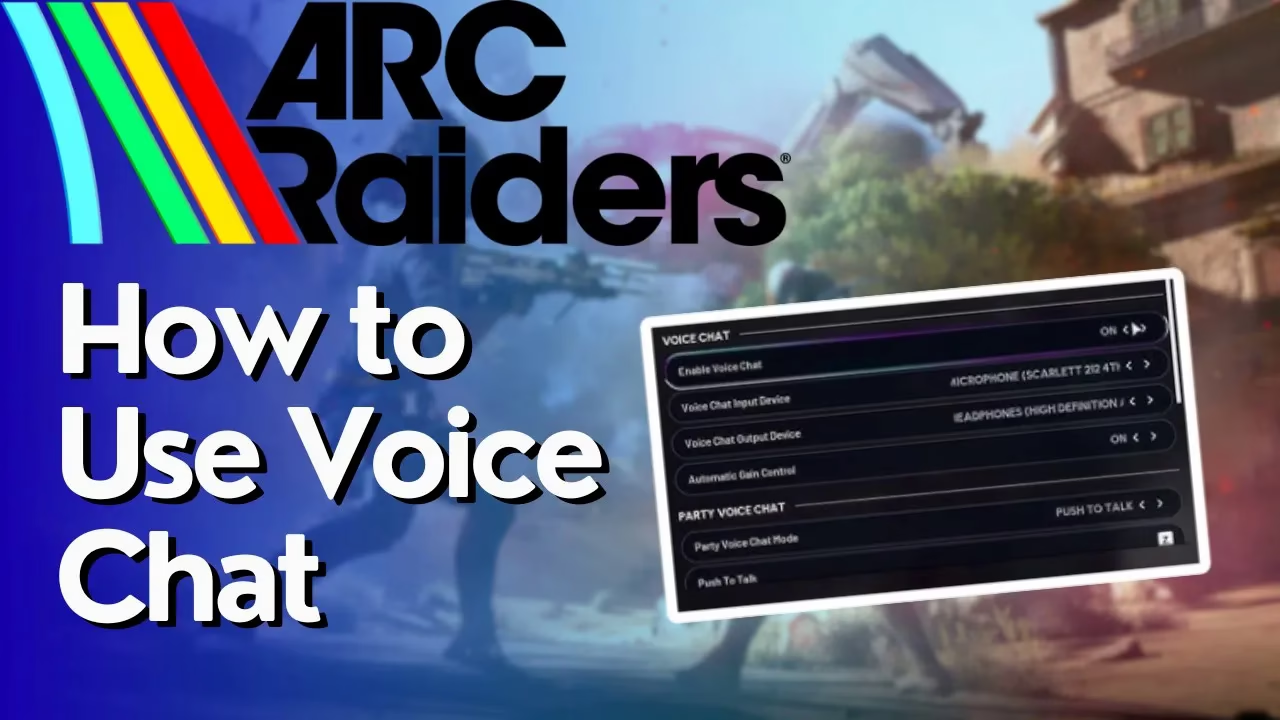
Voice communication is essential for coordinating with your team in ARC Raiders. This guide walks you through accessing the voice chat settings, configuring your microphone, and customizing both party and proximity voice options to enhance your multiplayer experience.
Accessing Voice Chat Settings
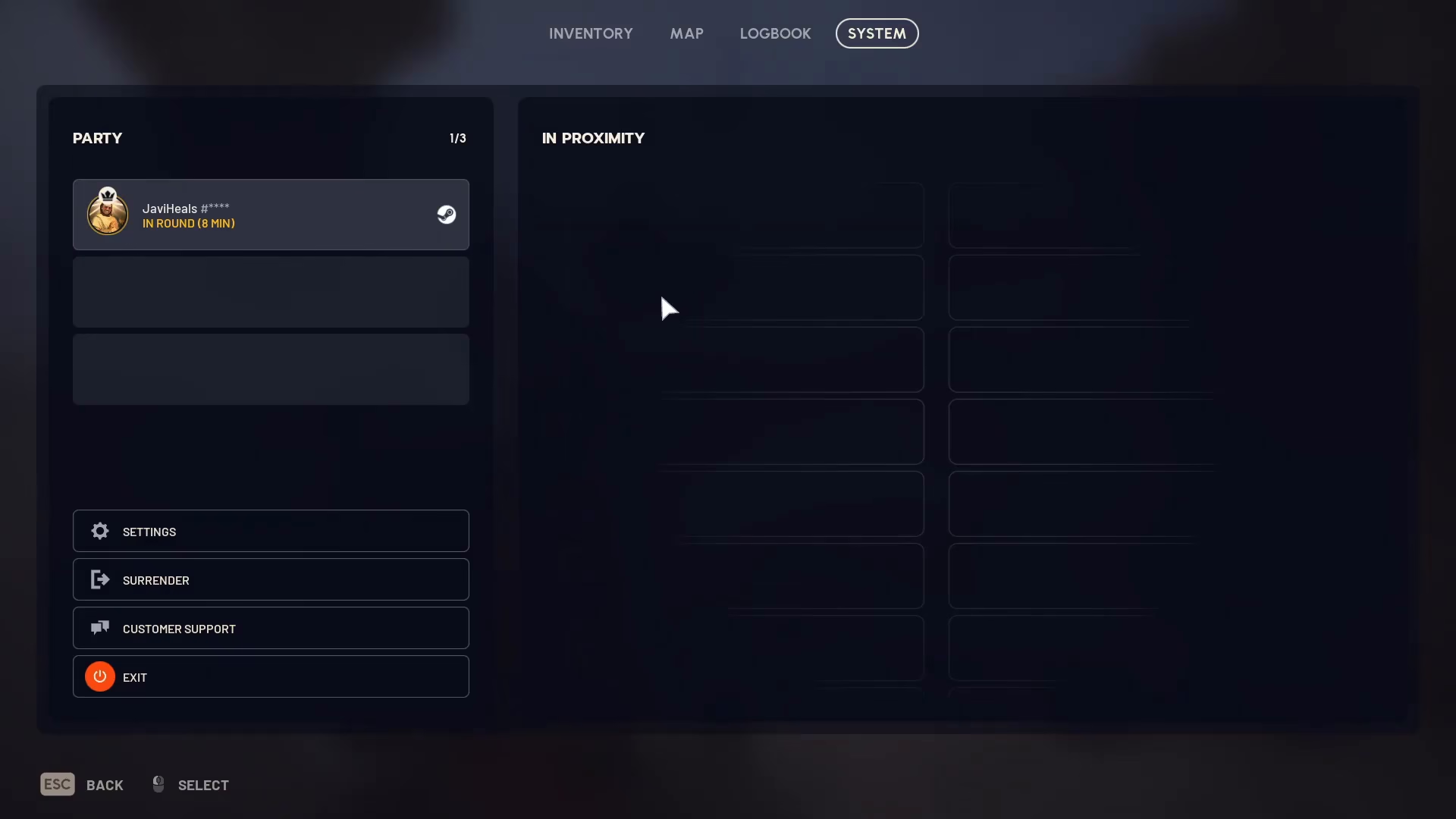
To begin configuring voice chat in ARC Raiders, press Escape to open your menu. From the left sidebar, select “Settings.”
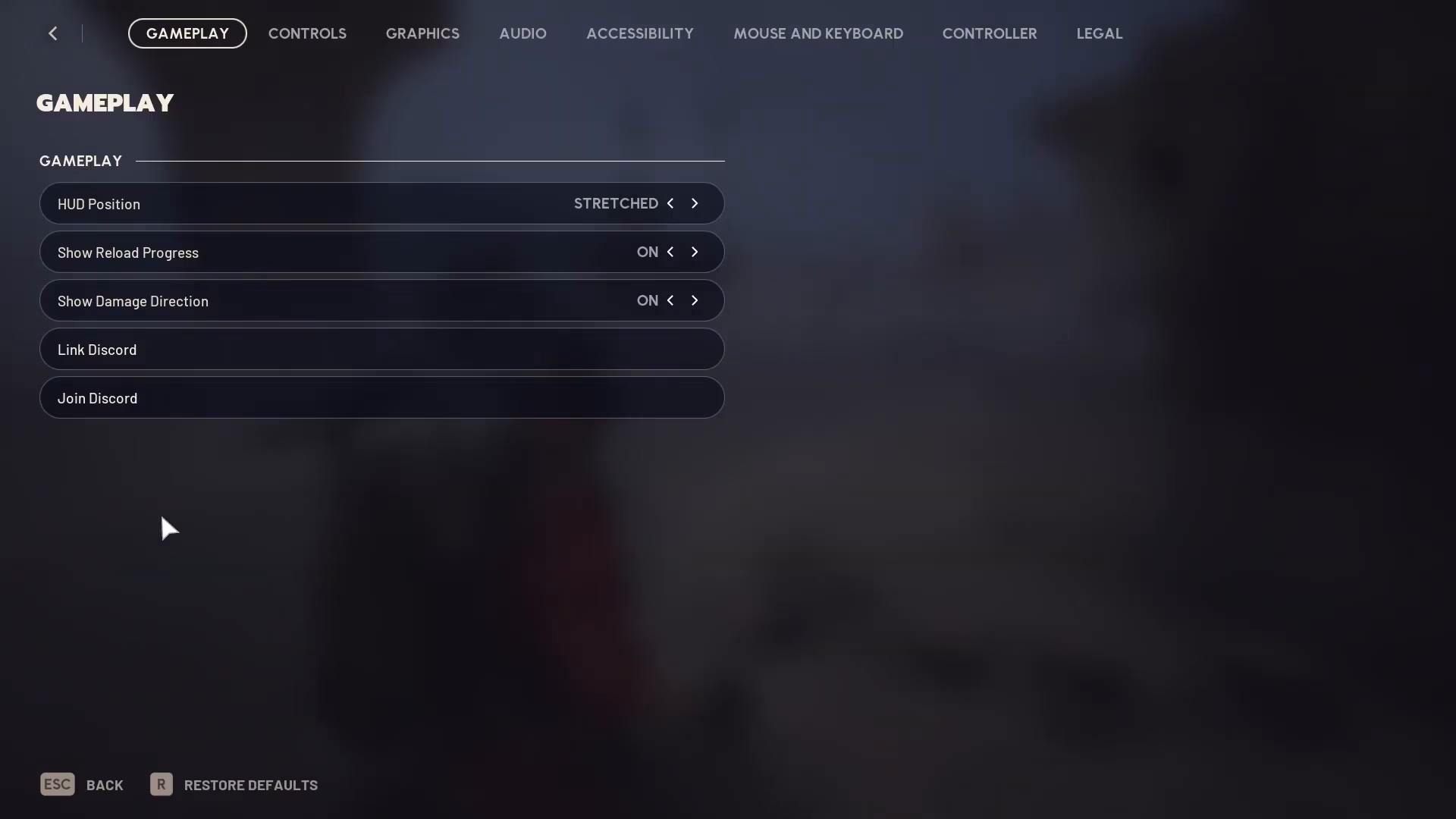
At the top of the Settings menu, you’ll see several chapter tabs. Click on “Audio” to access all voice-related settings.
Basic Voice Chat Configuration
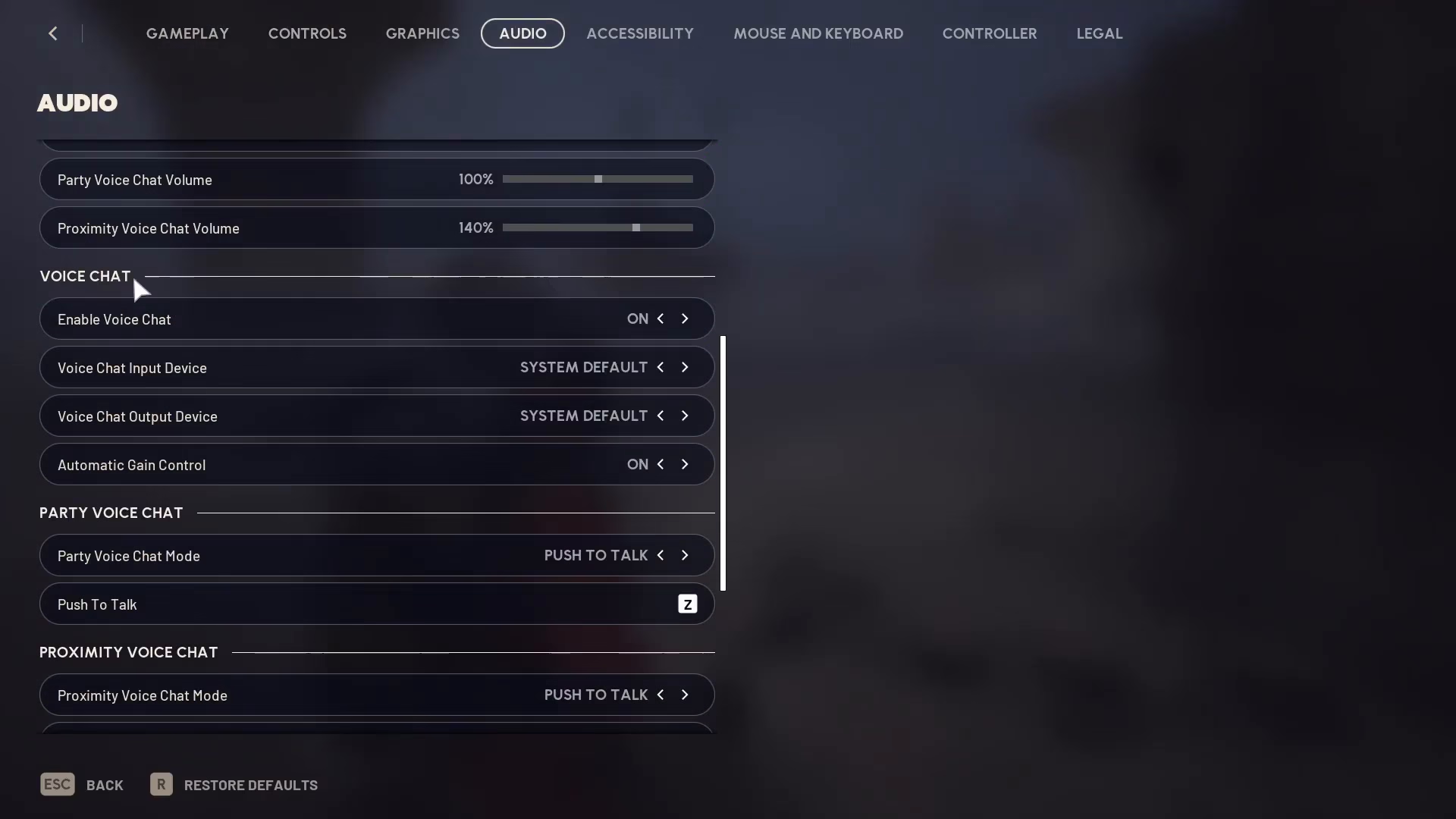
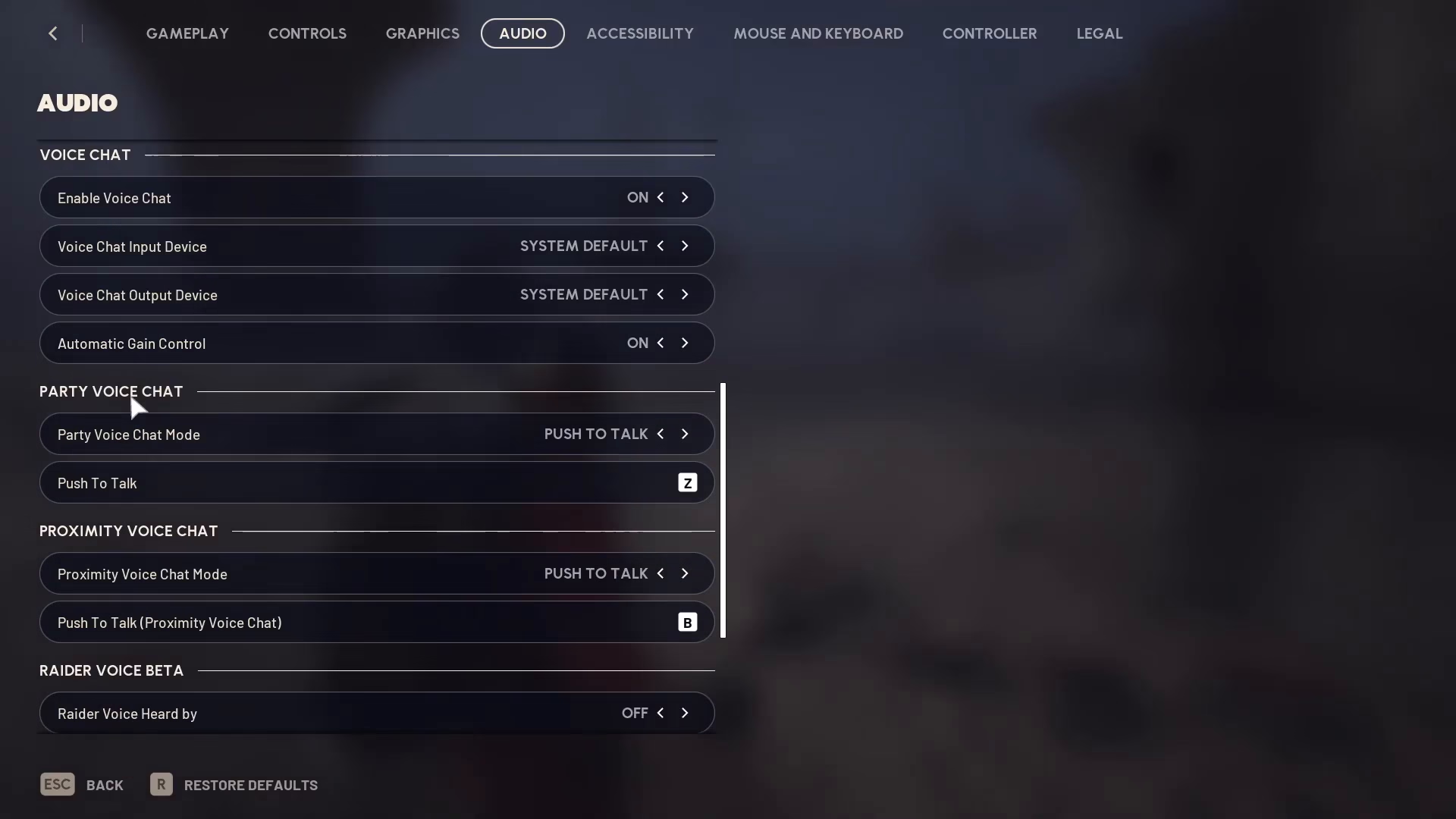
Scroll down in the Audio settings until you locate the “Voice Chat” option. Here you can toggle voice chat on or off depending on your preference.
Audio Device Selection
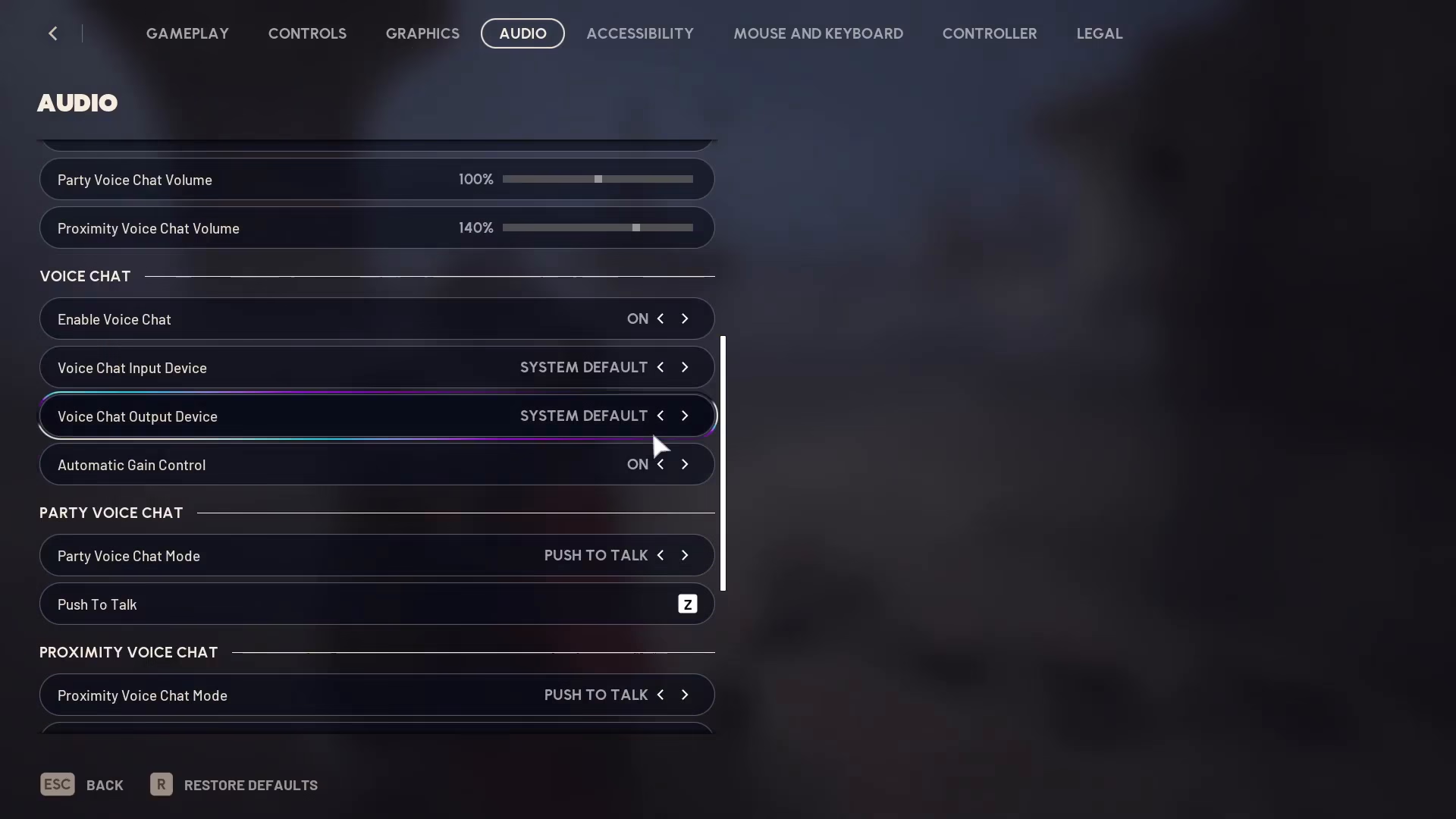
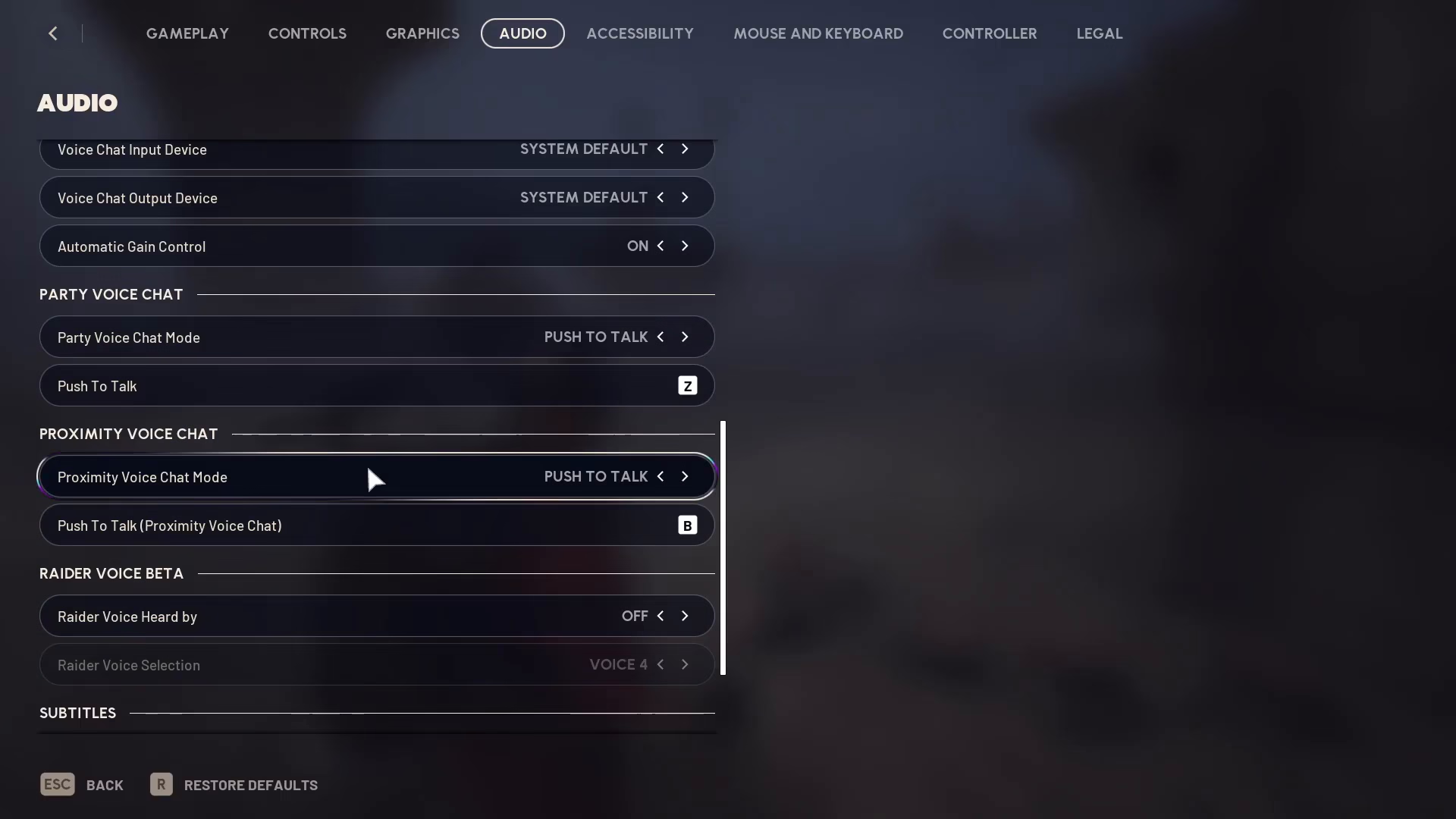
When voice chat is enabled, you can select which audio device to use. By default, it’s set to “System Default,” but you can change this to any other device connected to your computer if needed.
Automatic Gain Control
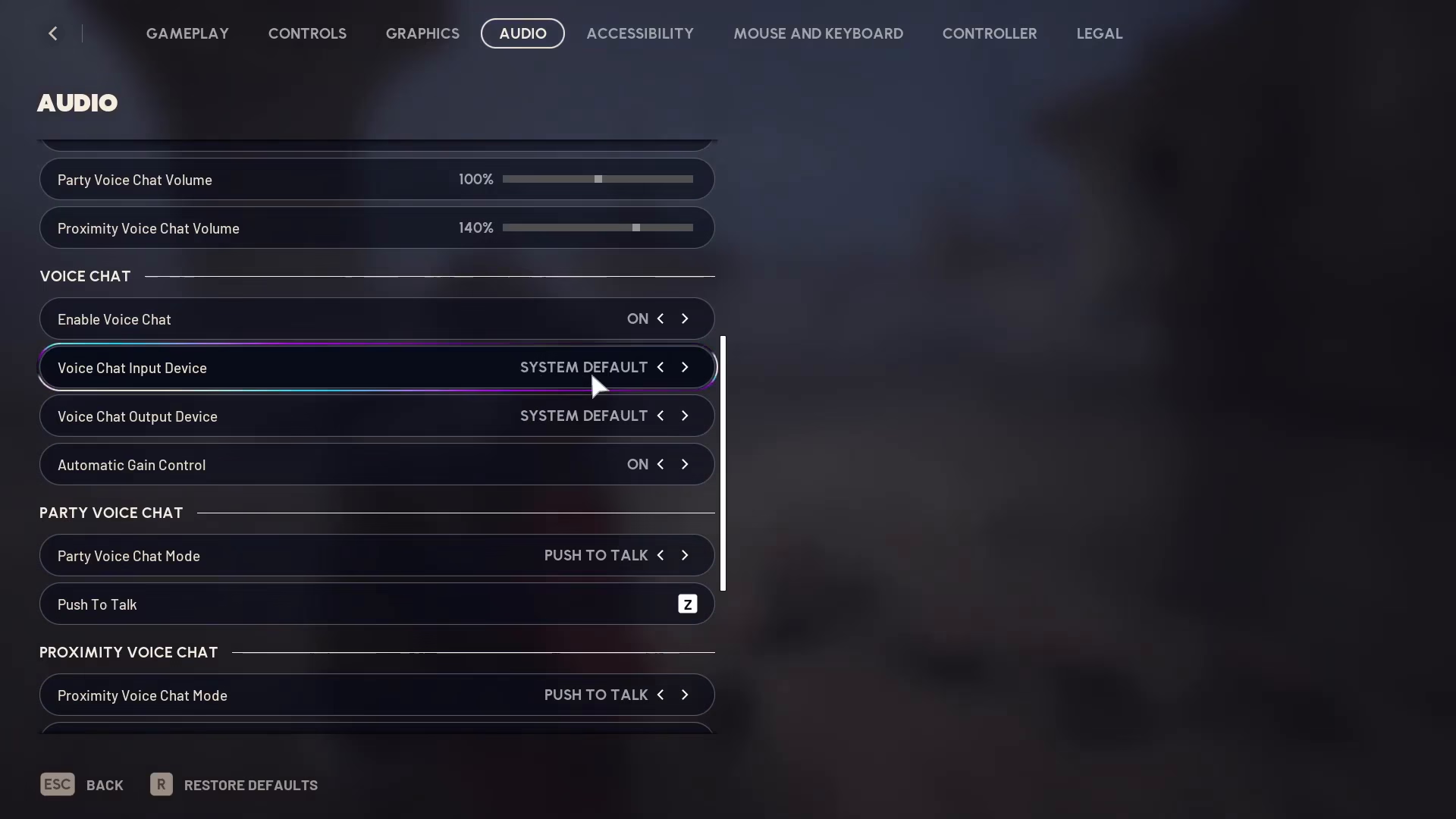
The Automatic Gain Control option allows you to manage your microphone’s volume automatically. This feature helps normalize your voice levels during gameplay.
Party Voice Chat Settings
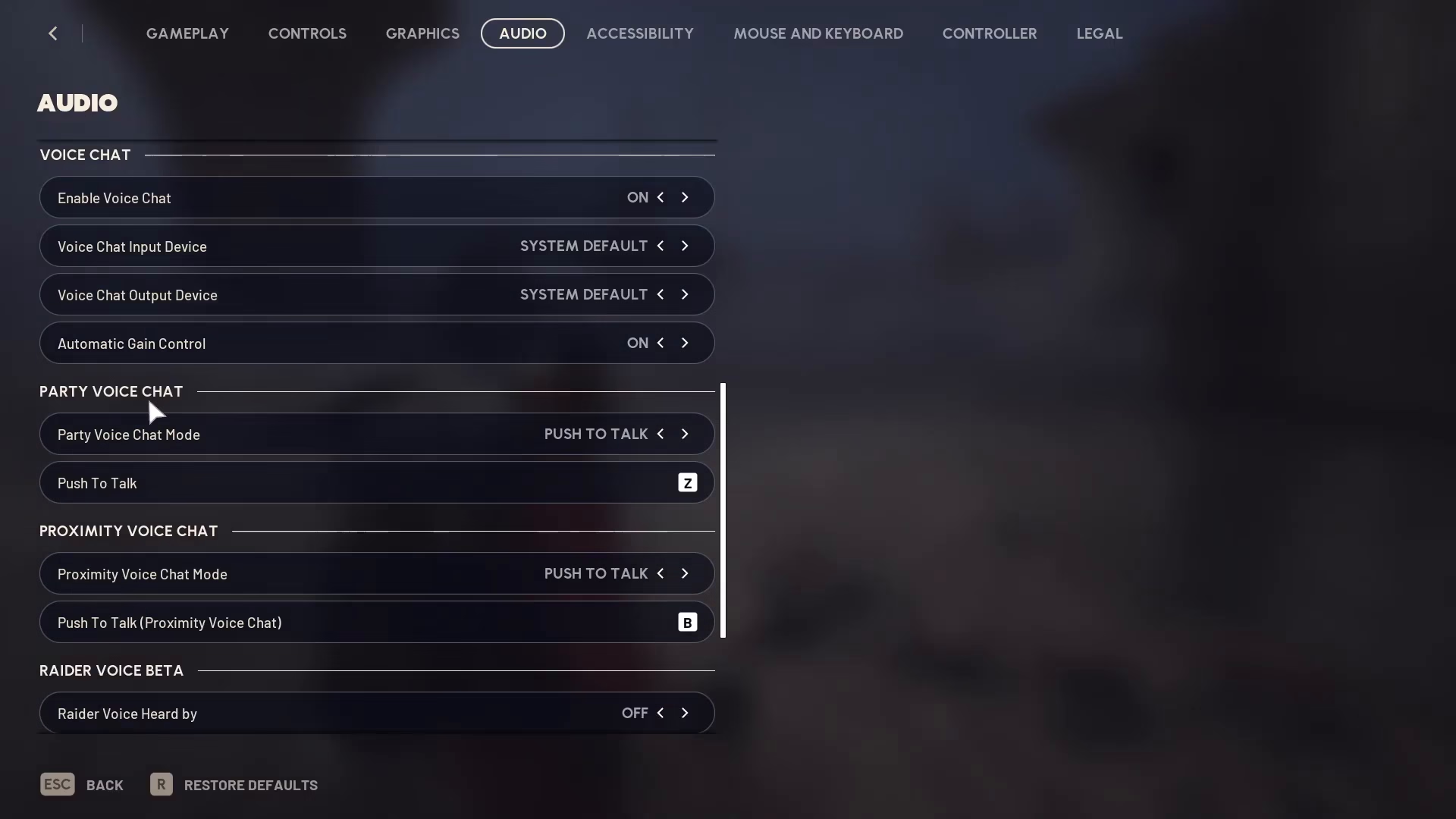
Below the main voice chat settings, you’ll find “Party Voice Chat” options. These settings control how you communicate with your team members.
Communication Mode Options
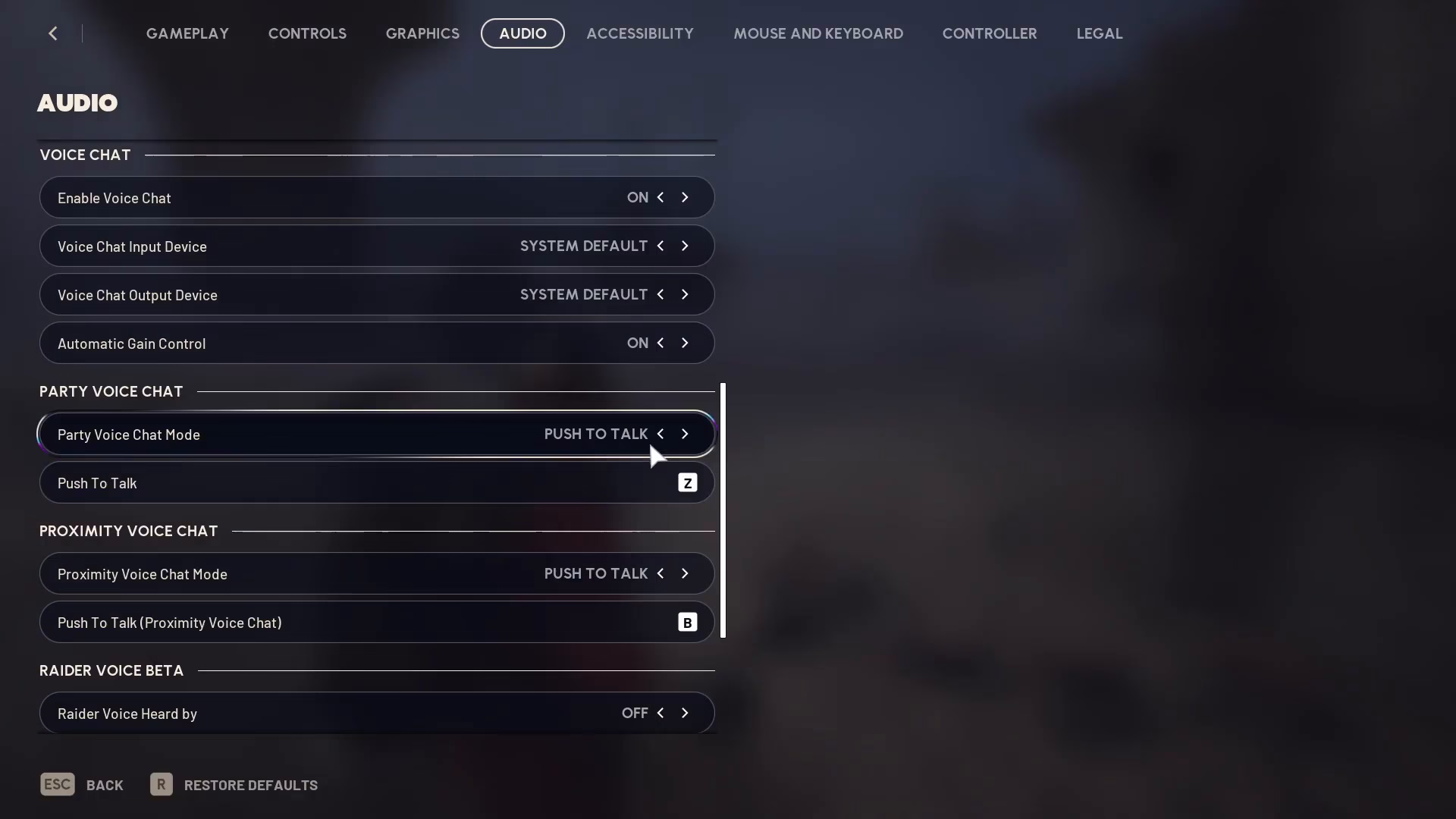
You have two primary modes for party voice chat:
Push to Talk: Select this option if you’re already communicating with your team through another platform like Discord. Push to Talk allows you to control when you’re transmitting to your party by holding down a designated key.
Open Microphone: This mode means your microphone is always active and constantly recording. Your voice will be transmitted to your party at all times without requiring you to press any keys.
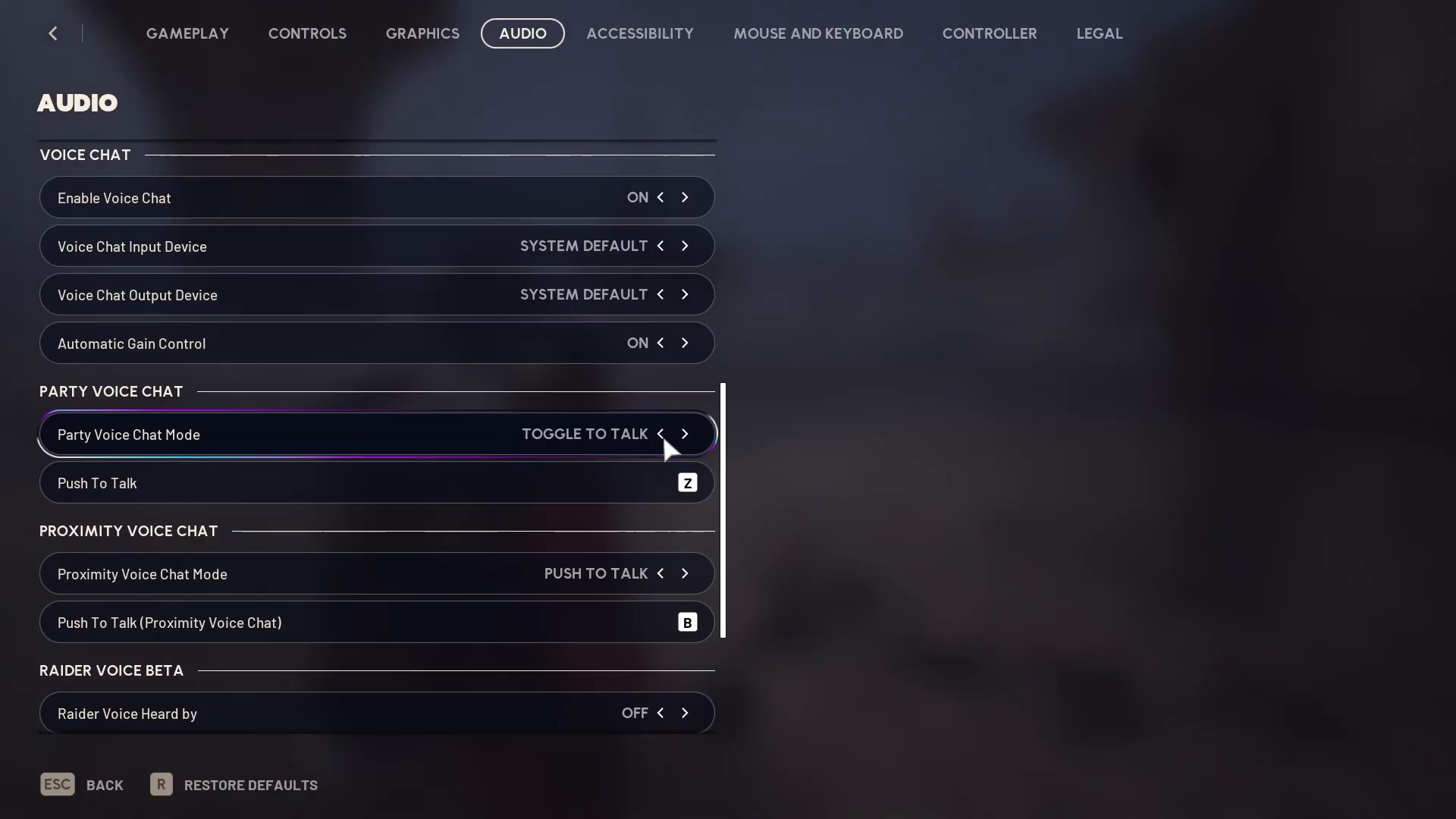
Toggle Talk Option
There’s also a “Toggle Talk” option that allows you to press Z to toggle your microphone on or off. This differs from Push to Talk, where you hold Z to speak. With Toggle, you press Z once to activate and Z again to deactivate your microphone.
Proximity Voice Chat Settings
Proximity voice chat is separate from party chat and allows you to communicate with players who are physically near you in the game world. It uses the same configuration options as party chat.
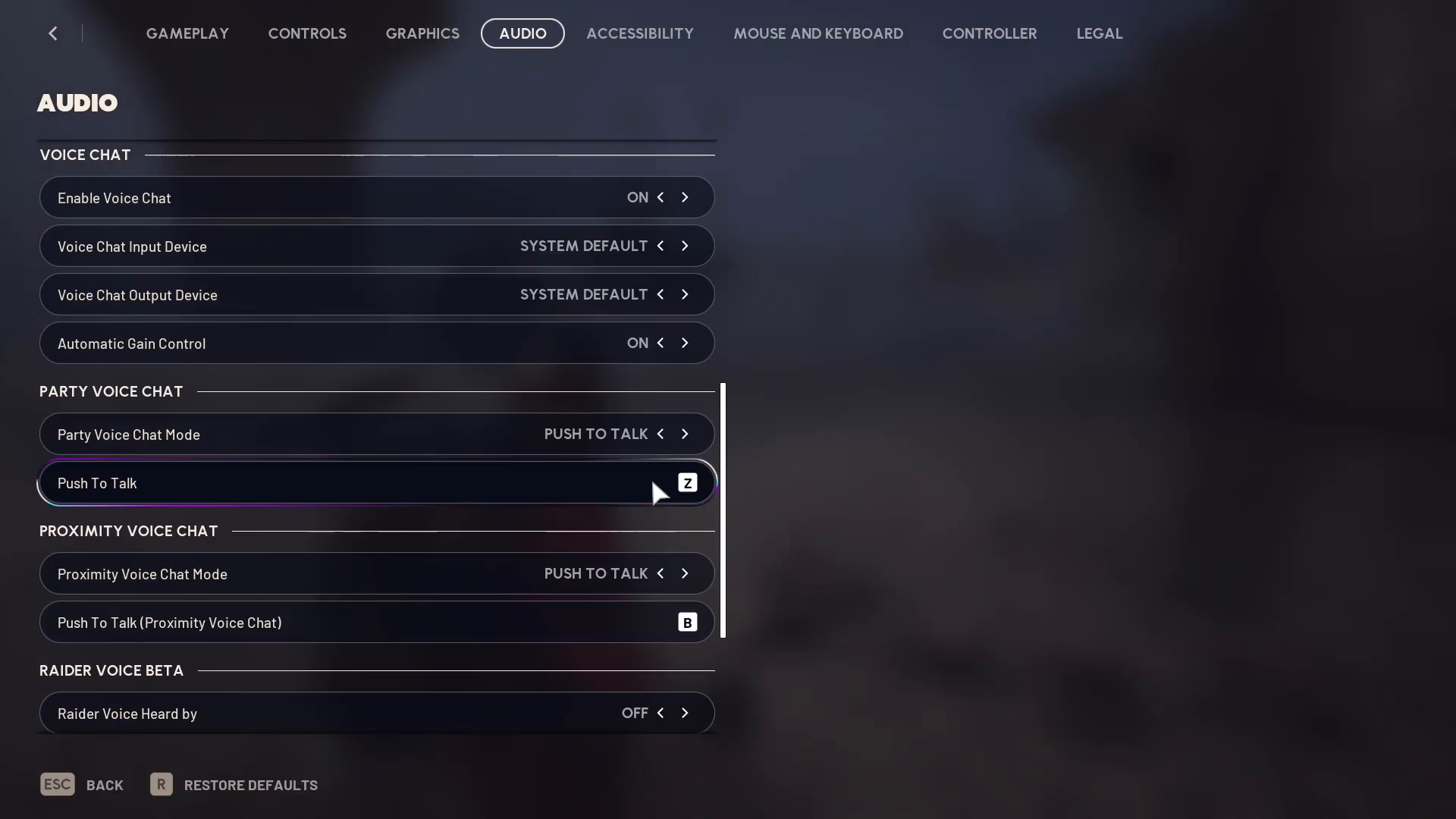
You can configure Proximity voice chat with the same modes: Push to Talk, Open Microphone, or Toggle Talk. Choose the option that best fits your playstyle.
Avatar Voice Customization
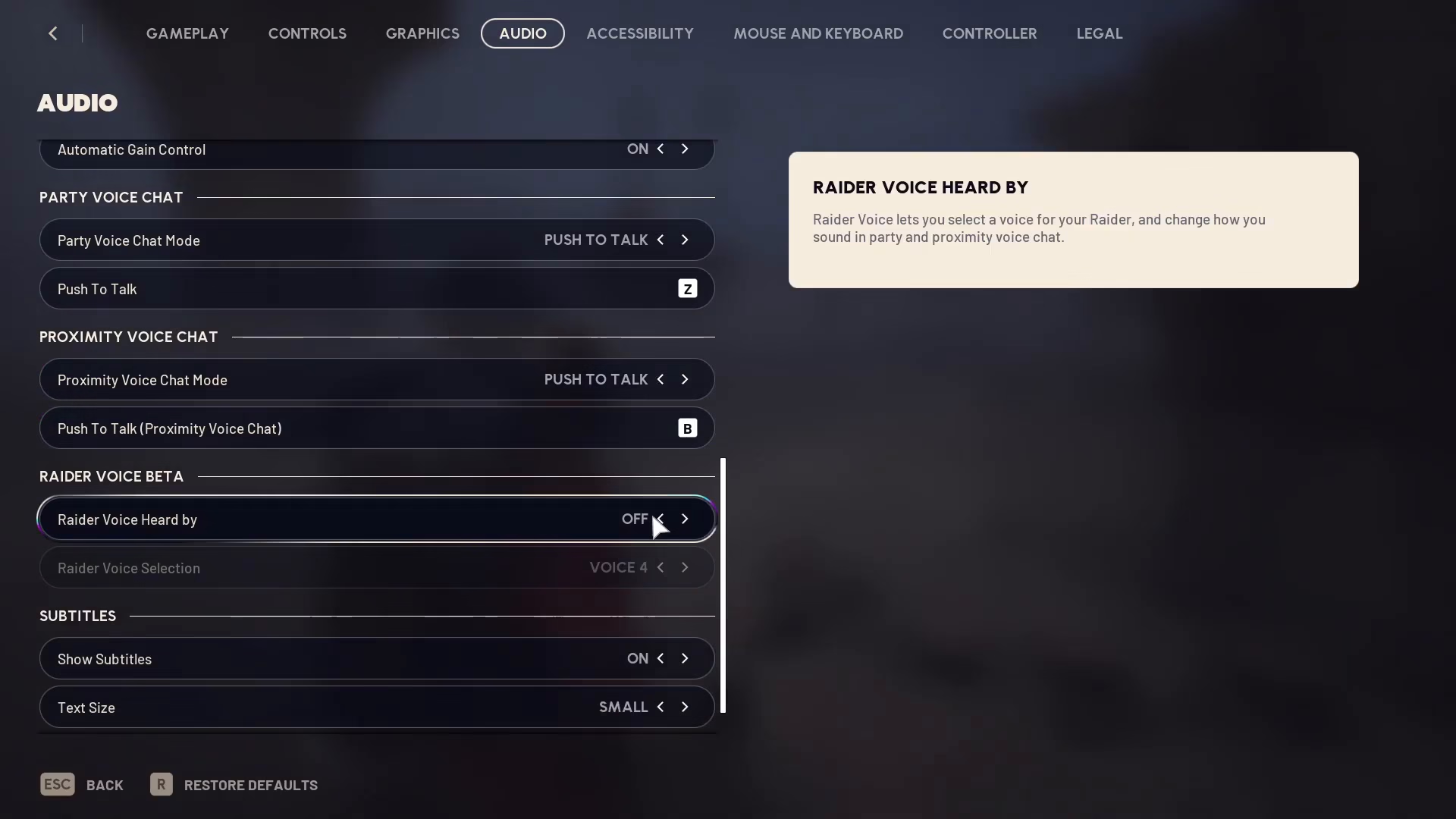
ARC Raiders allows you to customize your “Avatar Voice,” which is the voice other players hear when you speak. You can select from different voice options to personalize how you’re represented in-game.
Summary
You now have complete control over voice communication in ARC Raiders. Whether you prefer party chat, proximity chat, Push to Talk, or Open Microphone modes, these settings allow you to customize your communication experience. Don’t forget to test your microphone and audio levels to ensure clear communication with your teammates during gameplay.
— Want to Support? —
If you would like to help us continue making these guides – please consider joining our patreon here – https://www.patreon.com/c/JaviHeals
Alternatively – you can join our discord here – https://discord.gg/zD7Gjt6MHF