




How to Delete Worlds & Saves in 7 Days to Die
How to Delete Worlds & Saves in 7 Days to Die
Learning how to manage your game saves is essential for keeping your 7 Days to Die installation organized and freeing up storage space. Whether you want to remove old worlds, restart your adventure, or clean up failed experiments, deleting saves is a straightforward process. This guide walks you through the simple steps to delete a world or save file in 7 Days to Die.
Accessing Your Save Files
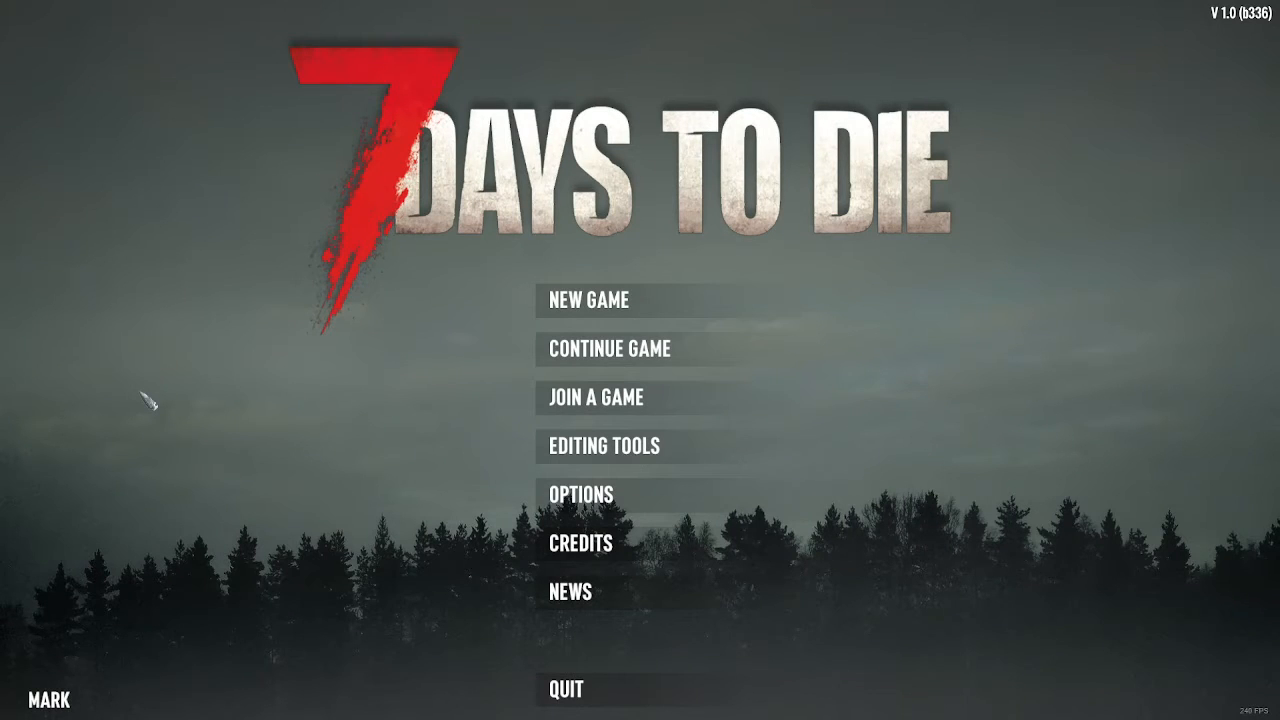
To begin, launch 7 Days to Die and navigate to the main menu. If you’re playing single player, you’ll see two options available to you: “Join Game” or “Continue Game.” Select the option that suits your needs to access your saved worlds and characters.
Locating the World You Want to Delete
Once you’ve accessed your save files, you’ll see a list of all your created worlds and saves. Take a moment to browse through the list and identify the world or save you wish to delete. The selected save will appear highlighted in a yellowish tan color, making it easy to distinguish from the others in your collection.
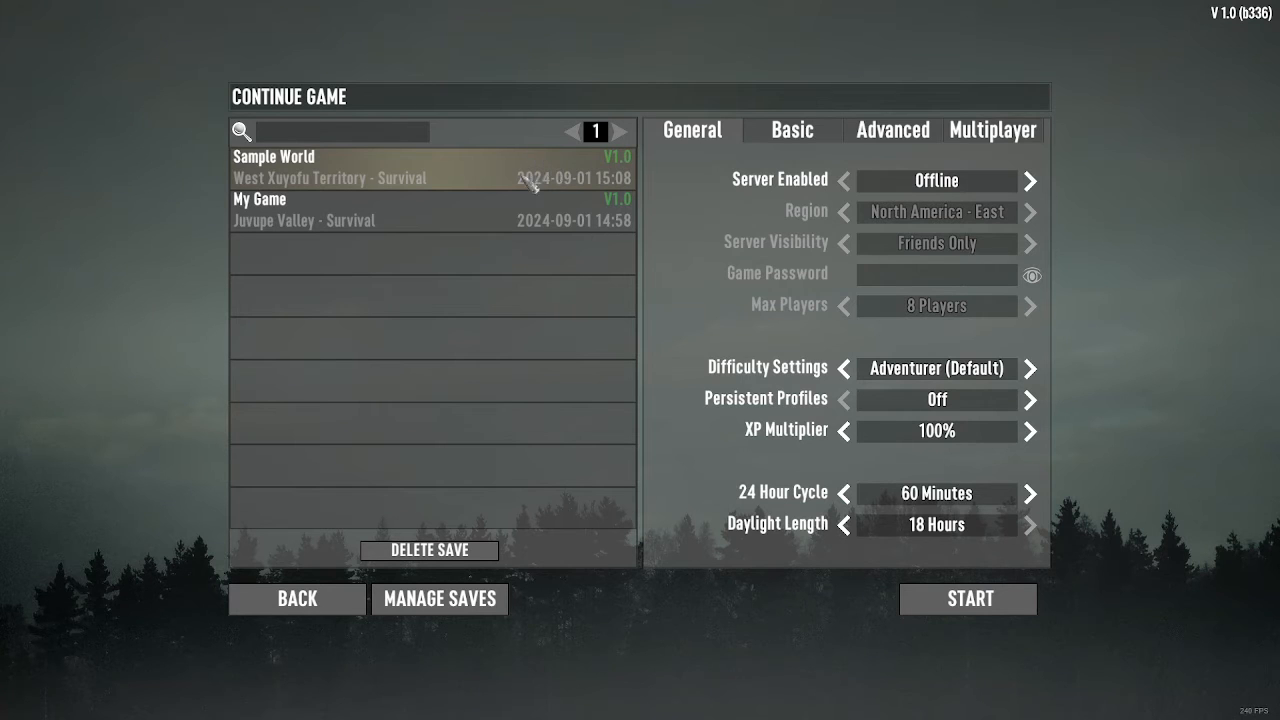
Deleting Your Save
After you’ve located and selected the correct world or save file, look for the “Delete Save” button. Click this button to initiate the deletion process. The game will then prompt you with a confirmation message asking “Are you sure you want to delete?” to prevent accidental deletions.
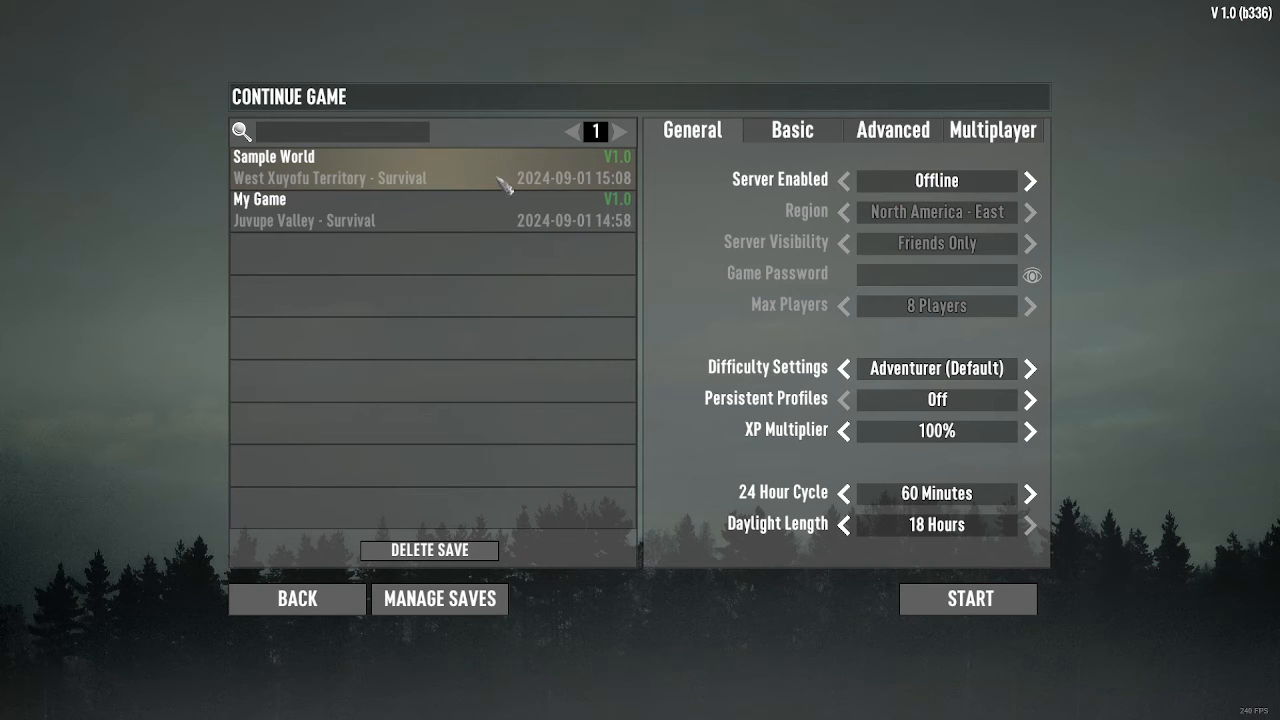
Confirm your action by selecting “Delete” in the confirmation dialog. Once you’ve confirmed, your selected world or save file will be permanently removed from your system.
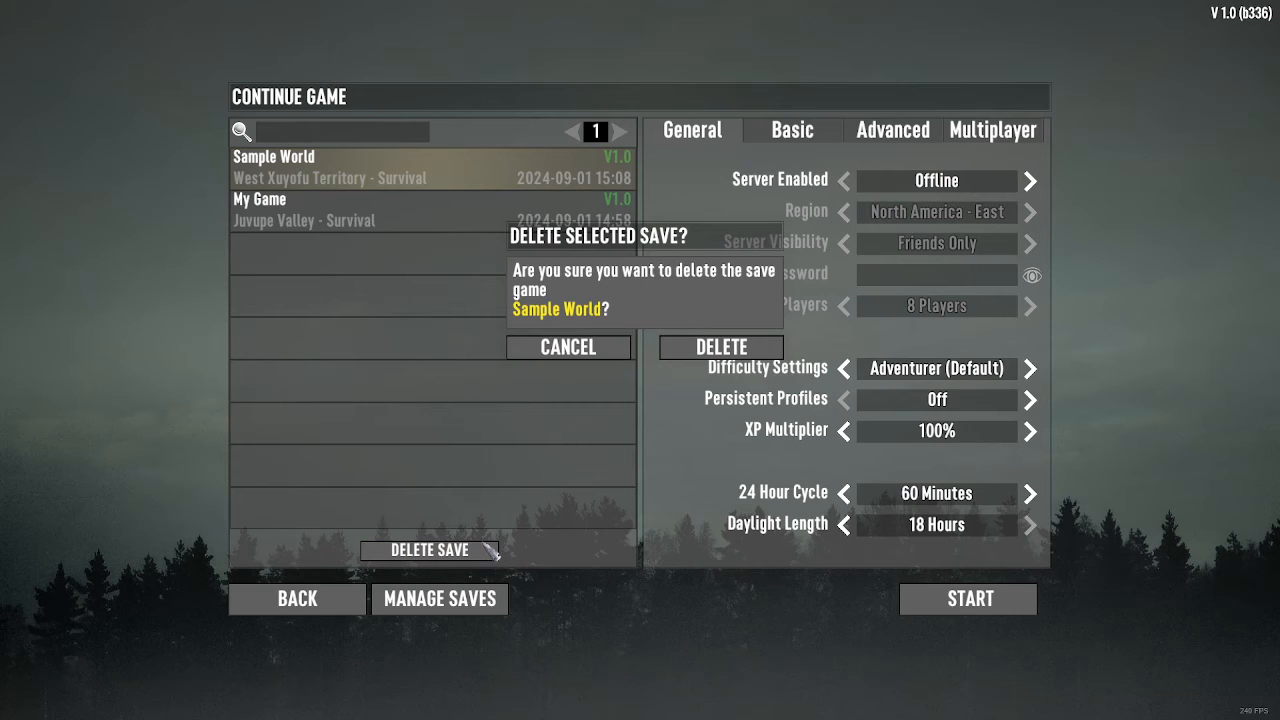
Summary
Deleting worlds and saves in 7 Days to Die is a simple three-step process: access your single player saves through the main menu, select the world or save you want to remove (it will highlight in a yellowish tan color), and click the “Delete Save” button. Confirm the deletion when prompted, and your save file will be removed. This straightforward method helps you manage your game library and make room for new adventures in the post-apocalyptic world of 7 Days to Die.
Want to Support?
If you would like to help us continue making these guides – please consider joining our patreon here – https://www.patreon.com/c/JaviHeals
Alternatively – you can join our discord here – https://discord.gg/zD7Gjt6MHF