How To Unlock & Open An Exo Dynamics Research Unit In Astroneer
How To Unlock & Open An Exo Dynamics Research Unit In Astroneer
In Astroneer, Exo Dynamics Research Units are valuable structures that contain research samples and rewards. If you’ve encountered one and weren’t sure how to open it, this guide will walk you through the simple process of unlocking and accessing these research aids.
Understanding the Exo Dynamics Research Unit
When you approach an Exo Dynamics Research Unit, you’ll notice a message that reads “insert the appropriate resource to unlock.” The unit features a red insertion slot and a colored icon displayed on top. This icon is the key to determining what resource you need to unlock it.
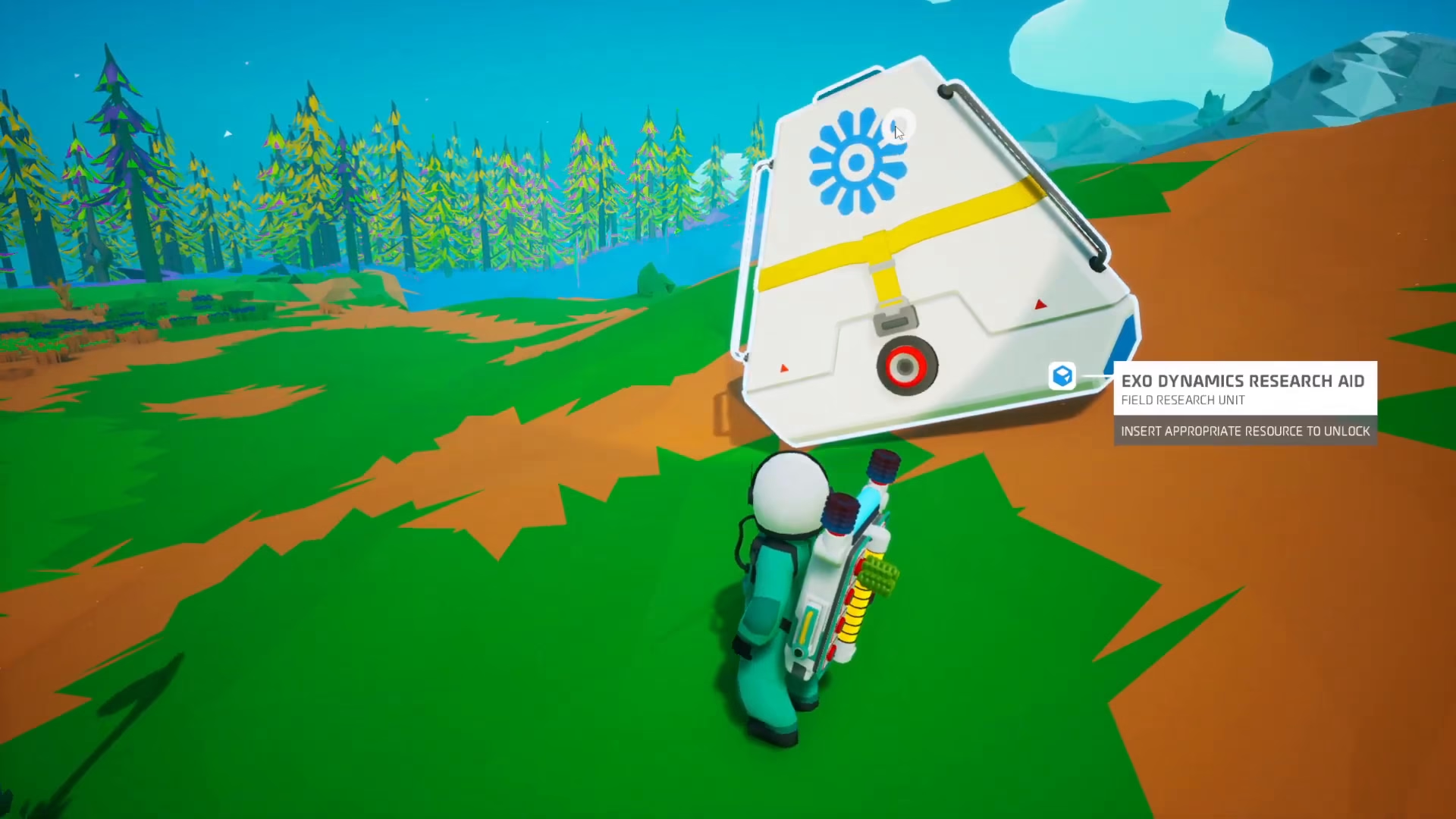
Each Exo Dynamics Research Unit displays a unique icon featuring multiple colored spheres. In this example, the unit shows a blue icon with 12 different spheres on it.
Identifying the Required Resource
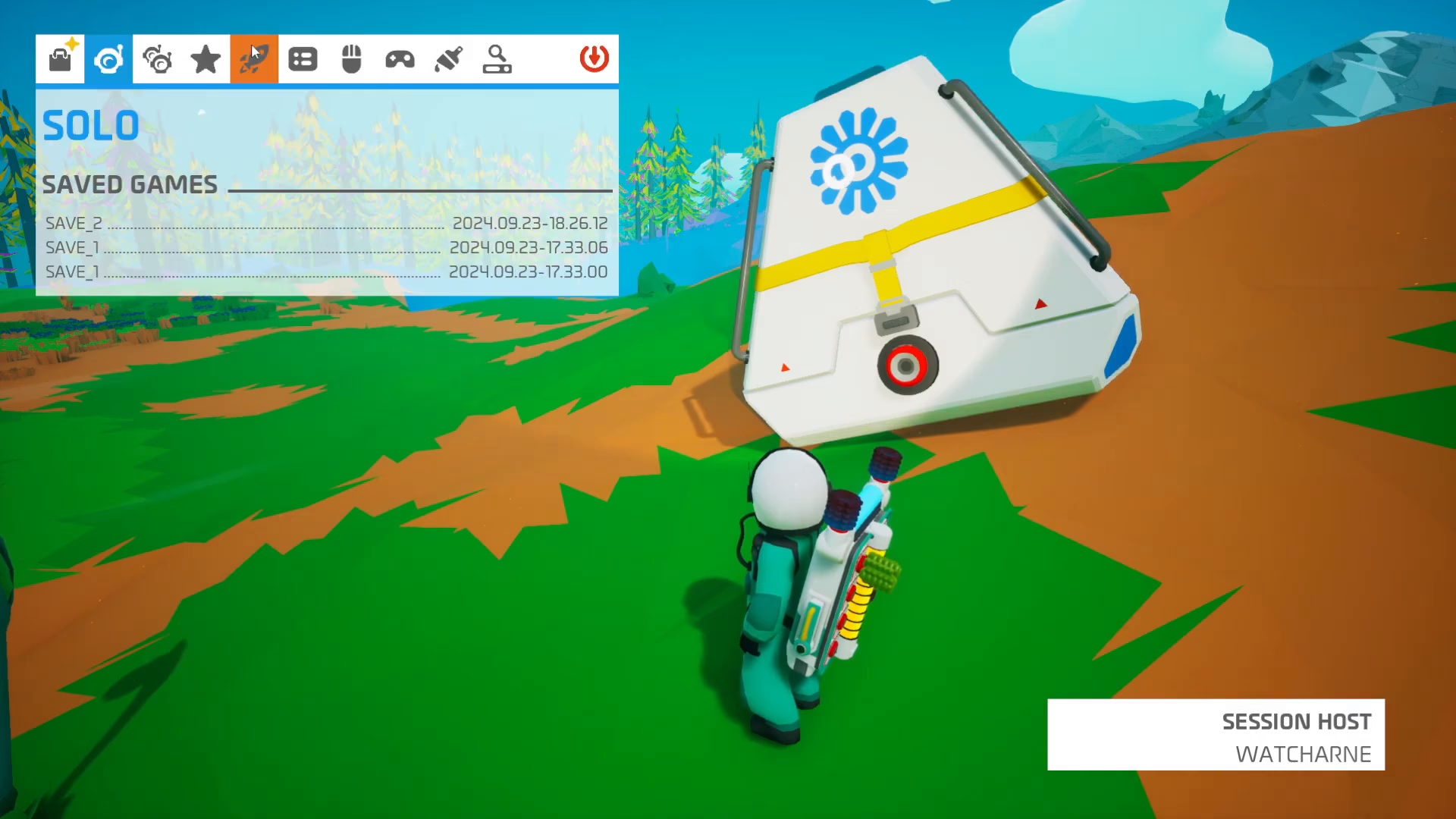
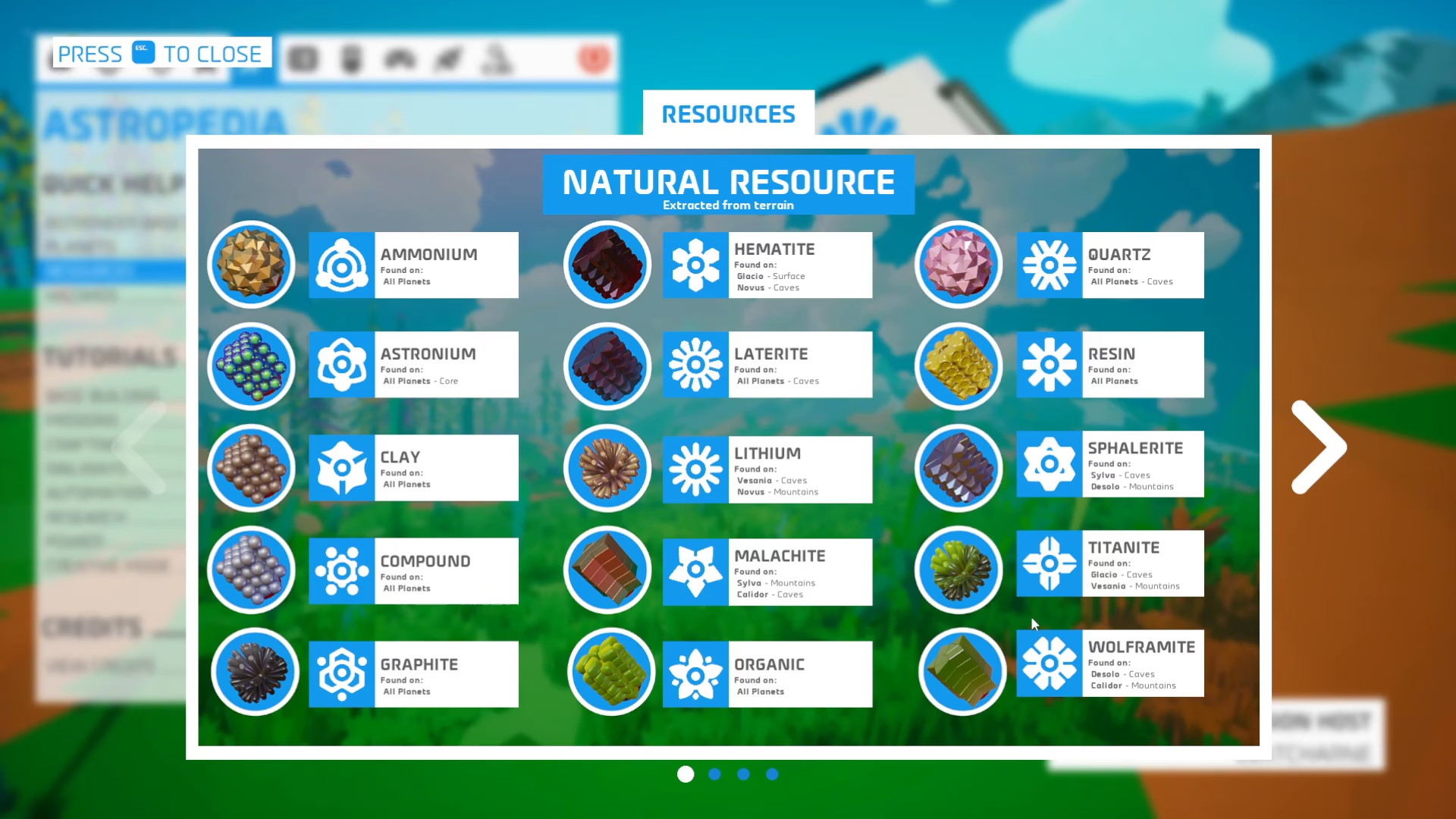
To find out which resource matches your unit’s icon, open your options menu and navigate to the Astropedia section, then select Resources. Here you’ll find a comprehensive list of all available resources, each with their corresponding icons.
Compare the icon on the Exo Dynamics Research Unit with the icons in the Astropedia. You’ll notice they look very similar—in many cases, you can get an exact match. For this tutorial, the unit’s icon matches Laterite perfectly.
Unlocking the Research Unit
Once you’ve identified the correct resource, go to your inventory and retrieve a piece of that material. In this case, we’re using Laterite. Approach the Exo Dynamics Research Unit and insert the resource into the red insertion slot.
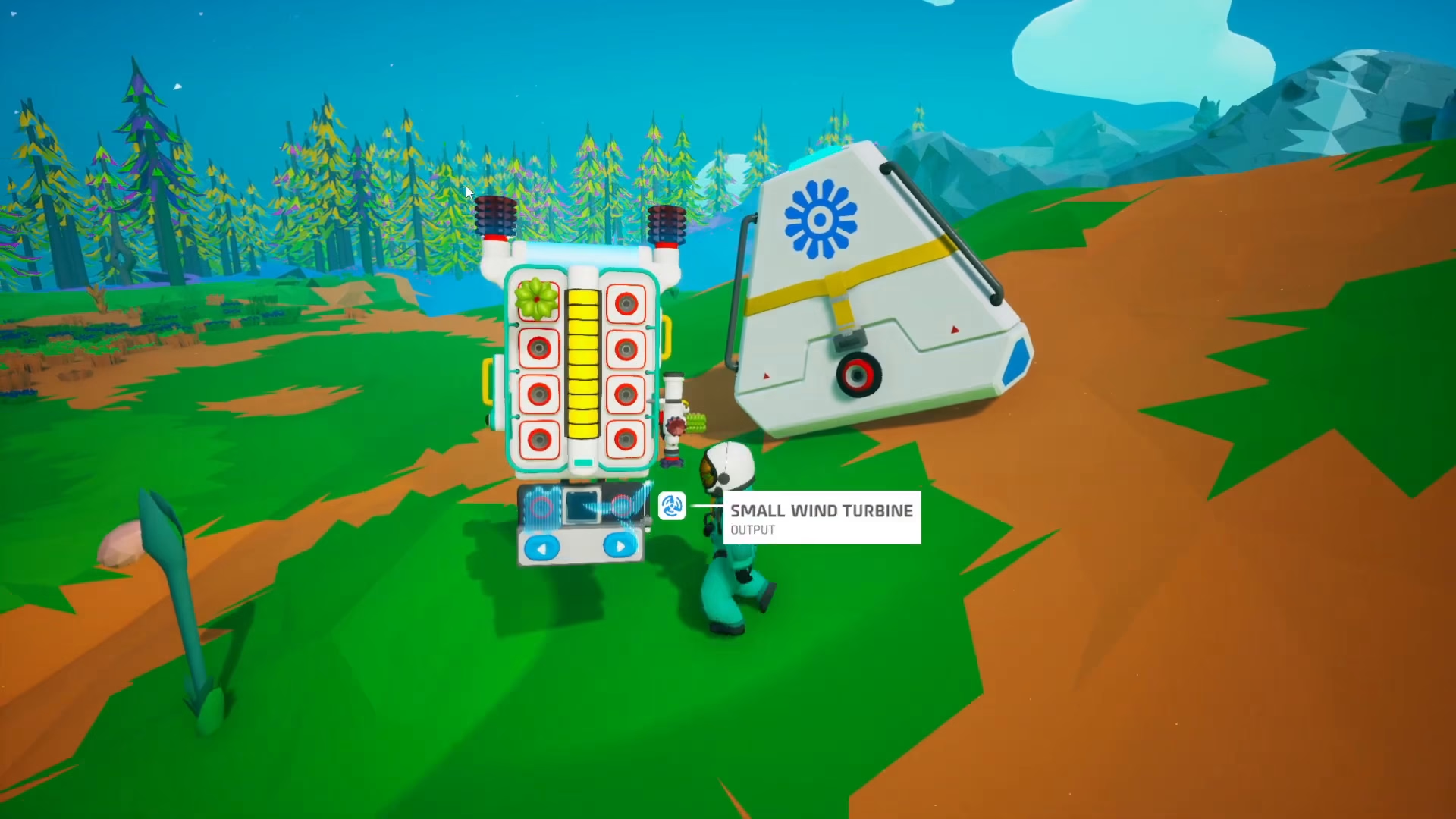
The unit will immediately unlock, and you’ll gain access to the research sample inside.
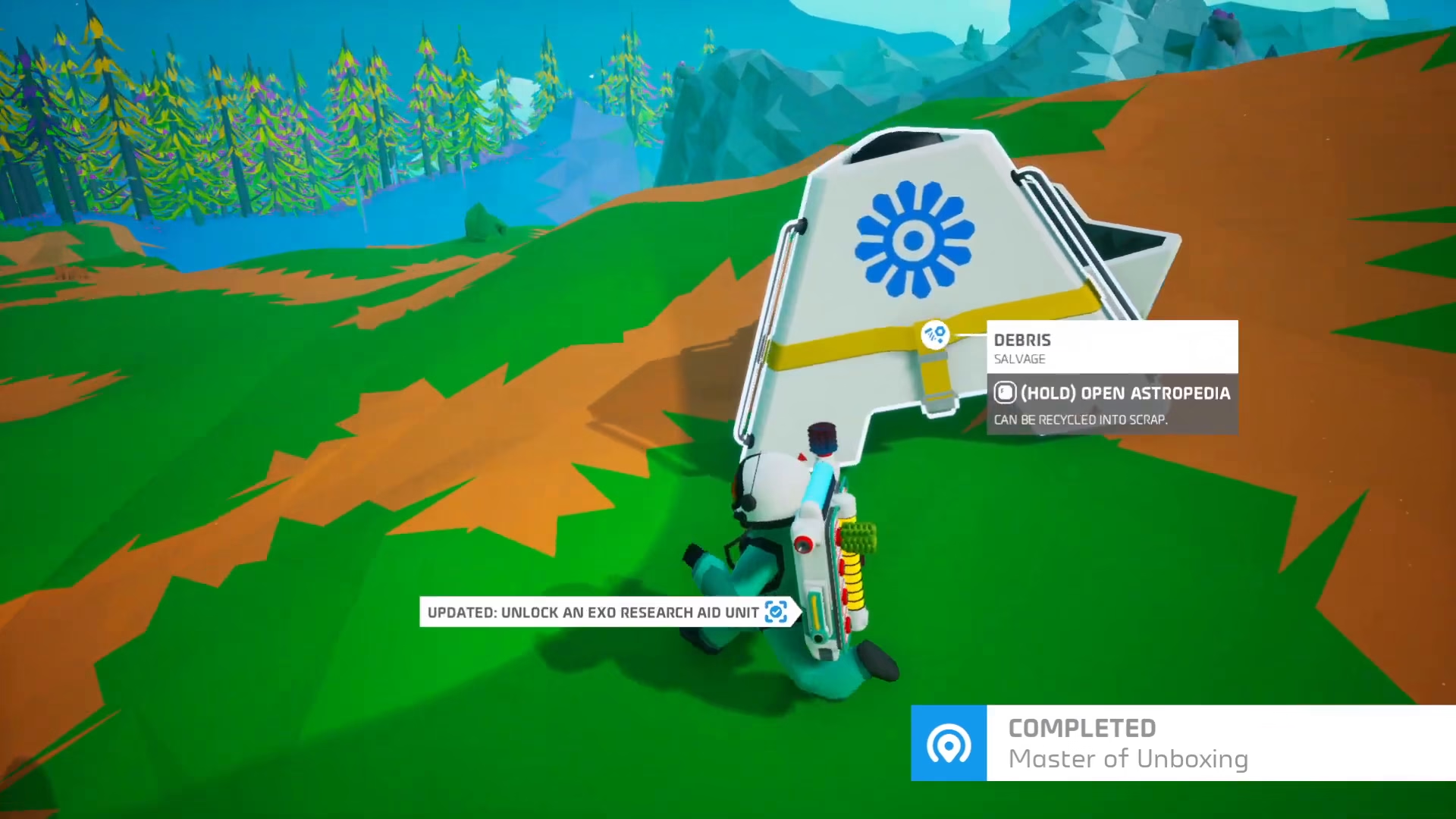
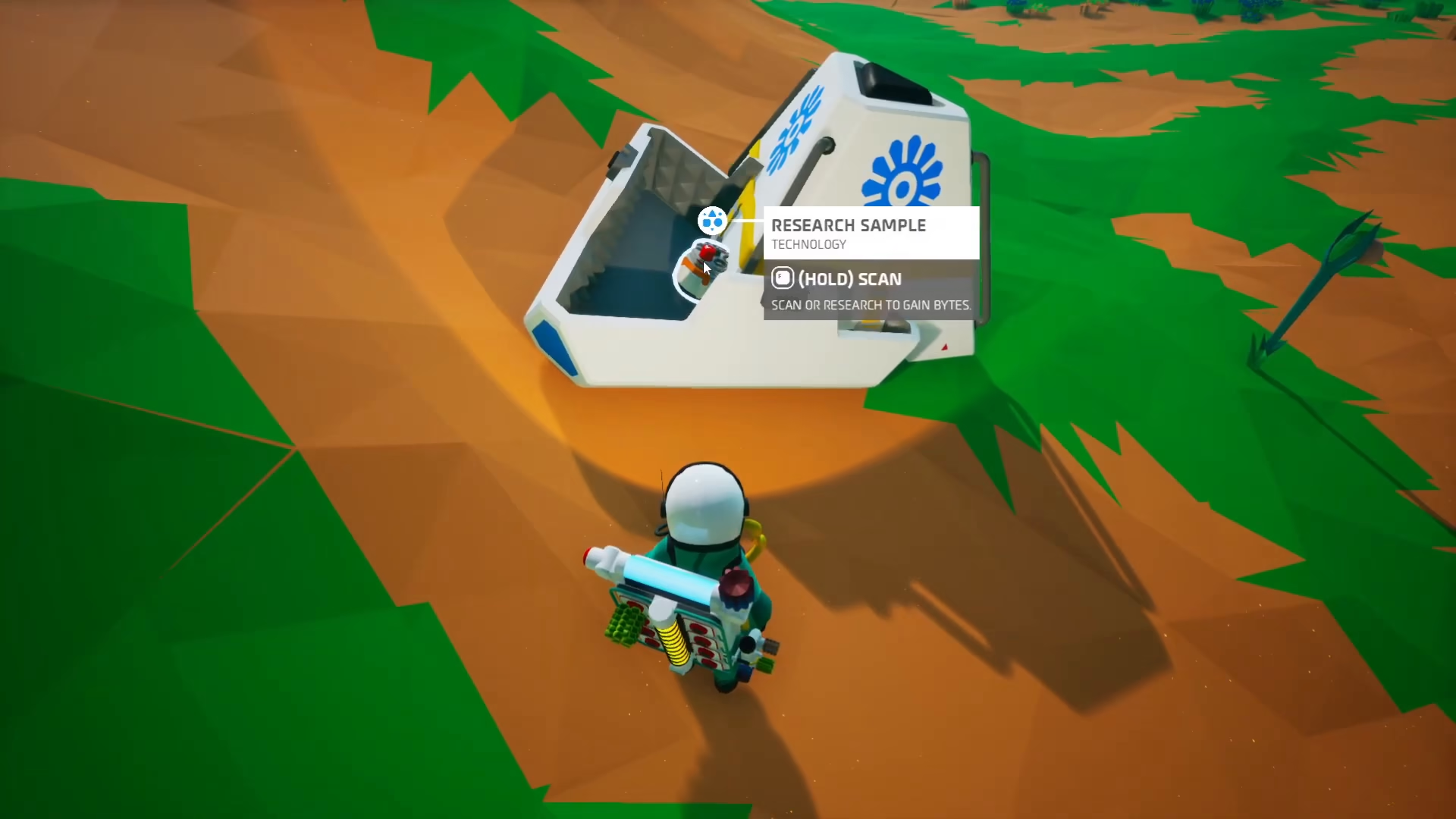
Scanning the Research Sample
After unlocking the unit, you can now scan the research sample contained within. Scanning the sample will reward you with 500 bytes—valuable currency for unlocking new technologies and recipes in Astroneer.
Summary
Unlocking Exo Dynamics Research Units is straightforward once you understand the process. Simply match the icon on top of the unit with the corresponding resource in your Astropedia, insert the resource into the red slot, and scan the research sample inside. The key takeaway: always check the icon on top of the unit—it will tell you exactly which resource you need to unlock it.
— Want to Support? —
If you would like to help us continue making these guides – please consider joining our patreon here – https://www.patreon.com/c/JaviHeals
Alternatively – you can join our discord here – https://discord.gg/zD7Gjt6MHF