



How To Delete Photos In Phasmophobia
How To Delete Photos In Phasmophobia
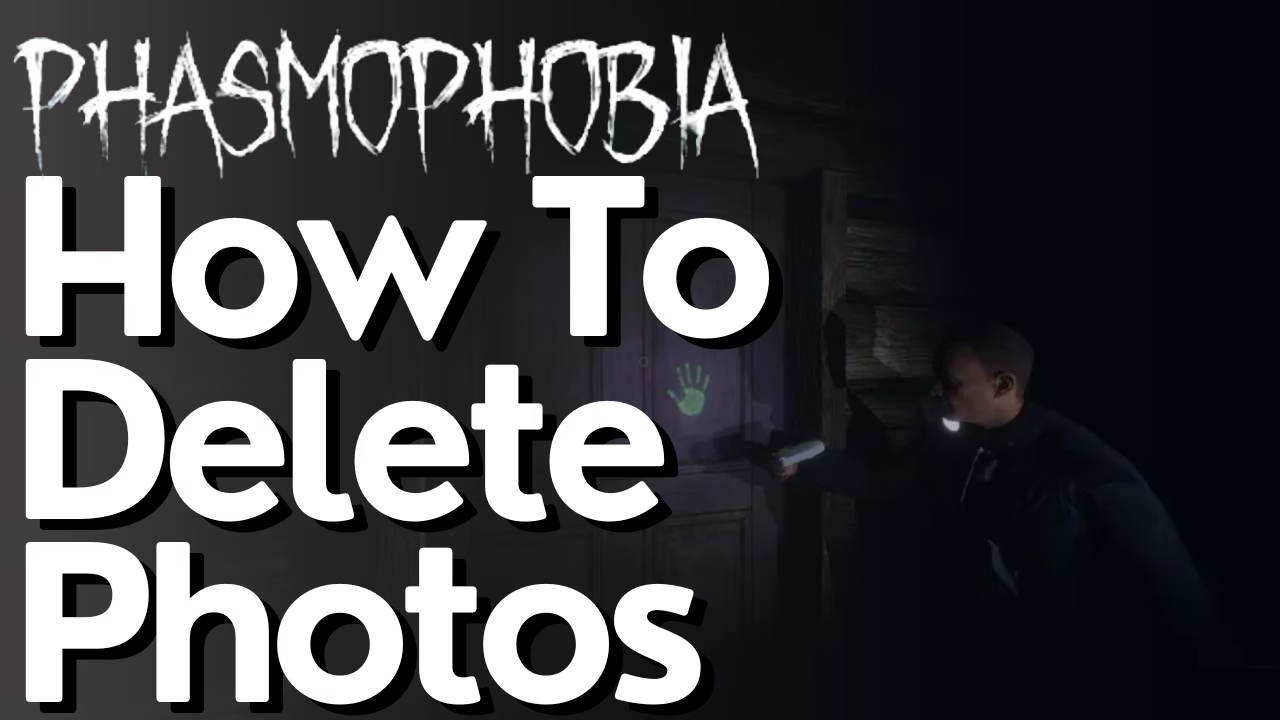
Taking unwanted photos during your ghost-hunting sessions in Phasmophobia is easy to do. Fortunately, deleting them is just as simple. This guide will walk you through the photo deletion process, covering both single-player and multiplayer scenarios so you can keep your media library clean and organized.
Deleting Photos in Single-Player Mode
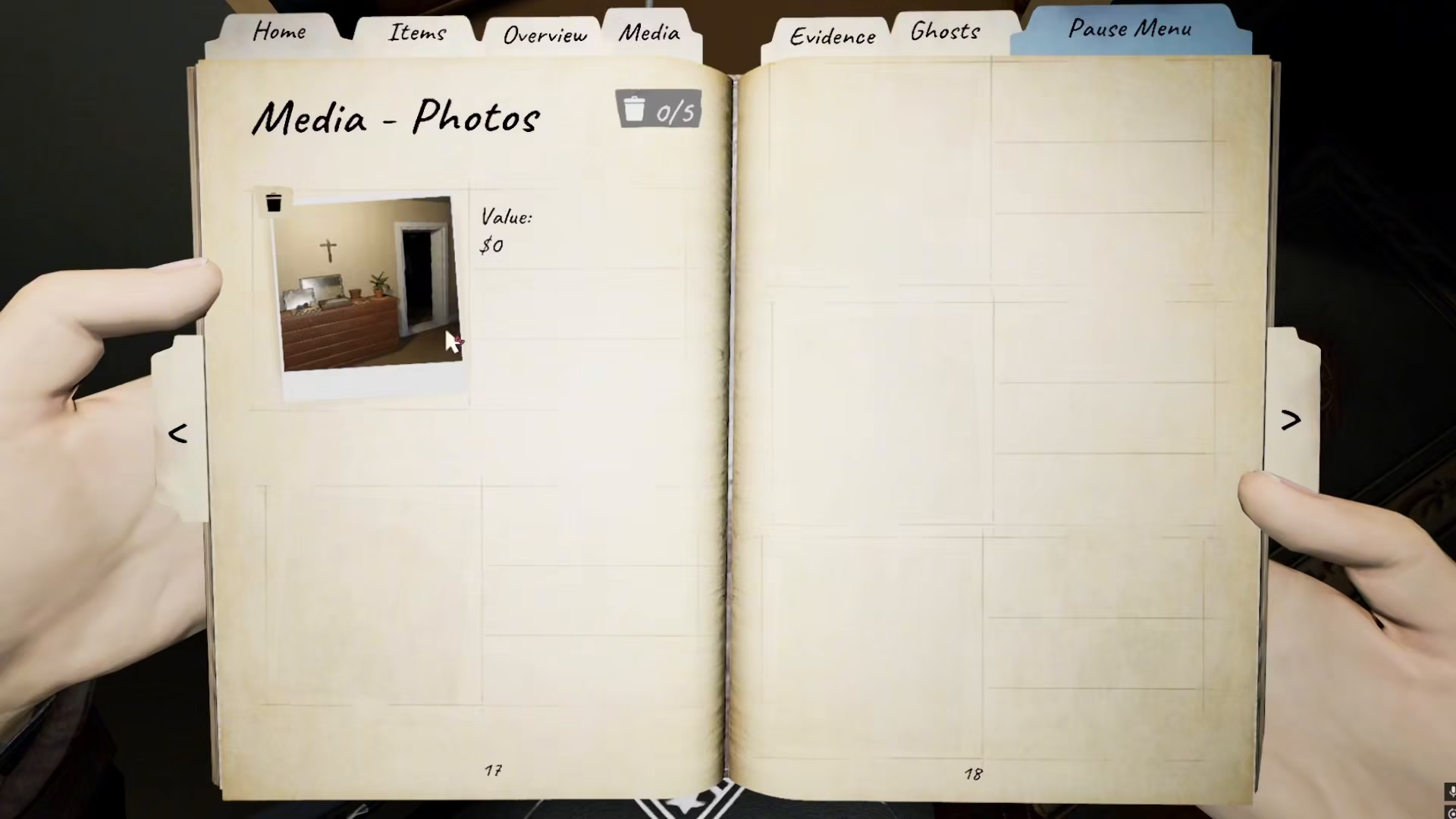
If you’re playing Phasmophobia in single-player mode, deleting unwanted photos is straightforward and requires no additional steps. You have complete control over your media without needing anyone else’s approval.
To delete a photo you don’t like, simply locate the delete button in your media menu and click it. Once you confirm the deletion, the photo will be permanently removed from your media library.
Deleting Photos in Multiplayer Mode
The deletion process works a bit differently when you’re playing with other players. In multiplayer sessions, you may need other team members to vote on photo deletions as well. This voting system ensures that the group has a say in what stays and what goes from your shared media.
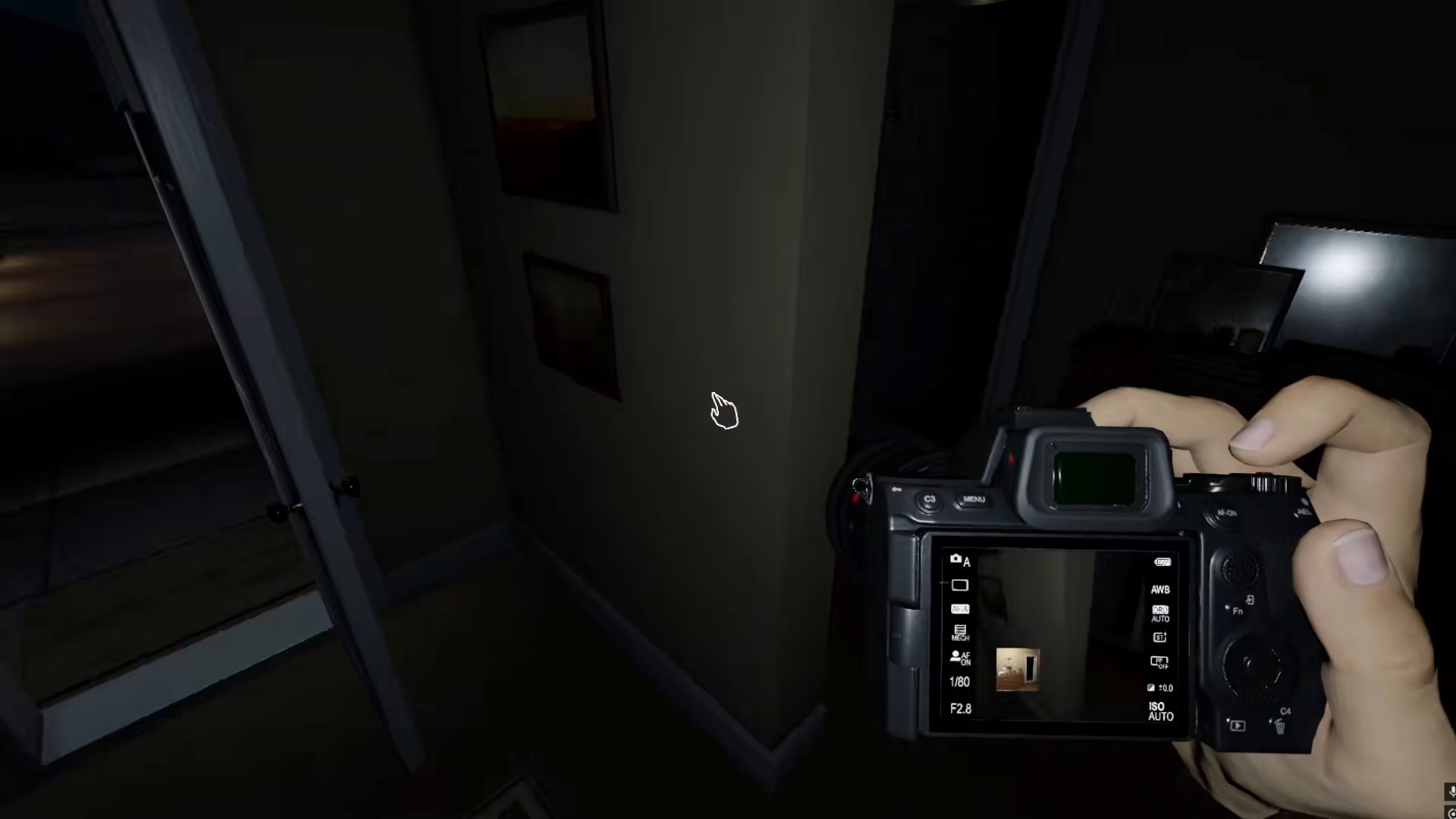
When you click the delete button on a photo, the deletion request will go to a vote. The photo will only be removed from your media once the necessary votes have been cast by your teammates.
Summary
Deleting photos in Phasmophobia is a quick and easy process. In single-player mode, you can delete photos instantly by clicking the delete button. In multiplayer mode, remember that deletions require a vote from your team members before the photo is permanently removed. Keep your media organized by regularly removing any shots you don’t need or want to keep.
— Want to Support? —
If you would like to help us continue making these guides – please consider joining our patreon here – https://www.patreon.com/c/JaviHeals
Alternatively – you can join our discord here – https://discord.gg/zD7Gjt6MHF