How to Emote in ARC Raiders
“`html
How to Emote in ARC Raiders
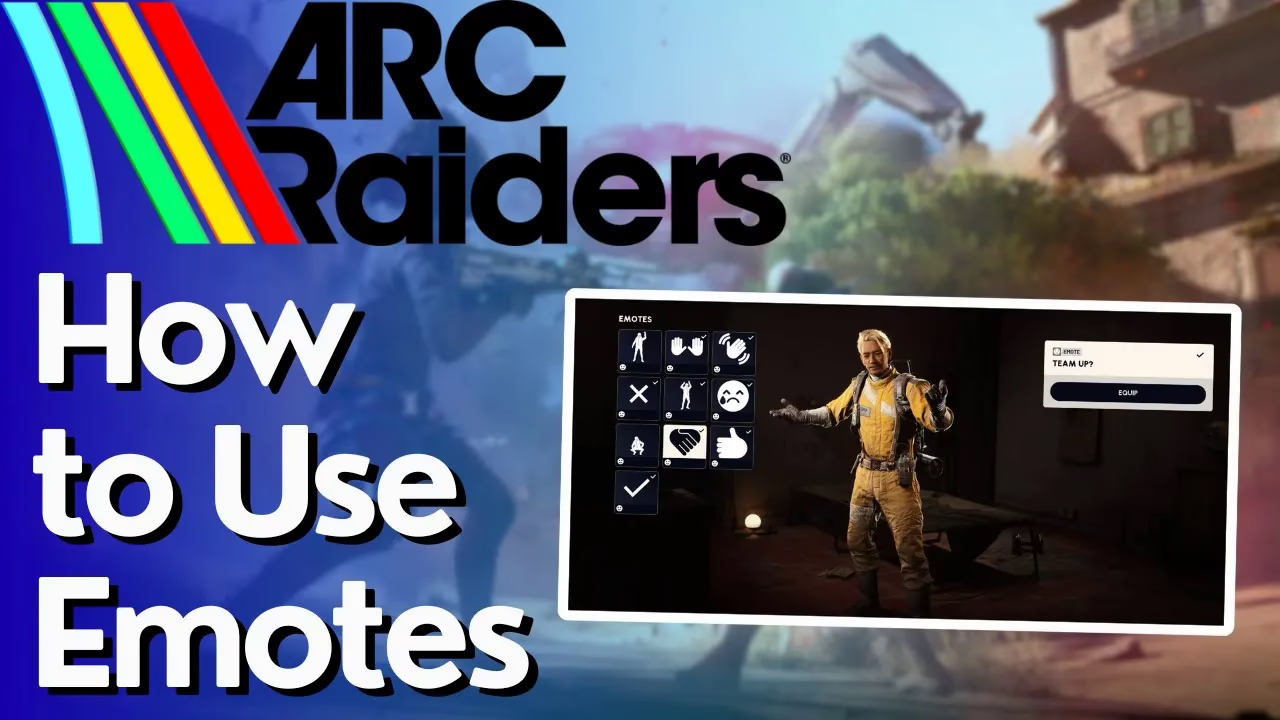
Emoting is a great way to communicate with your teammates in ARC Raiders without using voice chat.
This guide will walk you through everything you need to know about using emotes, including the default
keybind and how to customize it if needed.
Default Emote Keybind
By default, the emote key is G (Golf) on your keyboard. Once you press this key,
you can use your scroll wheel to cycle through various emote options.
Some of the emotes available include:
- Don’t Shoot
- Team Up
- Greet
- Thank You
- And more
Simply scroll through the options to select the emote you want to use, then confirm your selection.
Finding the Emote Keybind in Settings
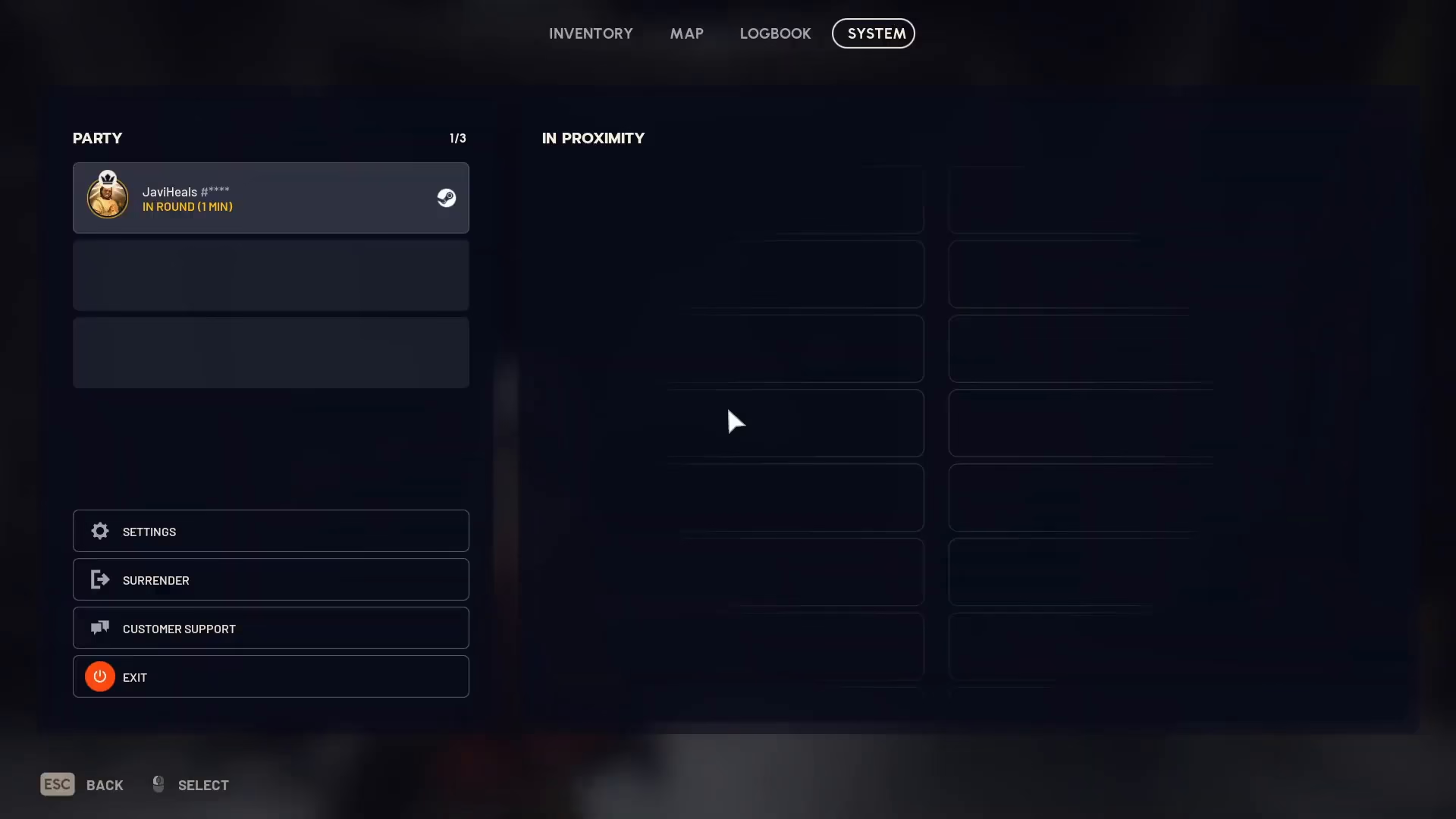
If you’re unsure where the emote keybind is located or want to customize it, you can find it in your
game settings. Navigate to Settings and then select Controls.
Scroll down through the control options until you reach the bottom of the list. The emote keybind
is labeled as “Emote” and is located in the Emote mode section
at the very bottom of your available options.
Summary
Emoting in ARC Raiders is simple and straightforward. Press the default G key to
open the emote wheel, use your scroll wheel to select from the available emotes, and communicate
with your team. If you need to change the keybind, you can easily do so through Settings > Controls.
Now you’re ready to emote like a pro!
Want to Support?
If you would like to help us continue making these guides – please consider joining our patreon here – https://www.patreon.com/c/JaviHeals
Alternatively – you can join our discord here – https://discord.gg/zD7Gjt6MHF
“`