





How To Enable Voice Chat In Phasmophobia
How To Enable Voice Chat In Phasmophobia
Voice chat is an essential feature for team communication in Phasmophobia. Whether you prefer push-to-talk or voice activation, this guide will walk you through the simple steps to enable and configure voice chat settings in your game.
Accessing Voice Chat Settings
To begin, press the Escape key to open your in-game menu.
From the menu, navigate to Options.
Configuring Voice Input Mode
Once in the Options menu, select Audio to access the audio settings.
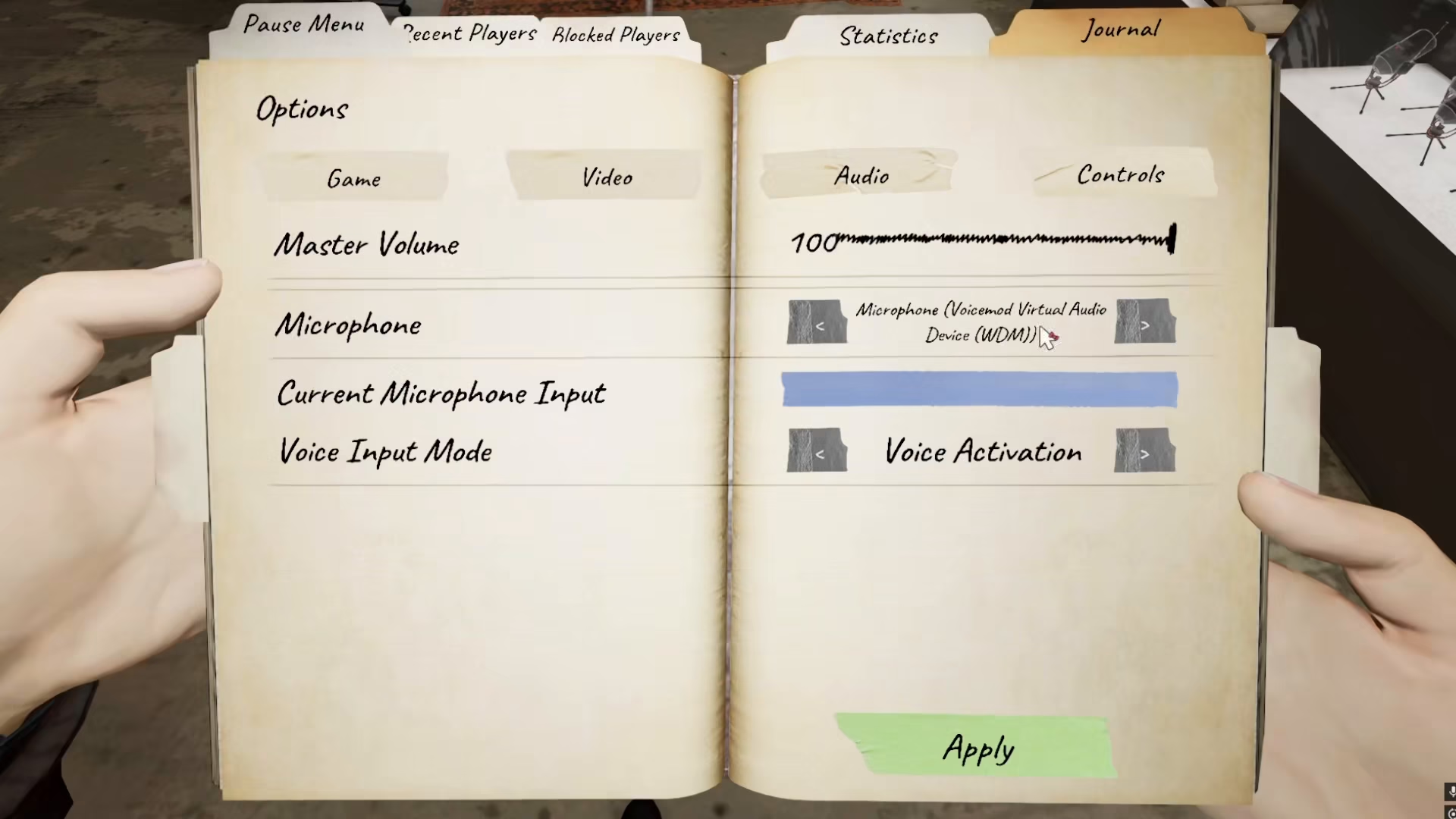
In the Audio section, you’ll find the Voice Input Mode setting. This is where you control how you communicate with other players.
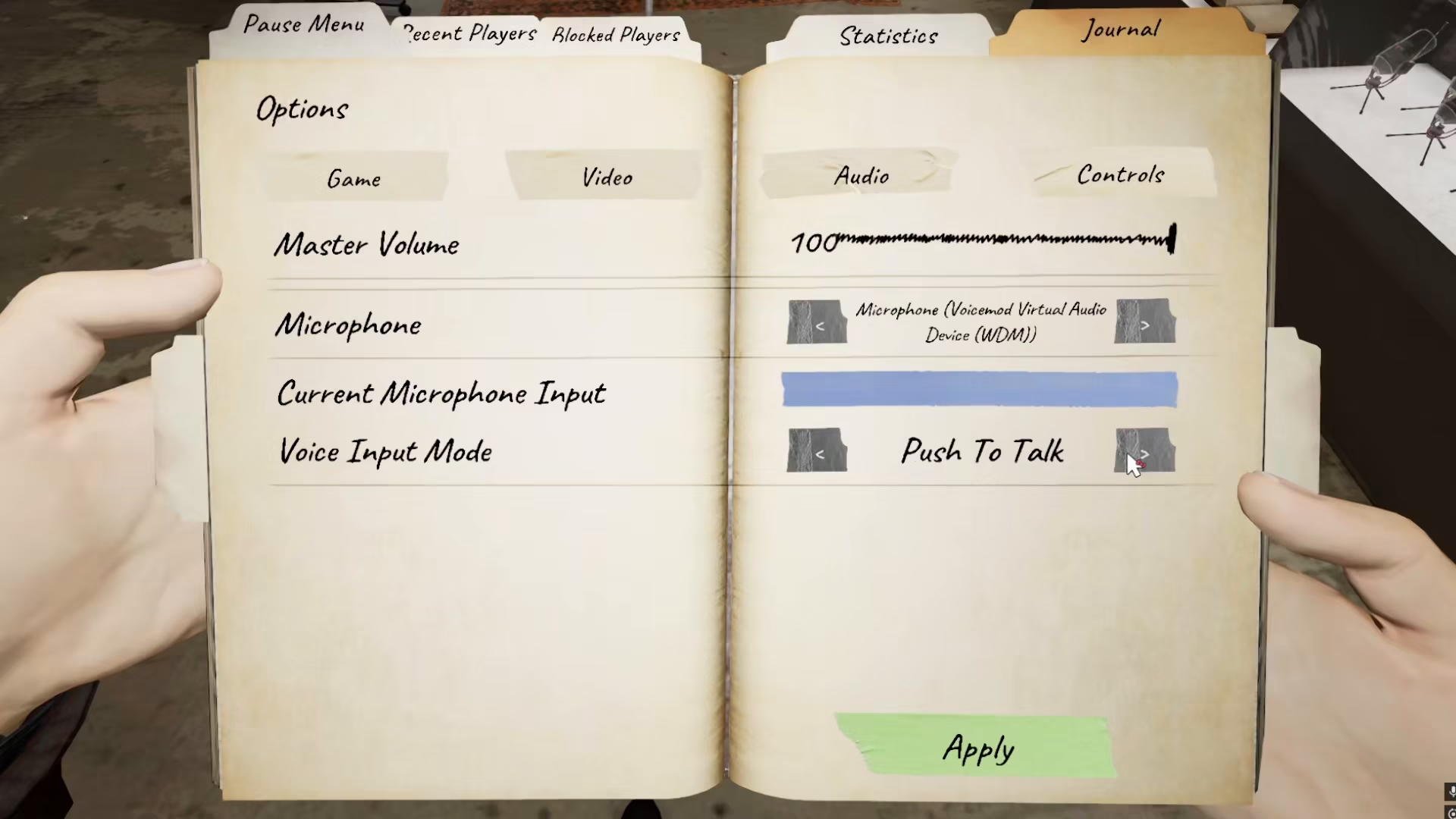
Voice Input Mode Options
You have several options to choose from:
Push To Talk — Press the W key to talk in the game
Voice Activation — Your microphone activates automatically when you speak
Additional Voice Chat Options
Beyond the voice input mode, you have additional communication options available:
Microphone Muting
You can mute your microphone at any time if you need to disable voice communication temporarily.
Text Chat Alternative
Text chat is available as an alternative communication method. However, it’s important to note that text chat is limited to communication with ghosts only—not with your teammates. For team coordination, voice chat remains the primary method.
Summary
Enabling voice chat in Phasmophobia is straightforward. Simply access your Options menu, go to Audio settings, and select your preferred Voice Input Mode between Push To Talk and Voice Activation. Remember to use voice chat for team communication and keep your microphone settings adjusted based on your preference and environment.
Want to Support?
If you would like to help us continue making these guides – please consider joining our patreon here – https://www.patreon.com/c/JaviHeals
Alternatively – you can join our discord here – https://discord.gg/zD7Gjt6MHF