How To Limit Fps In Bloons TD6
How to Limit FPS in Bloons TD6
Looking to optimize your Bloons TD6 experience? Limiting your frame rate can help reduce strain on your system and provide a more consistent gameplay experience. This guide will walk you through the simple steps to cap your FPS directly within the game settings.
Accessing the Settings Menu
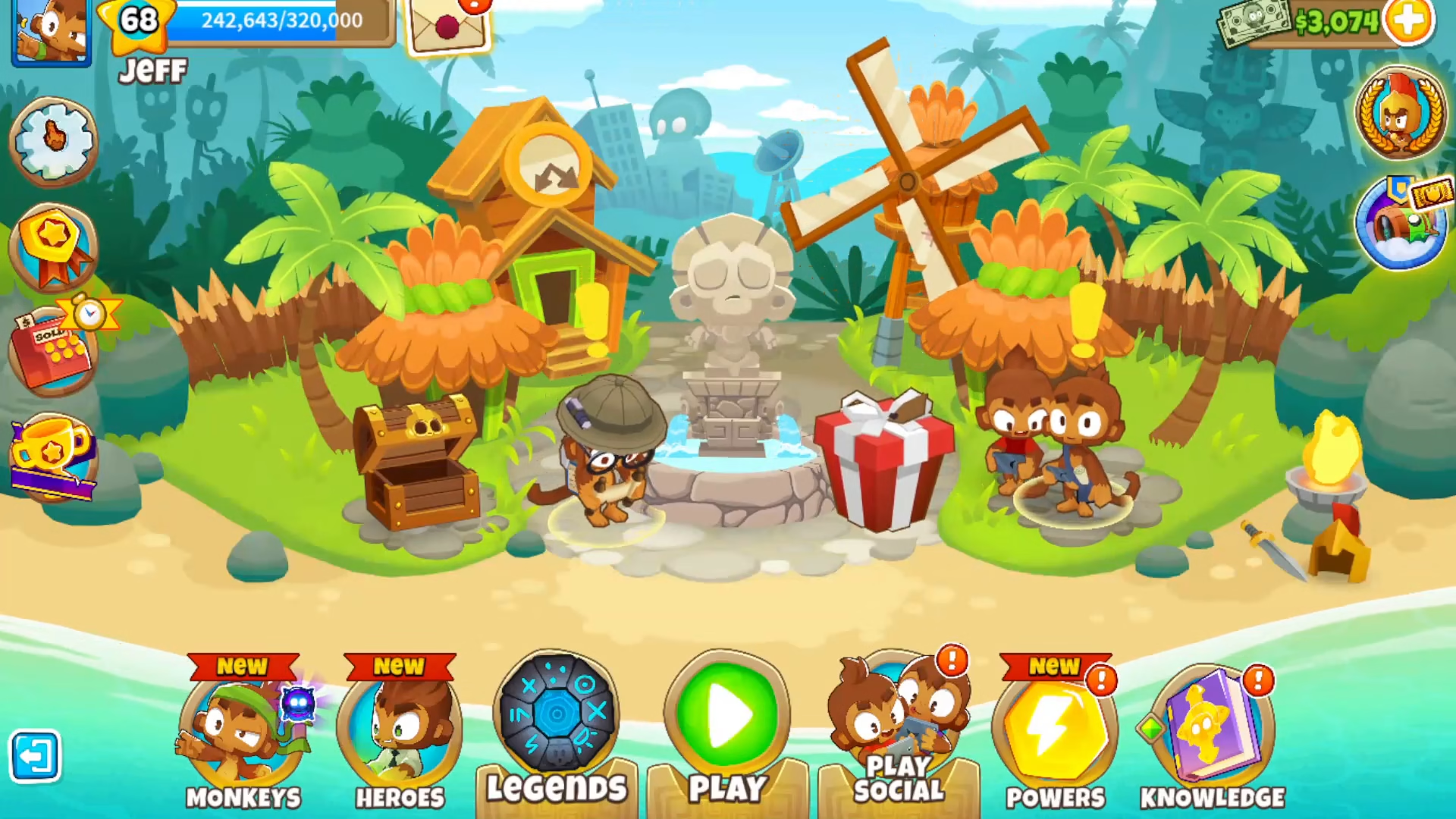
Start by launching Bloons TD6 and navigating to the main menu. From here, you’ll need to click on the Settings icon to access the game’s configuration options.
Locating the Screen Size Options
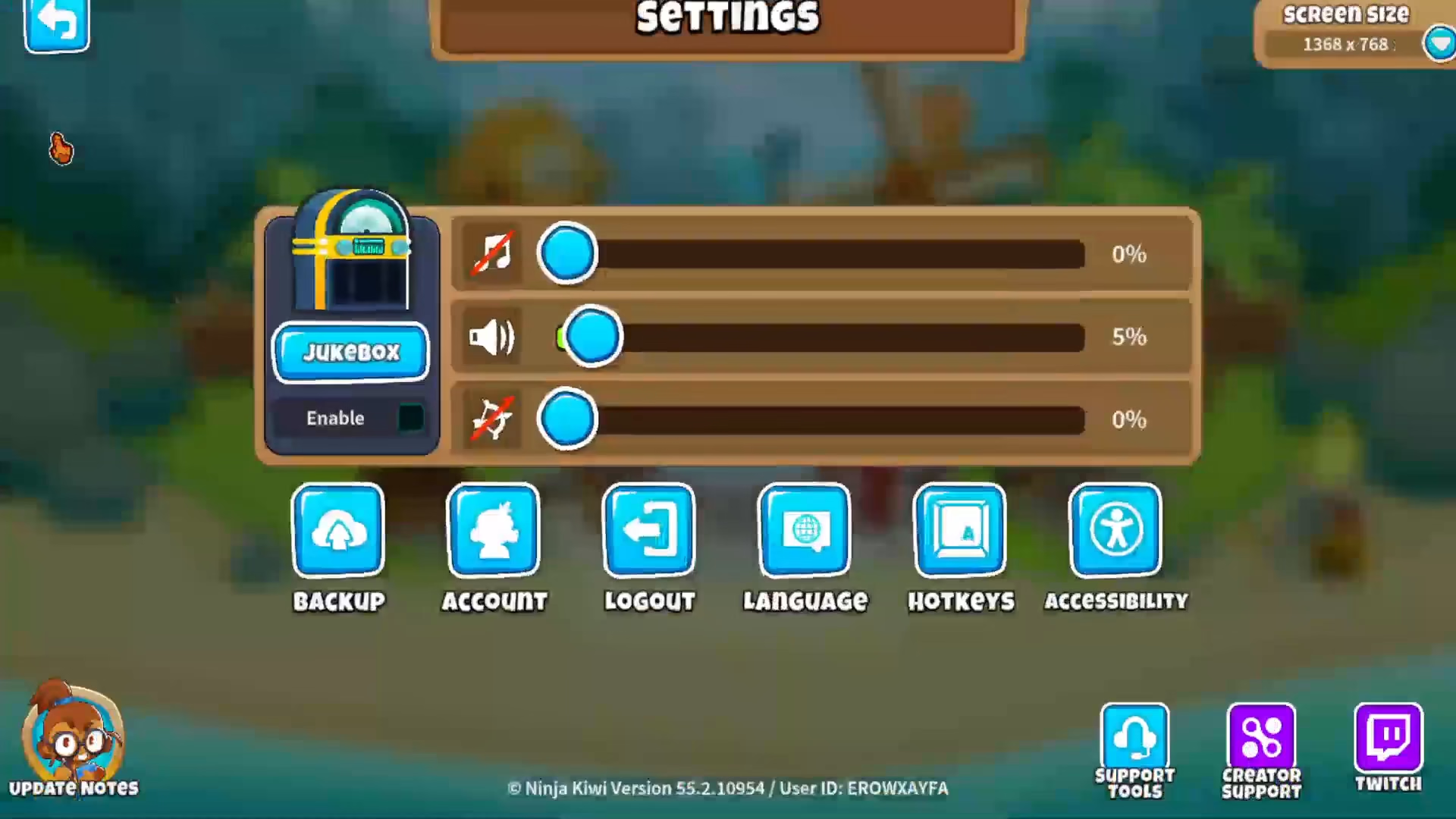
Once you’re in the Settings menu, look toward the top right corner of the screen. You’ll see an option labeled Screen Size. Click on the dropdown menu to reveal the available frame rate options.
Capping Your FPS to 60
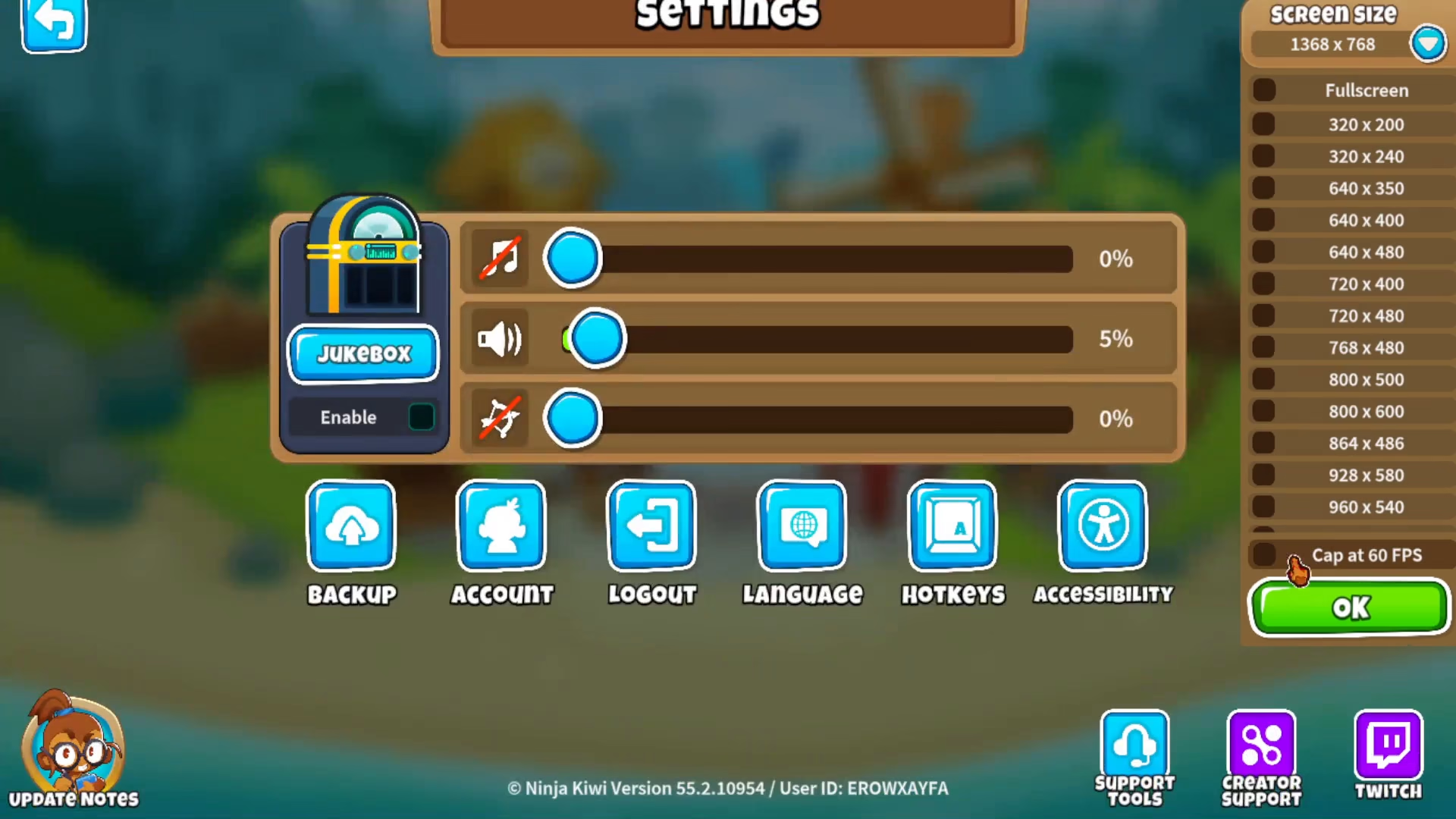
In the dropdown menu that appears, you’ll find the option to Cap at 60 FPS. Select this option and then click the OK button to apply the changes. Your game will now run with a maximum frame rate of 60 FPS.
Alternative Frame Rate Options
If you want to set your frame rate to something other than 60 FPS, the in-game settings may be limited. In this case, you’ll have better success using external programs such as RivaTuner. Additionally, if you’re using an Nvidia or AMD graphics card, there are specific drivers and control panel settings available for both manufacturers that allow more granular FPS control.
Conclusion
Capping your FPS in Bloons TD6 is the easiest way to optimize performance directly within the game. The built-in 60 FPS cap works well for most players, but external tools offer additional customization if needed. With this simple adjustment, you can enjoy smoother gameplay and better system performance.
— Want to Support? —
If you would like to help us continue making these guides – please consider joining our patreon here – https://www.patreon.com/c/JaviHeals
Alternatively – you can join our discord here – https://discord.gg/zD7Gjt6MHF