





How To Turn On Friendly Ghost In Phasmophobia
How To Turn On Friendly Ghost In Phasmophobia
Enabling the Friendly Ghost option in Phasmophobia is a straightforward process that takes just a few clicks. This guide will walk you through each step to get this feature activated in your game.
Accessing the Custom Menu
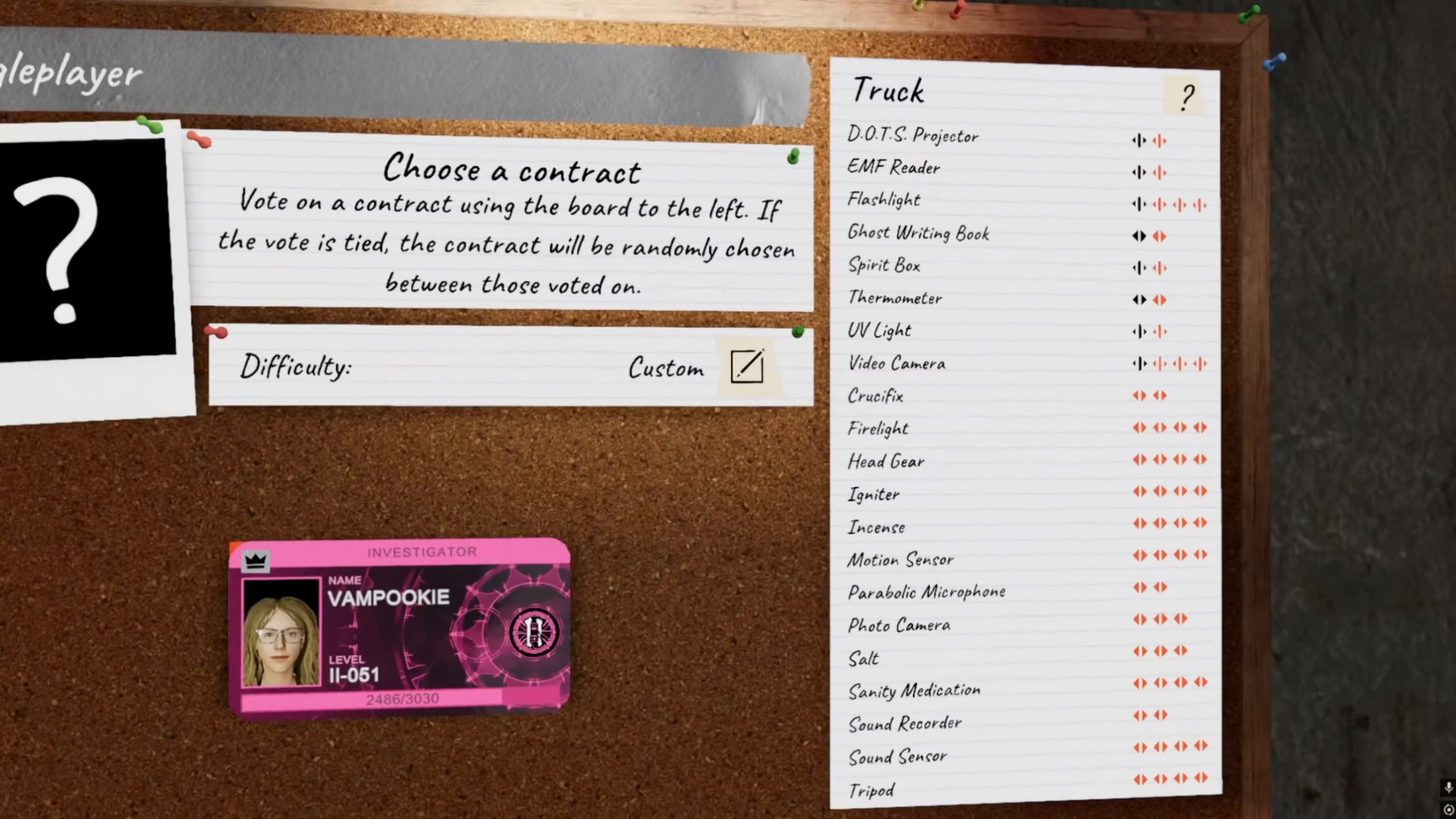
To begin, navigate to the custom menu in Phasmophobia. This is where all your game customization options are located.
Checking Custom Menu Presets
Once you’re in the custom menu, you’ll need to check the custom menu presets. This section allows you to modify various game settings and features.
Customizing Your Settings
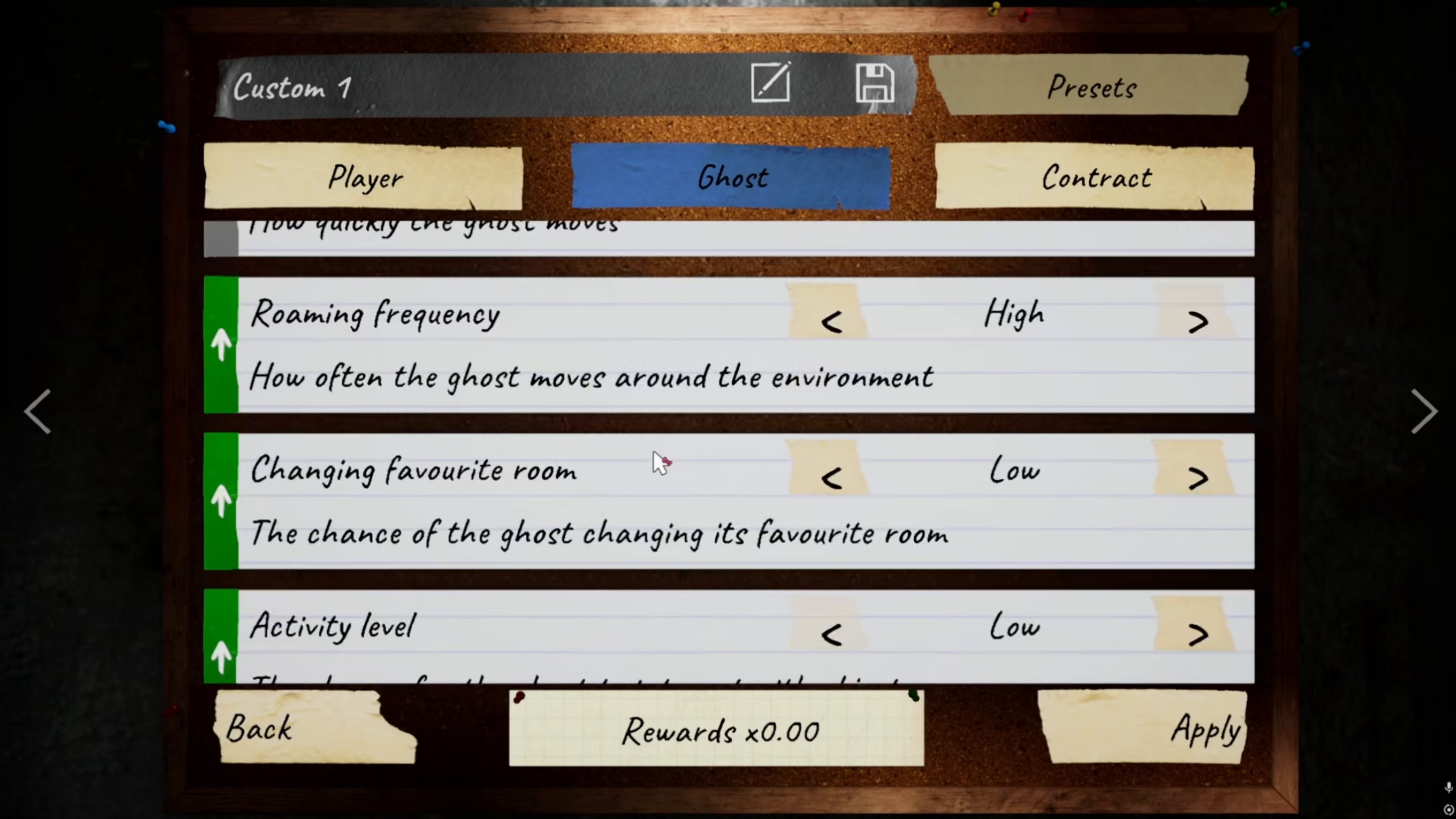
Select the customize option to access the detailed settings panel where you can make adjustments to your gameplay experience.
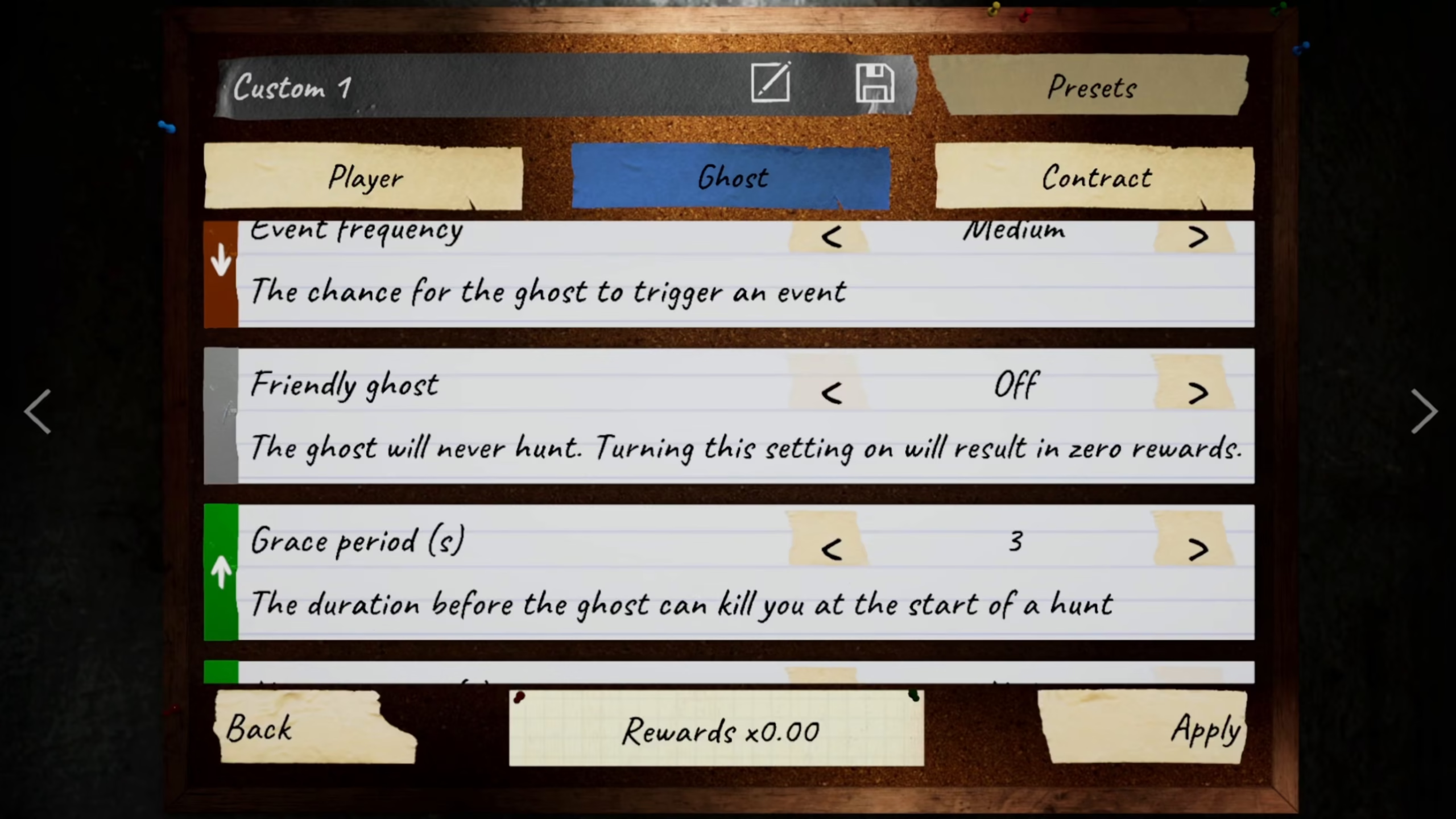
Locating the Ghost Menu
Navigate to the ghost menu within the customize section. This is where all ghost-related settings and options are organized.
Enabling Friendly Ghost
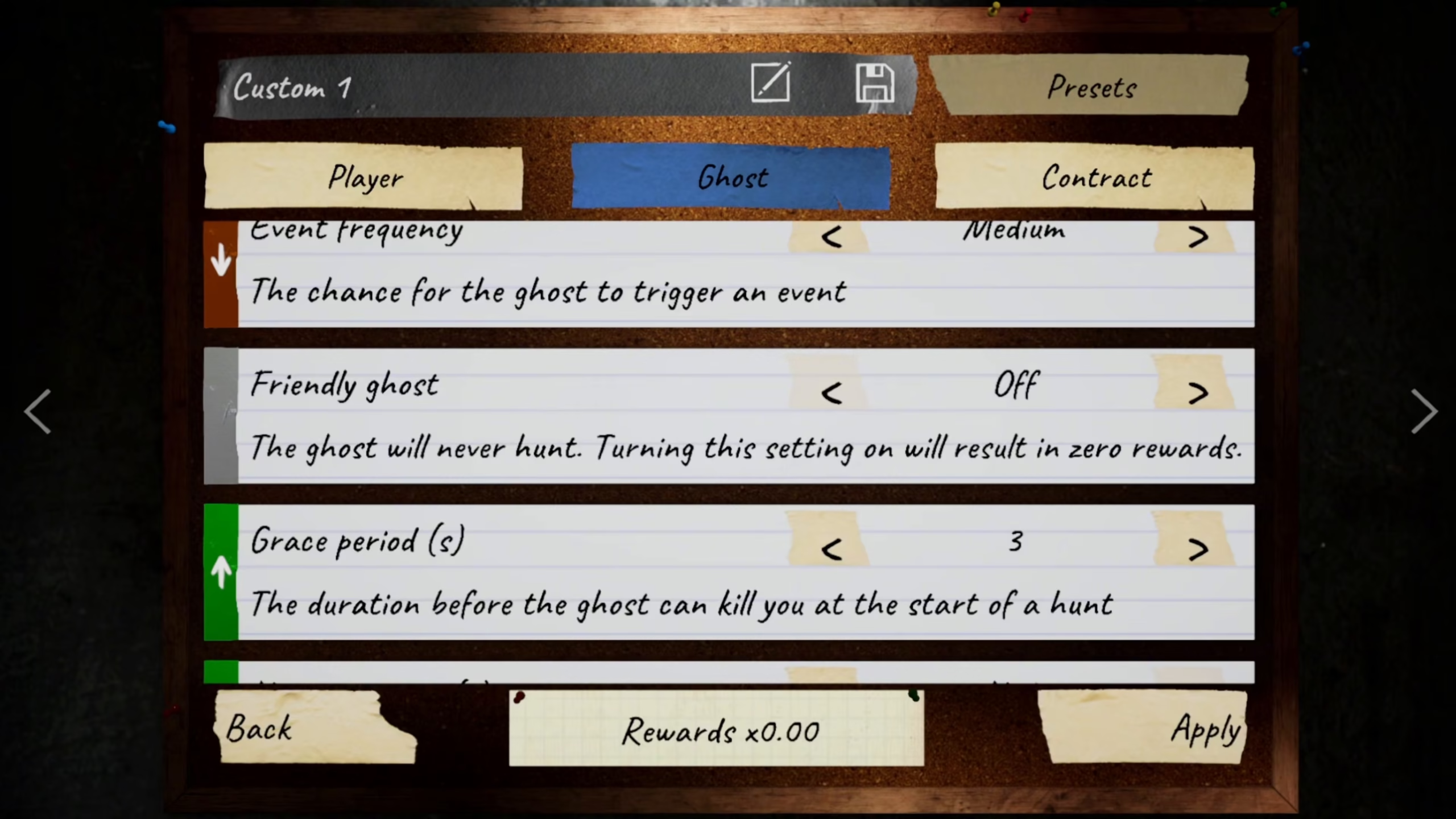
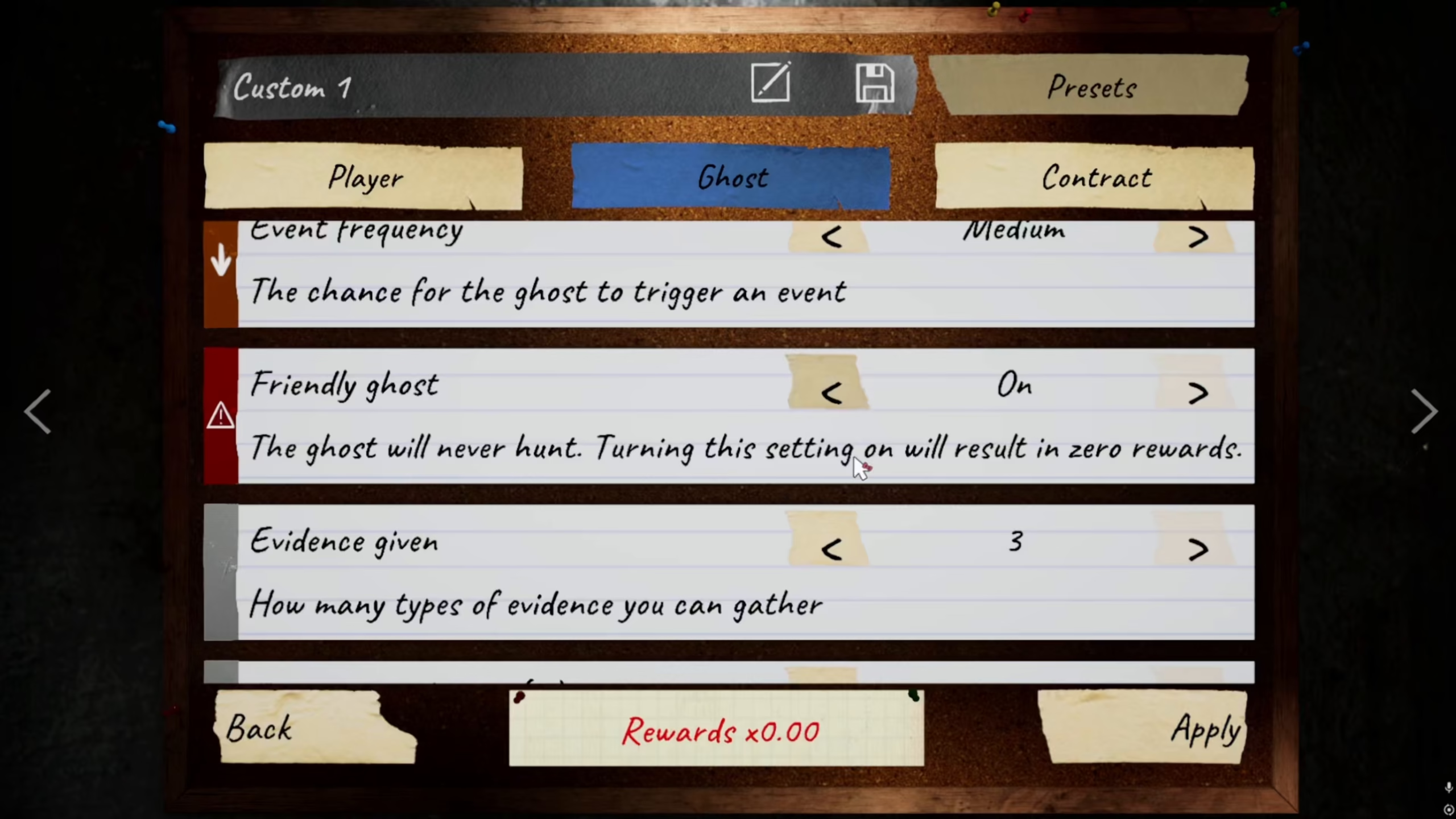
In the ghost menu, you will find the option labeled “friendly ghost.” Simply turn this option on to enable it.
Applying Your Settings
After enabling the Friendly Ghost option, make sure to apply the settings. Once applied, the Friendly Ghost feature will be active in your Phasmophobia game.
Summary
Turning on Friendly Ghost in Phasmophobia is simple: go to the custom menu, check the presets, customize your settings, navigate to the ghost menu, enable friendly ghost, and apply the changes. Your game is now ready with this feature activated.
— Want to Support? —
If you would like to help us continue making these guides – please consider joining our patreon here – https://www.patreon.com/c/JaviHeals
Alternatively – you can join our discord here – https://discord.gg/zD7Gjt6MHF